
Manage Workflows in BetterCommerce
Overview
The Workflow Management module in BetterCommerce enables organizations to define and govern product lifecycles within the Product Information Management (PIM) system. This feature streamlines processes from product creation to retirement through customizable workflow steps, transitions, role-based access controls, and rule-based validations. Each workflow is associated with a specific Product Family, ensuring tailored lifecycle management.
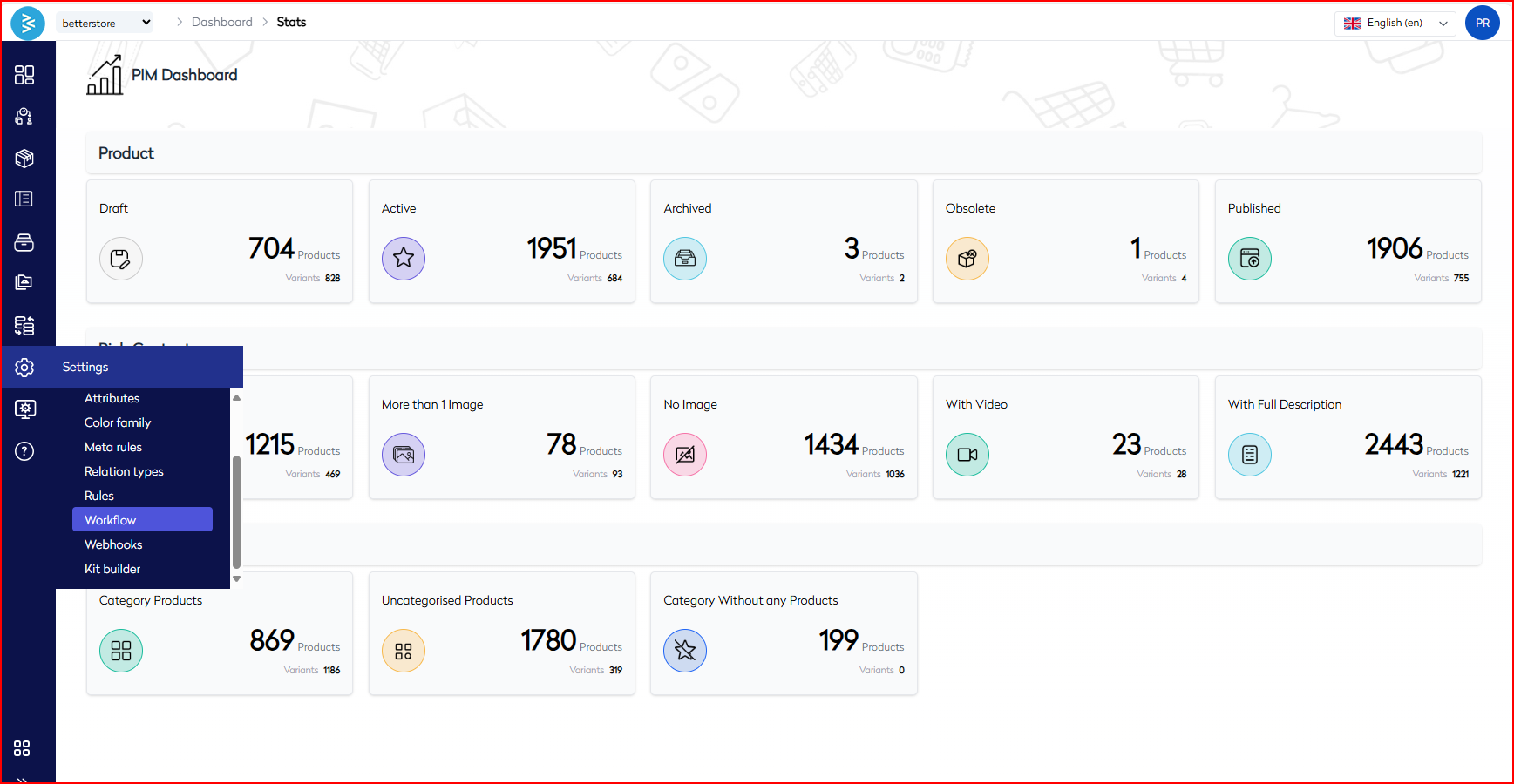
Accessing the Workflow Management Interface
-
Log in to BetterCommerce
Navigate to pim2.bettercommerce.io using your enterprise credentials to access the PIM system. -
View Existing Workflows
From the main dashboard, go to the Workflow section. The Workflow dashboard displays:- Workflow Name
- Associated Product Family
Users can search, monitor, and navigate workflows using pagination and page size controls for efficient management.
Creating a New Workflow
-
Initiate Workflow Creation
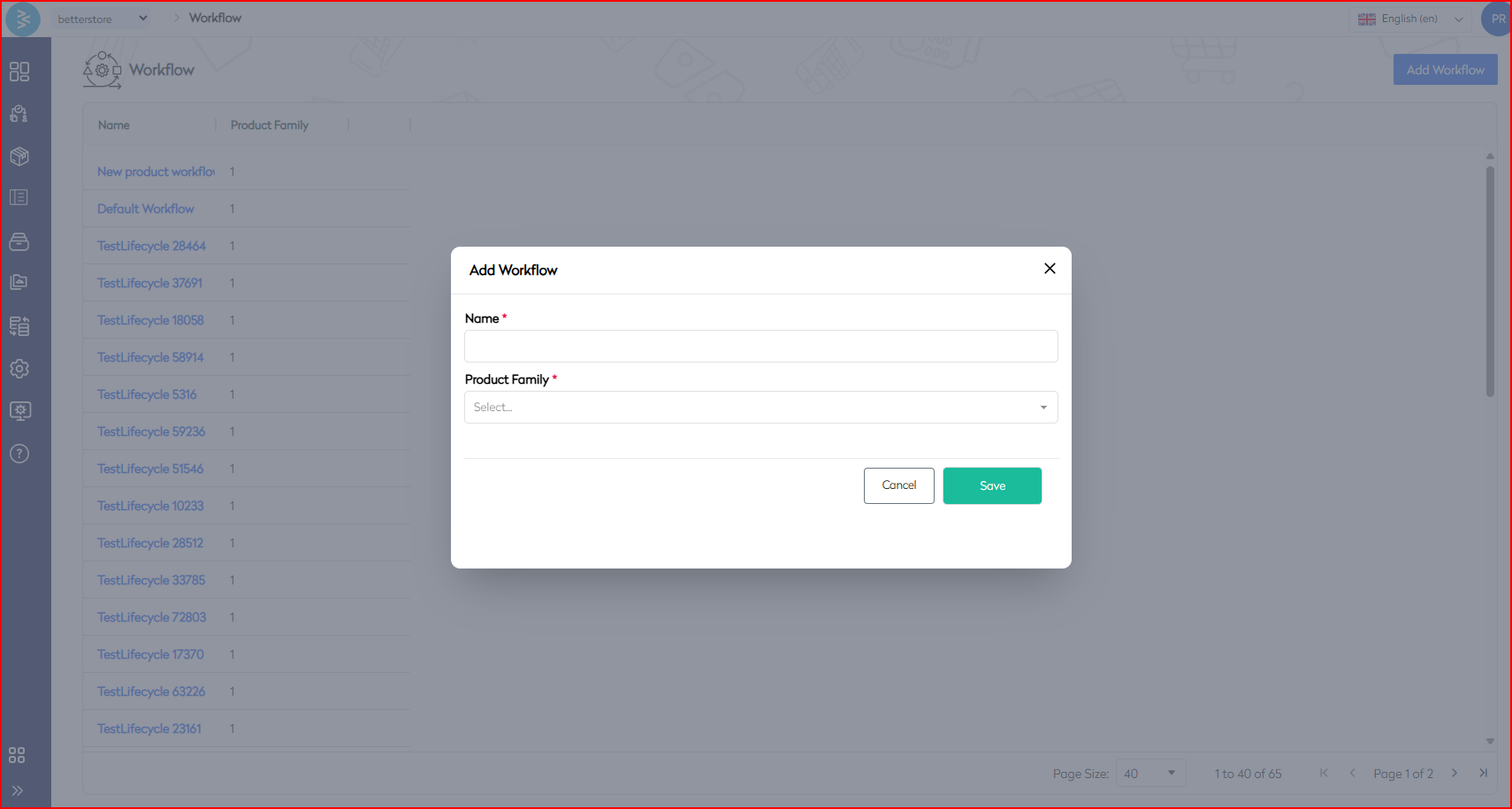
Navigate to Workflow → Click Add Workflow.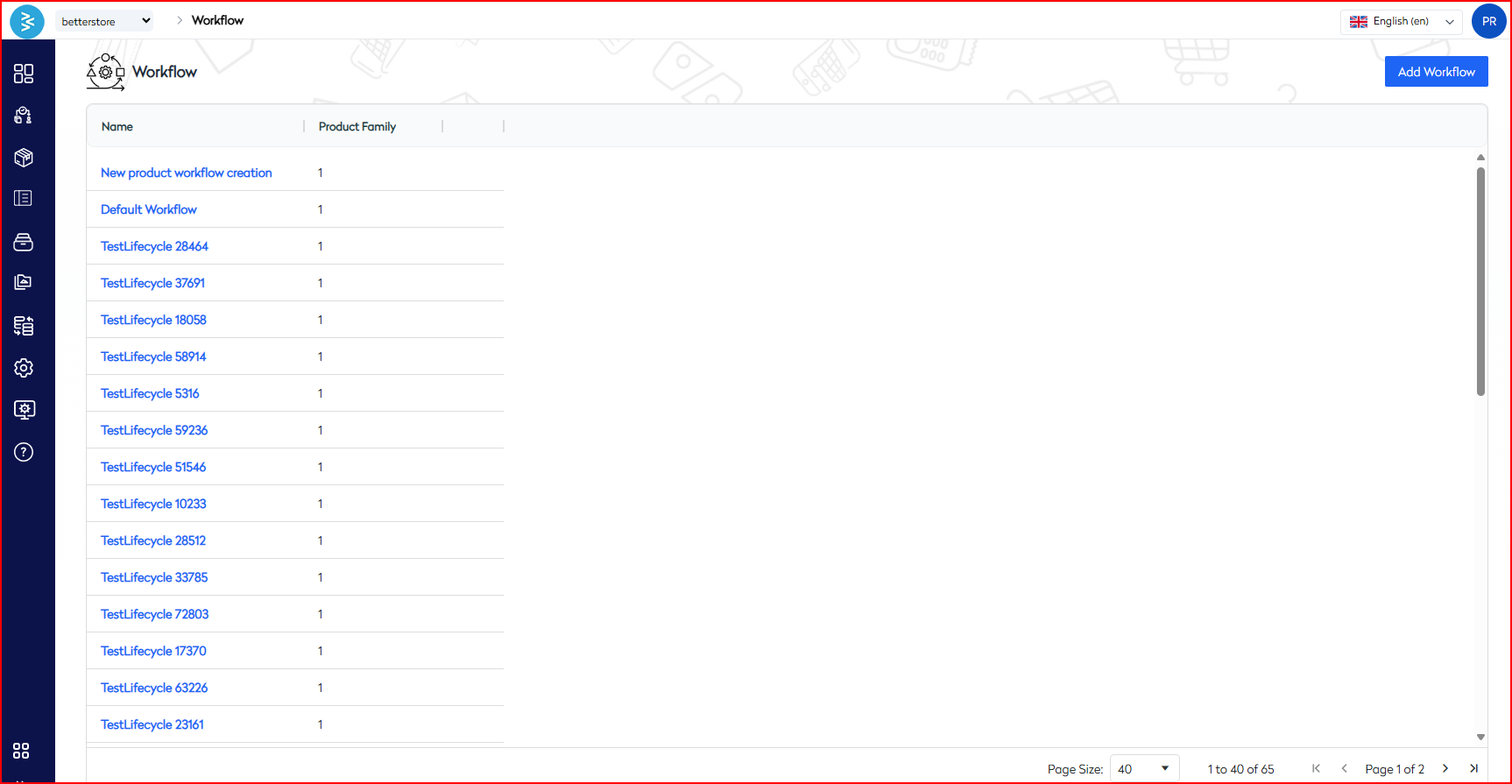
-
Configure Workflow Details
In the pop-up:- Enter a Name (e.g., "New Product Workflow Creation").
- Select a Product Family from the dropdown.
Click Save to create the workflow, which is now ready for step configuration.
Configuring Workflow Steps
-
Define Workflow Steps
Each workflow step represents a state in the product lifecycle (e.g., Draft, Active, Archived, Discontinued). Common steps include:- 🔴 Draft: Product under creation.
- 🔵 Active: Product live and visible on the storefront.
- 🟣 Archived: Product deprecated but retained for reference.
- 🟢 Discontinued: Product permanently removed from the catalog.
- and so on ....
-
Customize Workflow Steps
Configure each step with the following controls:Field Description Name The label for the step (e.g., Draft). Label Color Select a visual indicator from a palette of 20+ colors. Transitions To Specify which steps this stage can transition to (e.g., Draft → Active). Roles That Can Work Restrict visibility/editability to specific user roles (e.g., Admin, Product Manager). Validation Rule Enforce data integrity with rules (e.g., mandatory fields like pricing). Steps to Configure a Step:
- Click the ➕ icon to add a new step.
- Define:
- Step Name
- Color for visual identification.
- Allowed Transitions to other steps.
- Roles authorized to manage the step.
- Validation Rule to ensure data completeness.
- Click Save to apply changes.
Example: Configure a "Draft" step (purple) that transitions to "Active," editable only by "Product Manager," with a validation rule ensuring pricing is set.
Use Cases
- Product Governance: Enforce structured processes for product creation, review, and publishing.
- Regional Management: Create distinct workflows for different product families or regions.
- Multi-Role Collaboration: Assign specific lifecycle stages to Marketing, Data, or Legal teams.
- Audit Compliance: Use transitions and validation rules to ensure proper data entry and approval before publication.
Best Practices
- Clear Naming: Use descriptive, intuitive step names to avoid confusion.
- Color Coding: Assign distinct colors to steps for quick recognition in dashboards.
- Role-Based Permissions: Restrict access to authorized roles to prevent unauthorized changes.
- Defined Transitions: Ensure clear transition paths to avoid workflow bottlenecks.
- Validation Rules: Implement rules to enforce mandatory data (e.g., images, prices) before products go live.
Summary
The Workflow Management feature in BetterCommerce provides a robust framework for managing product lifecycles. By creating workflows tied to specific Product Families, administrators can define customizable steps (e.g., Draft, Active, Discontinued), configure transitions, assign role-based permissions, and enforce data validation. This ensures operational efficiency, reduces manual errors, and maintains high product data quality across channels. The module supports diverse use cases, from governance and compliance to regional and collaborative workflows.