Manage Custom Attributes Guide
This guide provides detailed instructions for managing custom attributes in BetterCommerce, enabling efficient customization of product data. Follow the steps below to navigate the settings, add attributes, and configure field names and codes.
Step-by-Step Instructions
Step 1: Access the Settings Menu
Navigate to the BetterCommerce PIM platform by visiting pim2.bettercommerce.io and go to the Settings menu.
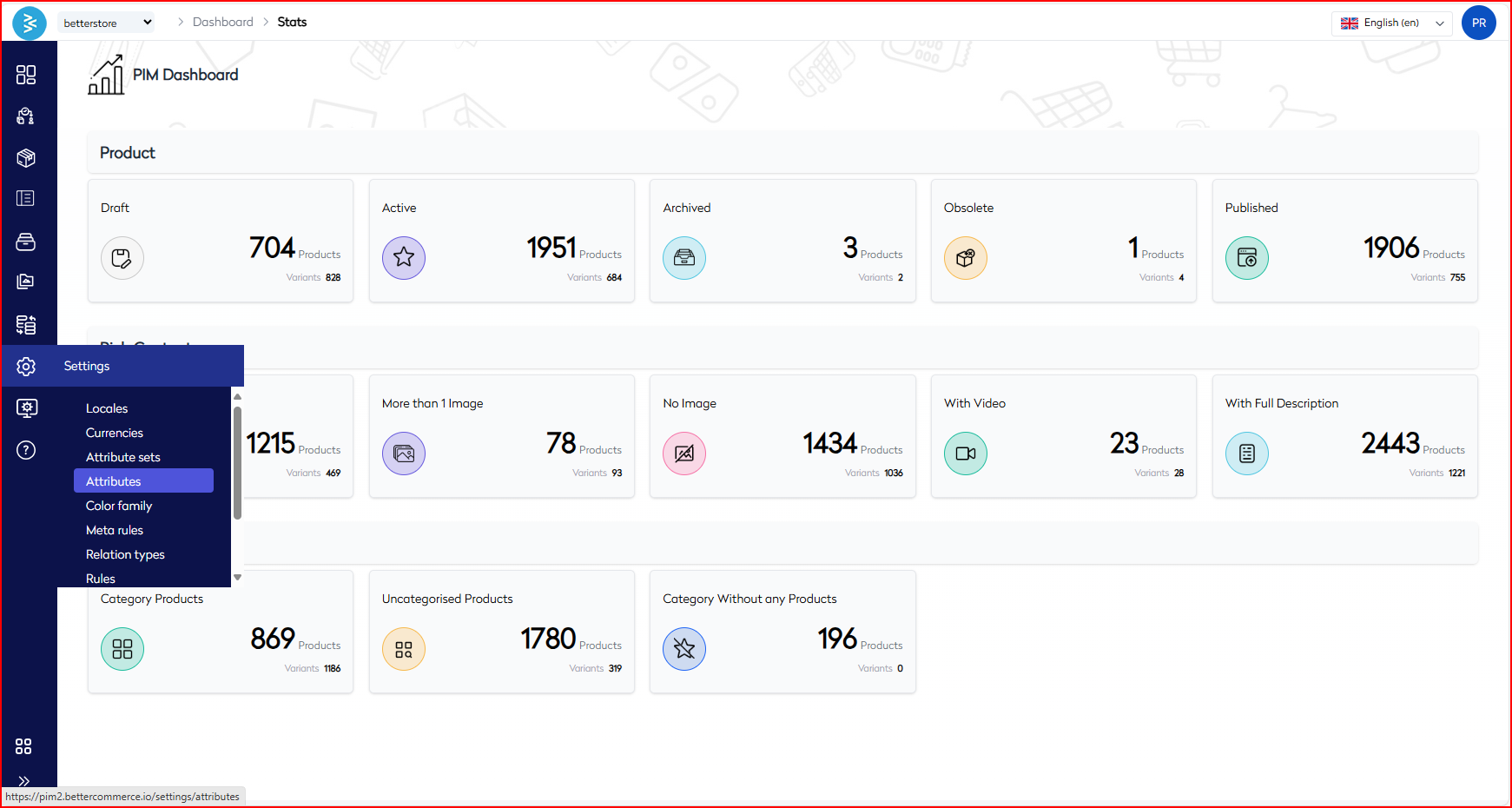
Step 2: Navigate to the Attributes Section
Locate and click the Attributes option to access the attributes management area.

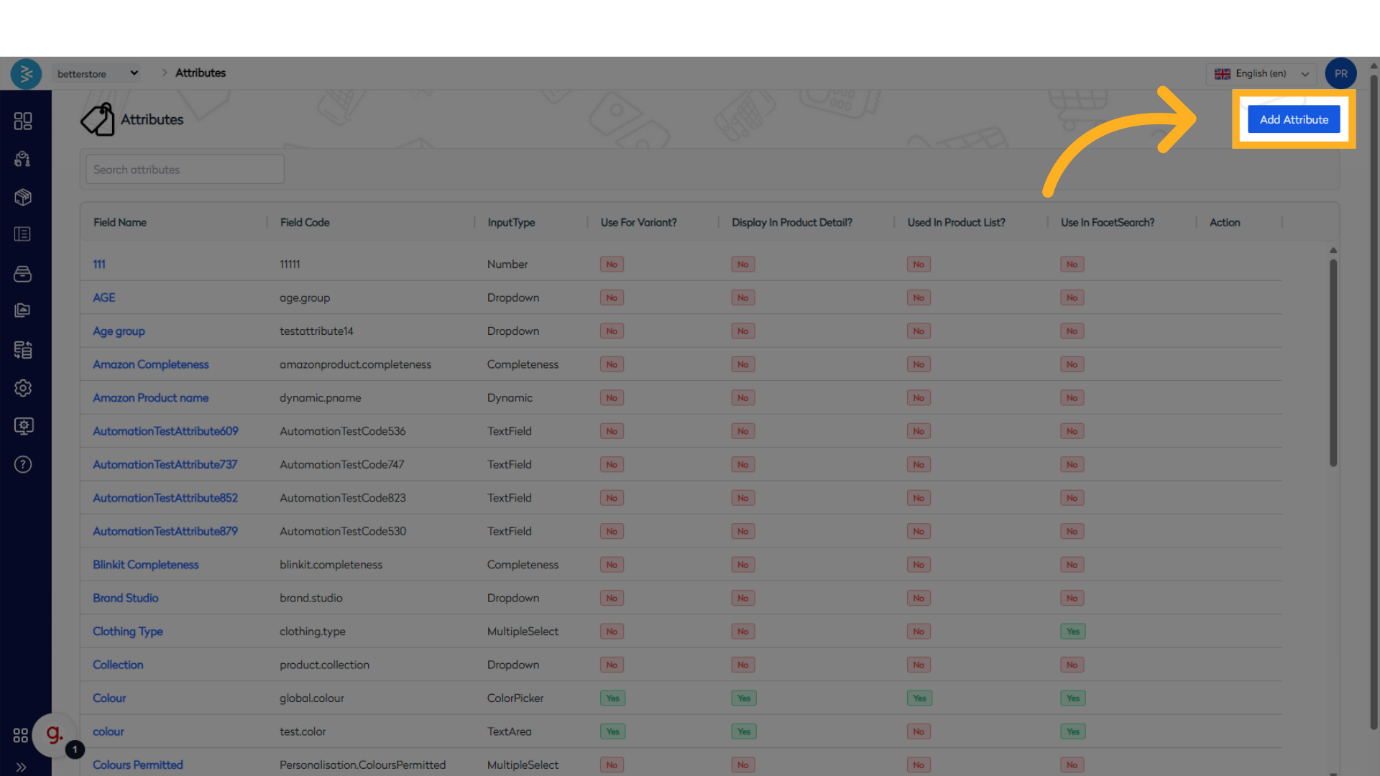
Step 3: Initiate Adding a New Attribute
Click the Add Attribute button to start the process of creating a new custom attribute.
Step 4: Provide a Field Name
Click on the Field Name input and enter a field name of your choice.
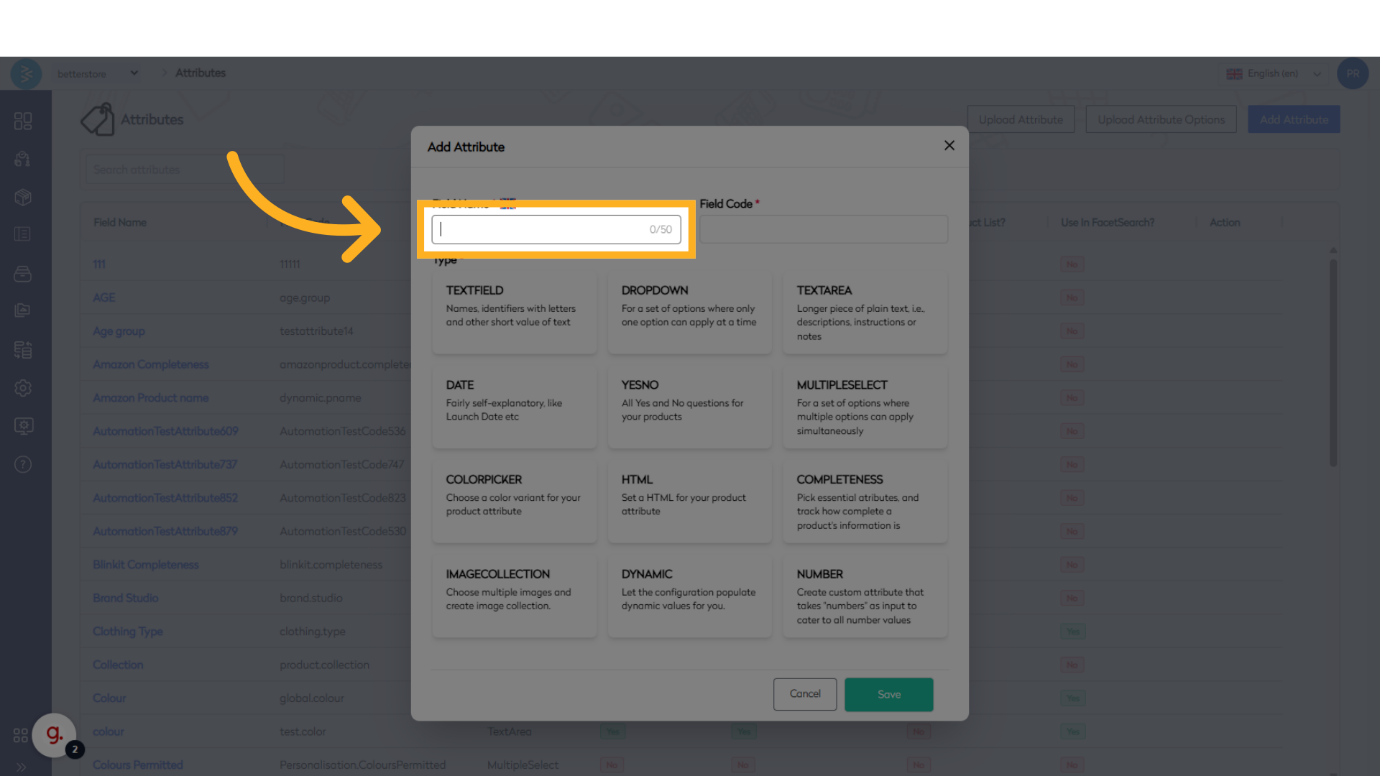
Step 5: Specify a Field Code
Click on the Field Code input and provide a code. The code can match the field name but must replace any spaces with a period (.) or underscore (_).

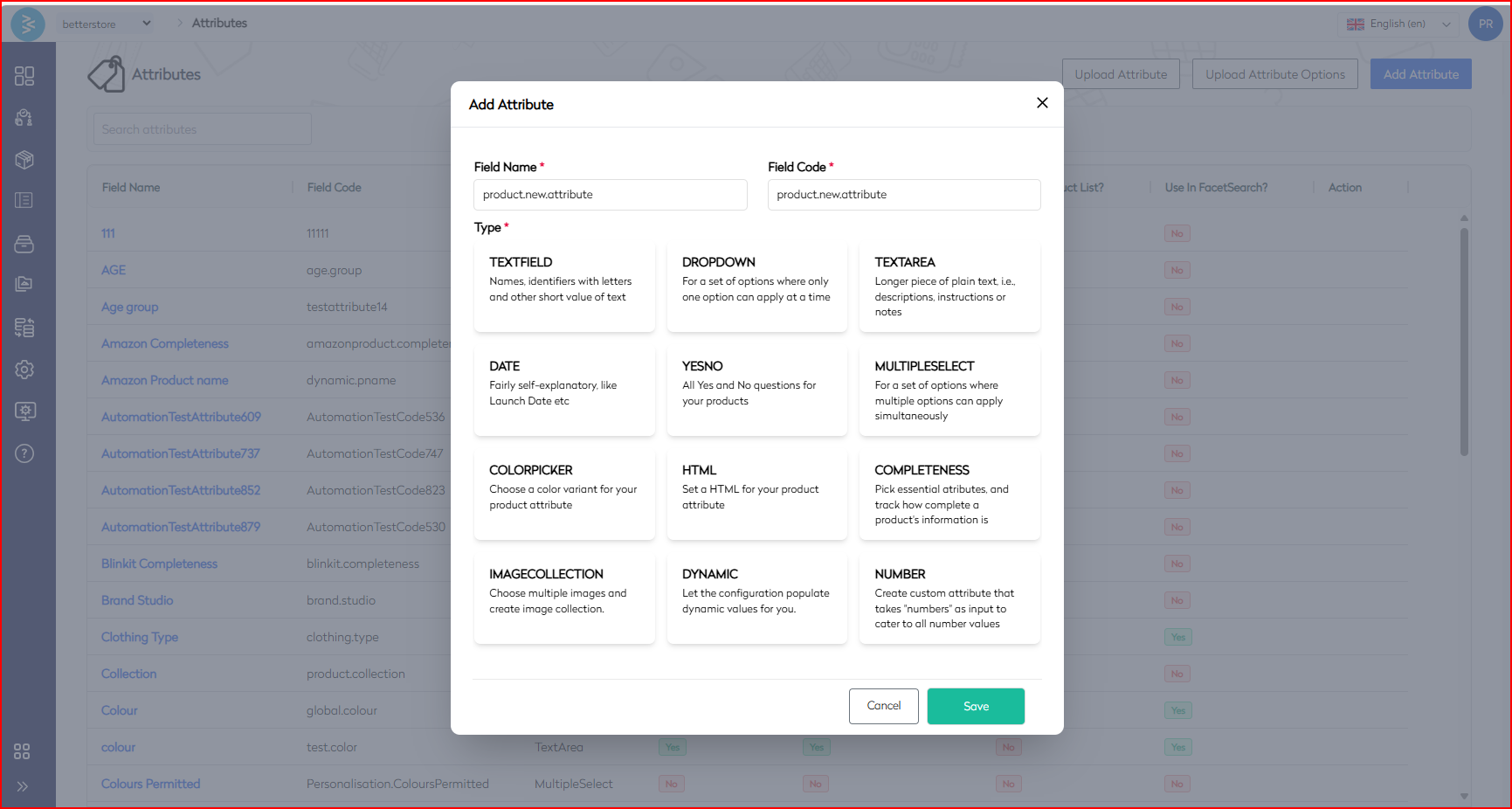
Note: Multiple options are available to create custom attributes based on specific requirements.

Step 6: Save the Attribute
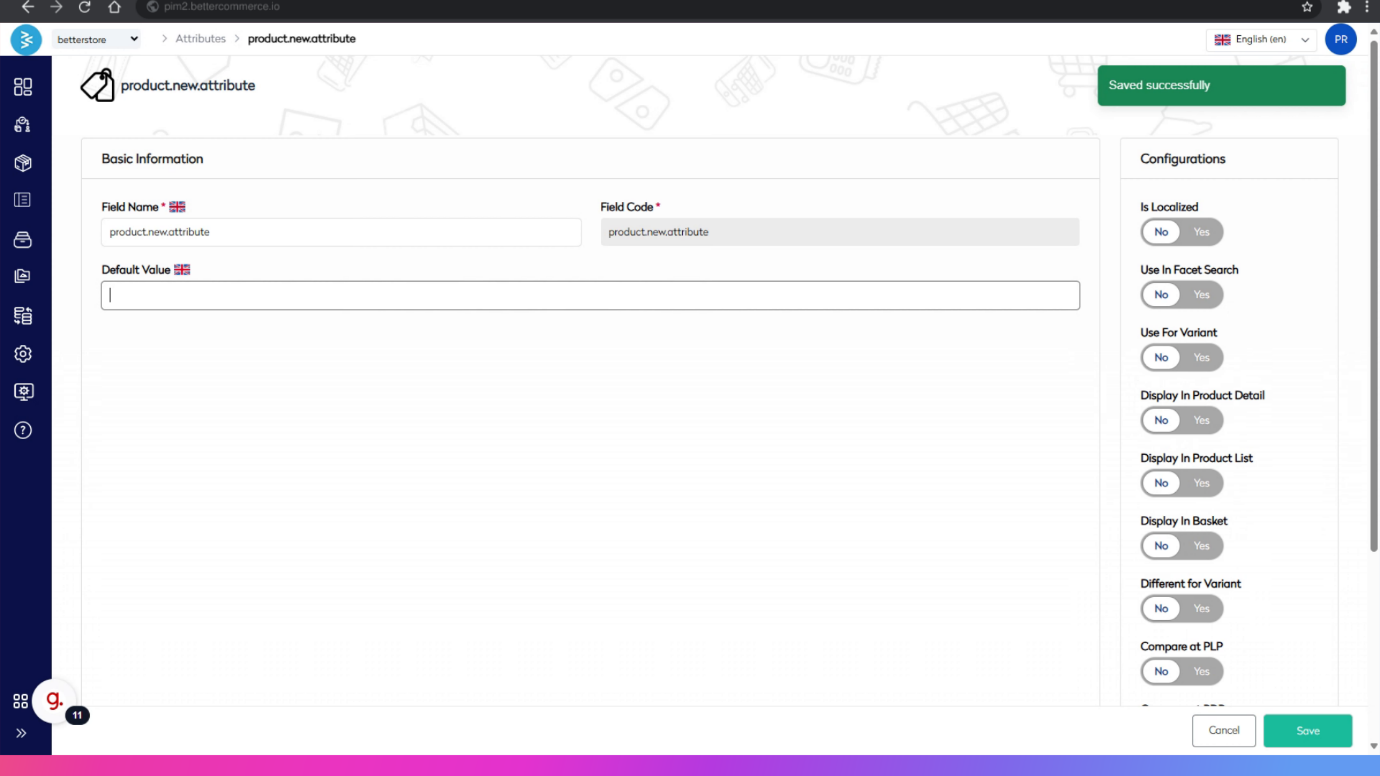
After entering the field name and field code, click the Save button to store the new custom attribute.

Summary
This guide outlined the process of managing custom attributes in BetterCommerce, covering navigation to the attributes section, adding new attributes, configuring field names and codes, and saving the changes. By following these steps, you can efficiently customize attributes to meet your product management needs.