
Edit Supplier Guide
This guide provides detailed instructions for editing supplier information in BetterCommerce, enabling efficient management of supplier data. Follow the steps below to access the supplier section, update details, manage price lists, and import data via CSV.
Step-by-Step Instructions
Step 1: Access the Suppliers Section
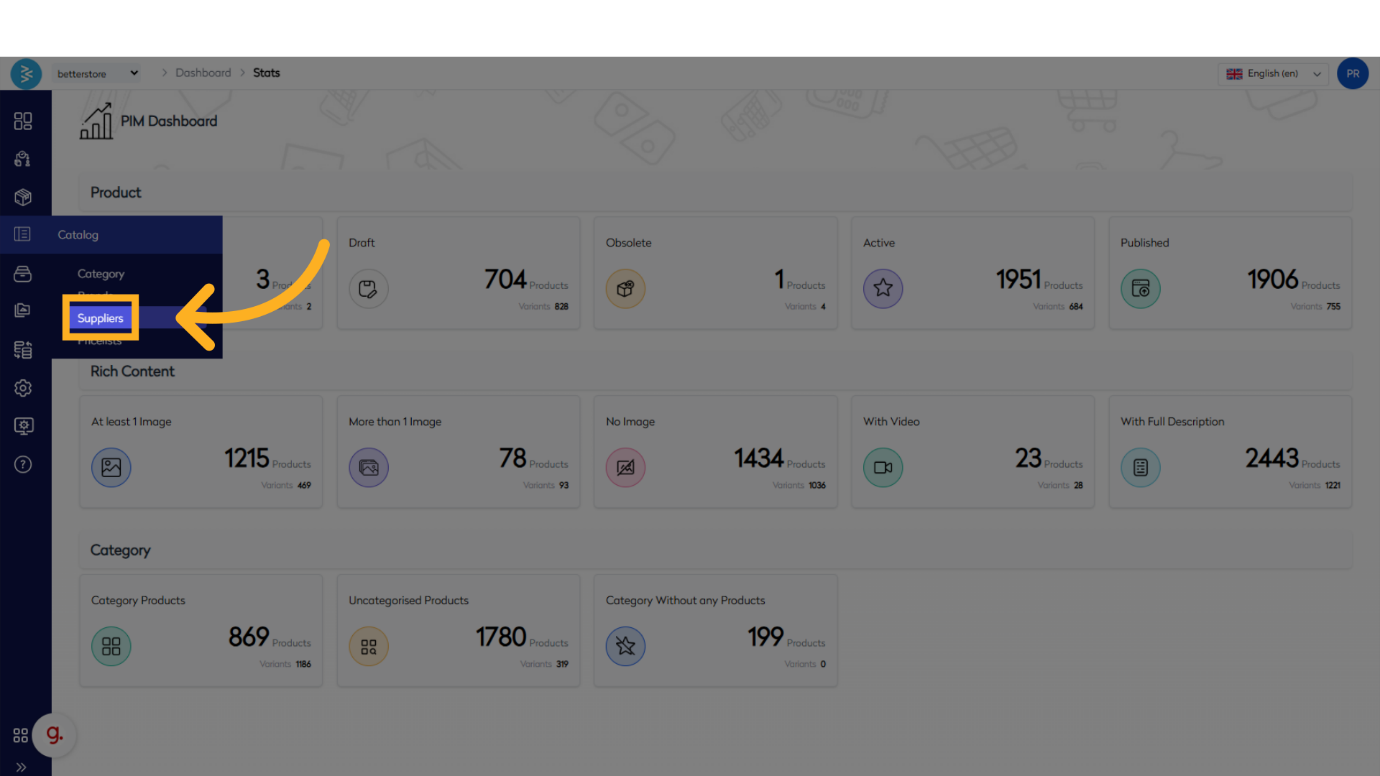
Navigate to the BetterCommerce PIM platform by visiting pim2.bettercommerce.io. Click on the Catalog menu and select the Suppliers option to access the supplier management area.
Step 2: Select the Supplier
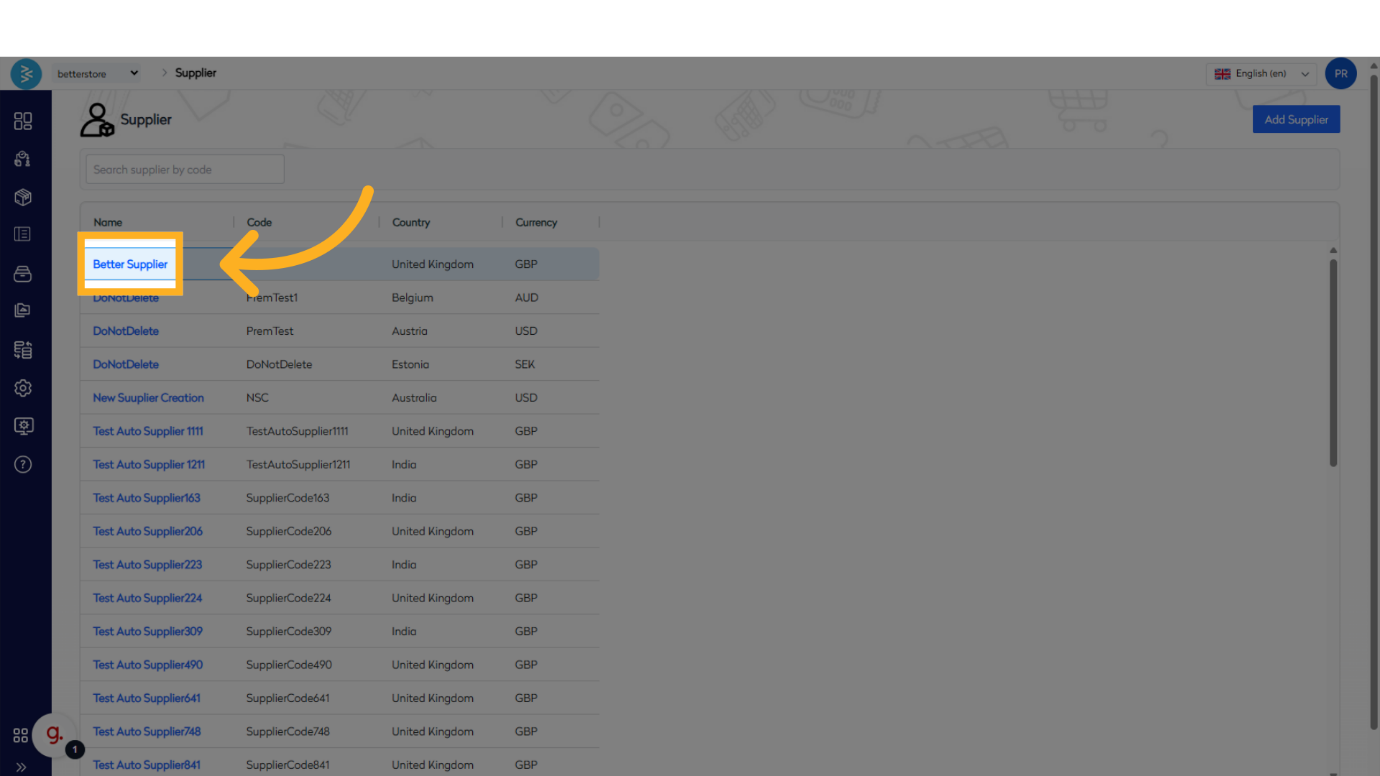
From the supplier list, click on the name of the supplier you wish to edit. This will open the supplier detail page.
Step 3: Edit Supplier Information
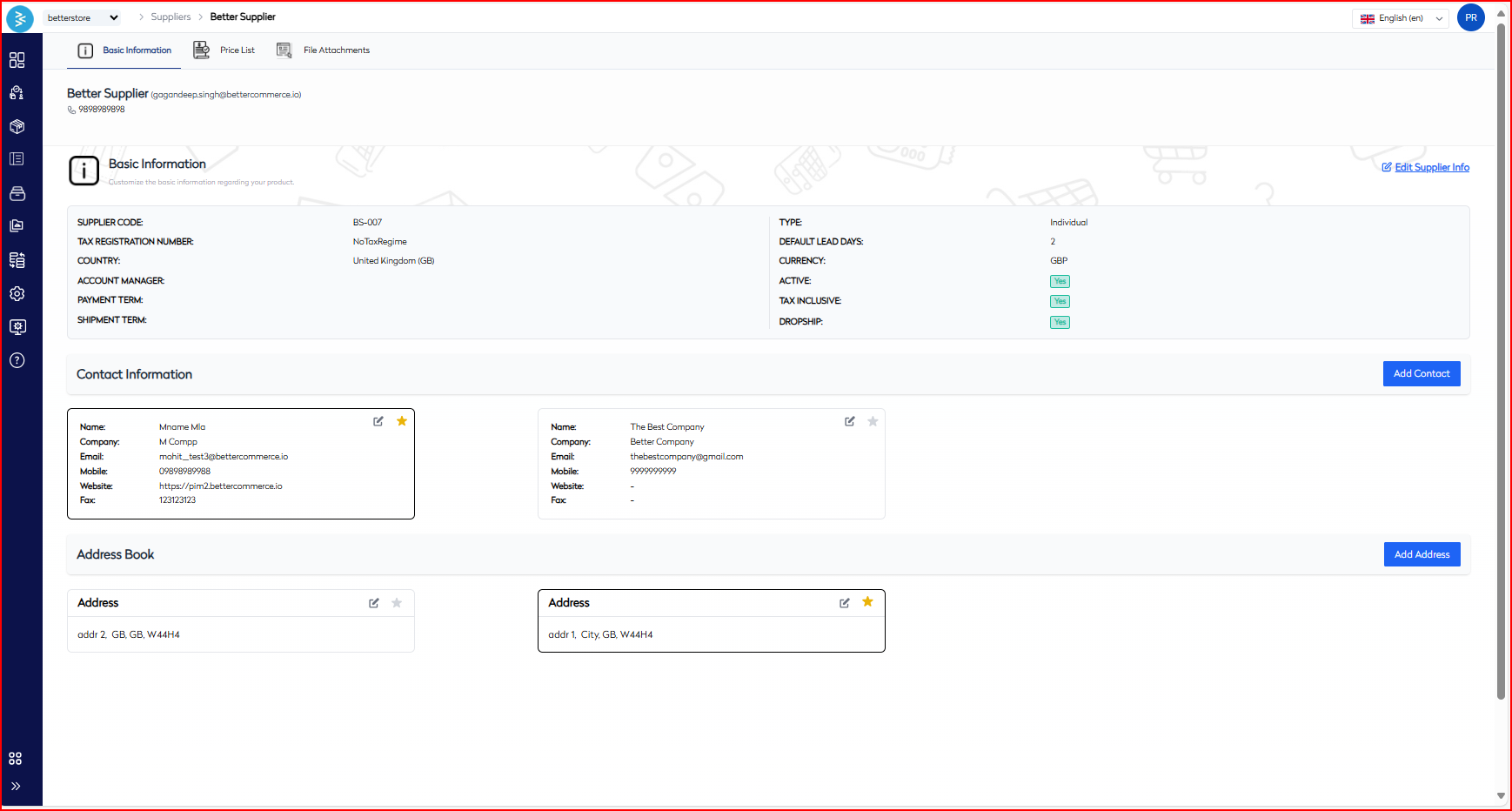
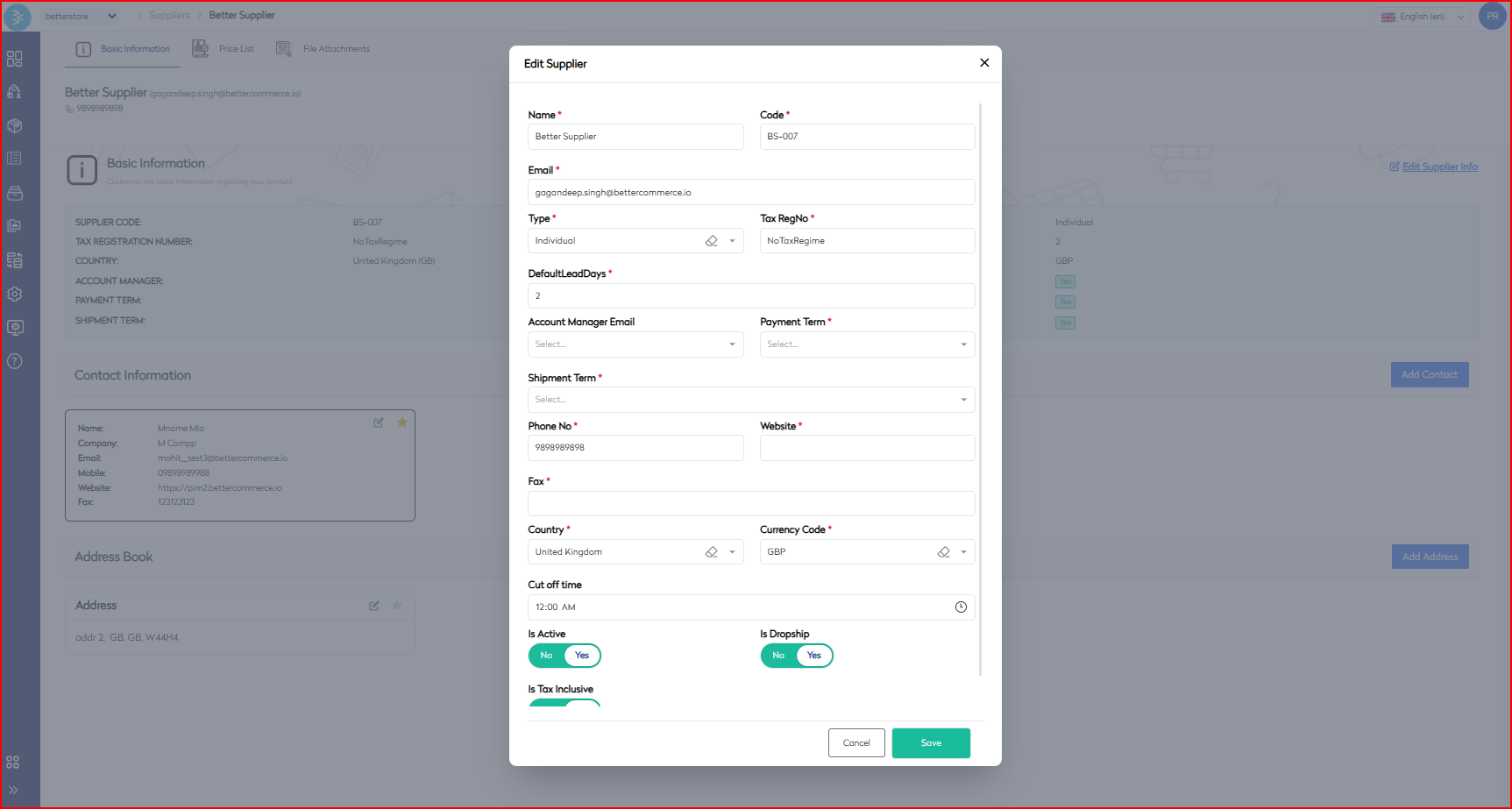
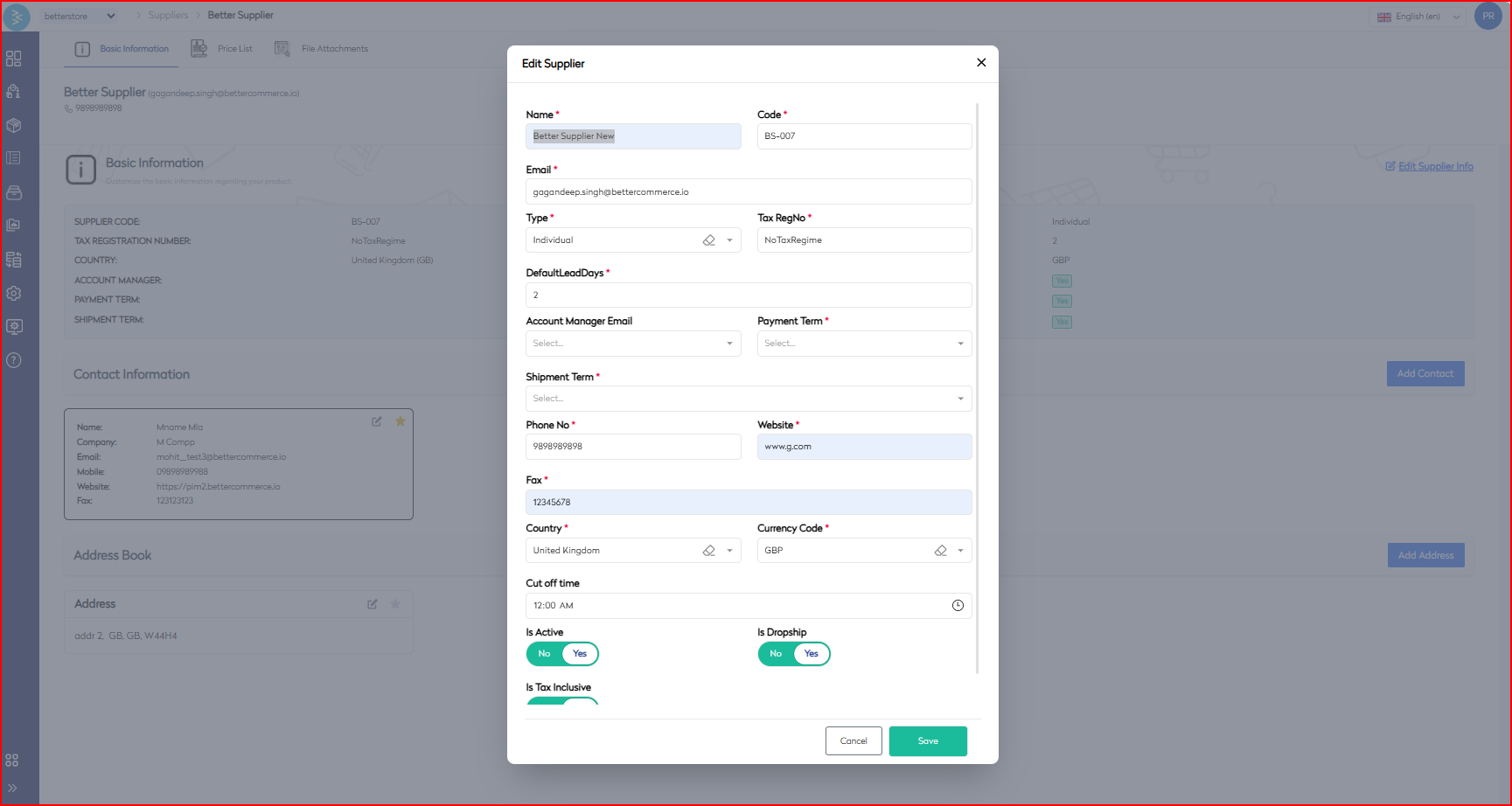
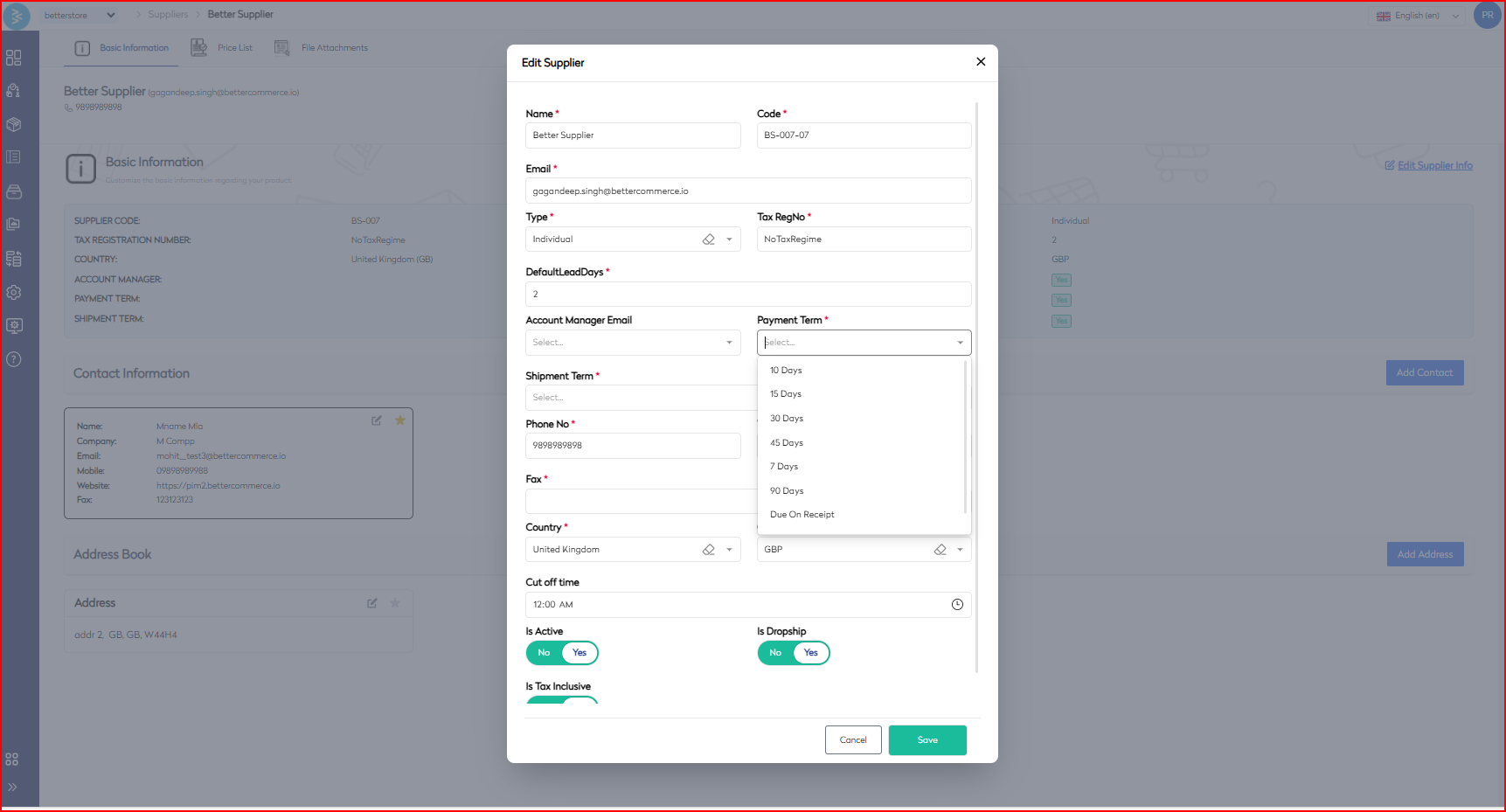
On the supplier detail page, click the Edit Supplier Info button to start updating details such as name, email, shipment terms, or tax information as needed. Click Save to store the changes once all updates are complete.
Step 4: Save Supplier Changes
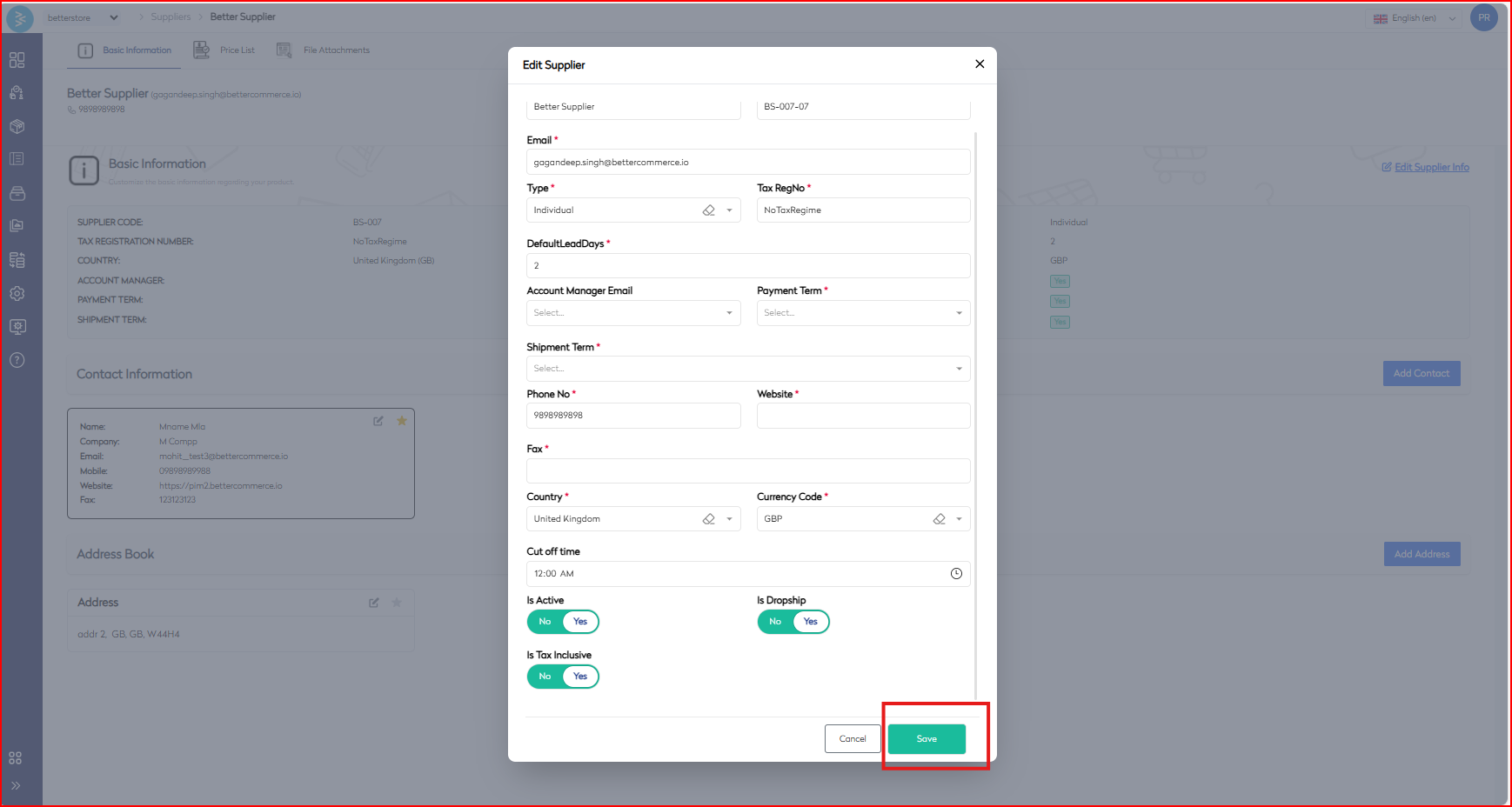
Once all necessary updates to the supplier details are made, click Save to store the changes.
Step 5: Access the Price List Import Option
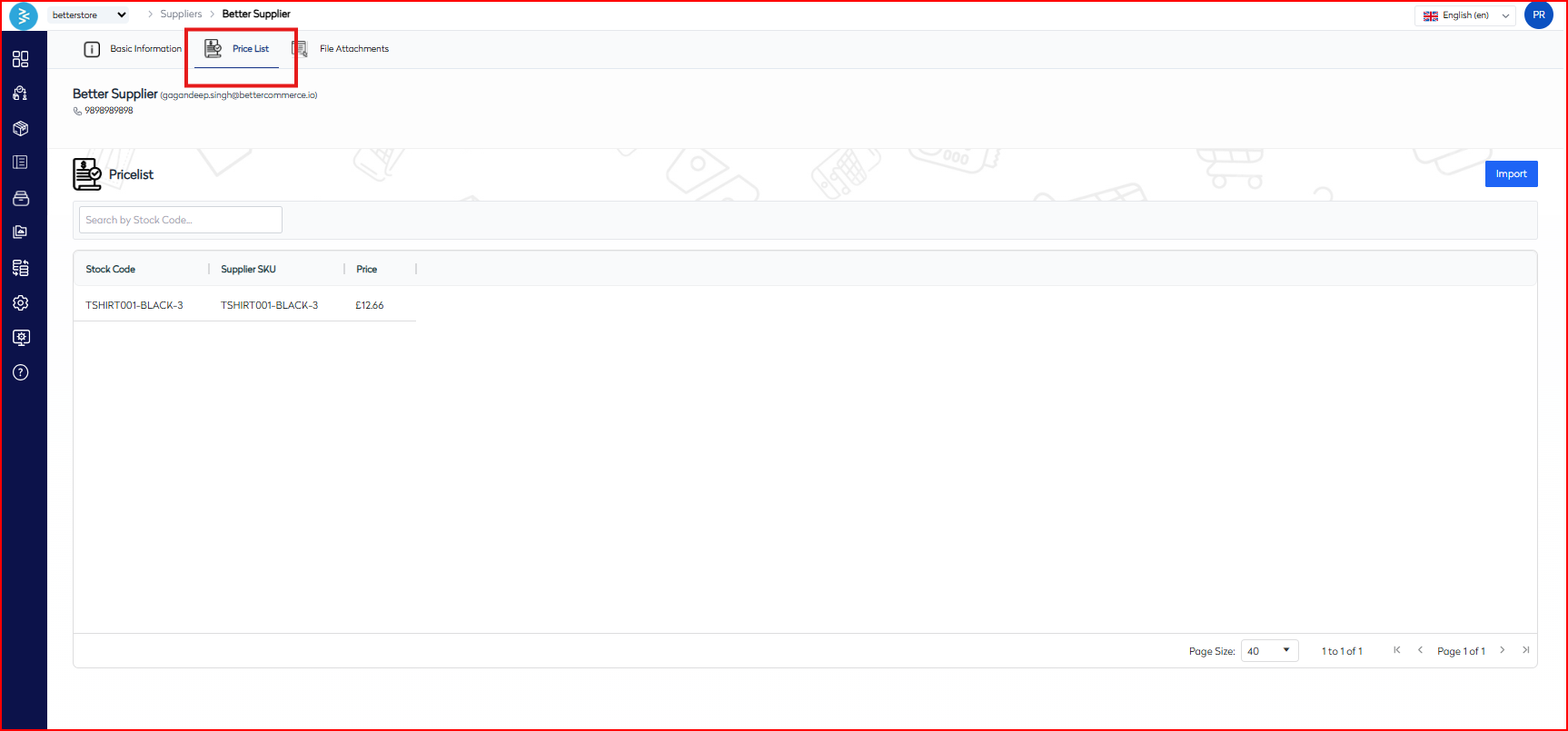
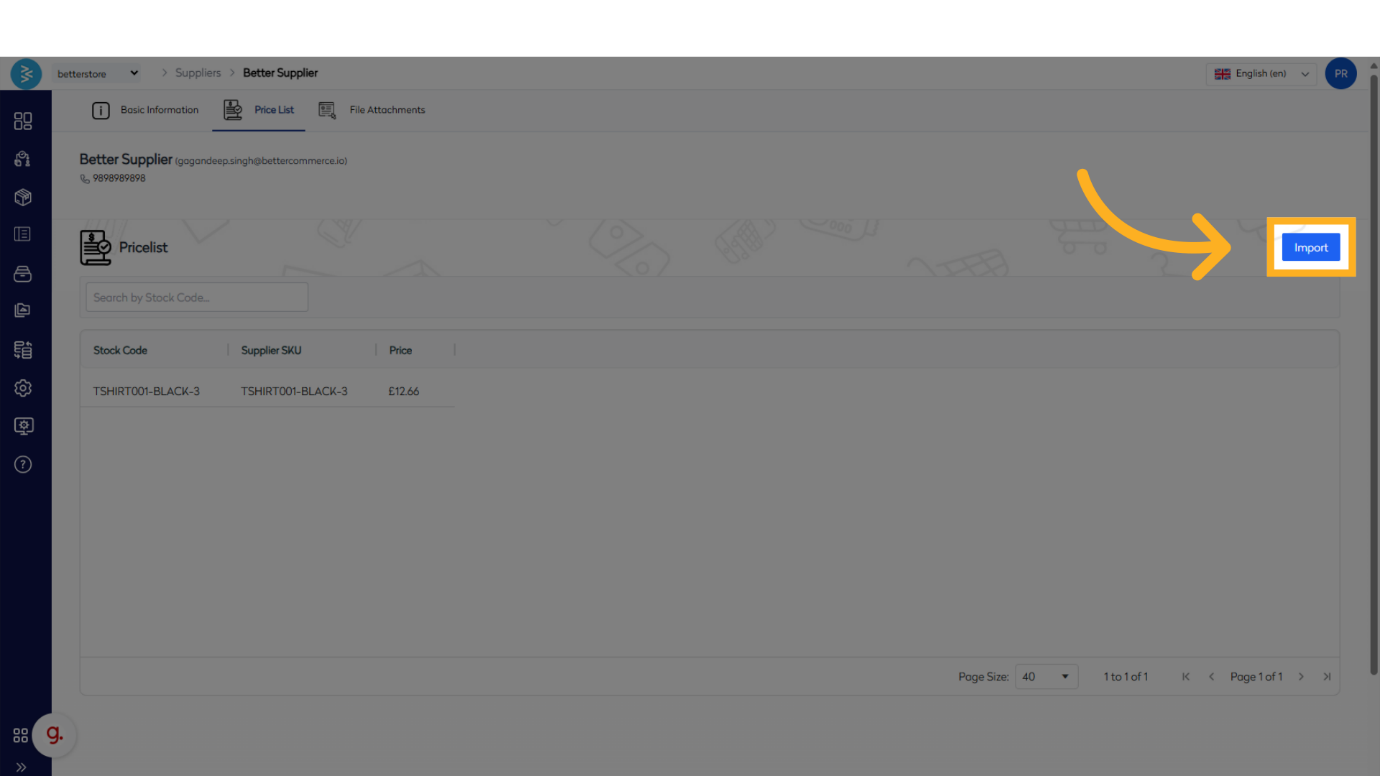
To update the supplier’s price list, navigate to the Price List section within the supplier detail page. Click the Import option in the top right corner to access the import screen. Download the sample CSV file provided to use as a template.
Step 6: Upload and Map CSV File for Price List
Fill the sample CSV file with the price list data, ensuring columns match the template. On the import screen, click the Import button to upload the prepared CSV file.
Note: If using a file from an ERP or another system, map the columns to align with the BetterCommerce template for accurate data import.
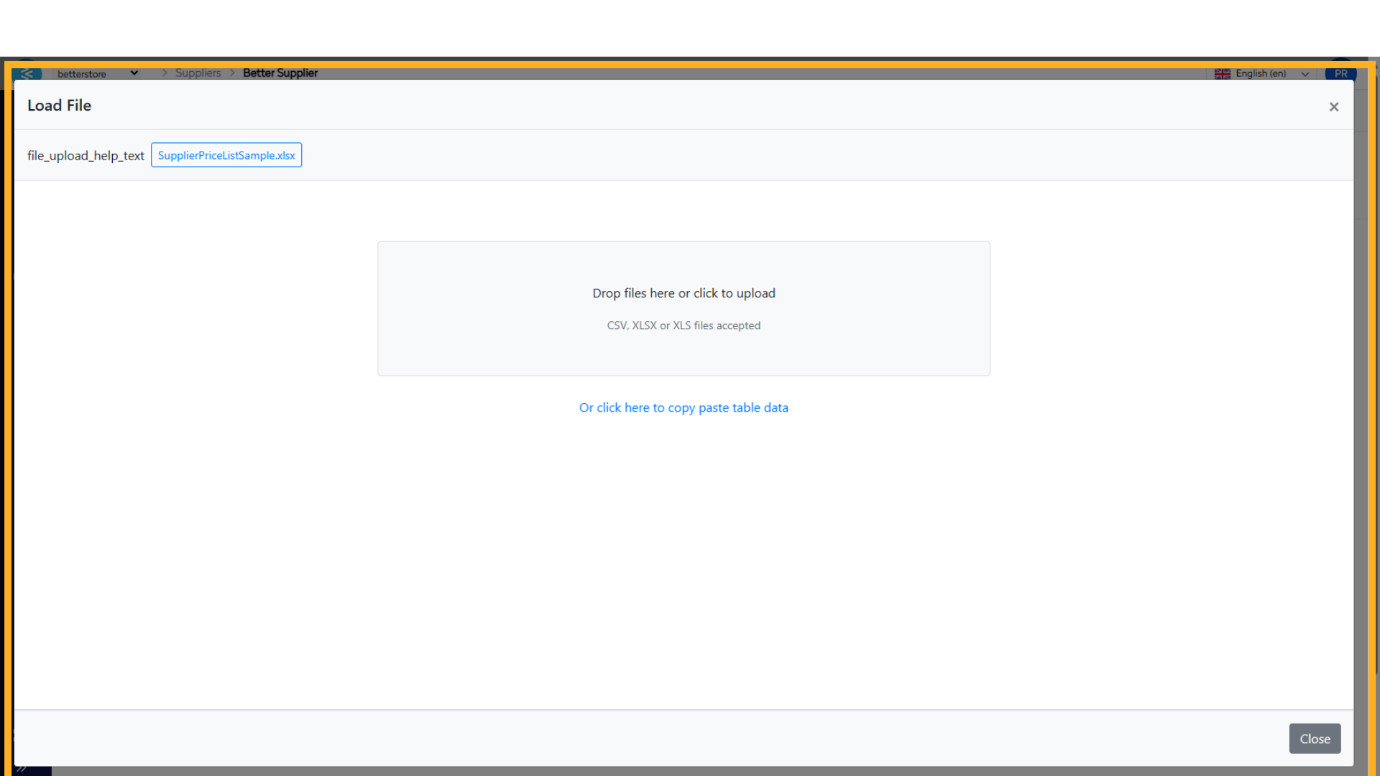
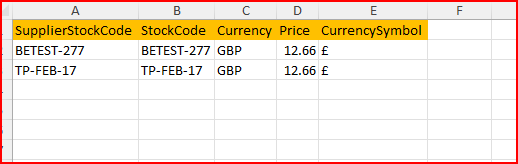
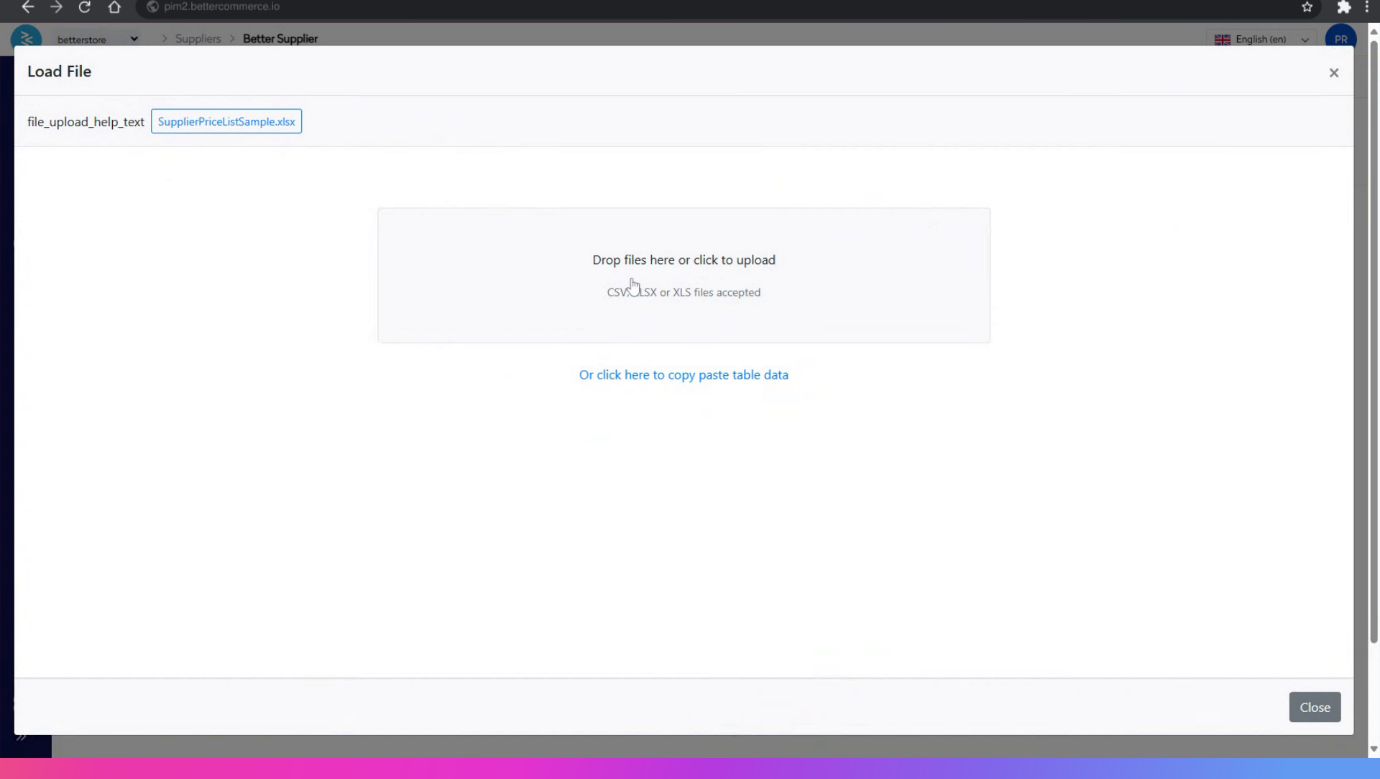
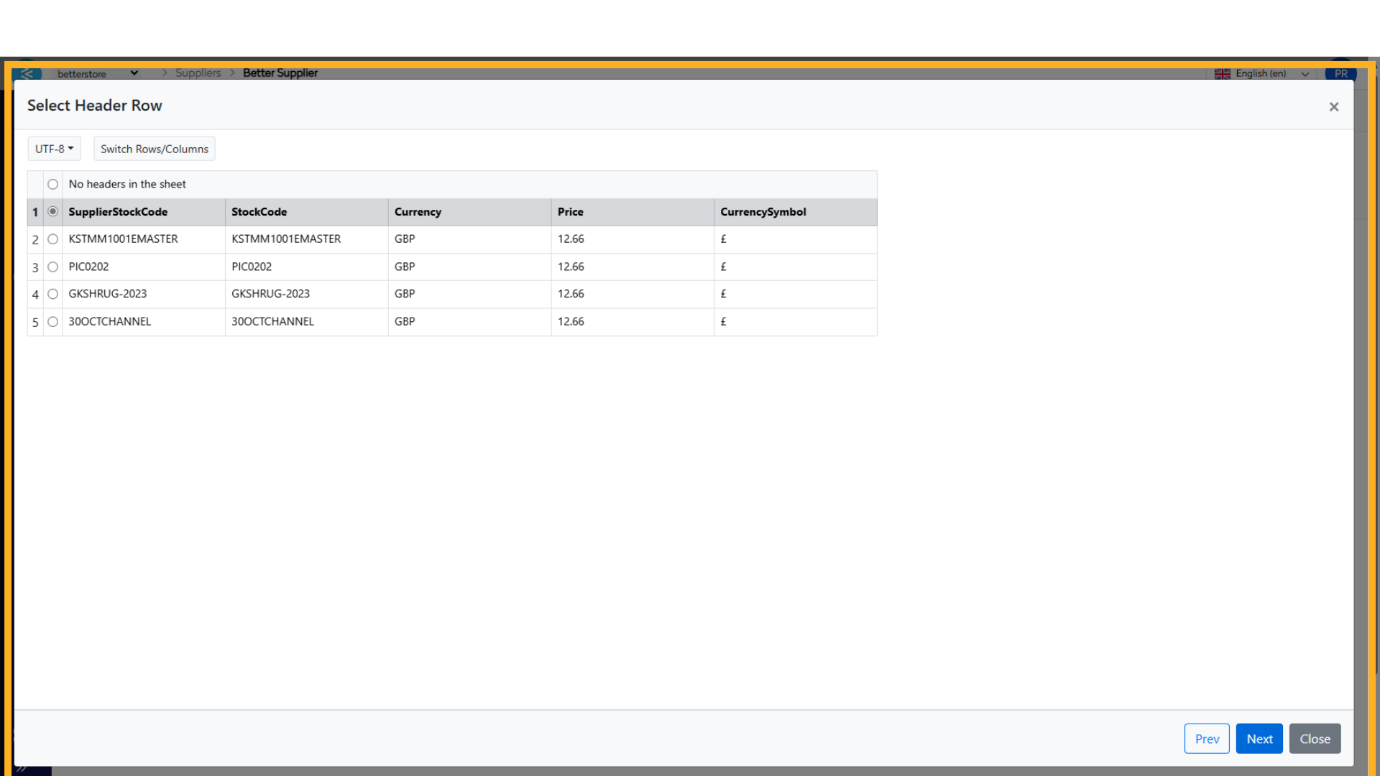
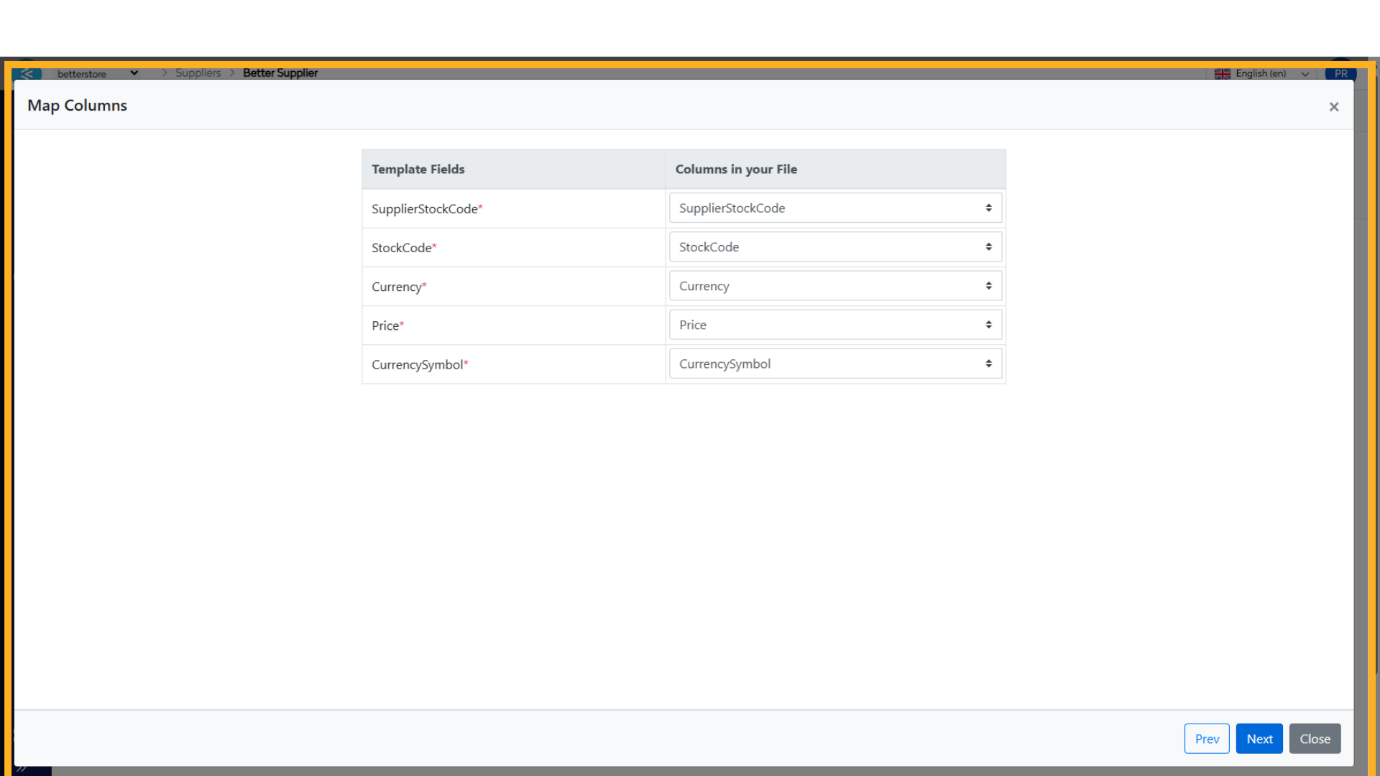
Map the columns from the template to the corresponding columns in your file. If using a file from an ERP or another system, ensure proper column mapping. Once the upload is complete, verify that all uploaded stock codes appear on the listing page.
Note: If using a file from an ERP or another system, map the columns to align with the BetterCommerce template for accurate data import.
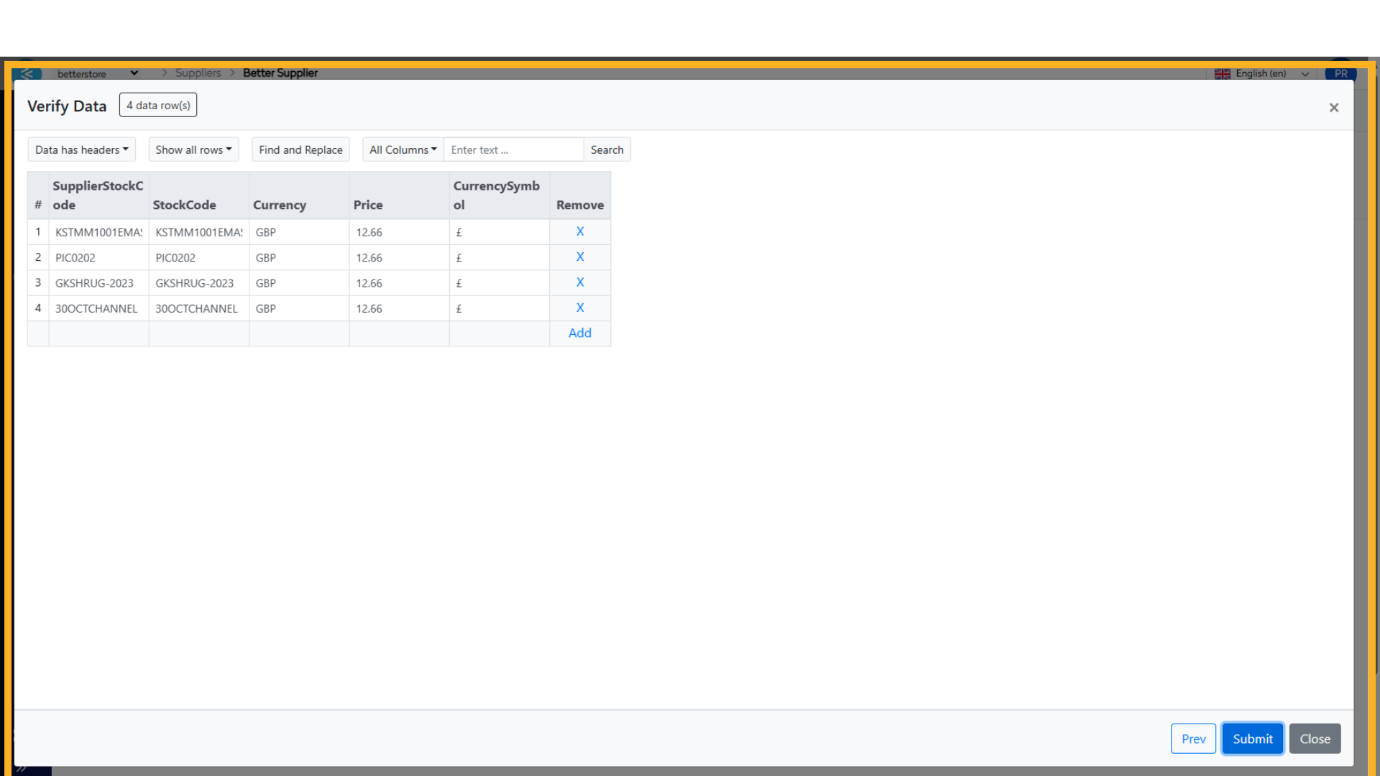
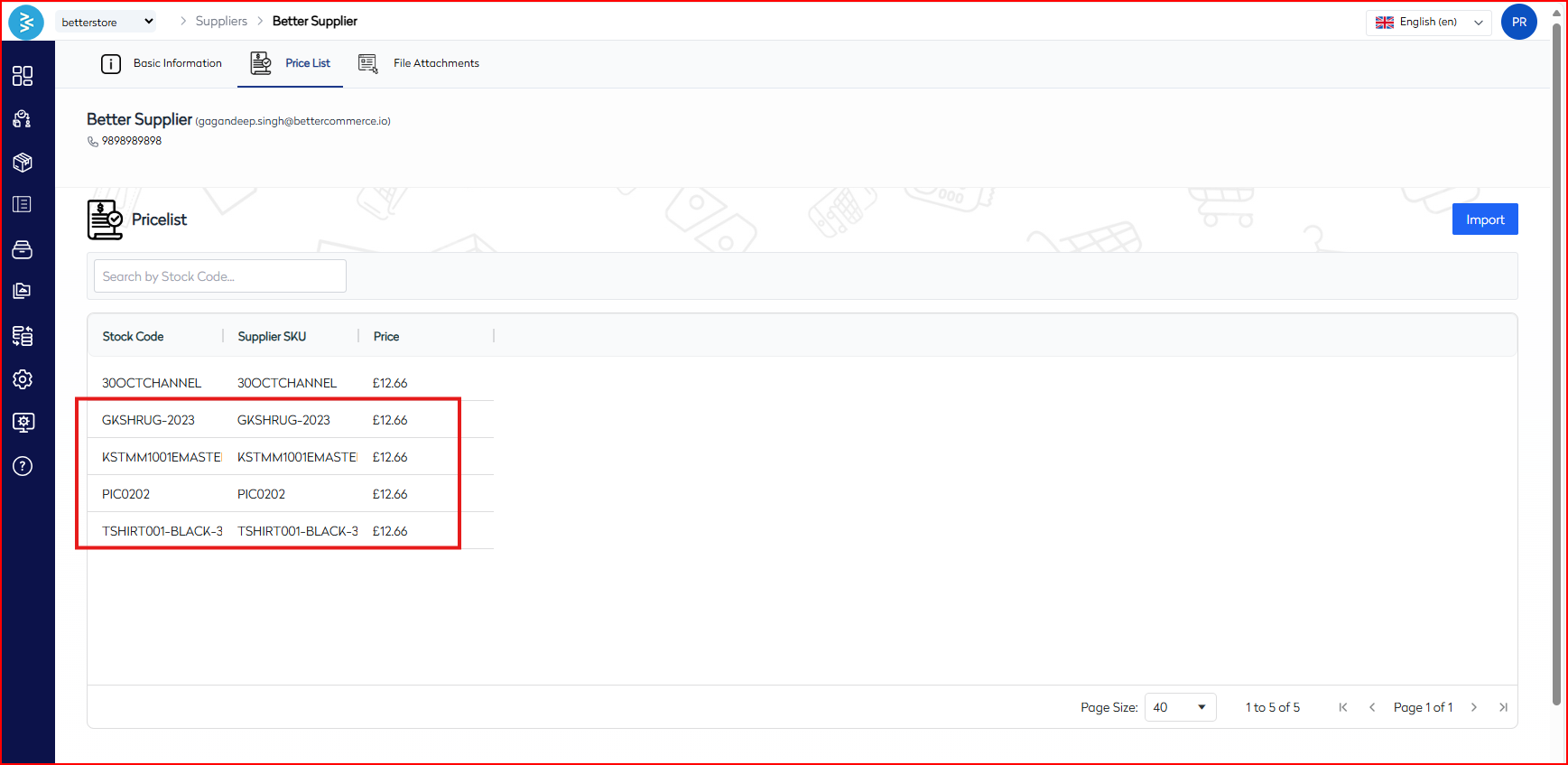
Once the upload is complete, verify that all uploaded stock codes appear on the listing page.
Summary
This guide outlined the process of editing supplier information in BetterCommerce, covering navigation to the supplier section, updating supplier details, saving changes, and importing price list data via CSV. By following these steps, you can efficiently manage and update supplier profiles.