
Add Supplier Guide
This guide provides detailed instructions for adding a new supplier in BetterCommerce, enabling efficient onboarding of supplier information. Follow the steps below to access the supplier section, enter details, and save the supplier data.
Step-by-Step Instructions
Step 1: Access the Suppliers Section
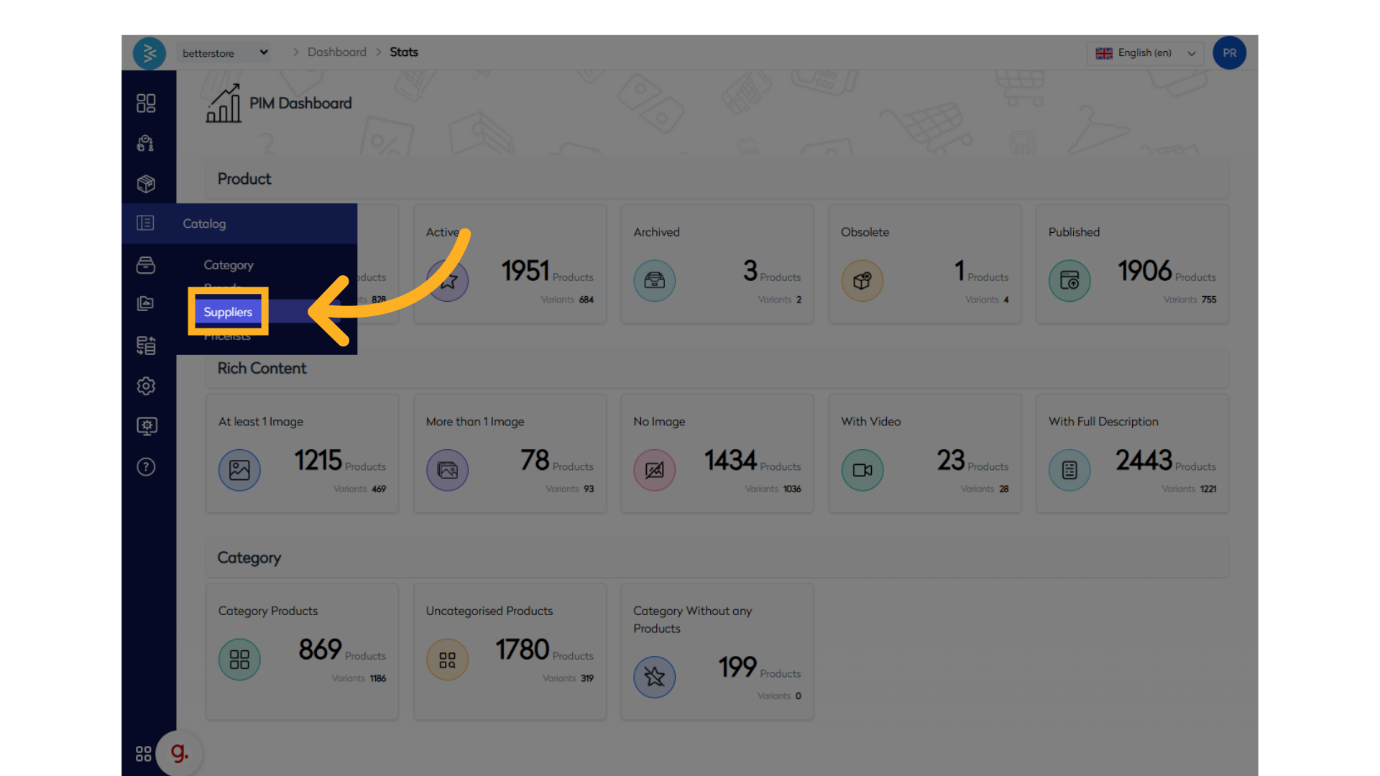
Navigate to the BetterCommerce PIM platform by visiting pim2.bettercommerce.io. Go to the Catalog menu and select the Suppliers option to access the supplier management area.
Step 2: Initiate Adding a New Supplier
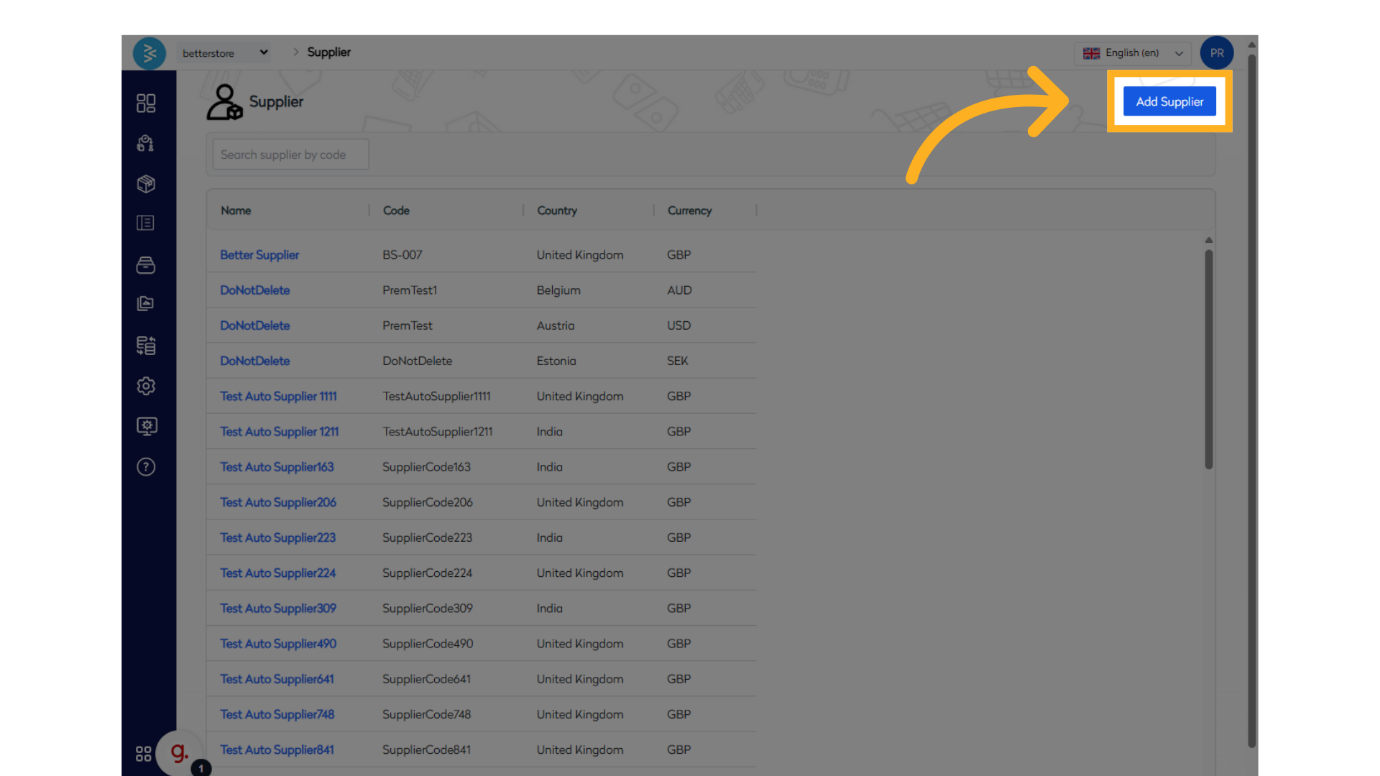
Click the Add Supplier button to start the process of creating a new supplier record.
Step 3: Fill Supplier Details and Save
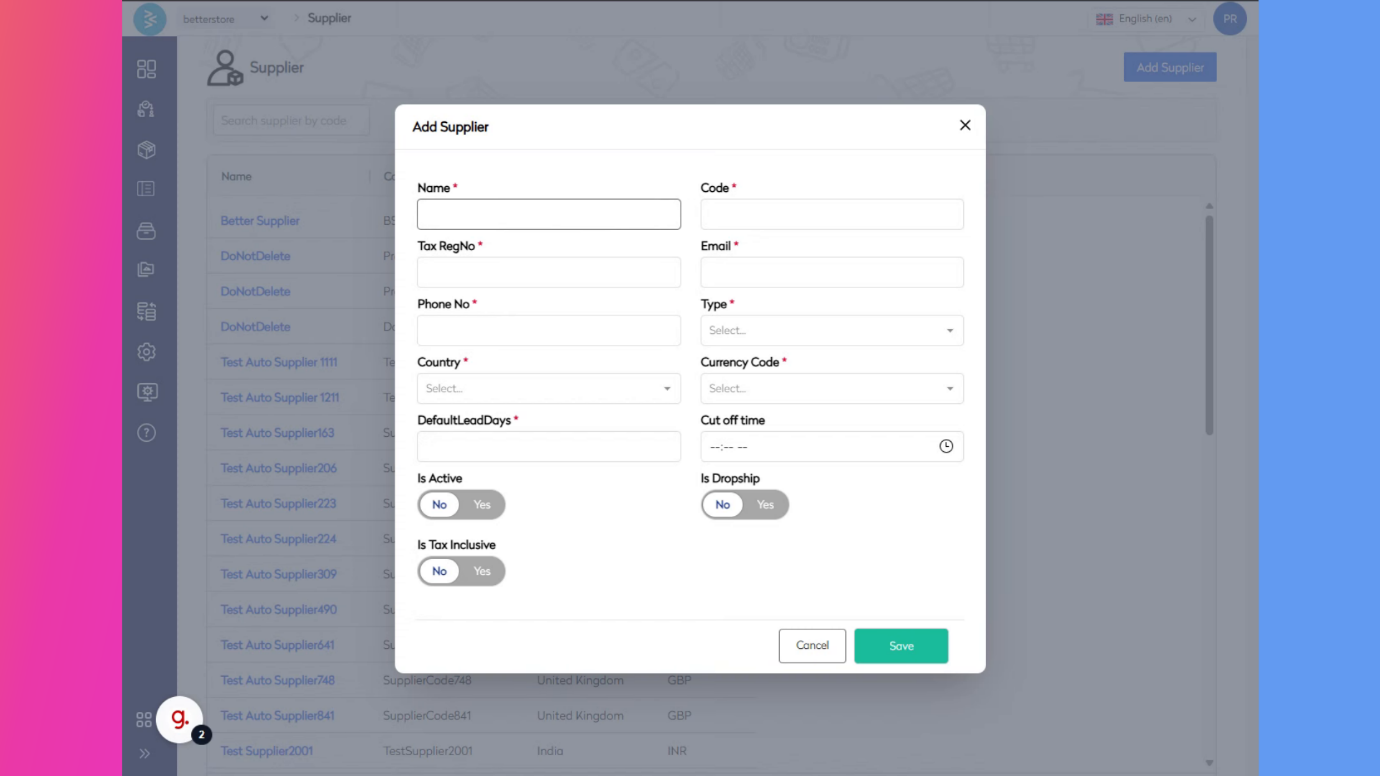
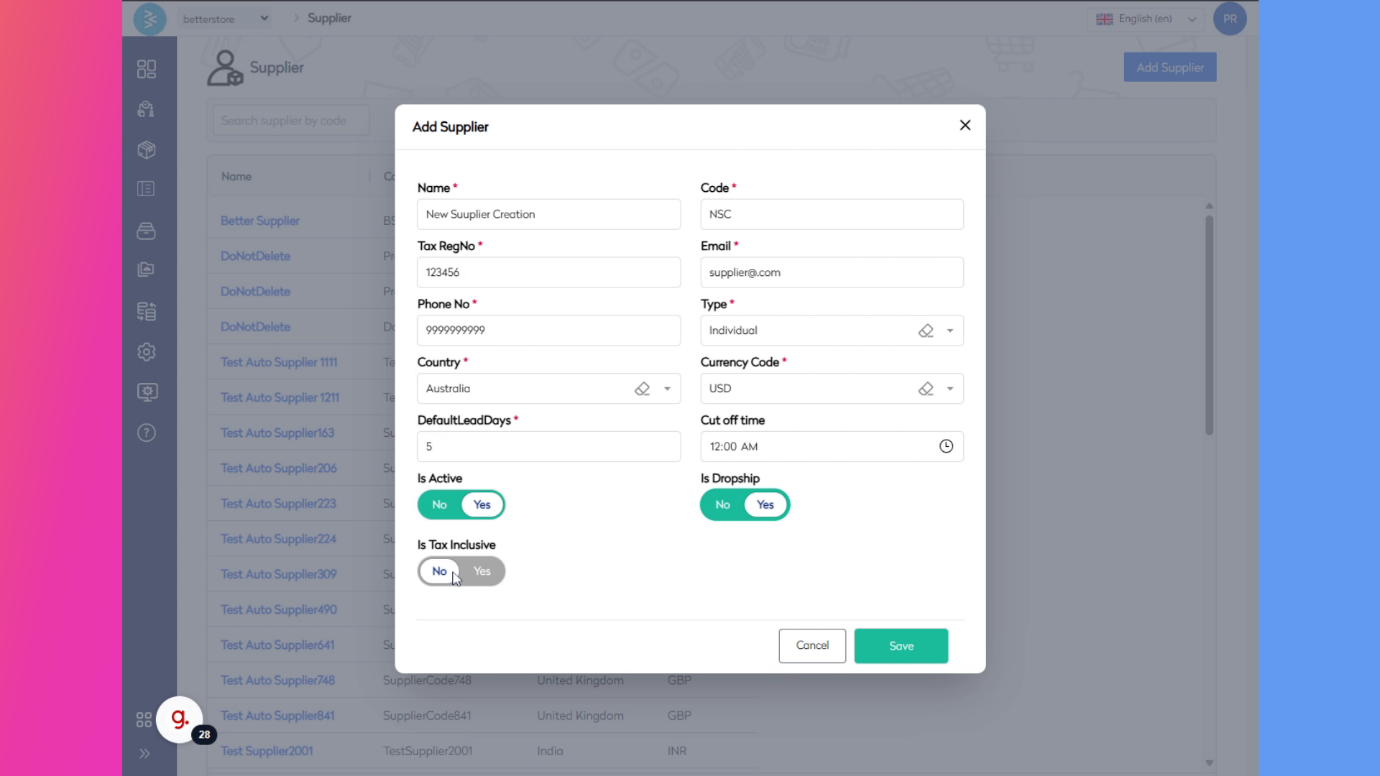
Complete the supplier form by entering all required details, such as supplier name, currency, country, lead days, and cut-off times. Once all fields are filled, click the Save button to record the changes.
Summary
This guide outlined the process of adding a new supplier in BetterCommerce, covering navigation to the supplier section, initiating the supplier creation process, entering details such as currency and lead days, and saving the information. By following these steps, you can ensure a smooth supplier onboarding process.