
Add and Edit Brand Guide
This guide provides detailed instructions for adding and editing brands in BetterCommerce, enabling efficient management of brand information. Follow the steps below to create new brands, update basic information, add descriptions, and manage media assets.
Step-by-Step Instructions
Step 1: Access the Brands Section
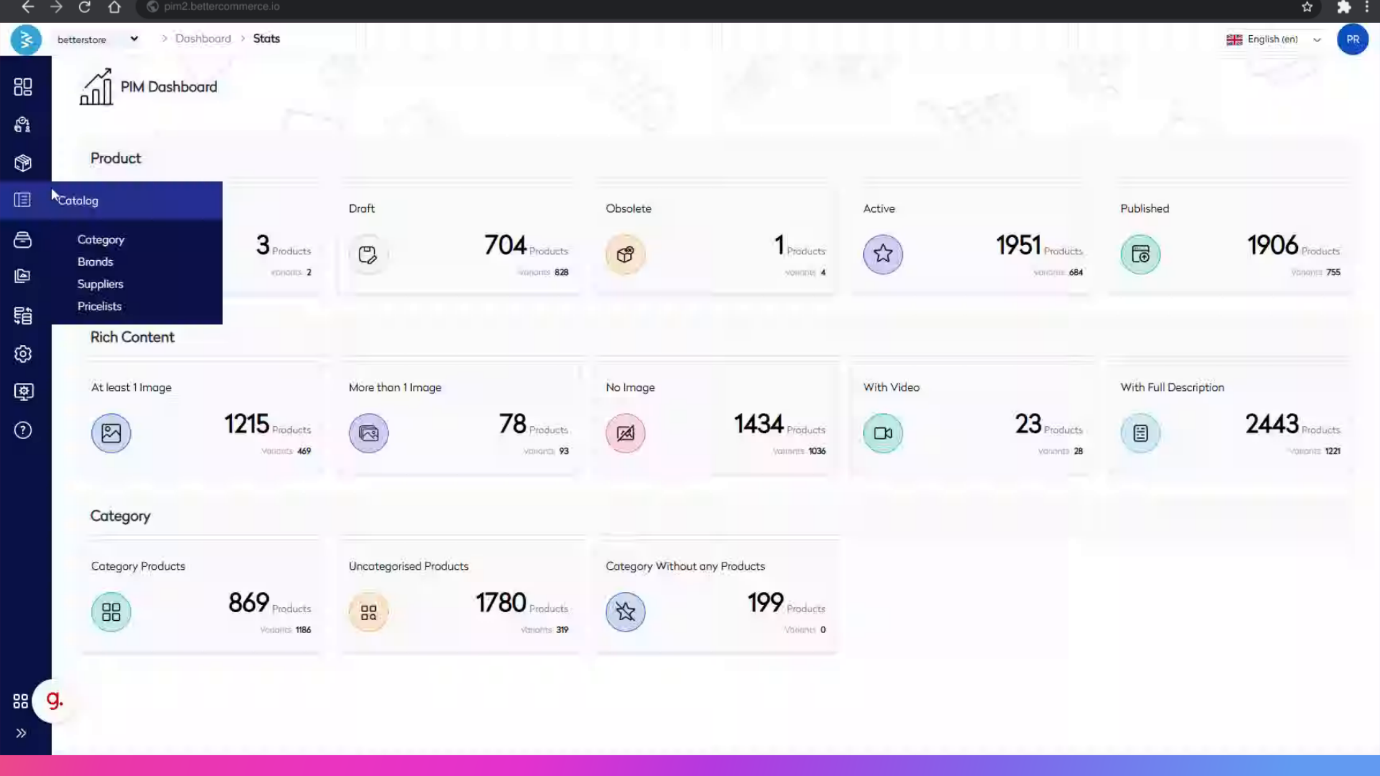
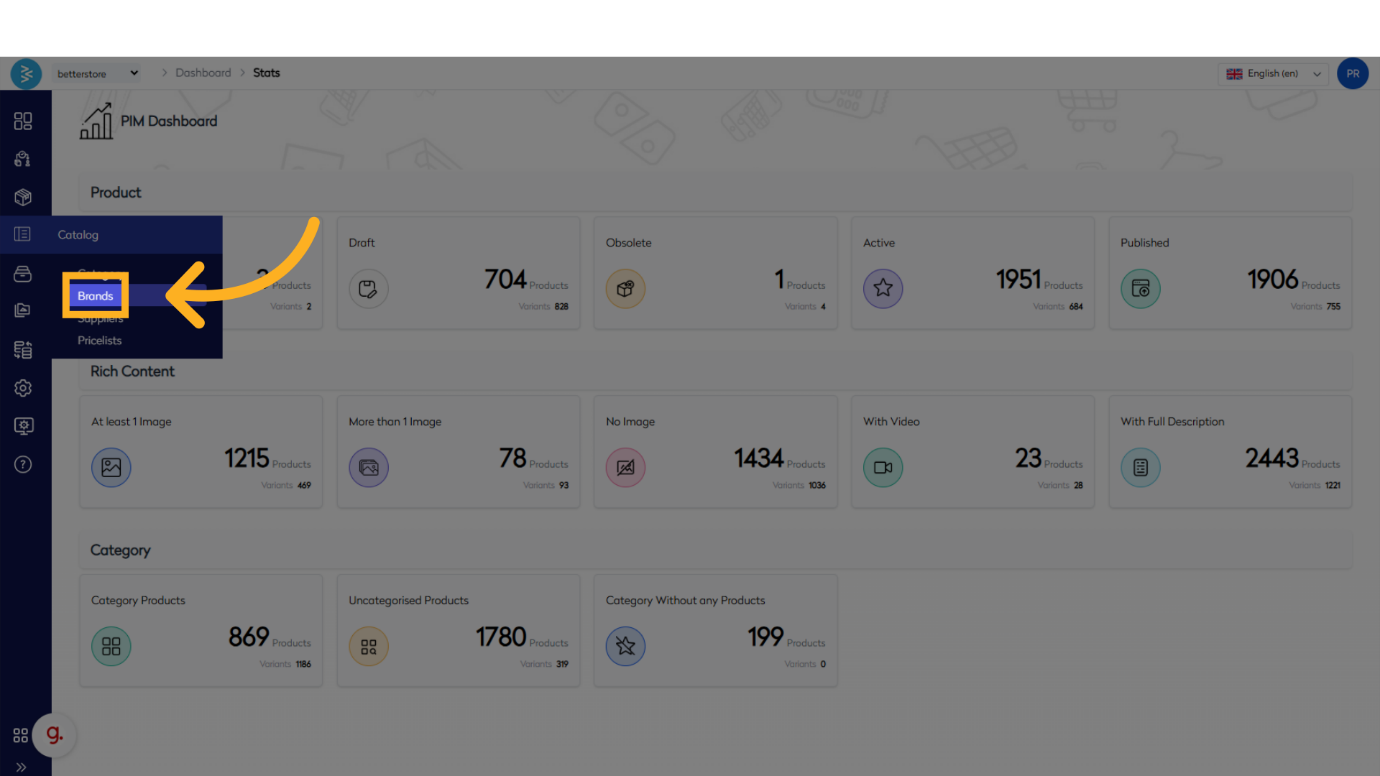
Navigate to the BetterCommerce PIM platform by visiting pim2.bettercommerce.io. Go to the Catalog menu and select the Brands option to access the brand management area.
Step 2: Add a New Brand
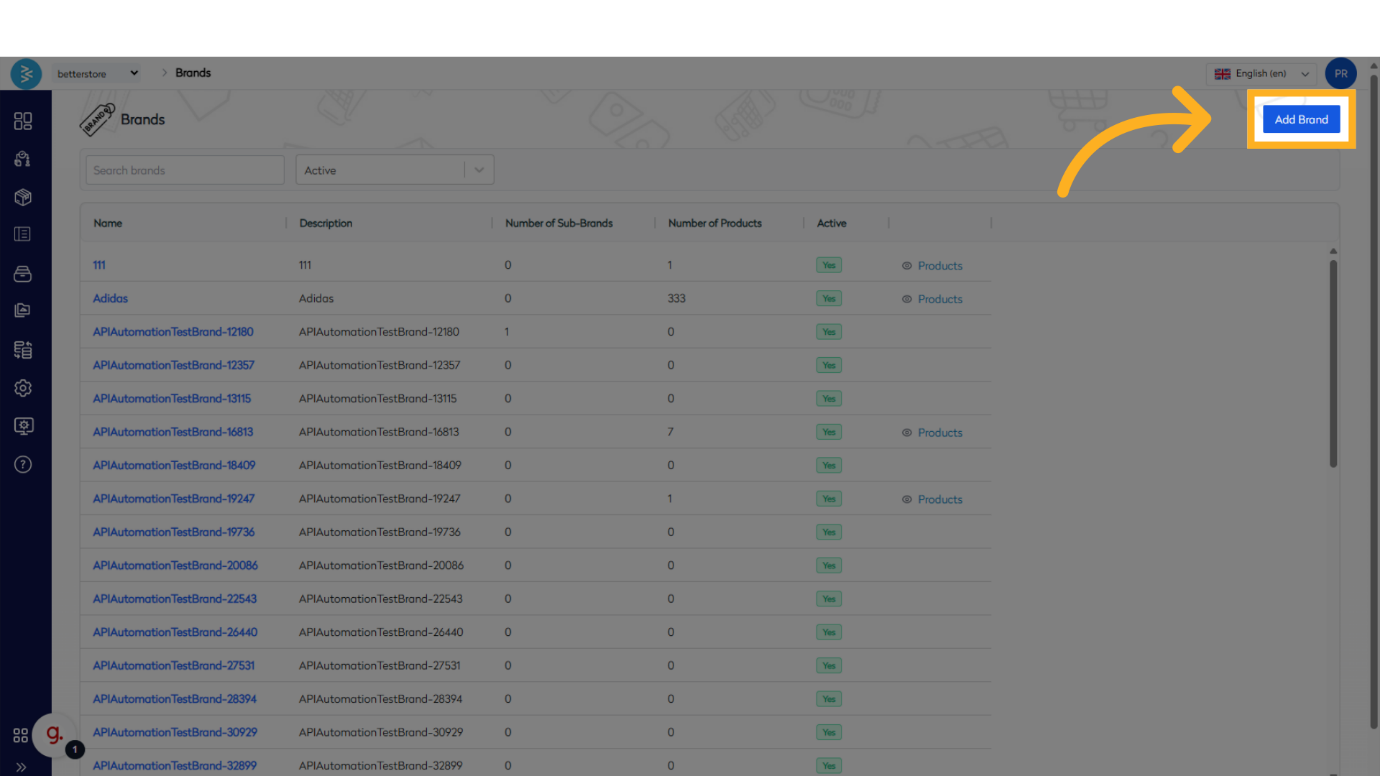
On the brand listing page, locate the Add Brand button in the upper right corner. The newly created brand will appear in the brand listing page, ready for further editing.
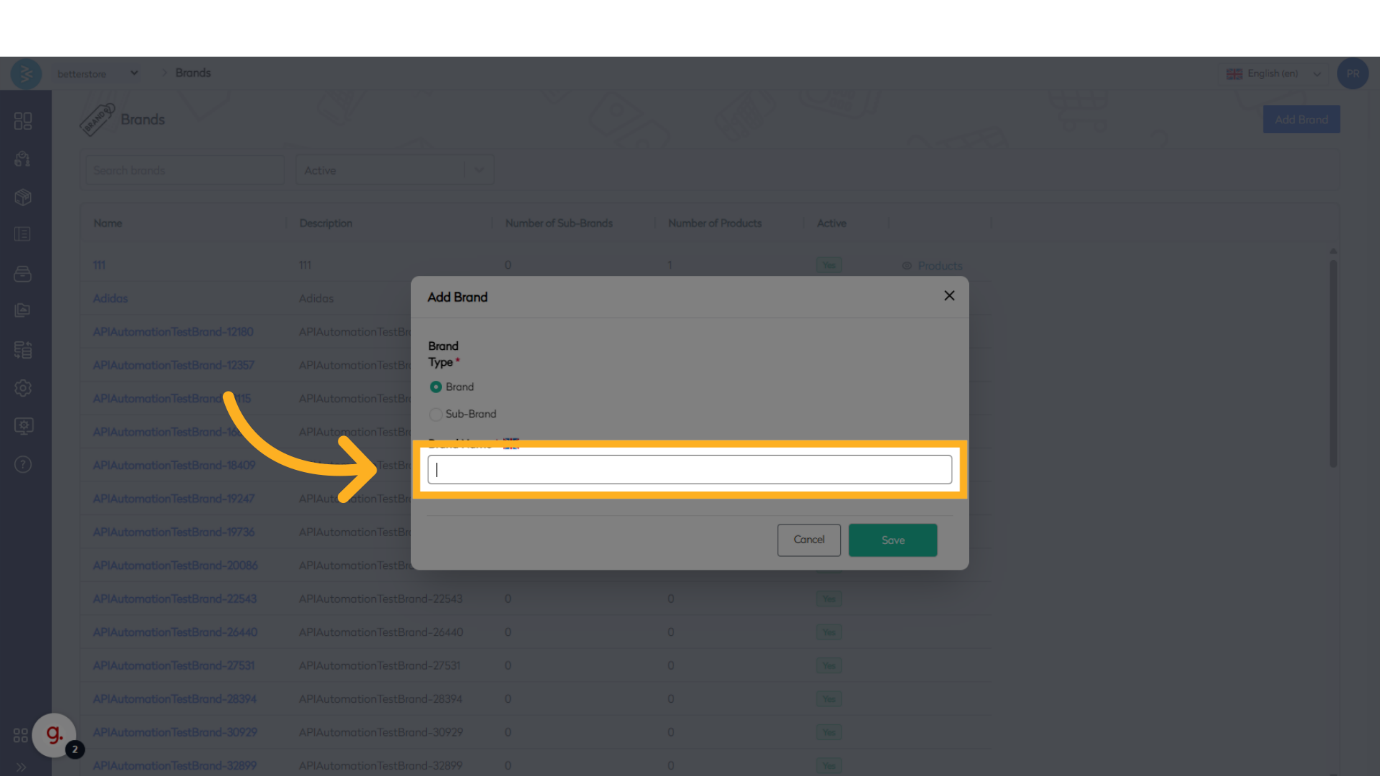
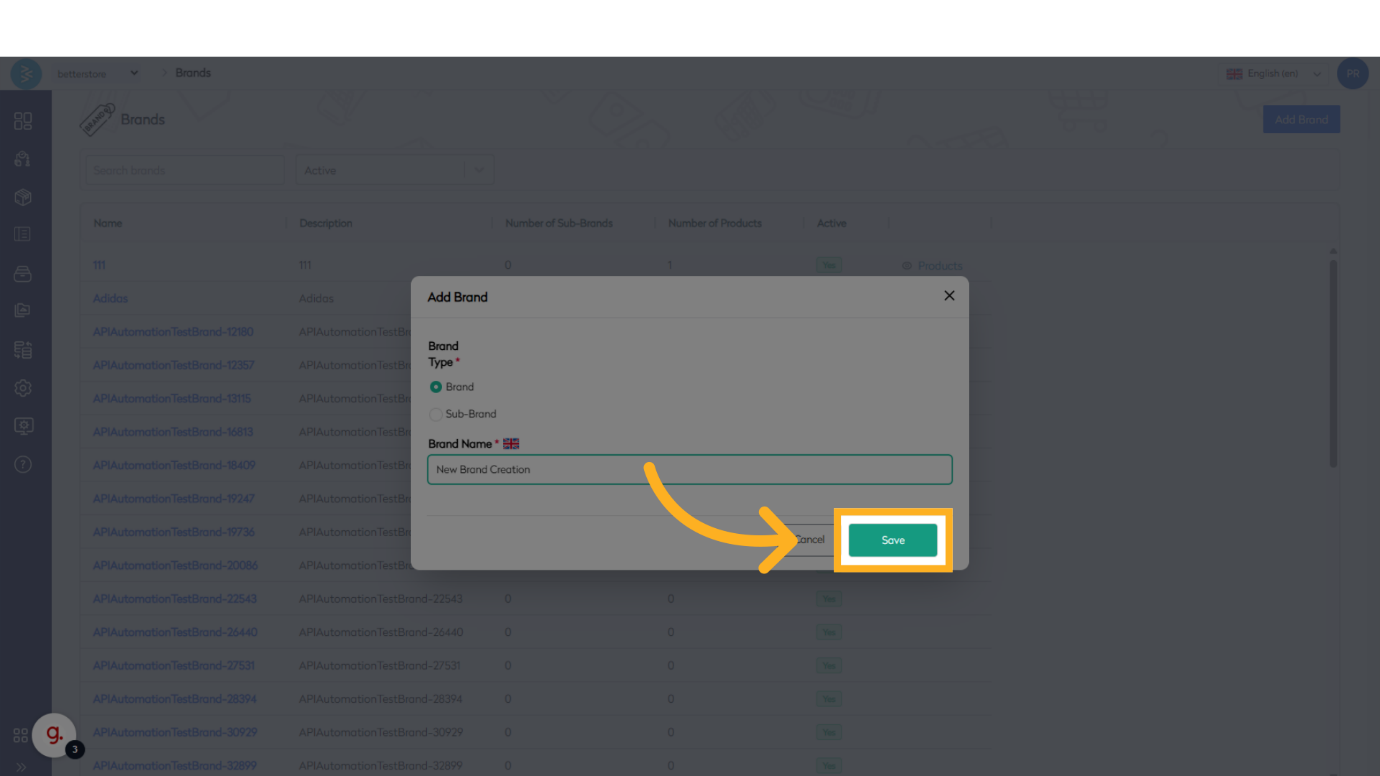
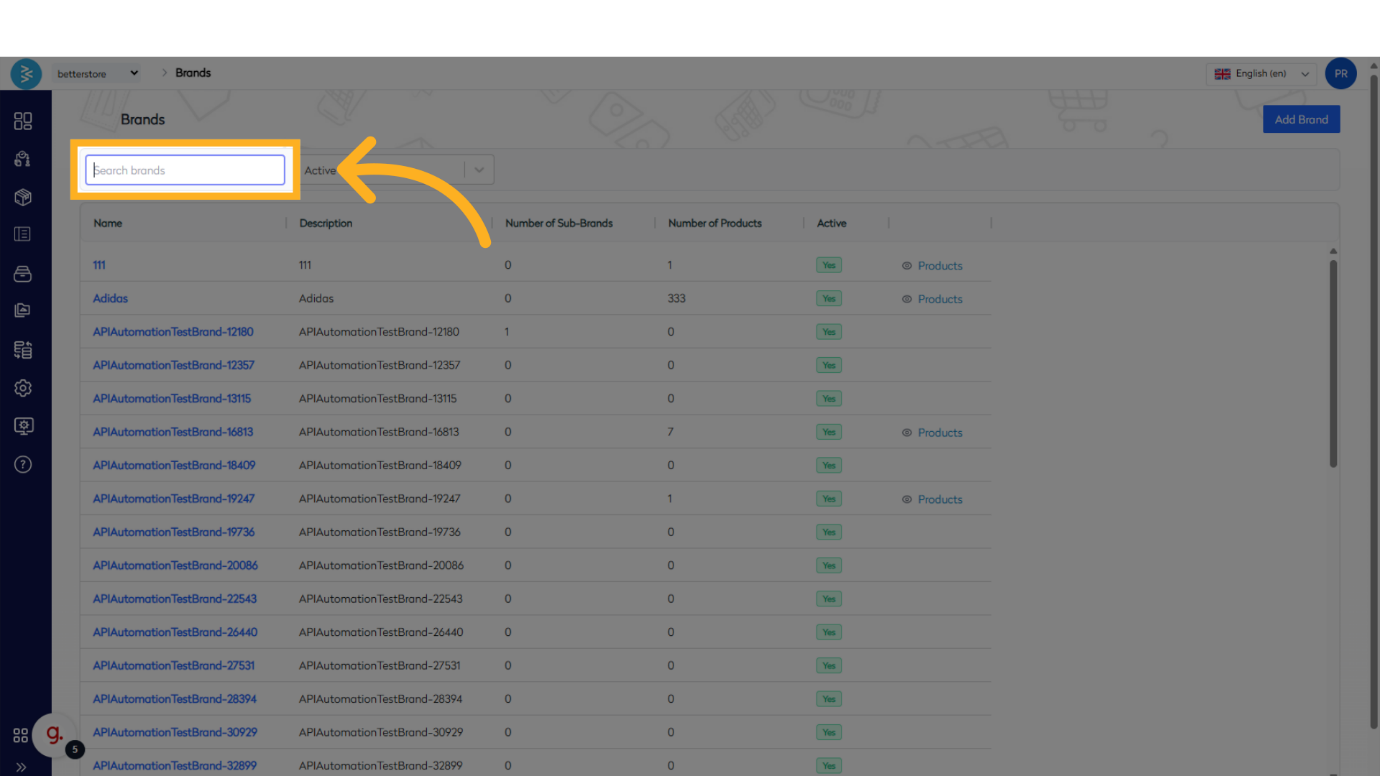
Click it to open the add brand popup, enter the desired brand name, and click Save. The newly created brand will appear in the brand listing page, ready for further editing.
Step 3: Edit Basic Information
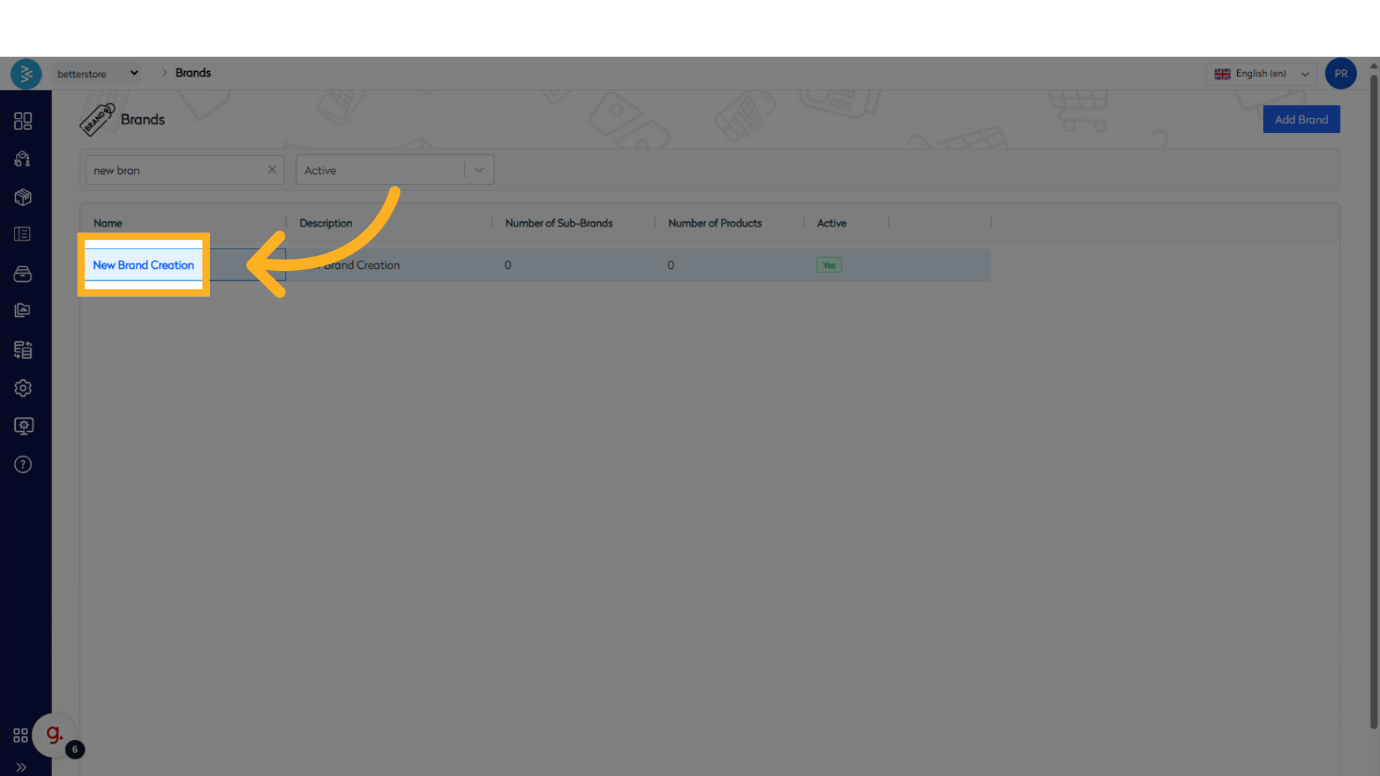
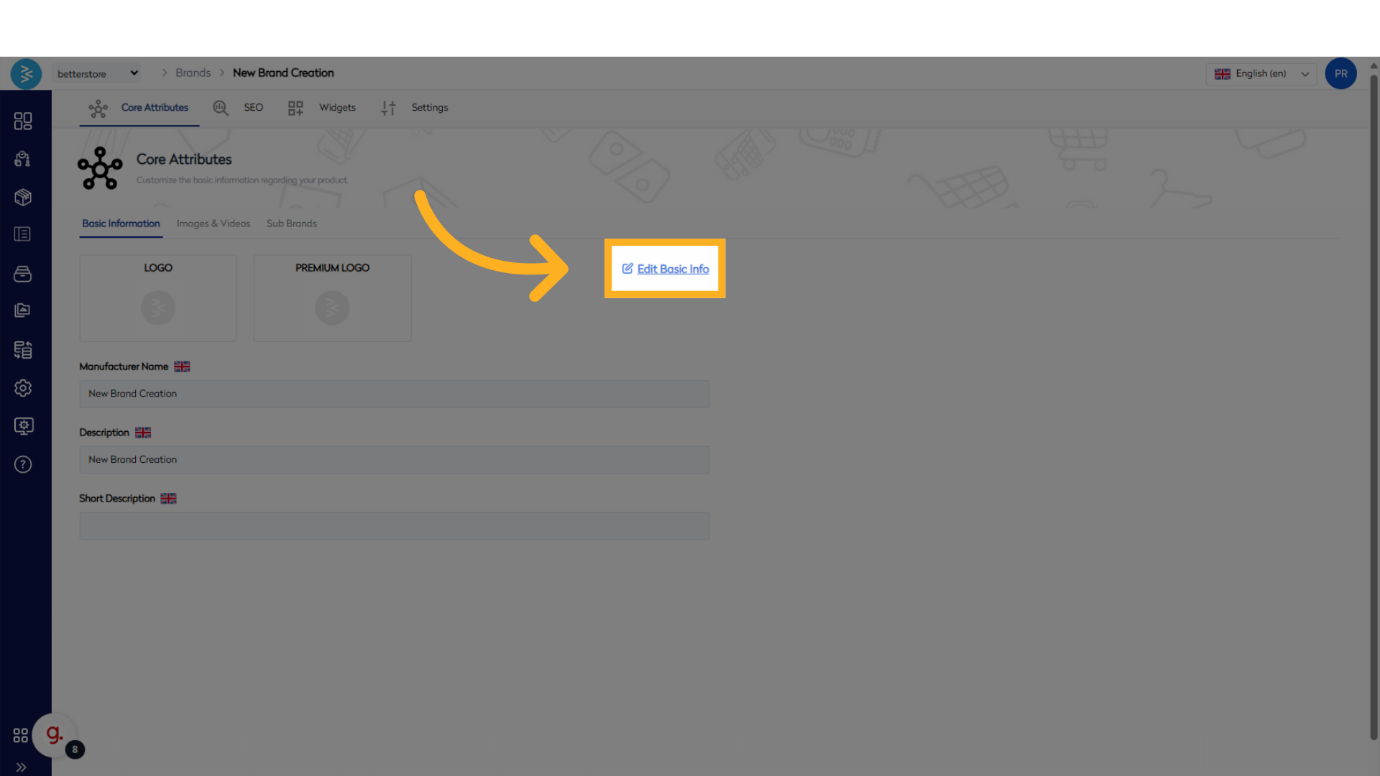
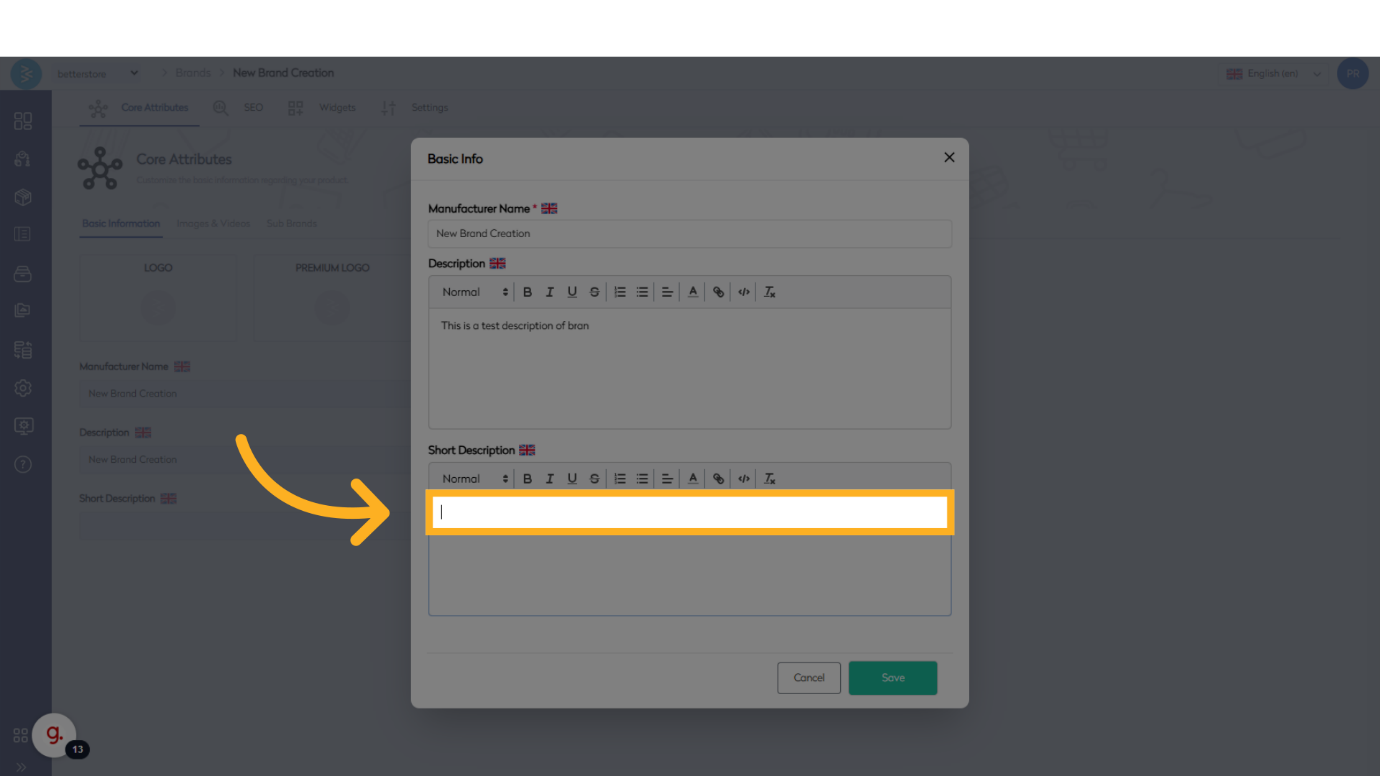
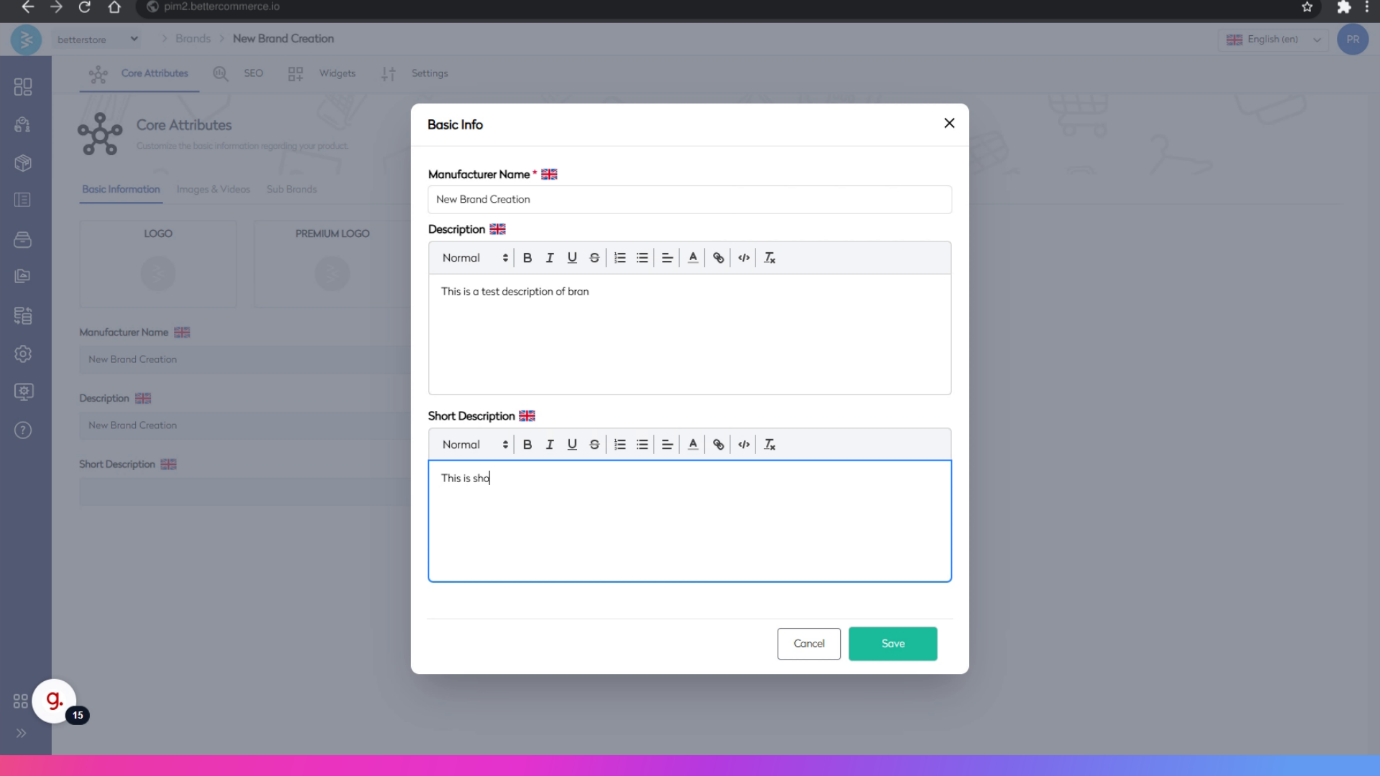
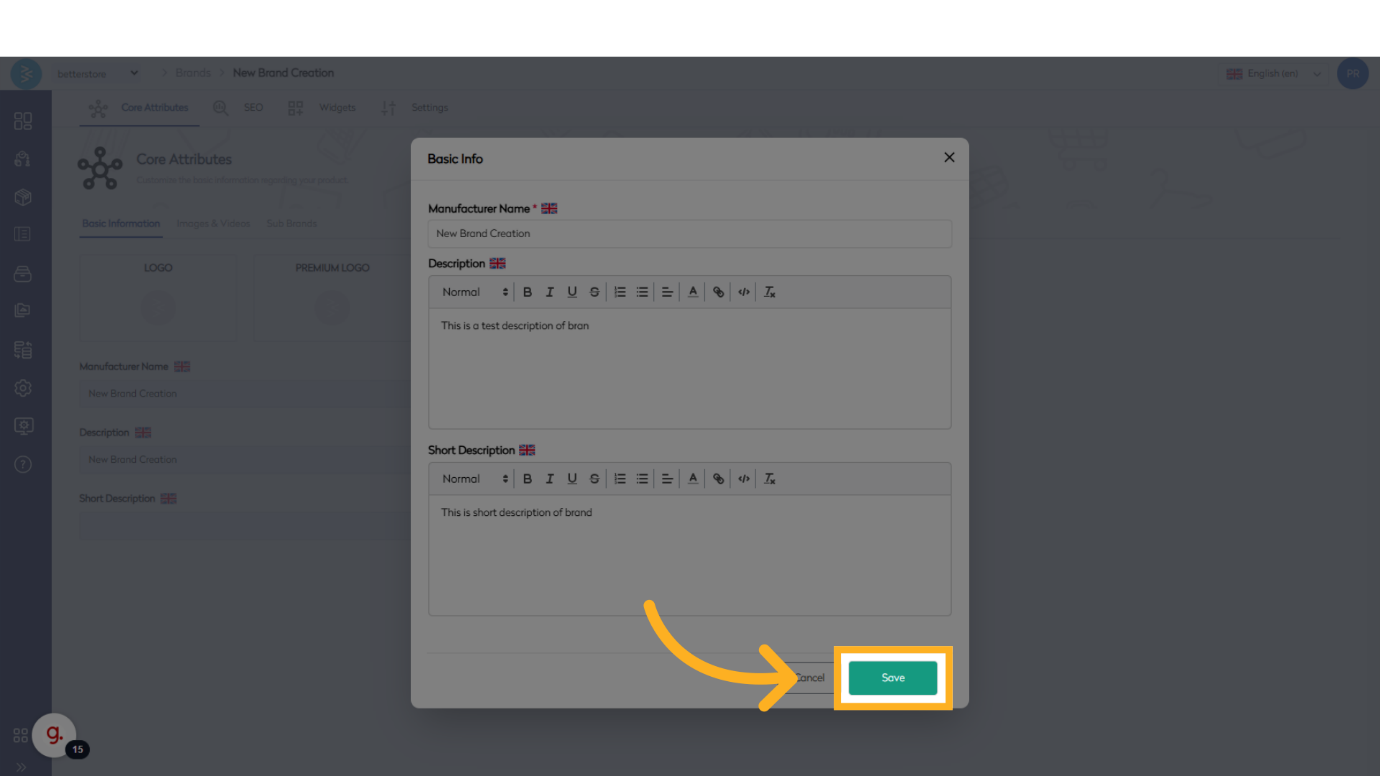
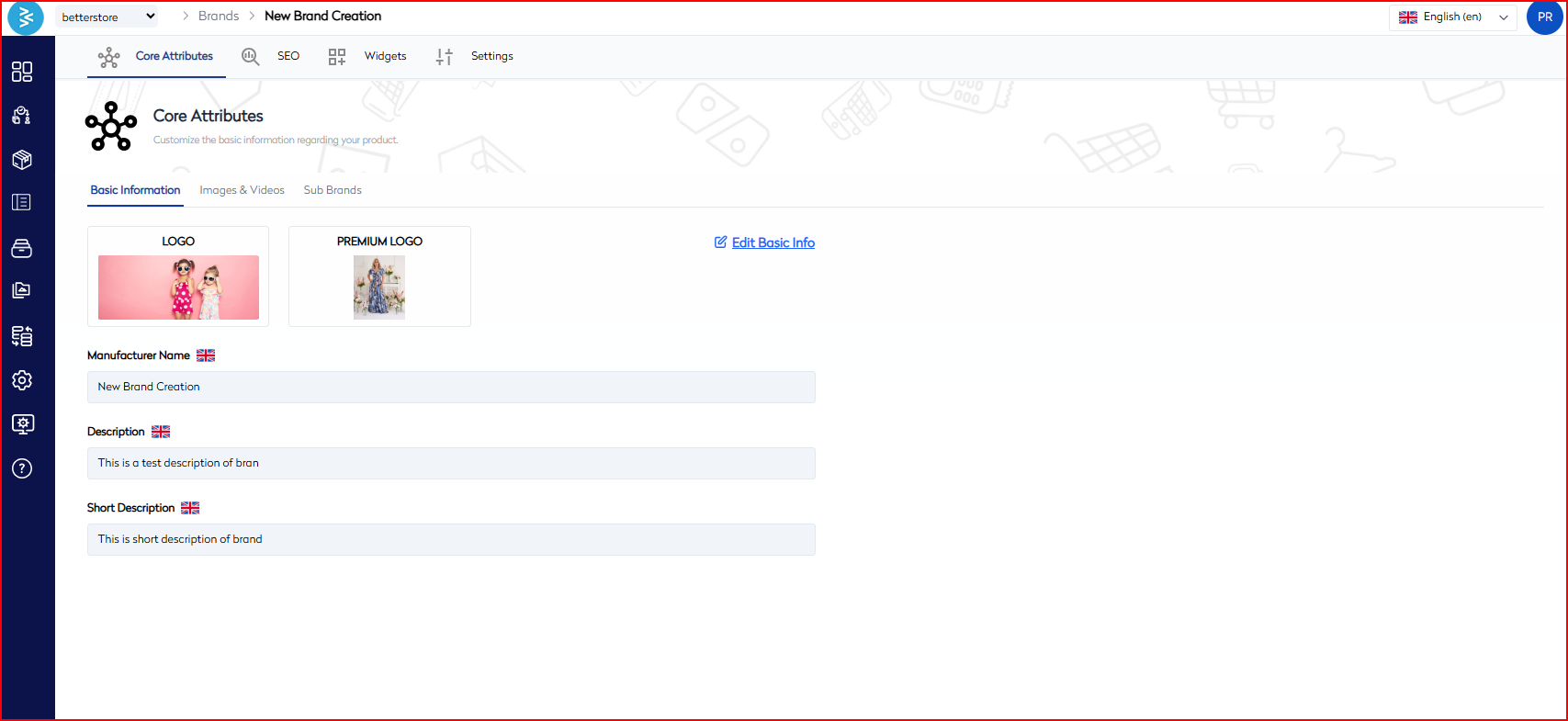
Select the desired brand from the brand listing page and click Edit Basic Info. Update the brand’s full description and short description as needed.
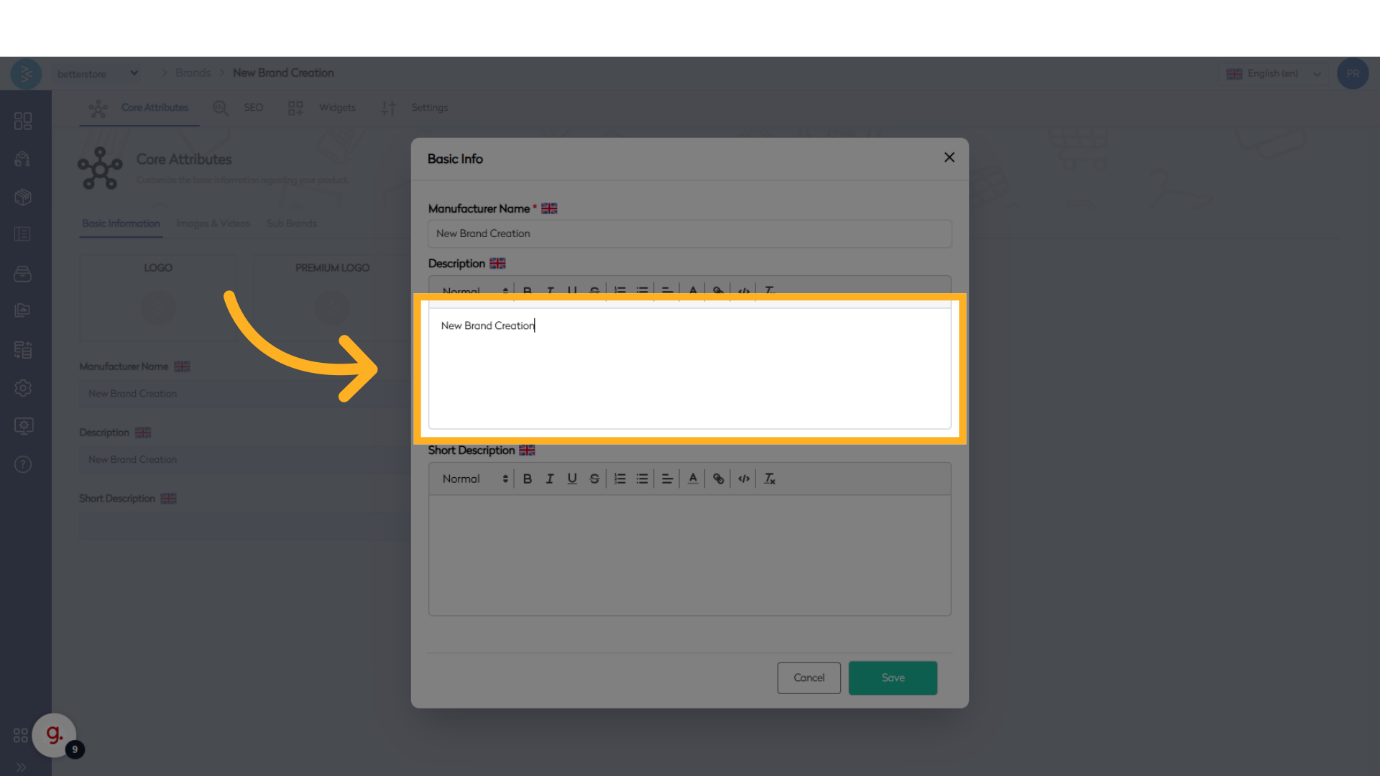
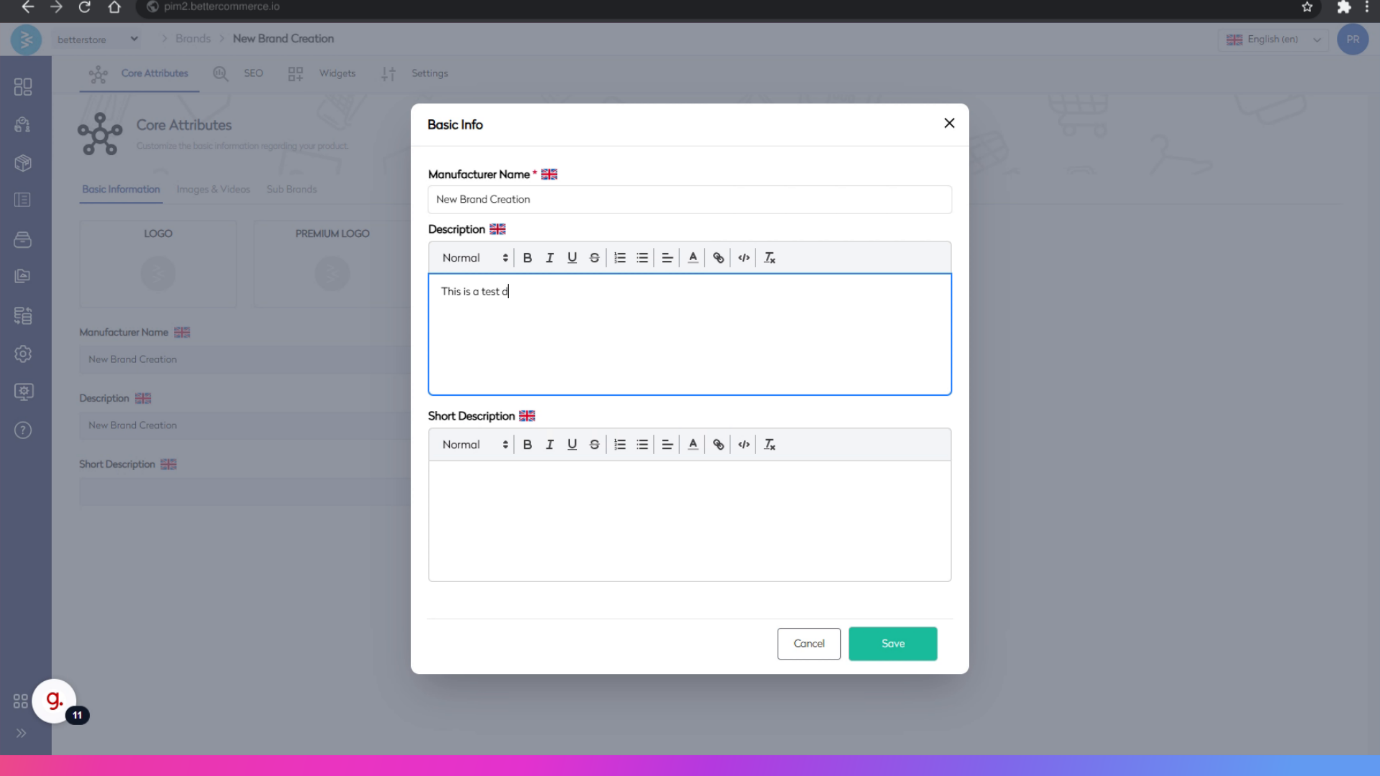
then click Save to store the changes.
Step 4: Add Images and Videos
Under the Basic Info section, click Images & Videos to access the media management area.
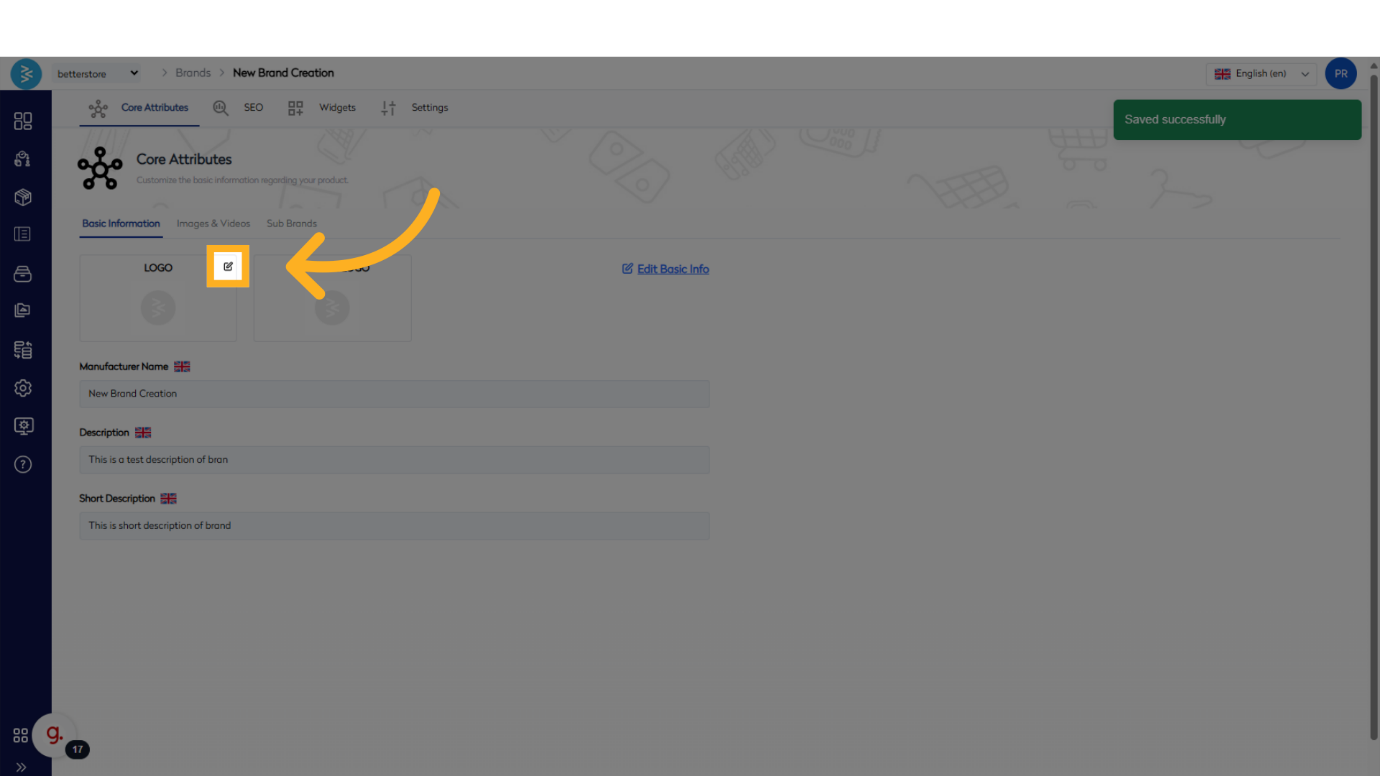
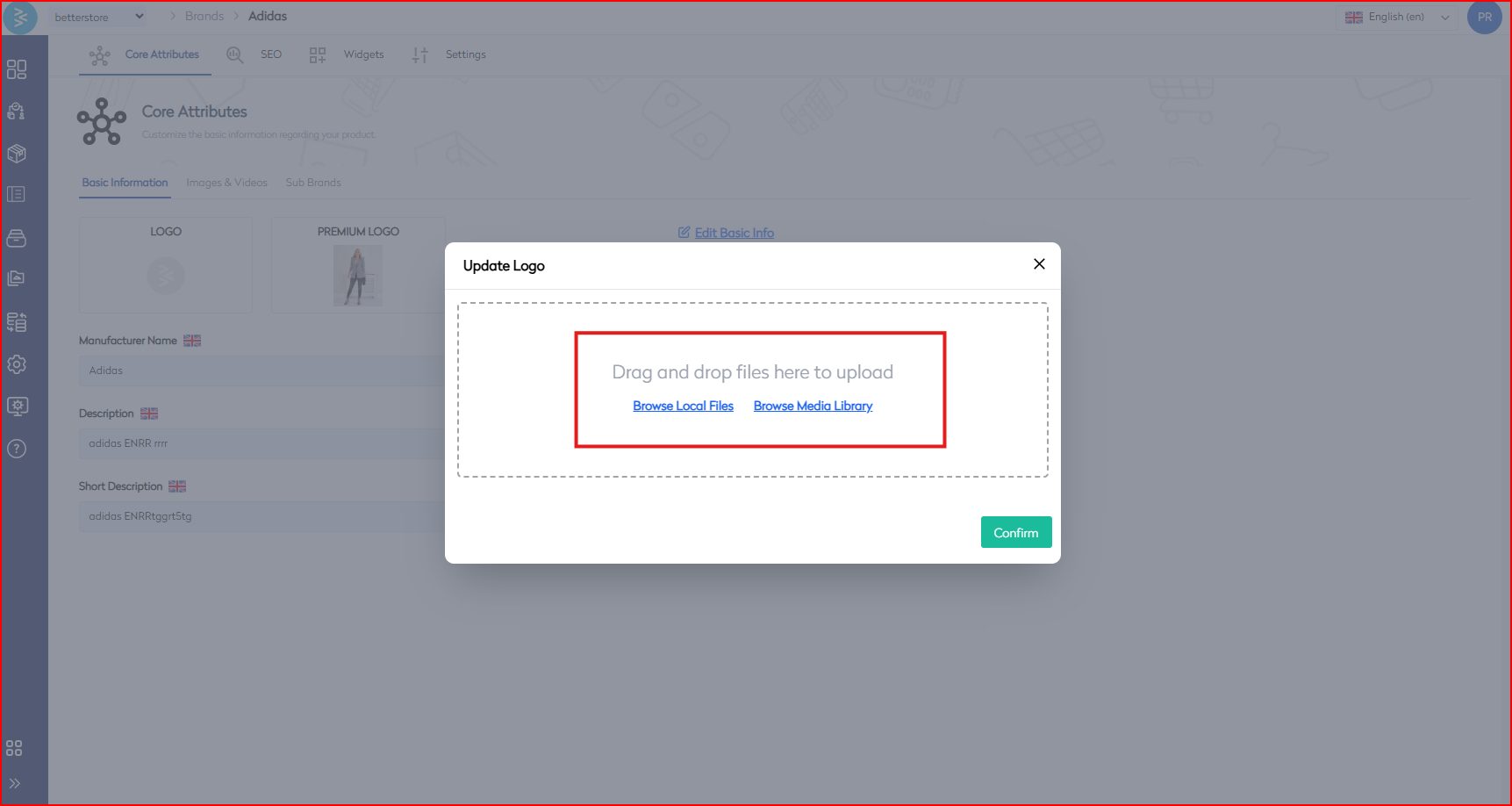
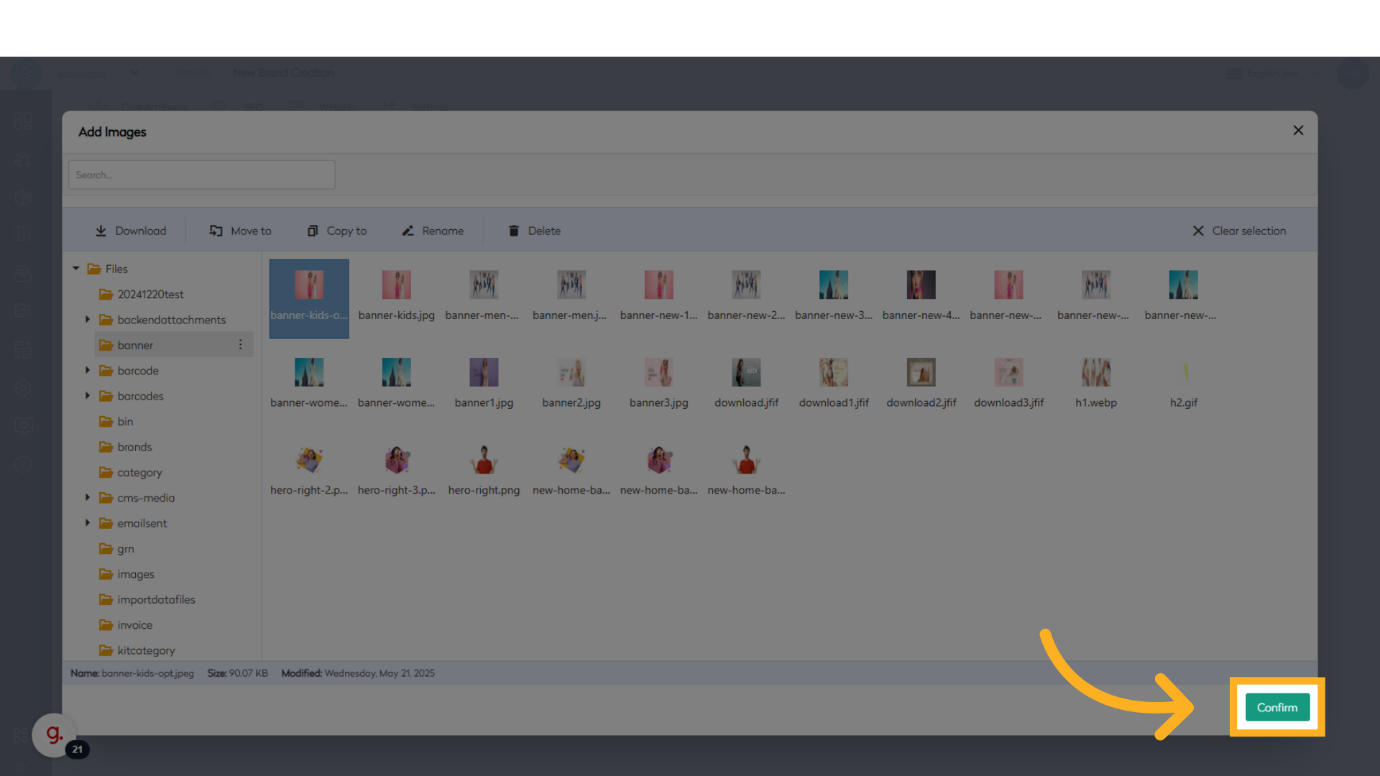
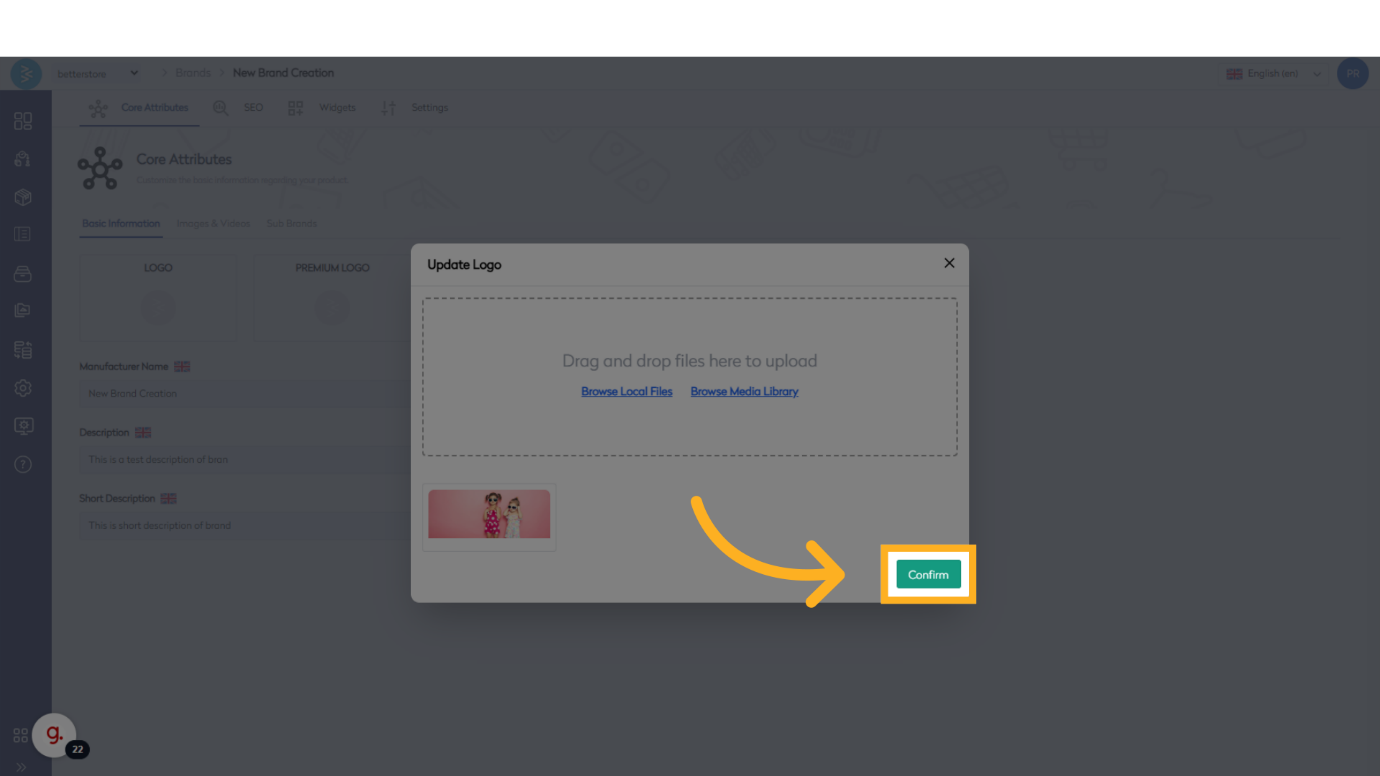
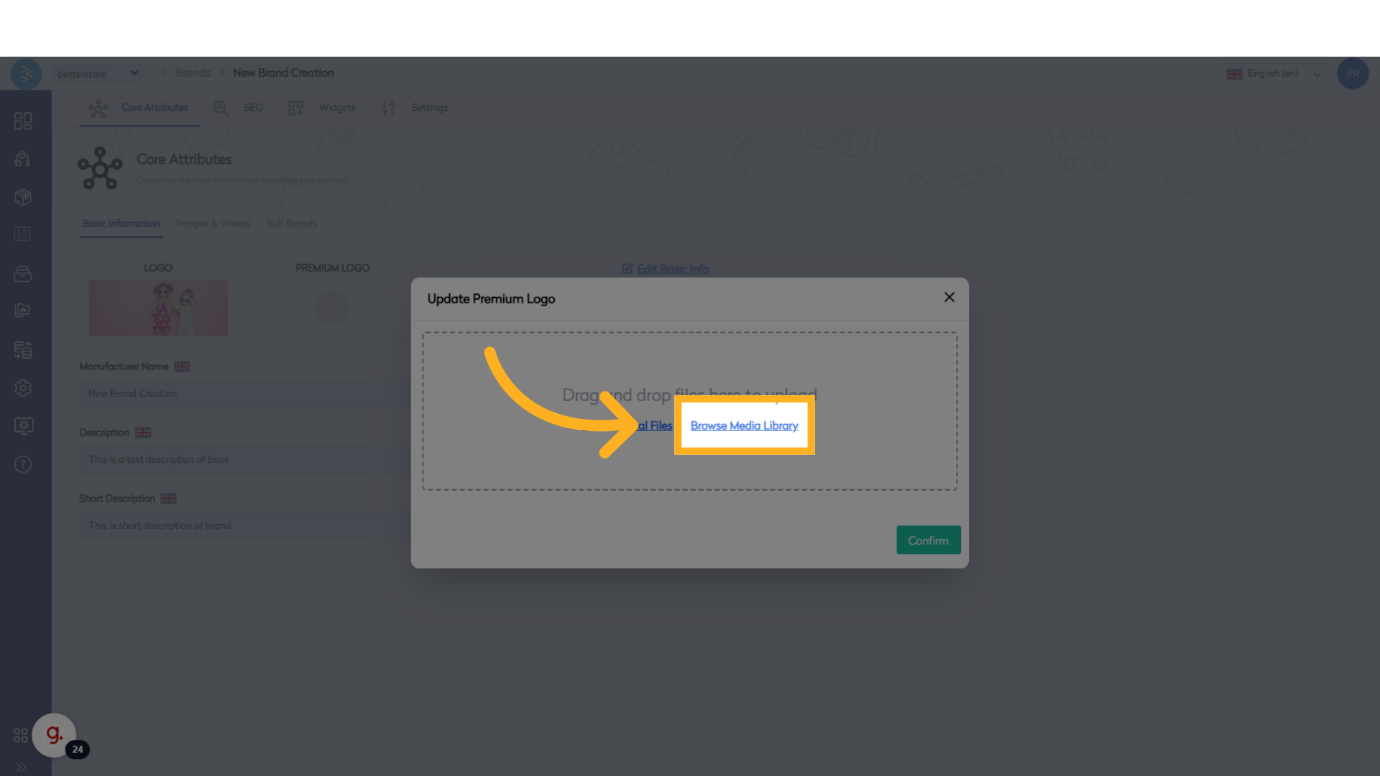
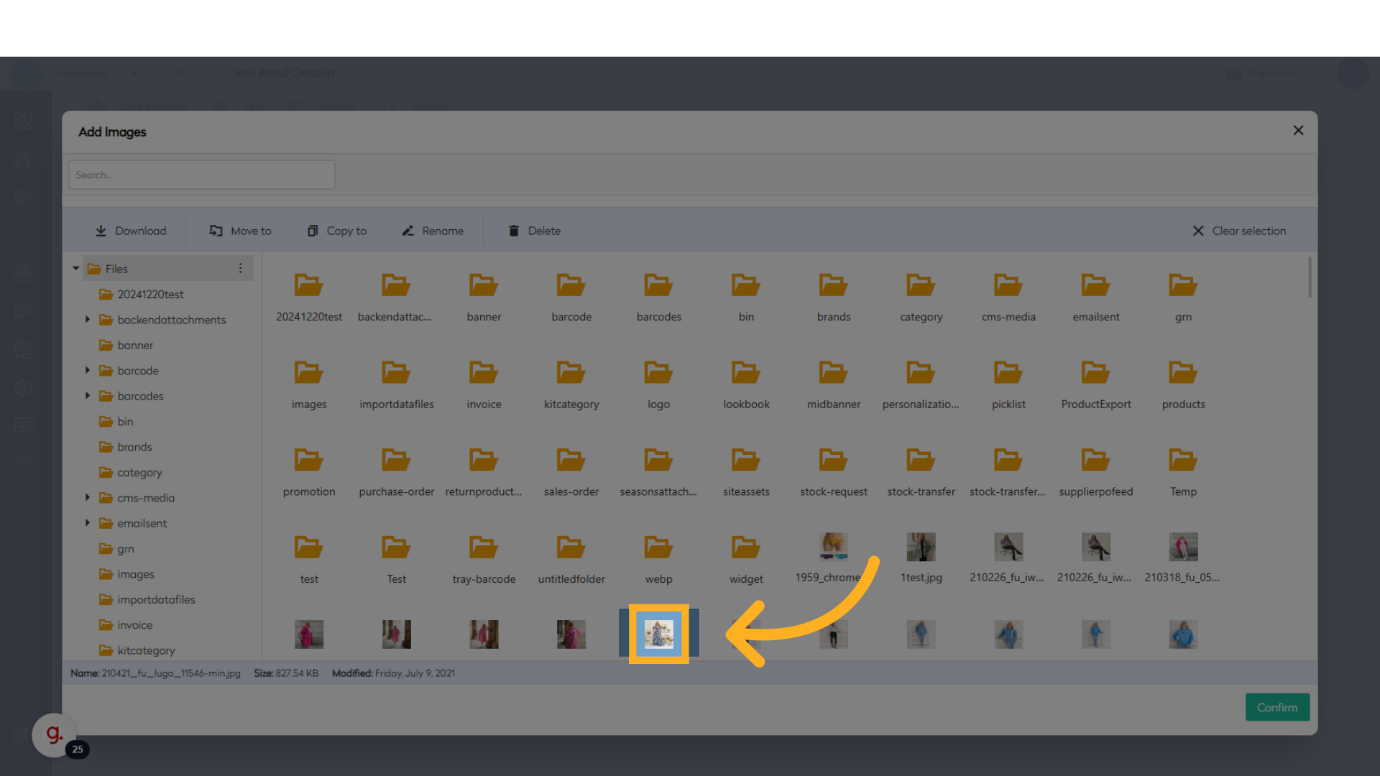
Choose to upload an image or video from your local machine or select from the assets stored in the PIM.
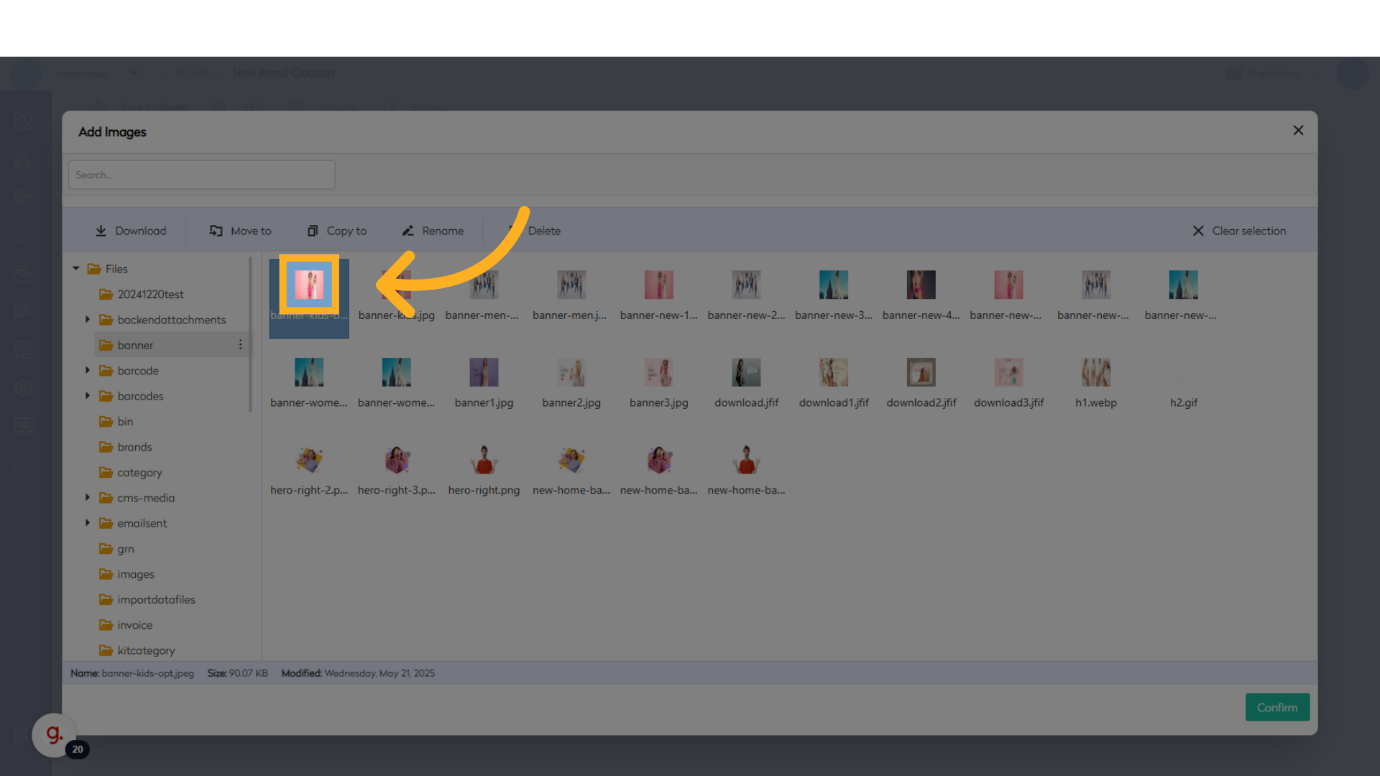
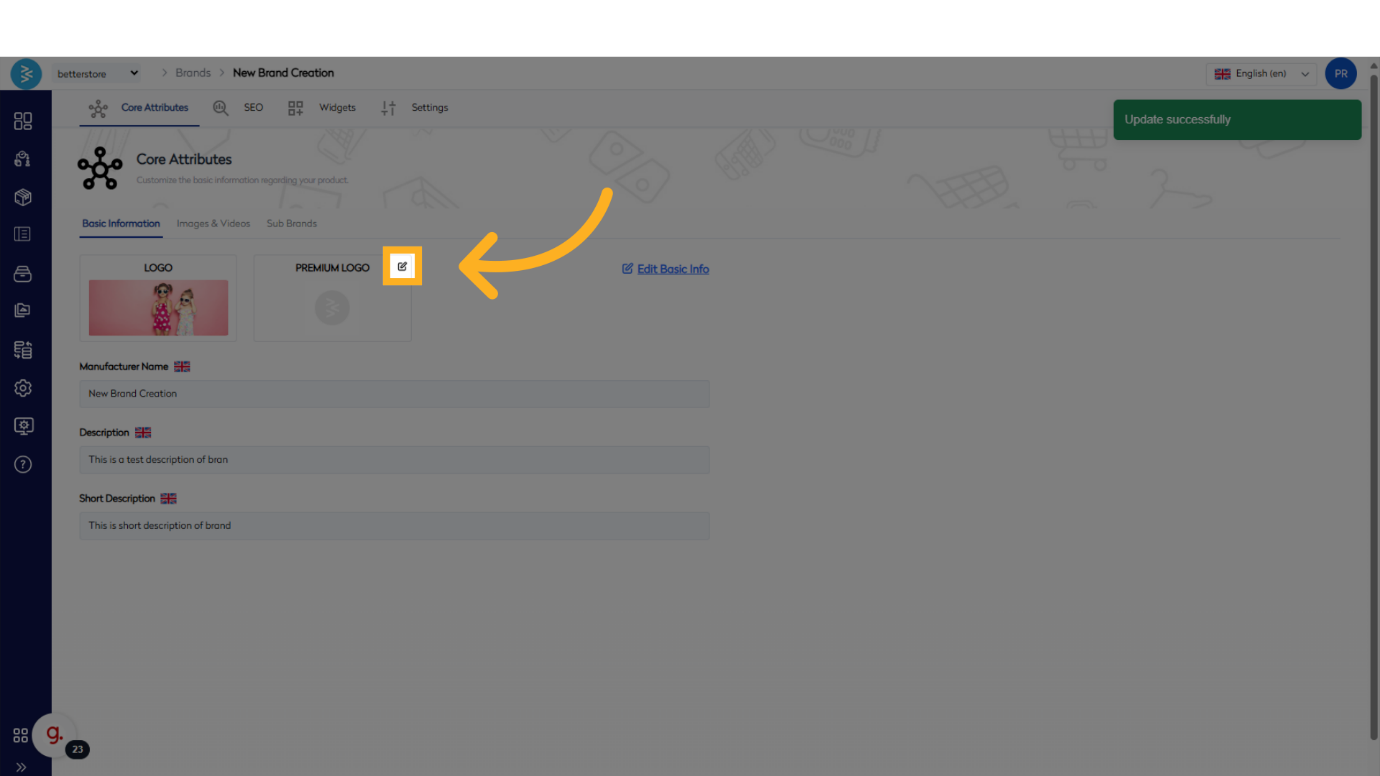
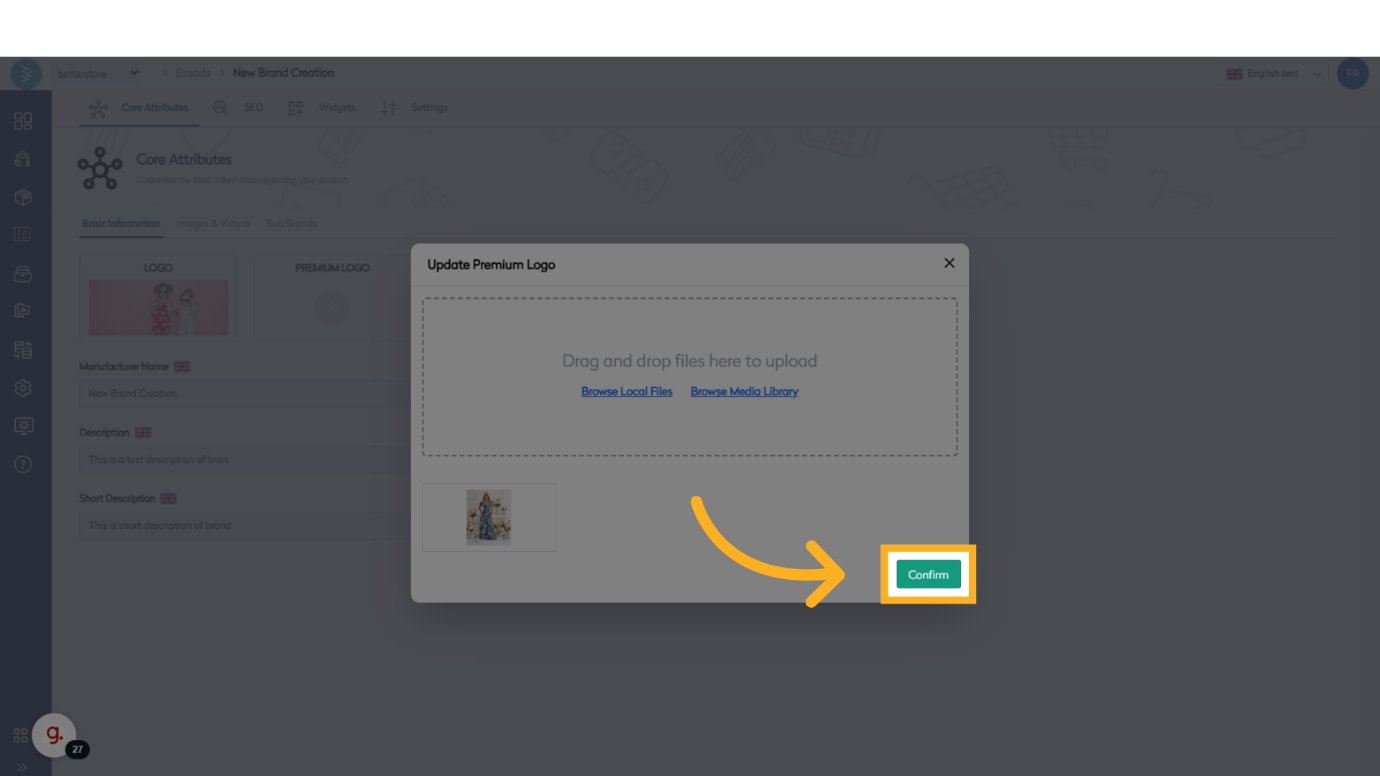
For example, here we are showing selecting an image from the PIM asset store, then save the changes.
Summary
This guide outlined the process of adding and editing brands in BetterCommerce, covering navigation to the brands section, creating new brands, updating basic information, and adding images or videos. By following these steps, you can efficiently manage brand details within the platform.