
Edit Webhooks
Overview
This document provides a comprehensive guide for editing webhooks within the BetterCommerce platform. It outlines the steps to modify existing webhook configurations, access variable lists for message templates, and review change and post logs to ensure effective webhook management. Follow the instructions below to update webhook settings efficiently.
-
Log in to BetterCommerce
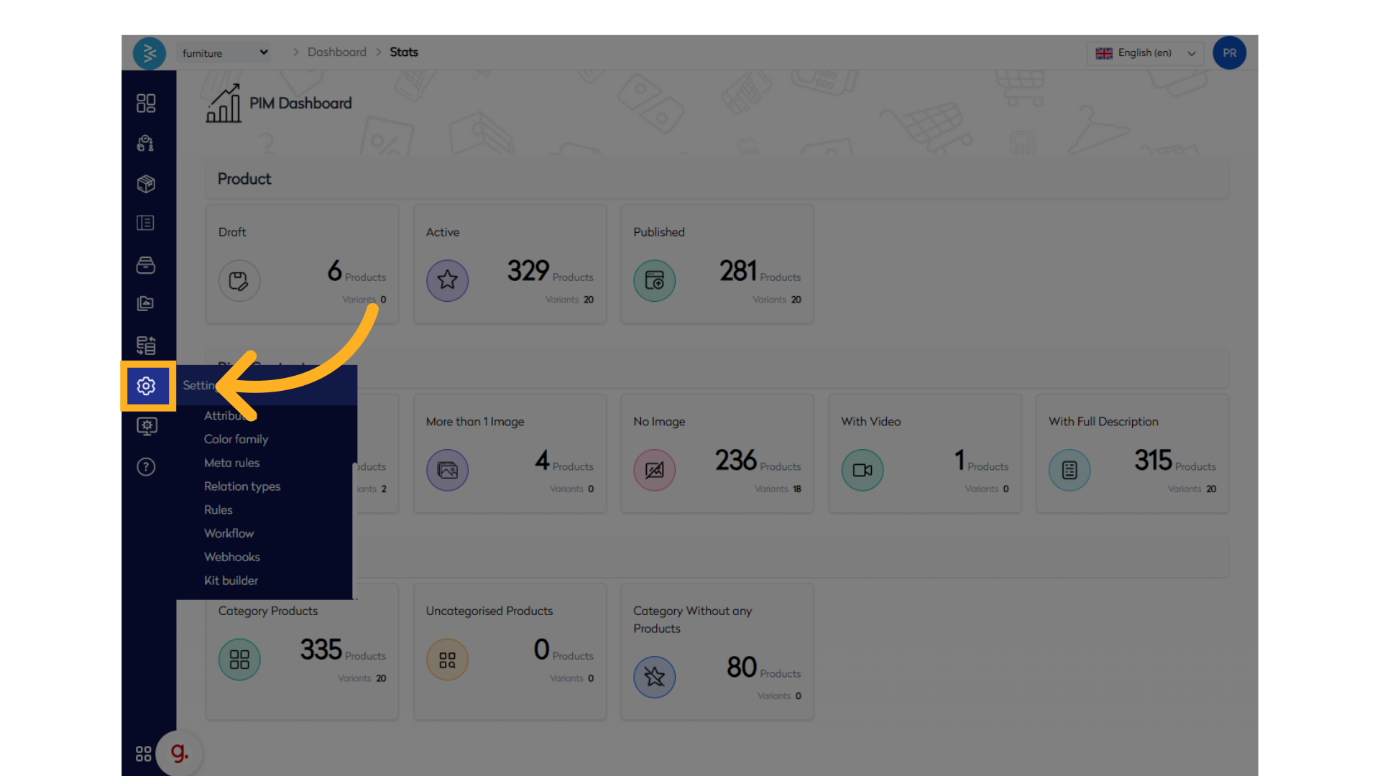
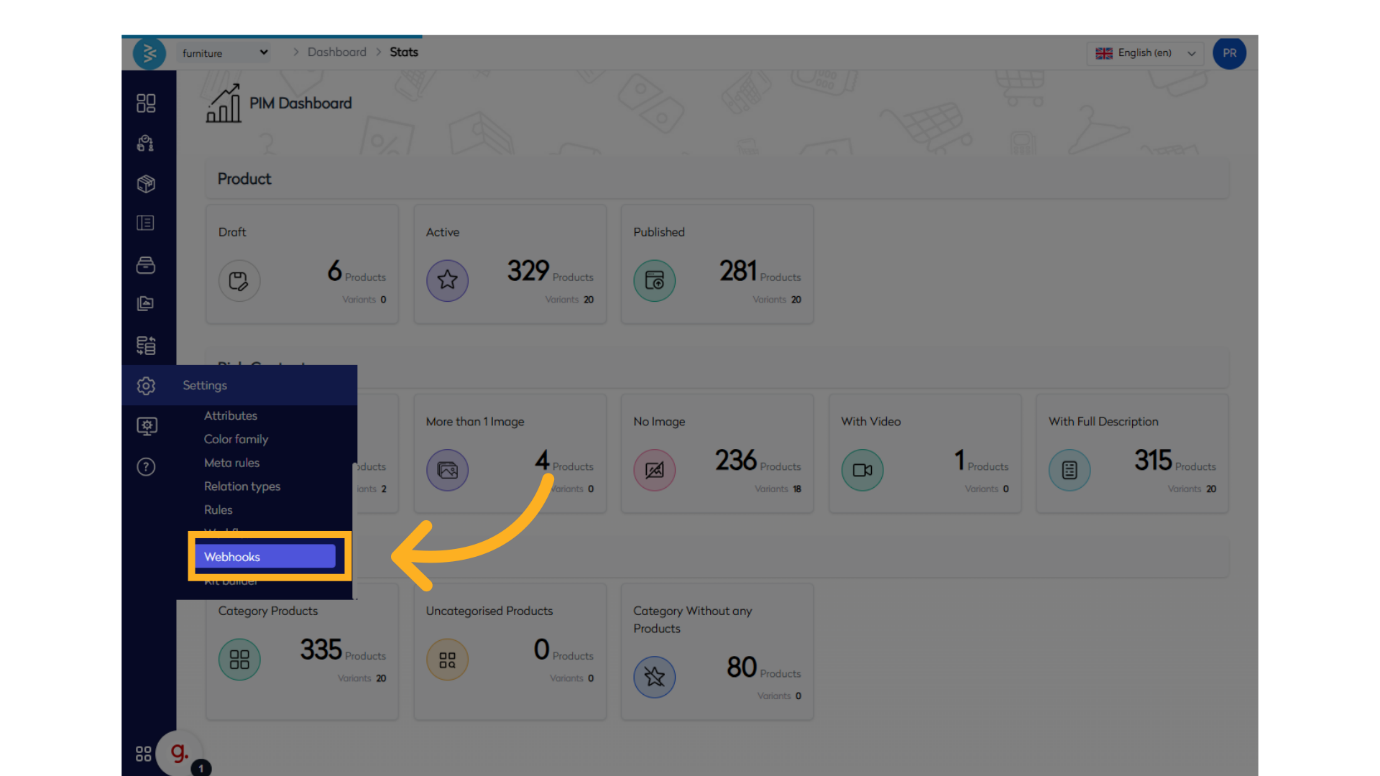
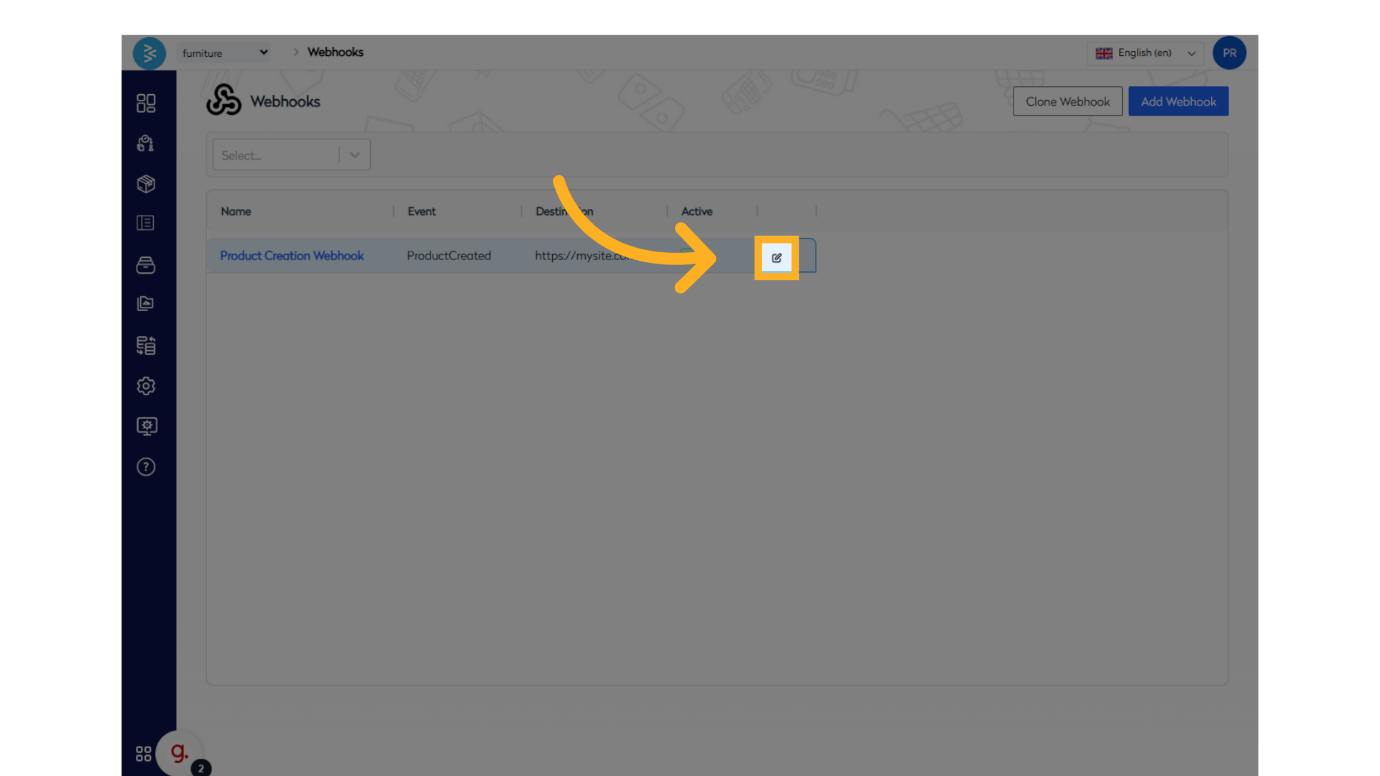
Navigate to pim2.bettercommerce.io using your enterprise credentials to access to the Webhooks Section. From the main dashboard, go to the Settings menu and select Webhooks. This will open the webhook listing screen, displaying all configured webhooks.- Select the target webhook you wish to edit by clicking on it, then choose the Edit option.
Editing Webhook Configurations
-
Modify Webhook Settings
Upon selecting Edit, the webhook configuration form will open in an editable state. You can update any of the following sections as needed:
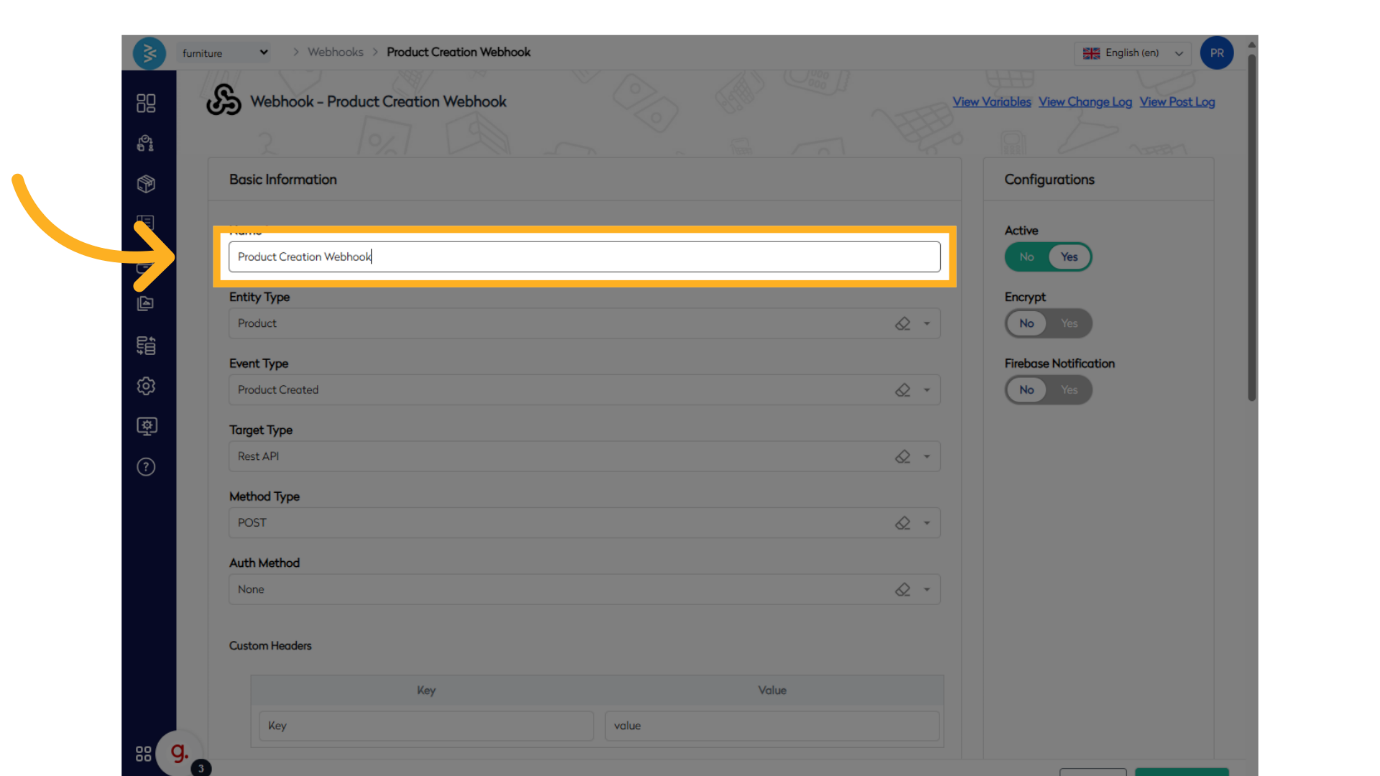
- Basic Information: Adjust the webhook name, entity type, event type, target, or authorization settings.
- Custom Headers: Add, modify, or remove key-value pairs for HTTP request metadata.
- Channels: Update the applicable channel (e.g., App, Web, Physical Store).
- Webhook Settings: Revise the destination URL, message format (JSON or XML), or message template.
- Configurations: Toggle settings such as Active, Encrypt, or Firebase Notification.
-
Utilize Variables in Message Templates
In the editable state, access the list of available variables to incorporate into the message template.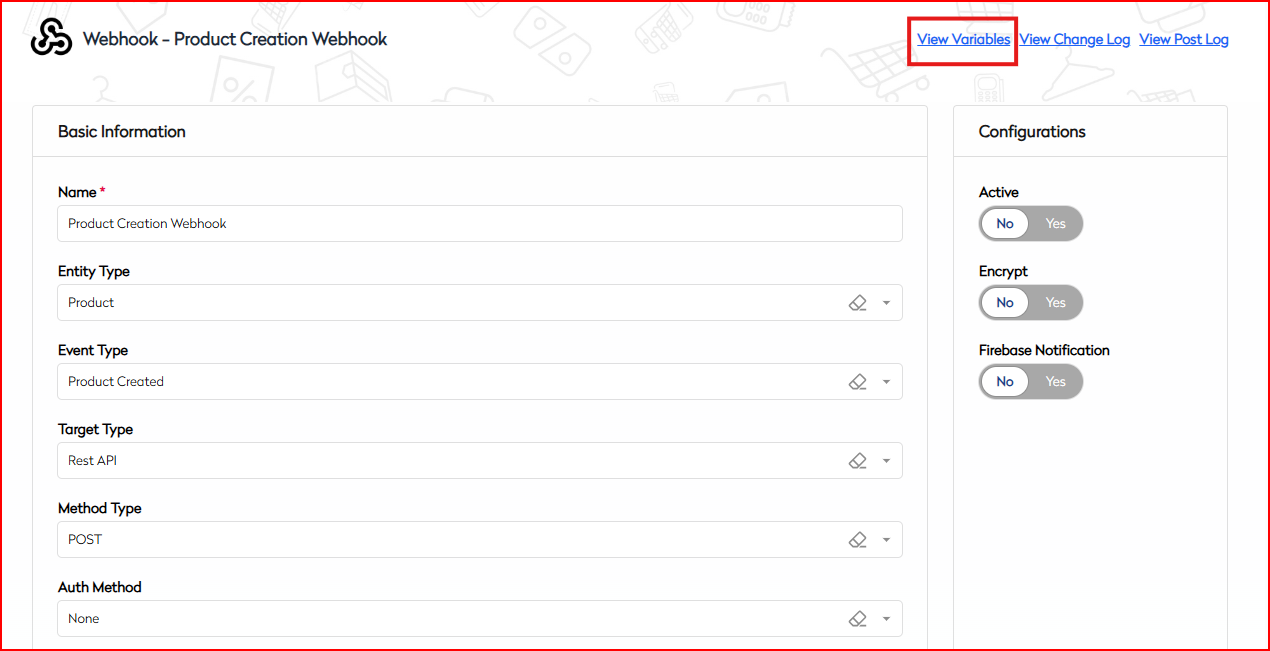
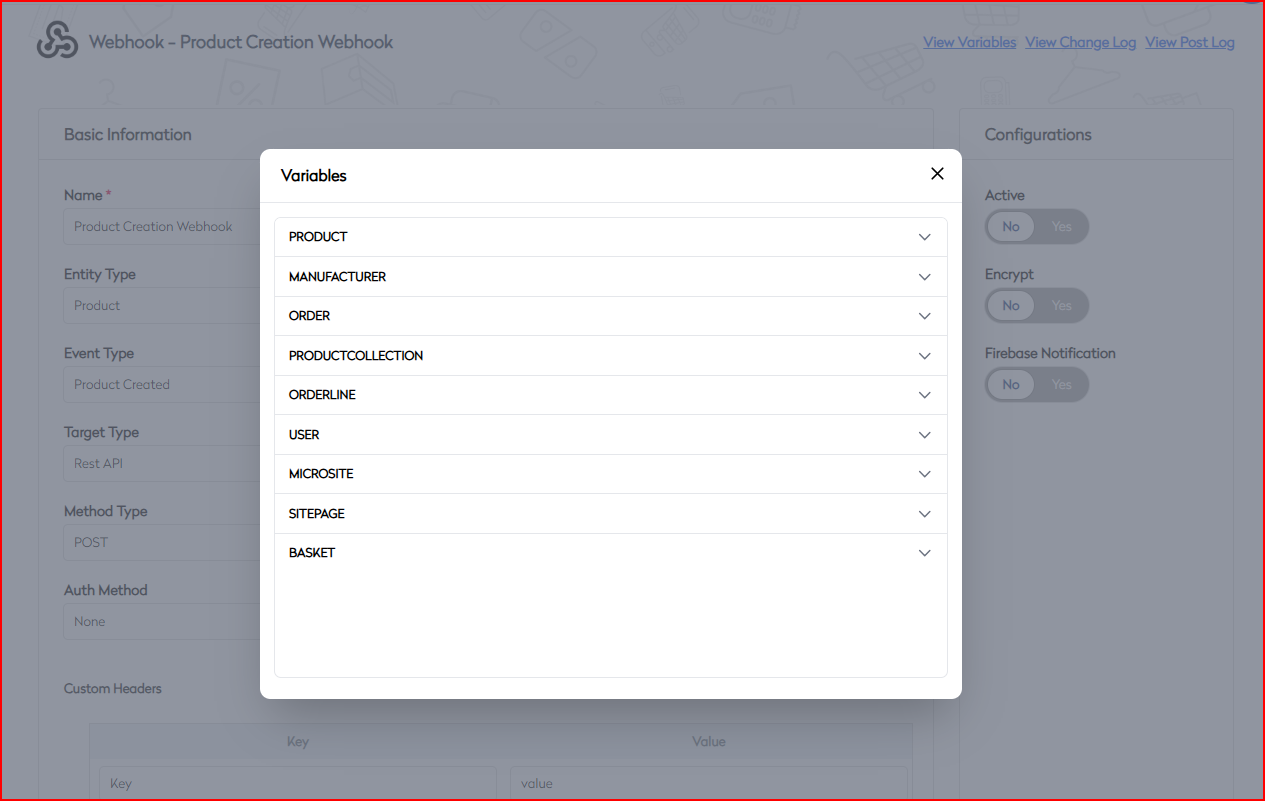
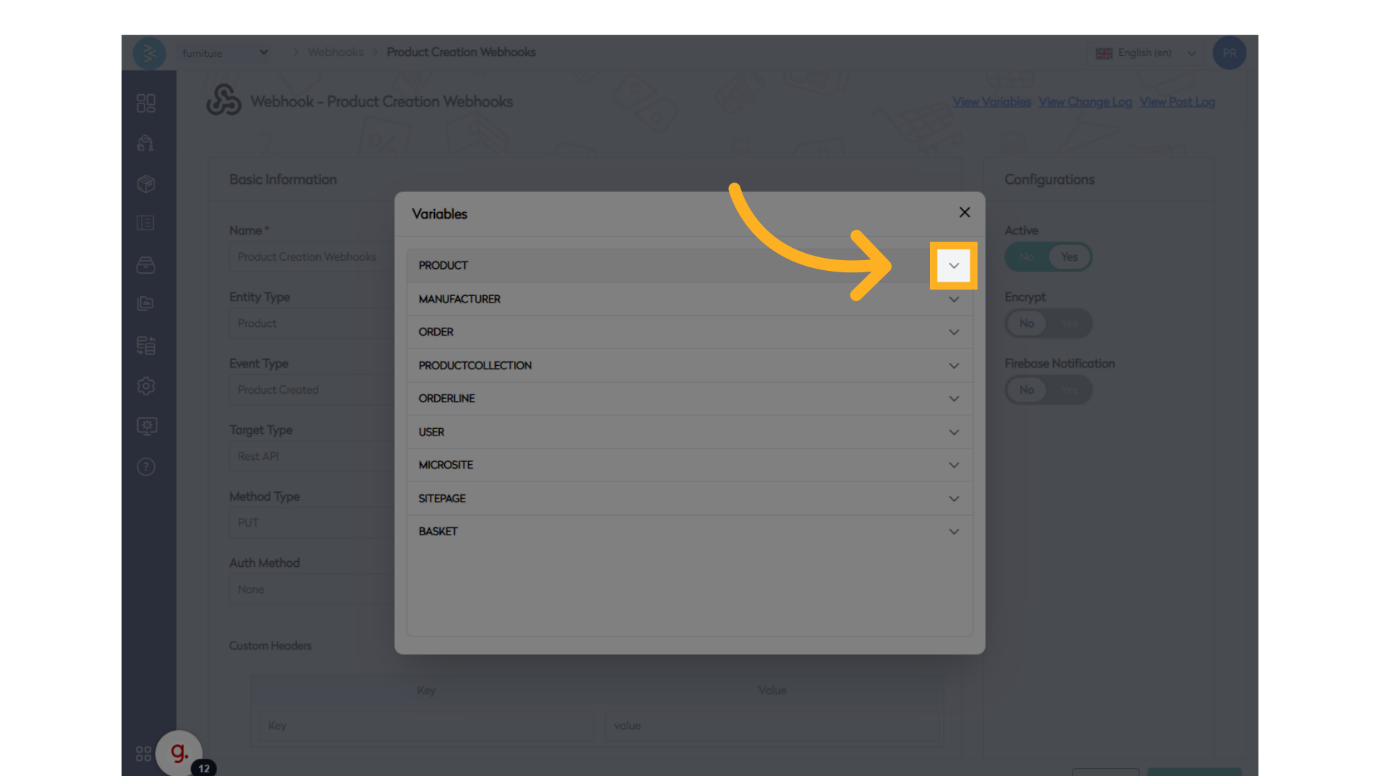
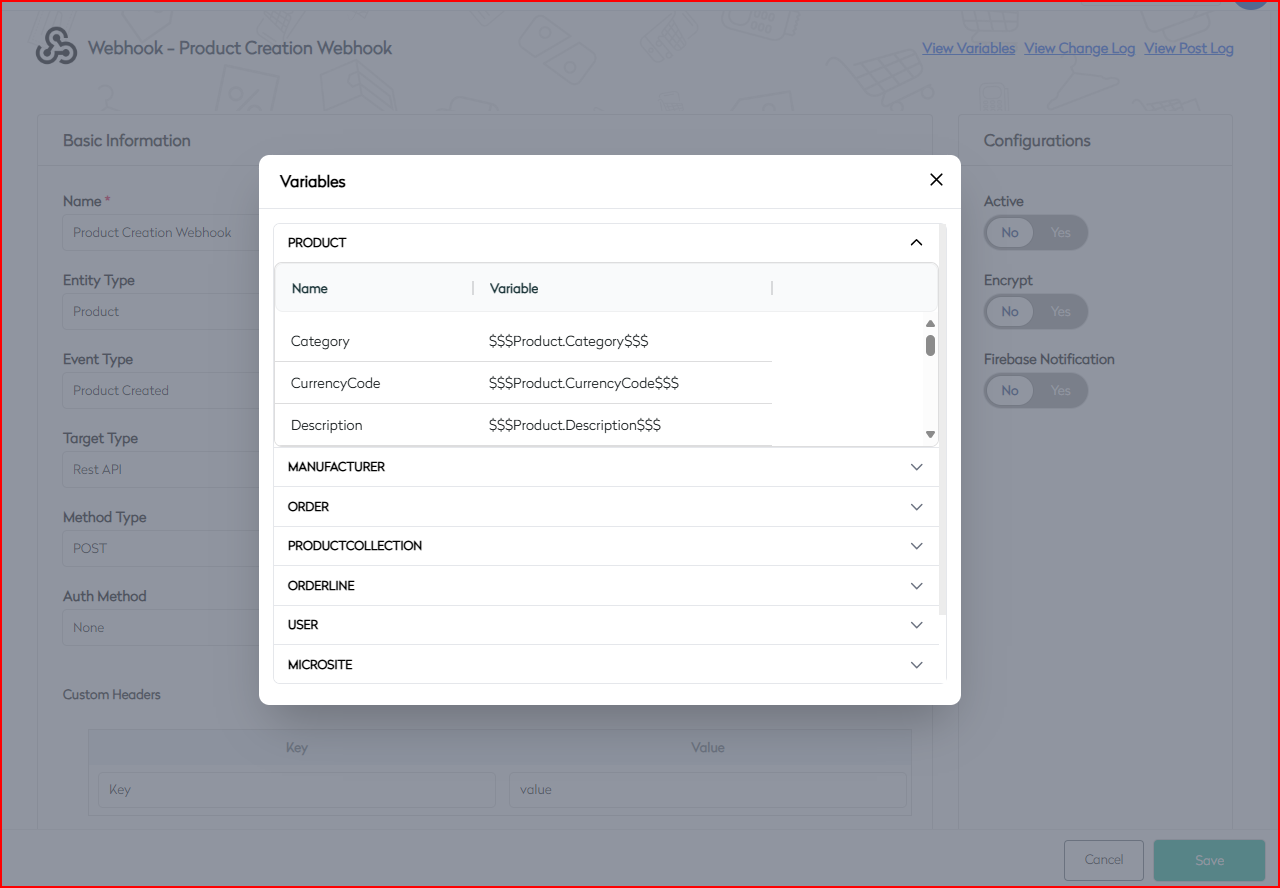
These variables enable dynamic data inclusion, ensuring the webhook payload aligns with your requirements.
Reviewing Webhook Activity
-
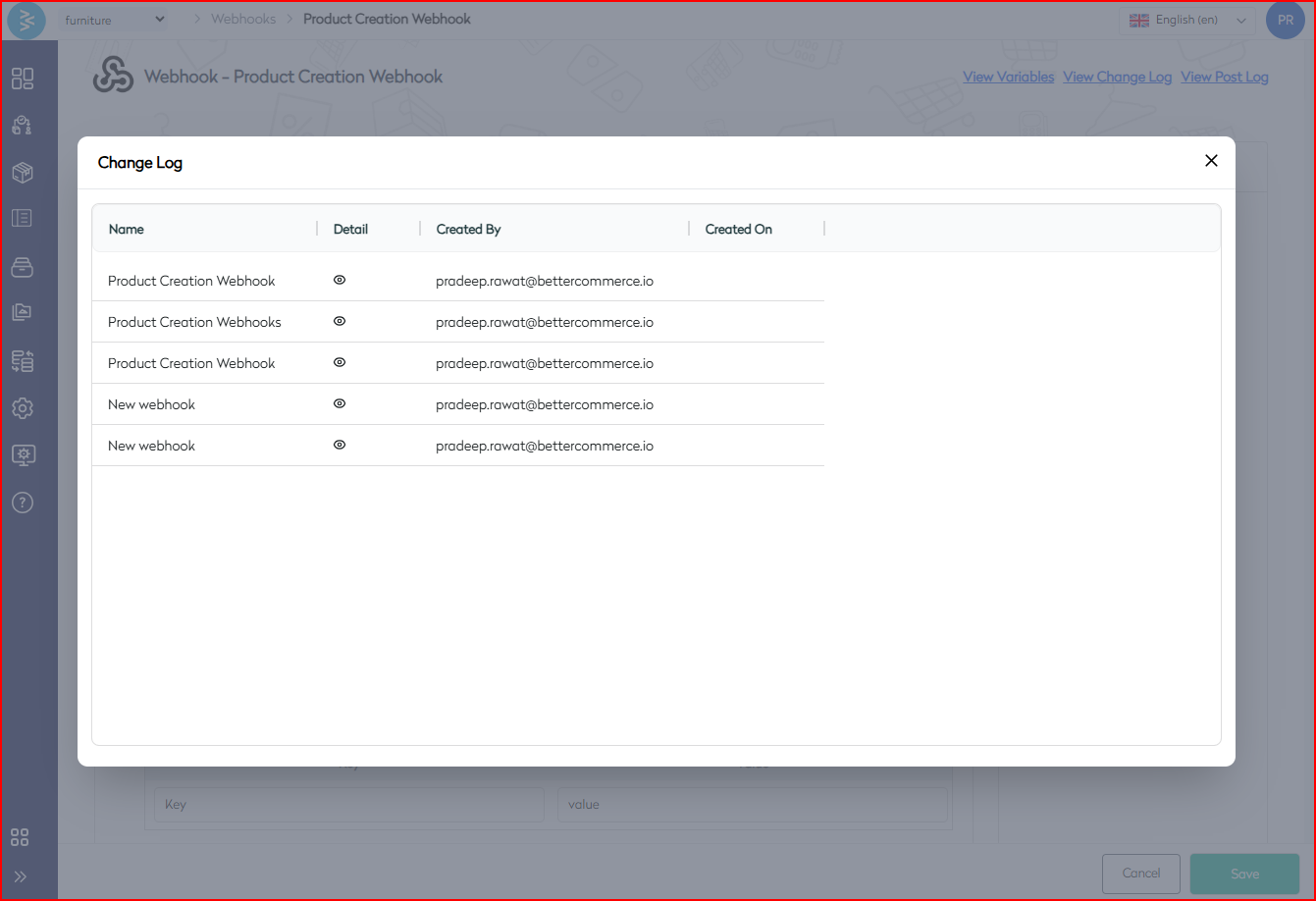
Access Change Log
View the Change Log to track modifications made to the webhook. This log records the history of updates, including who made changes and when, providing an audit trail for accountability.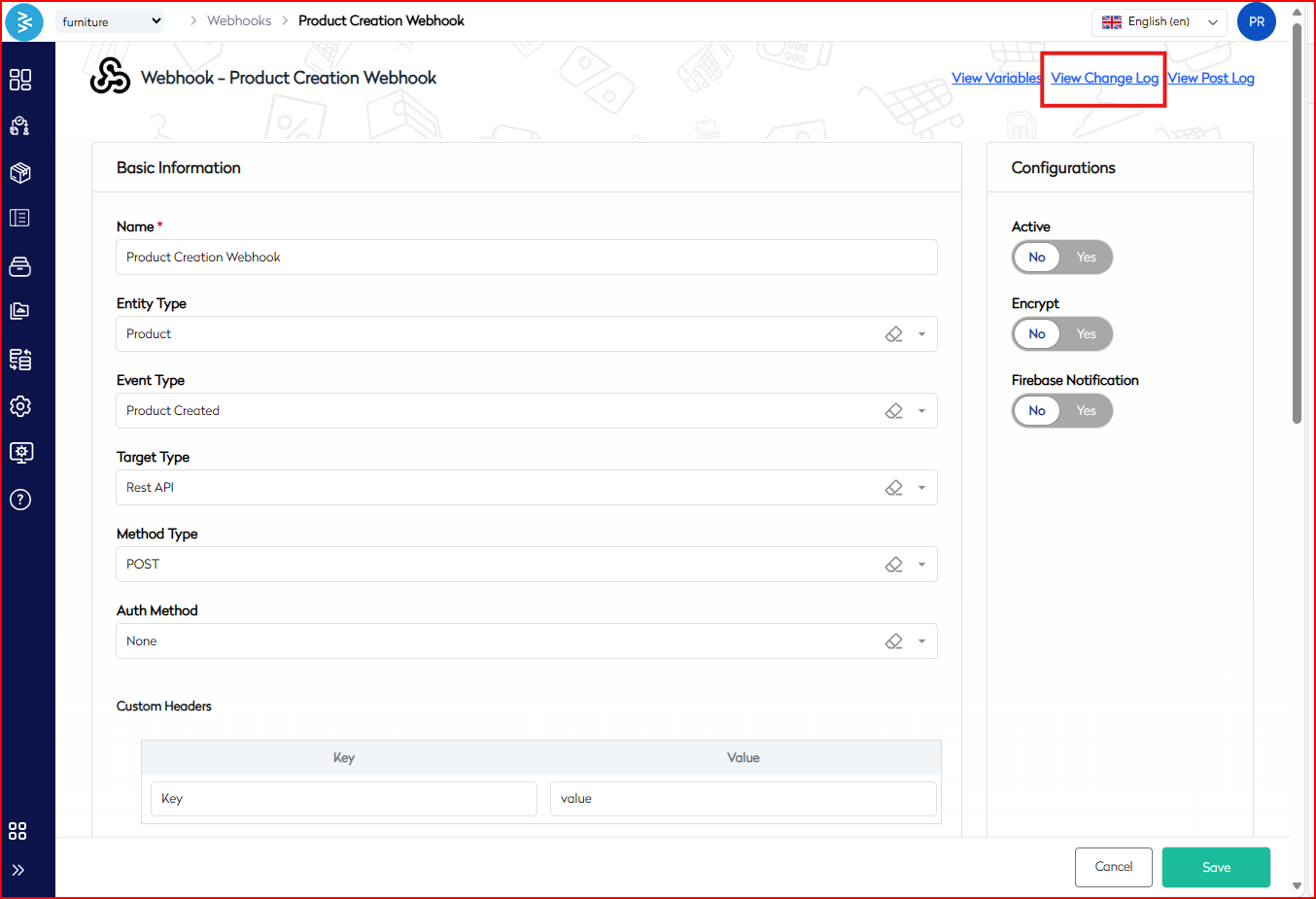
-
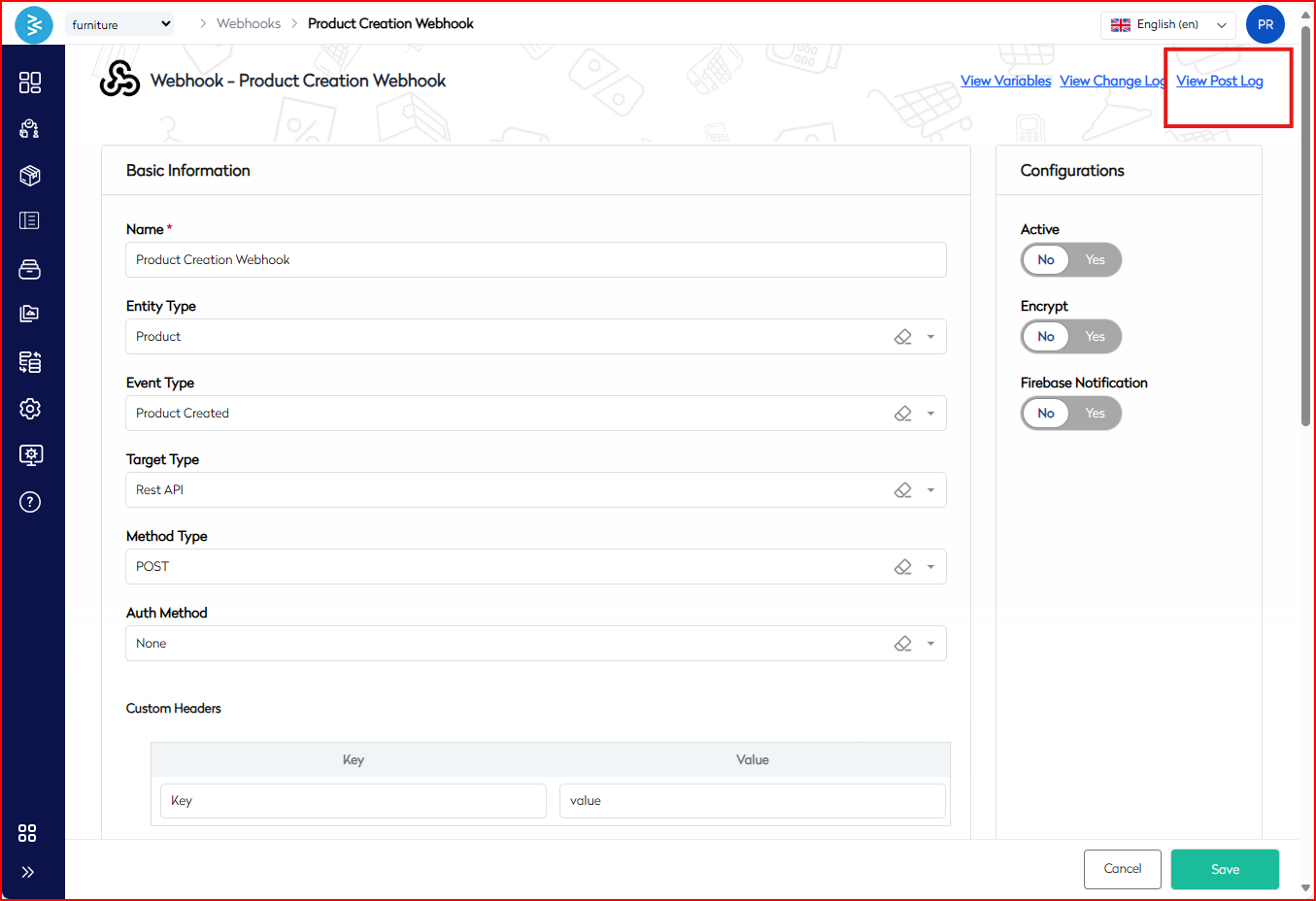
View Post Log
Check the Post Log to review the webhook’s trigger history. This section displays the last 20 instances when the webhook was activated, including details of the HTTP requests sent to the destination URL.
Best Practices for Editing Webhooks
- Validate Changes: Before saving, verify that updated settings (e.g., destination URL, message format) are correct to prevent disruptions in webhook functionality.
- Use Descriptive Updates: When modifying the webhook name or message template, ensure changes reflect the webhook’s purpose for clarity.
- Monitor Logs: Regularly review the Change Log and Post Log to identify any issues with webhook performance or configuration errors.
- Test Modifications: After editing, trigger test events to confirm the webhook behaves as expected.
Summary
This guide details the process for editing webhooks in BetterCommerce, covering navigation to the Webhooks section, modifying configuration settings, utilizing variables in message templates, and reviewing change and post logs. By following these steps and best practices, enterprise users can maintain and optimize webhook configurations to ensure seamless data flow and system integration.
For additional support, contact the BetterCommerce support team or refer to the platform’s help documentation.