
Edit Product Collection
Learn how to navigate different sections of a product collection, customize and edit information efficiently.This guide will walk you through editing a Product Collection in BetterCommerce
1. Navigate to Collection Menu and Click on Product Collection
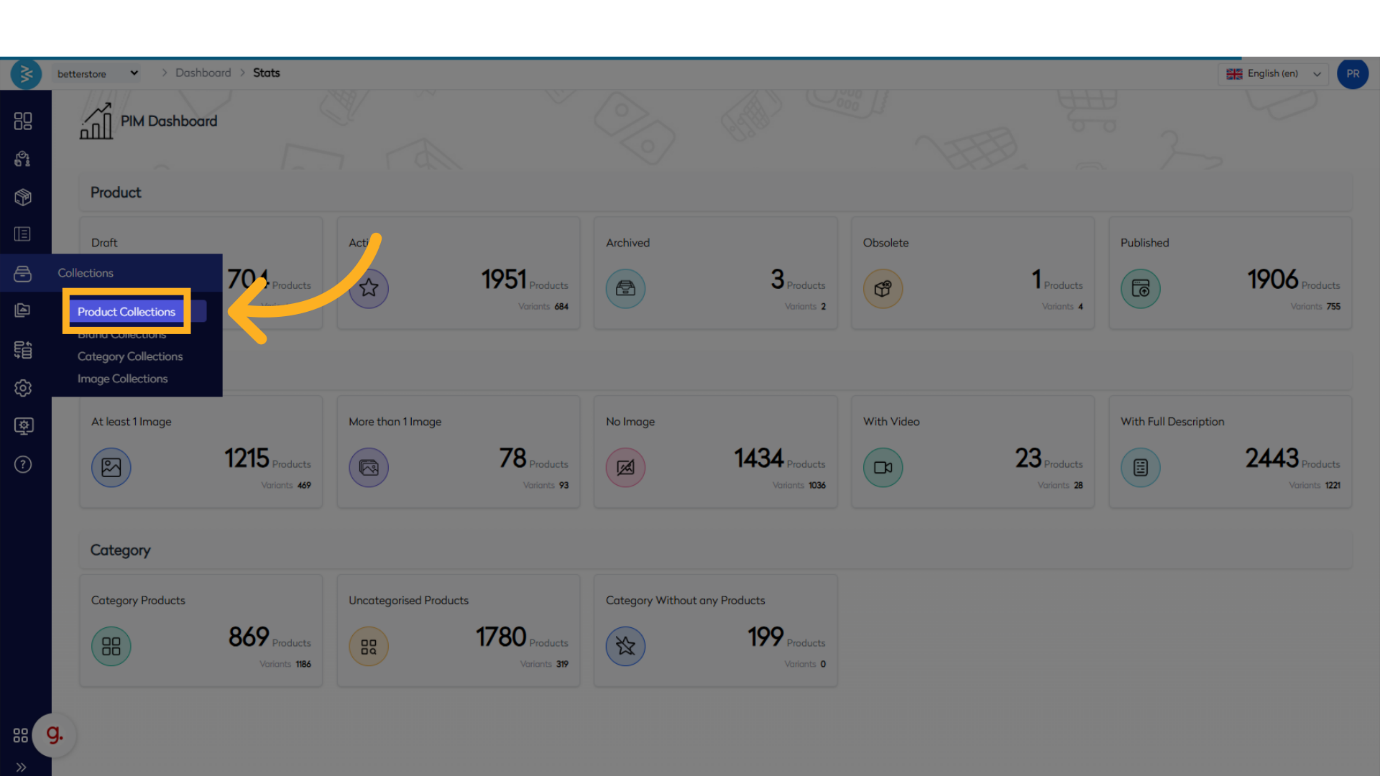
2. This Will Take You to the Product Collection Listing Page, Here You Can Search for the Collection That You Want to Edit

4. Once the Collection Is Open You Can Navigate Through Different Sections of the Collection to Check the Details and by Clicking on Edit Make the Changes if Any Section Needs Editing
"Basic Information"
 "Custom Information"

"Collection Filters"
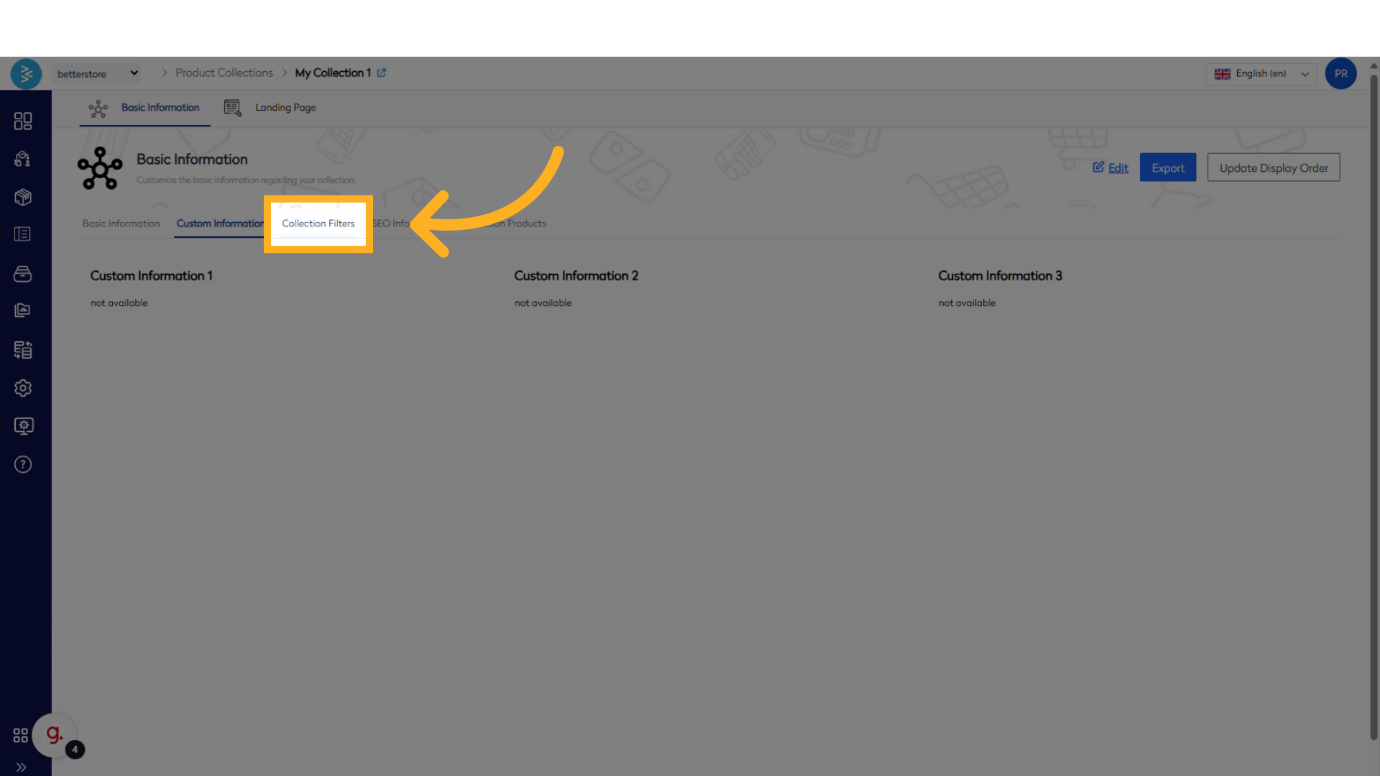
"SEO Information"

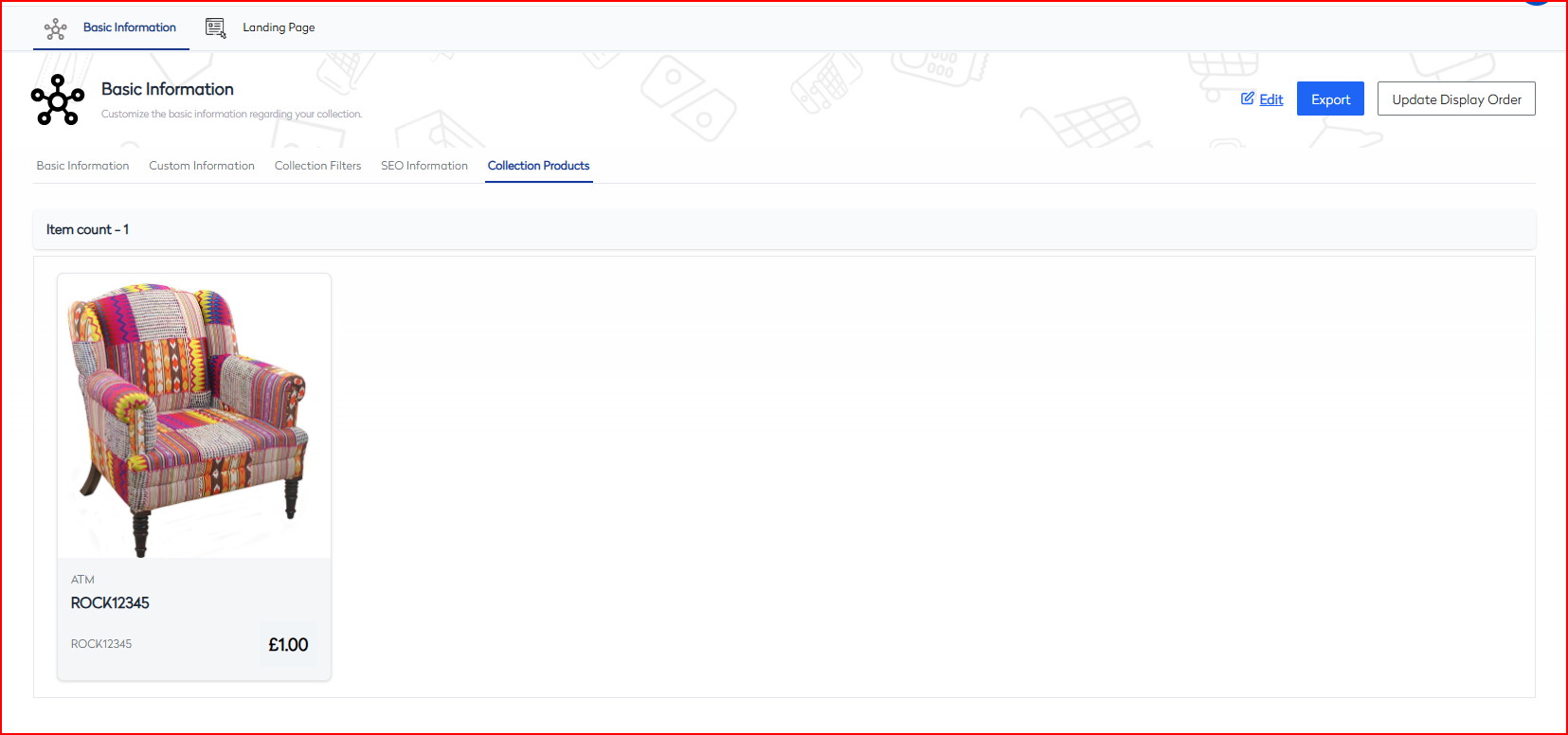
"Collection Products"
5. Initiate editing by clicking the Edit button, which will enable modifications to the fields in the selected section. Update the details as required.
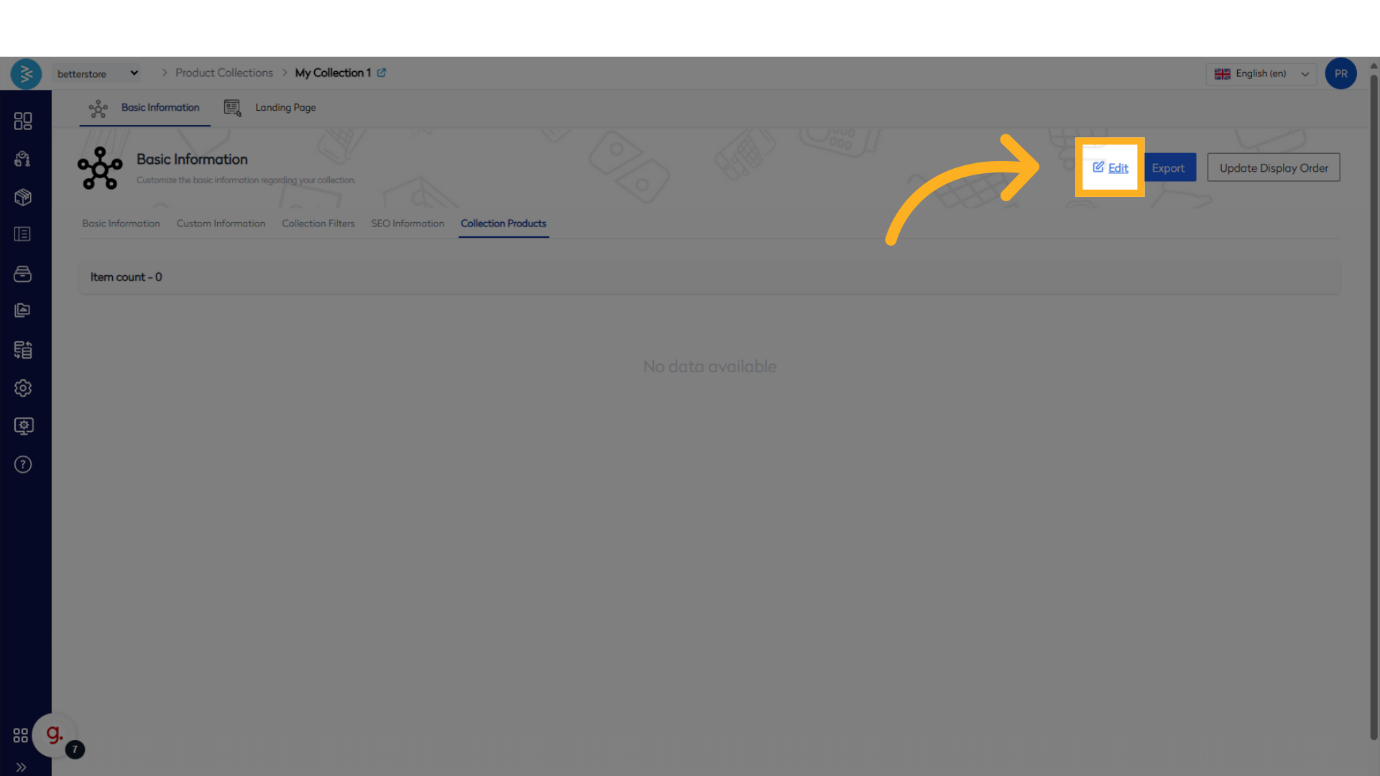
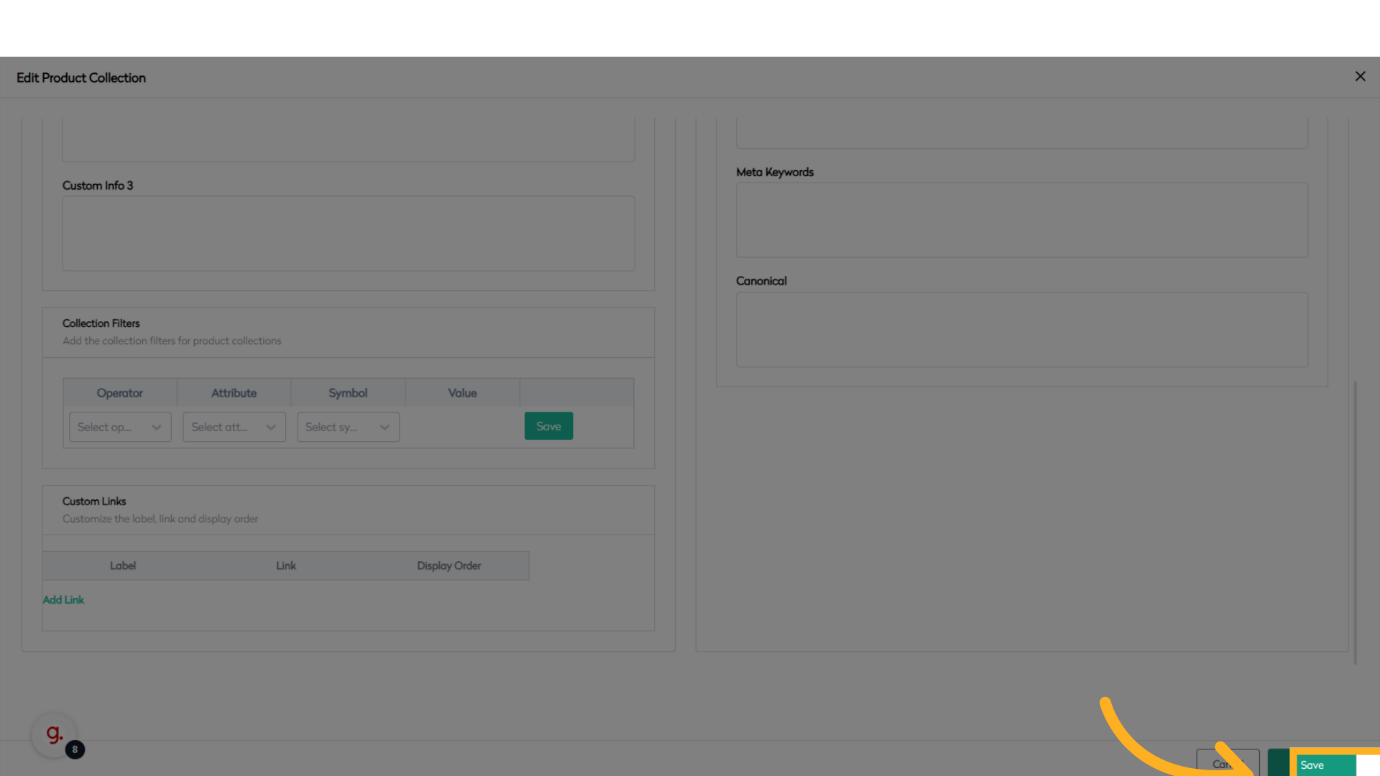
6. Once All the Changes Are Made, Click Save to Record the Changes
7. You can also Set the Display Order of the Product in Your Collection
Export the product from the collection, and you will receive a spreadsheet in the inbox associated with your PIM login
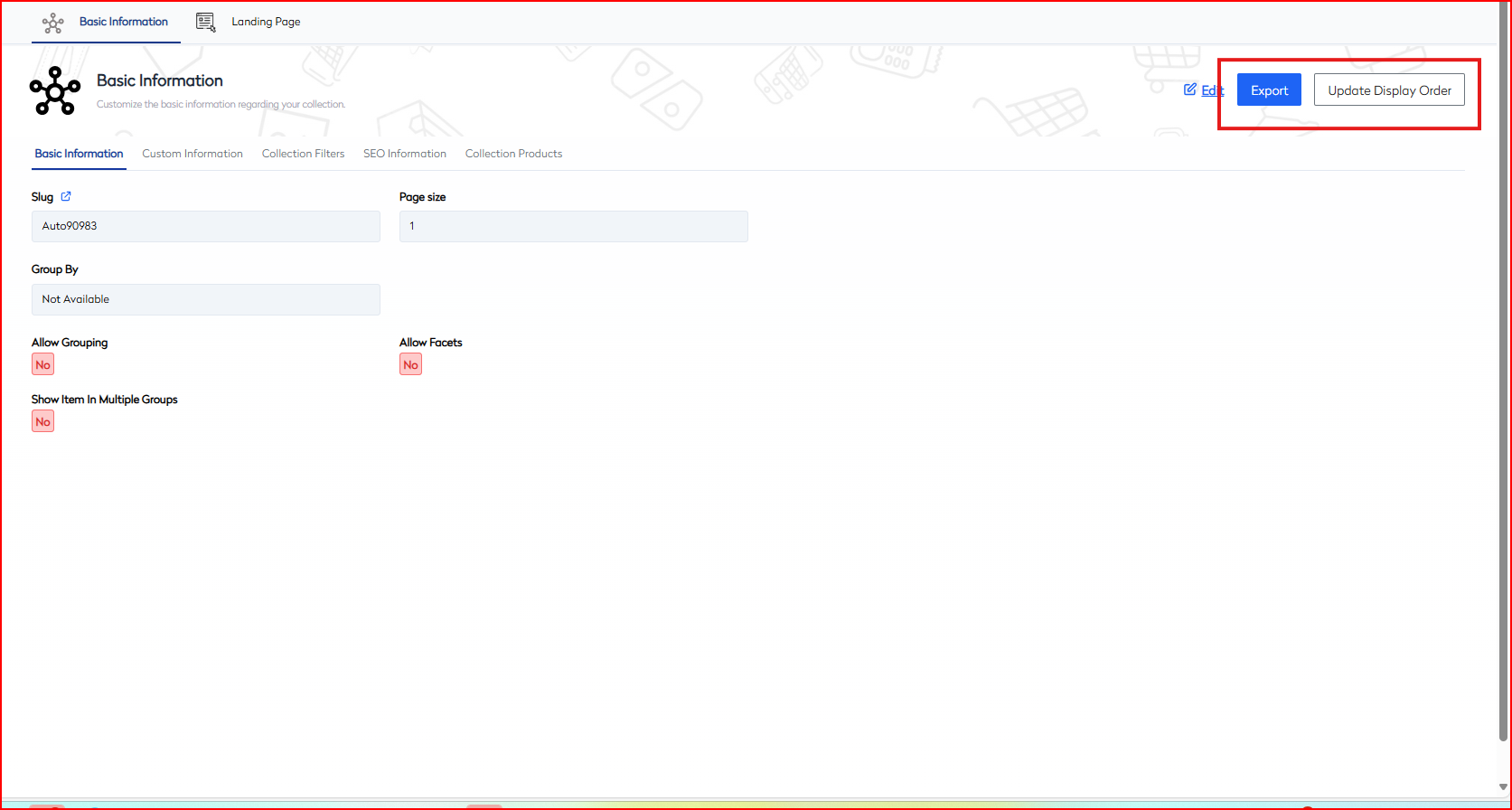
Once the spreadsheet is received, you simply need to update the display order of the product in the column “F” and update the display order

Summary
This guide covered accessing and editing various sections of a Product Collection in BetterCommerce, including Basic Information, Custom Information, SEO Information, and Collection Filters. Save time and streamline the editing process effectively.