
Add Webhook
Overview
This document provides a comprehensive guide for configuring webhooks within the BetterCommerce platform to enable seamless communication and data exchange between systems. Webhooks facilitate real-time event notifications, ensuring efficient integration with external applications. Follow the steps below to set up and manage webhooks effectively.
-
Log in to BetterCommerce
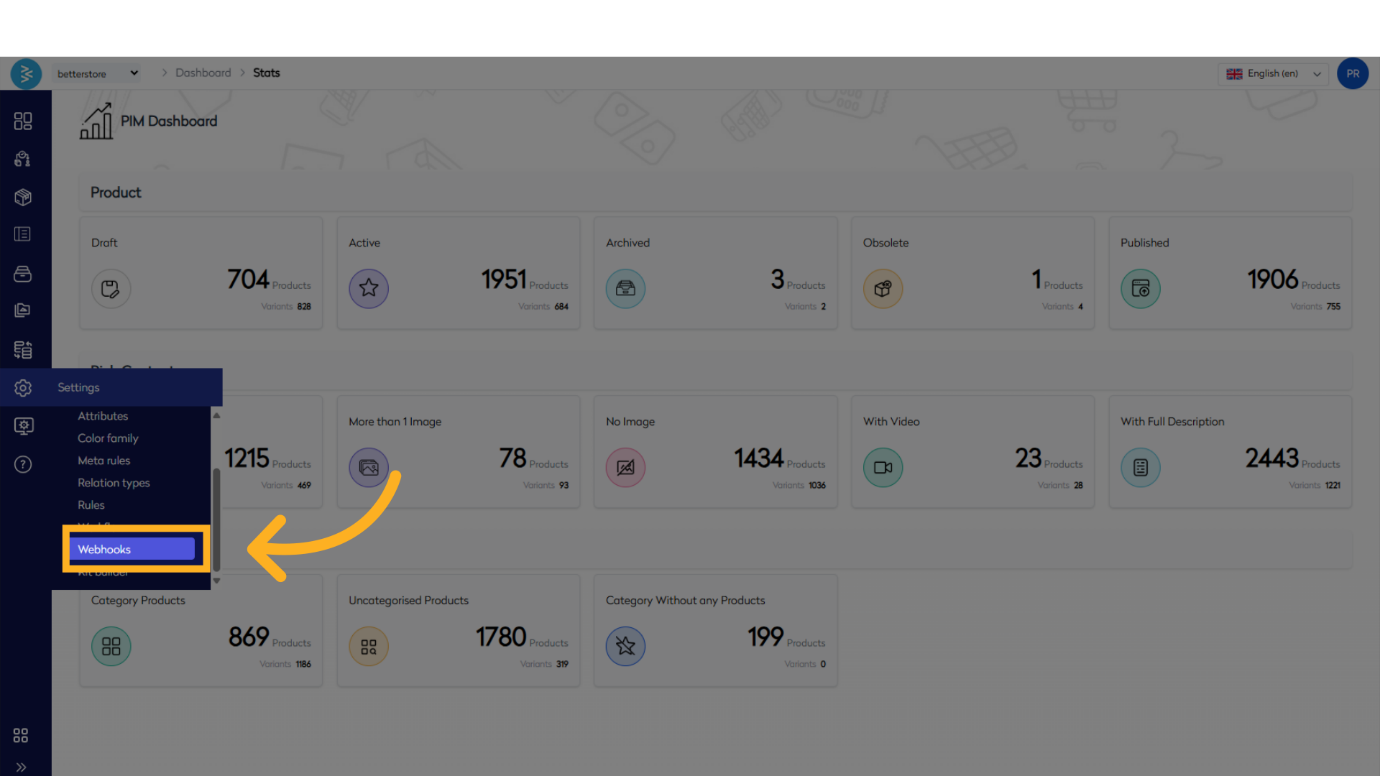
Navigate to Navigate to the Webhooks SectionFrom the main dashboard, go to the Settings menu and select Webhooks. This will open the webhook listing screen, displaying all configured webhooks.
-
Initiate Webhook Creation
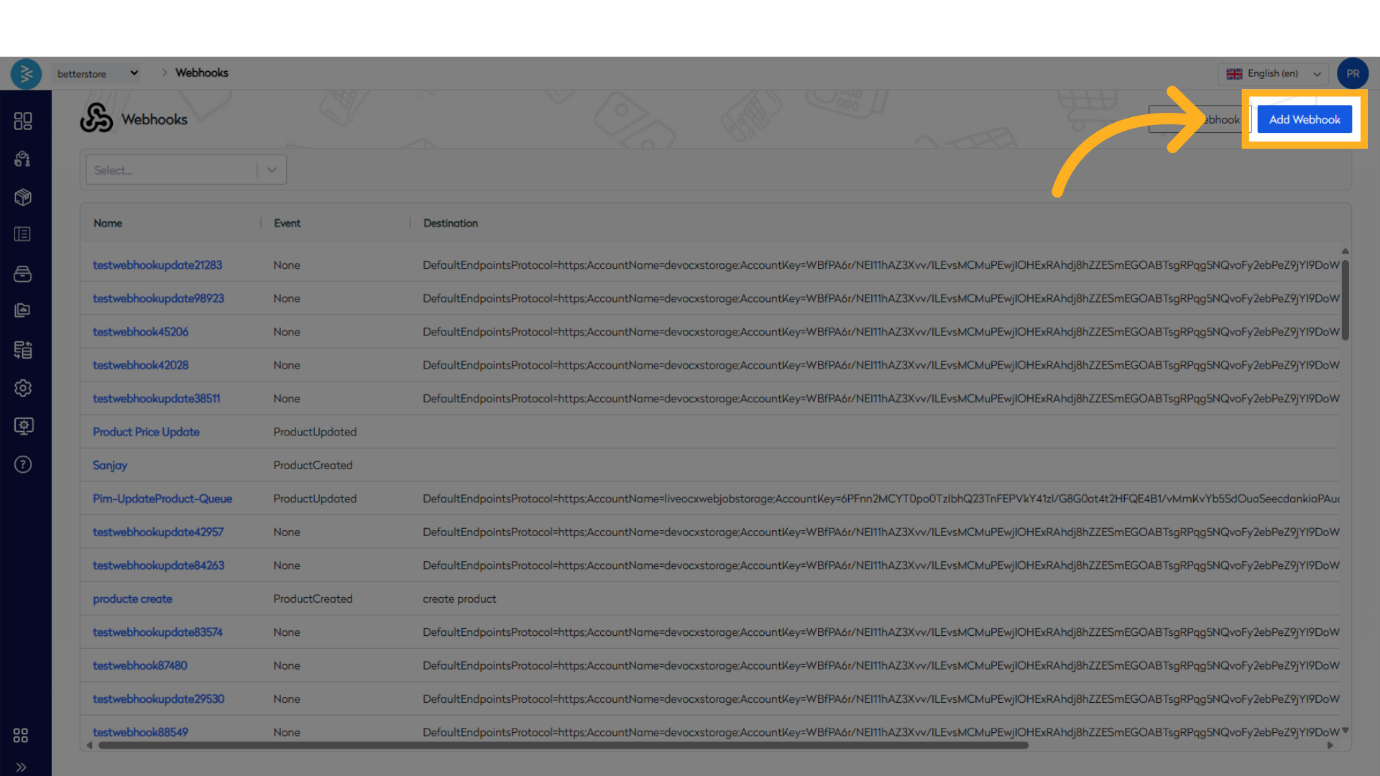
On the webhook listing screen, locate the top-right menu with two options: Add Webhook and Clone Webhook. Select Add Webhook to create a new webhook.
Configuring a New Webhook
The webhook configuration form is organized into several sections for structured setup:
1. Basic Information
This section defines the core attributes of the webhook:
-
Name: Assign a descriptive name to the webhook that reflects its purpose or business requirement for easy identification.
-
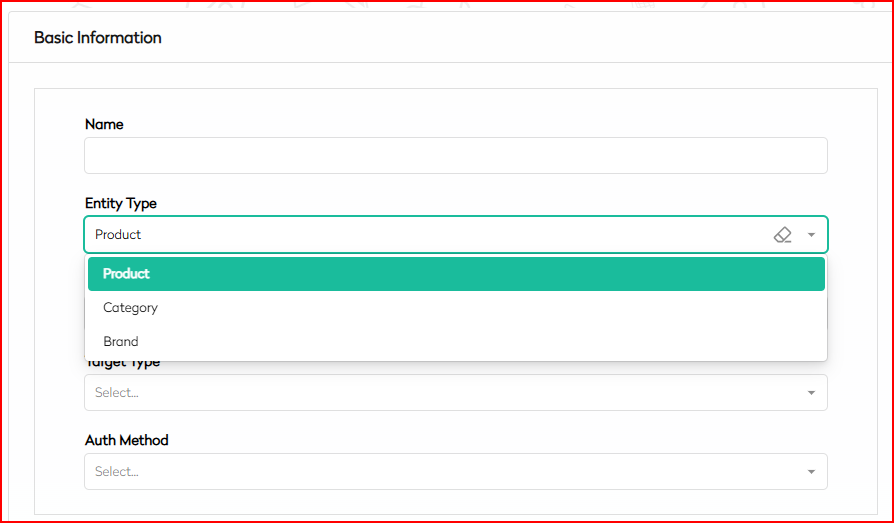
Entity Type: Select the type of object that triggers the webhook. Available options in BetterCommerce PIM include:
- Product
- Category
- Brand
-
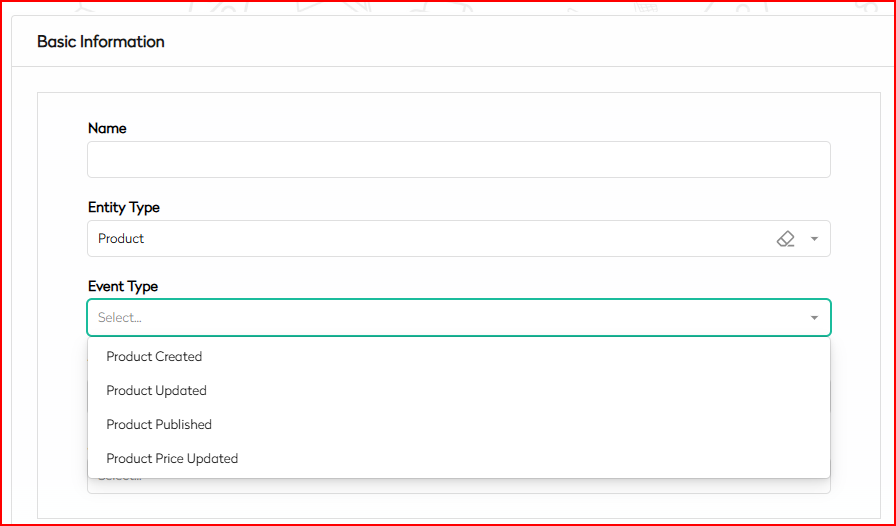
Event Type: Specify the action or event that triggers the webhook. Examples for the Product entity include:
- Product Created
- Product Updated
- Product Published
- Price Updated
-
Target: Define the target system or application that will receive the webhook payload. we have follwing 2 options:-
- REST API: When you select REST API, you need to specify the HTTP method type, such as GET, POST, PUT, DELETE, etc. This determines how the data will be sent and processed by the target system
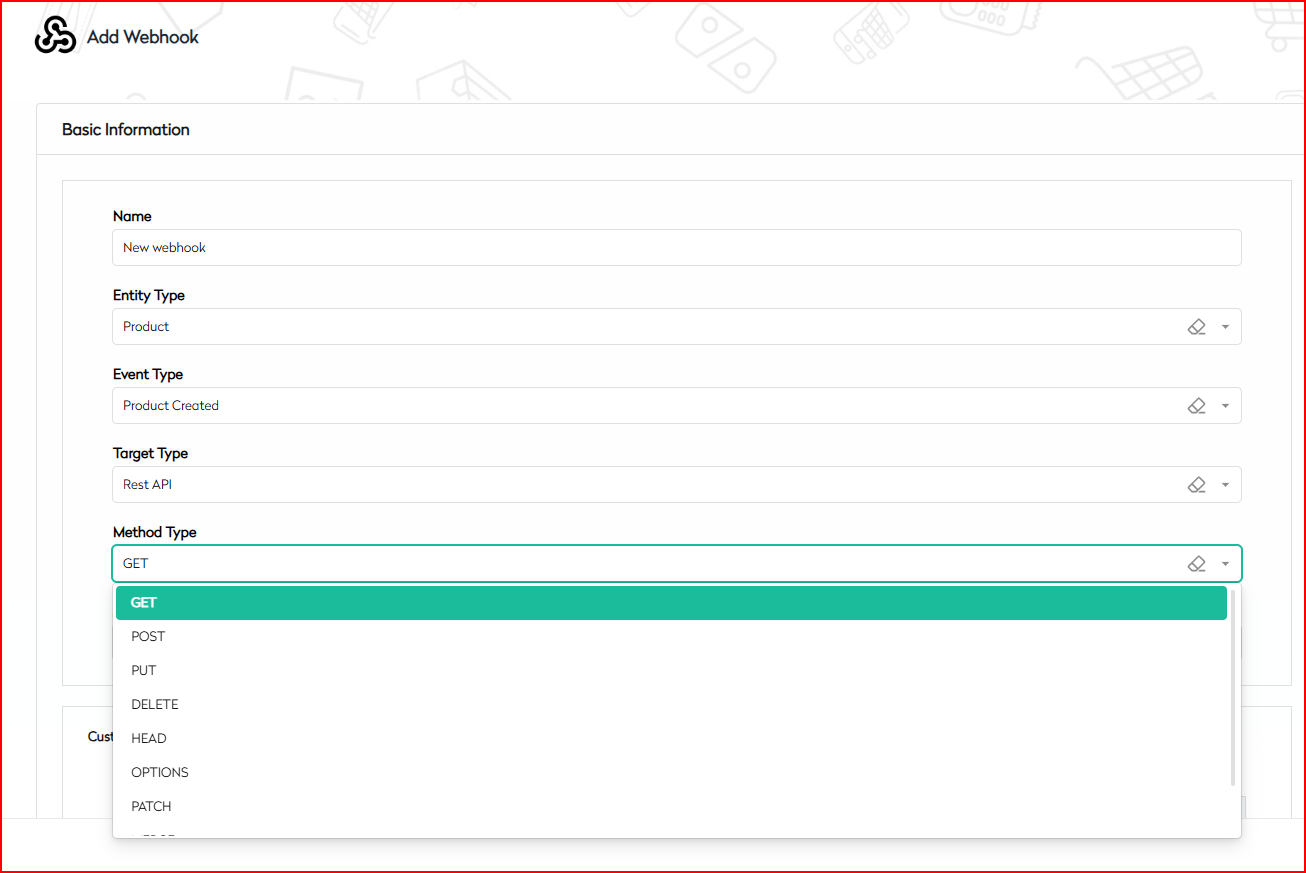
- Azure Queue - You can also send it to a designated Azure queue.
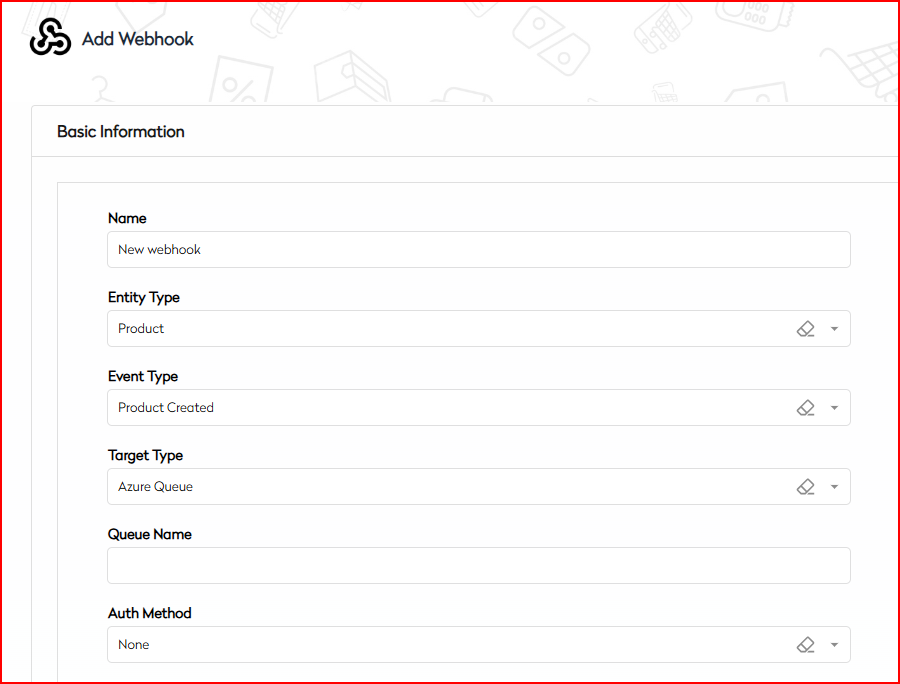
- REST API: When you select REST API, you need to specify the HTTP method type, such as GET, POST, PUT, DELETE, etc. This determines how the data will be sent and processed by the target system
-
Authorization: Provide any necessary authentication credentials or tokens required by the target system. here are different type of Auth methods that bettercommerce supports:-
-
Basic: Basic Authentication is a simple authentication scheme built into the HTTP protocol. It involves sending a username and password encoded in Base64 as part of the HTTP request header.
-
Token:A token is a secure piece of data used for authentication and authorization, granting access to protected resources and verifying user identity in webhooks and APIs.
-
OAuth:OAuth (Open Authorization) is a standard protocol that allows users to grant third-party applications access to their resources without sharing their passwords. It uses access tokens issued by an authorization server to securely delegate access. This enhances security by ensuring that credentials are not exposed to third-party applications
-
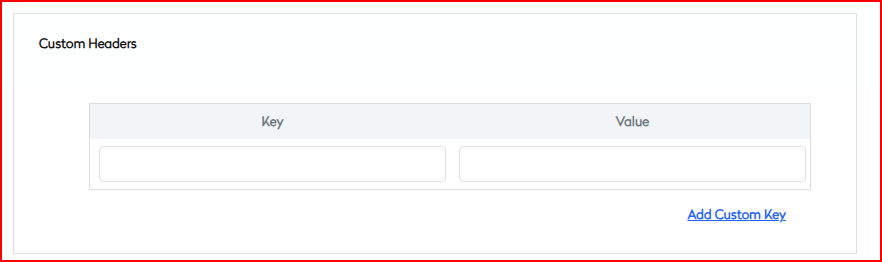
2. Custom Headers
Custom headers are key-value pairs included in the HTTP request to the webhook endpoint. They provide metadata such as content type, content length, or authentication tokens. Add as many headers as required to meet the needs of the receiving application.
3. Channels
Specify the channel for which the webhook is intended. Options include:
- App
- Web
- Physical Store
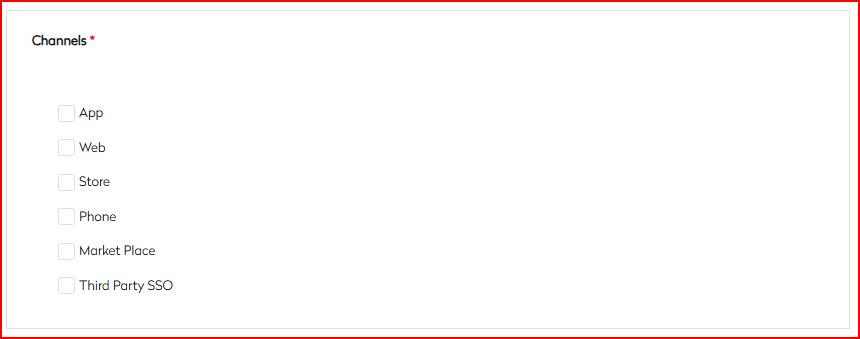
This ensures the webhook is triggered only for events relevant to the selected channel.
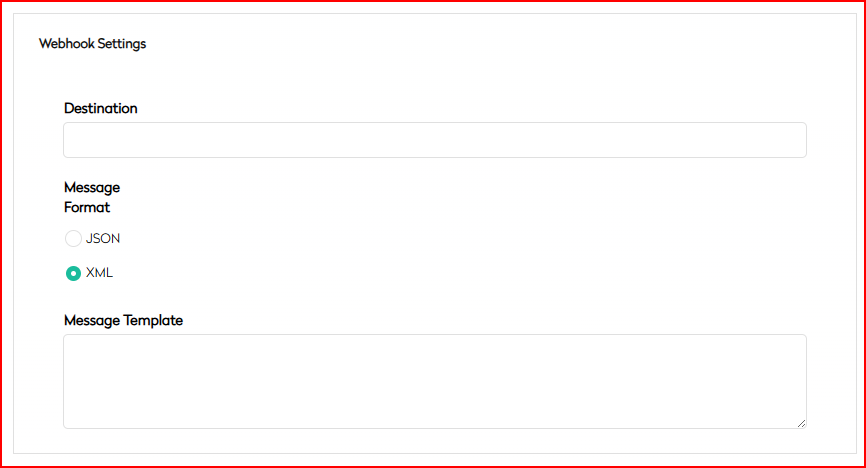
4. Webhook Settings
Configure the following settings to define how the webhook operates:
-
Destination: Enter the endpoint URL where the webhook payload will be sent. This URL should correspond to the external application that processes the event data.
-
Message Format: Choose the format for the webhook payload. BetterCommerce supports:
- JSON (JavaScript Object Notation)
- XML (Extensible Markup Language)
-
Message Template: Define a predefined structure for the webhook payload to ensure consistency and compatibility with the destination system.
5. Configurations
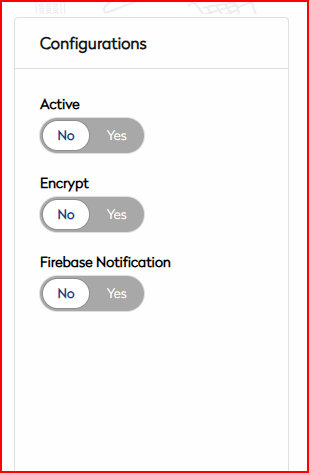
This section includes additional settings to control webhook behavior:
-
Active: Use the toggle to enable or disable the webhook.
-
Encrypt: Enable encryption to secure data transmission between BetterCommerce and the destination endpoint.
-
Firebase Notification: Activate this toggle to send notifications to client applications (iOS, Android, or Web) via Firebase. This supports real-time messaging, device-specific targeting, and automated workflows.
-
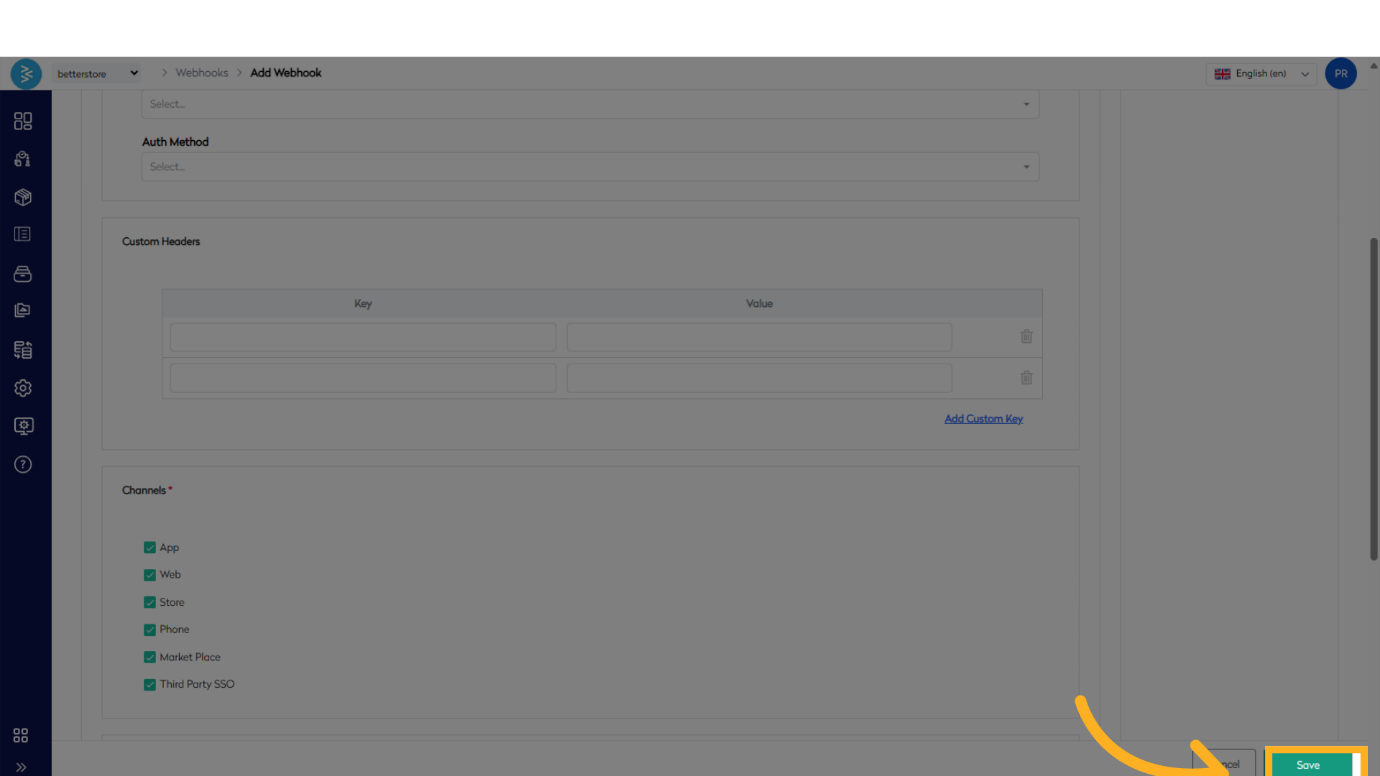
Saving and Activating the Webhook Once all fields are configured, save the webhook. You can activate it immediately using the Active toggle or enable it later as needed.
Best Practices for Webhook Configuration
-
Descriptive Naming: Use clear, business-relevant names for webhooks to facilitate easy management and troubleshooting.
-
Secure Endpoints: Ensure the destination URL uses HTTPS and proper authentication to protect sensitive data.
-
Test Configurations: Validate the webhook setup by triggering test events to confirm payload delivery and format compatibility.
-
Monitor Usage: Regularly review webhook activity logs to identify and resolve any delivery failures or errors.
Summary
This guide outlines the process for configuring webhooks in BetterCommerce, from accessing the Webhooks section to defining basic information, headers, channels, settings, and configurations. By following these steps and best practices, enterprise users can automate data flows, enhance system interoperability, and ensure secure and reliable event notifications.
For additional support, contact the BetterCommerce support team or refer to the platform’s help documentation.