
Add and Edit Assets
This document provides a comprehensive guide for managing digital assets within the BetterCommerce platform. It details the procedures for uploading, organizing, and manipulating assets, ensuring efficient asset management for enterprise users. Follow the steps outlined below to navigate the asset management interface, create folder structures, and perform actions such as moving, copying, renaming, or deleting assets.
-
Navigate to the Assets Menu
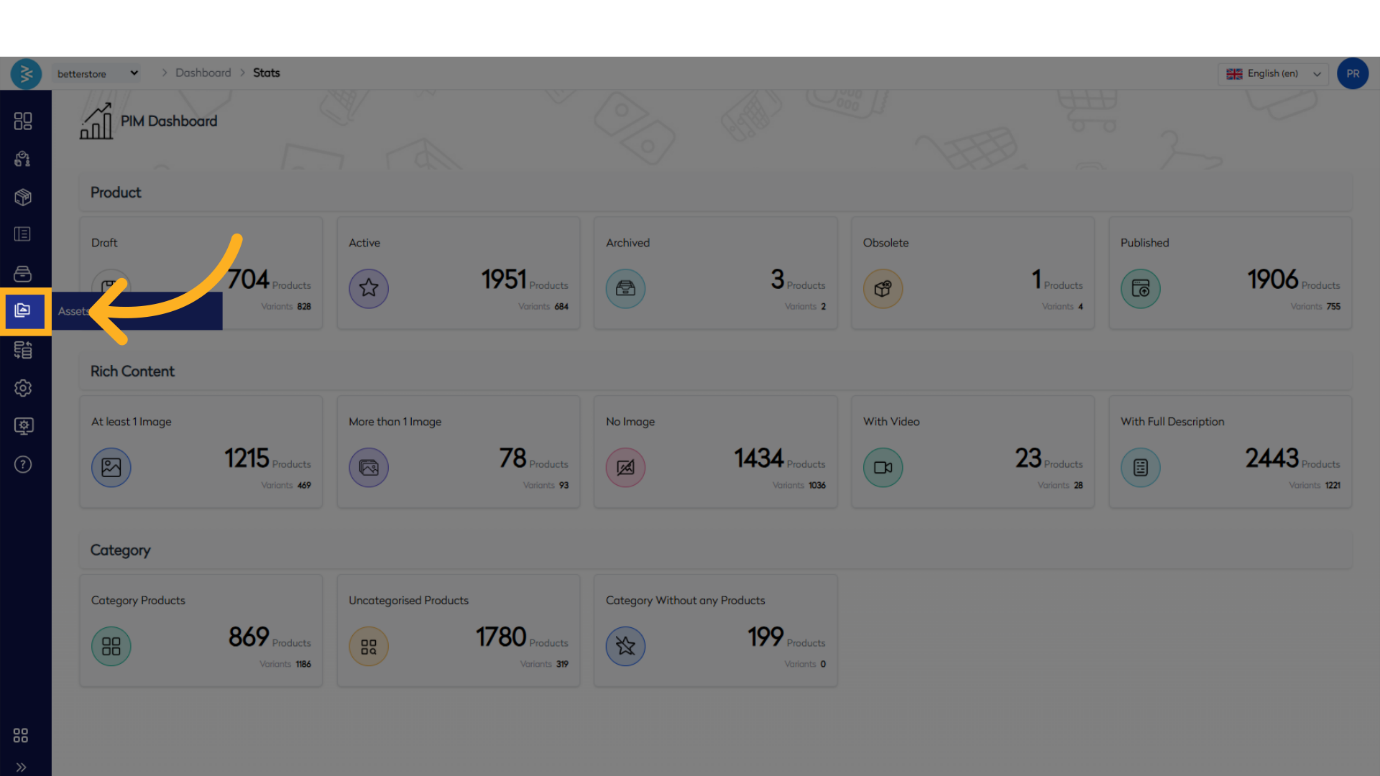
From the main dashboard, locate and select the Assets menu. This will display the assets page, presenting the hierarchical folder structure and all available asset folders.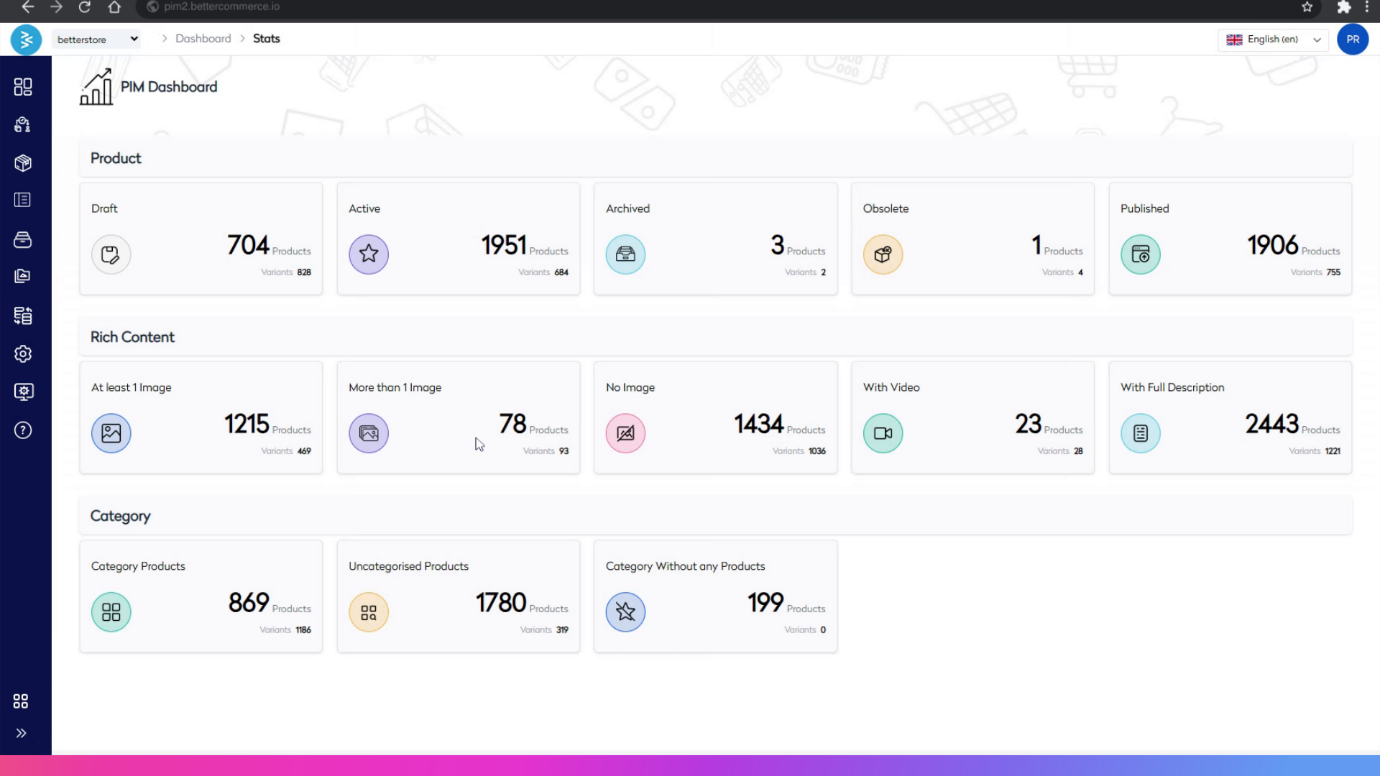
-
Select or Create a Folder
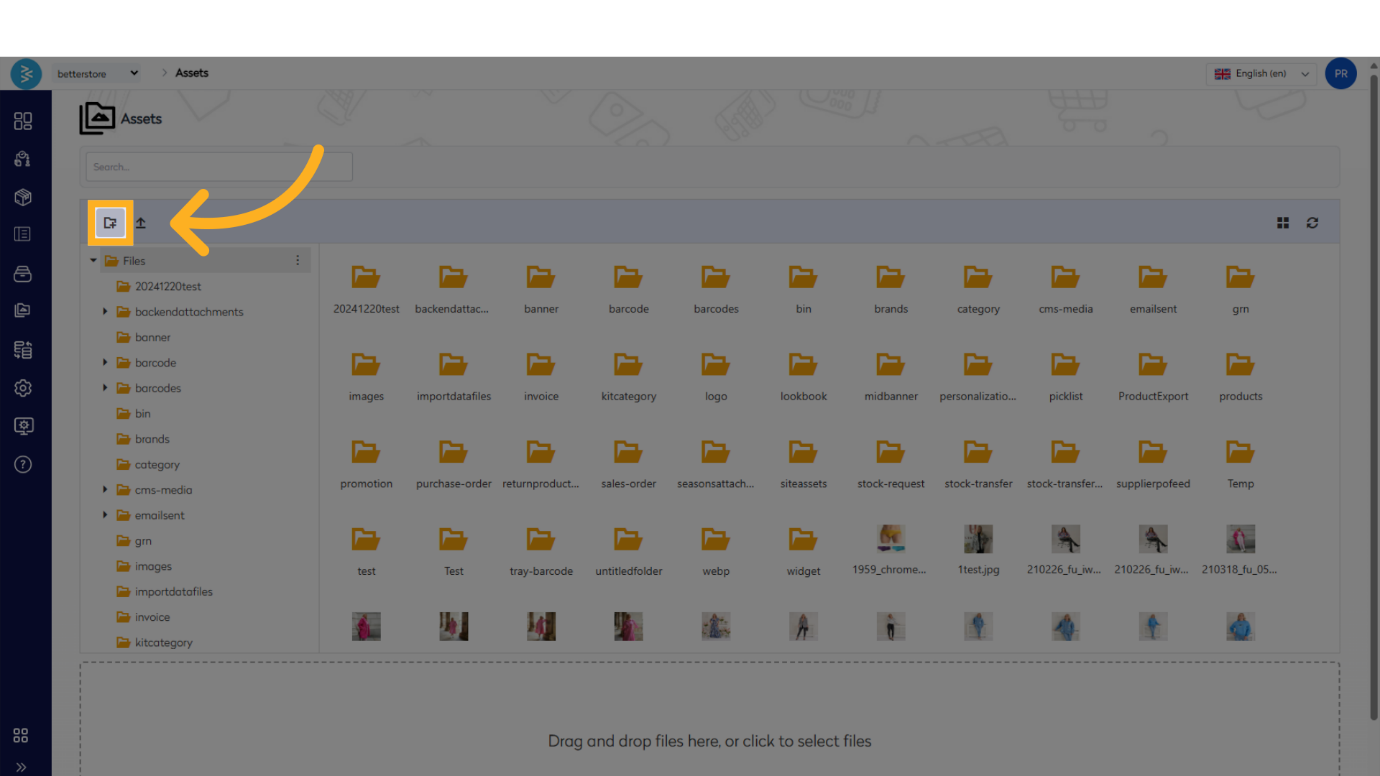
- To organize assets, either select an existing folder or create a new one.
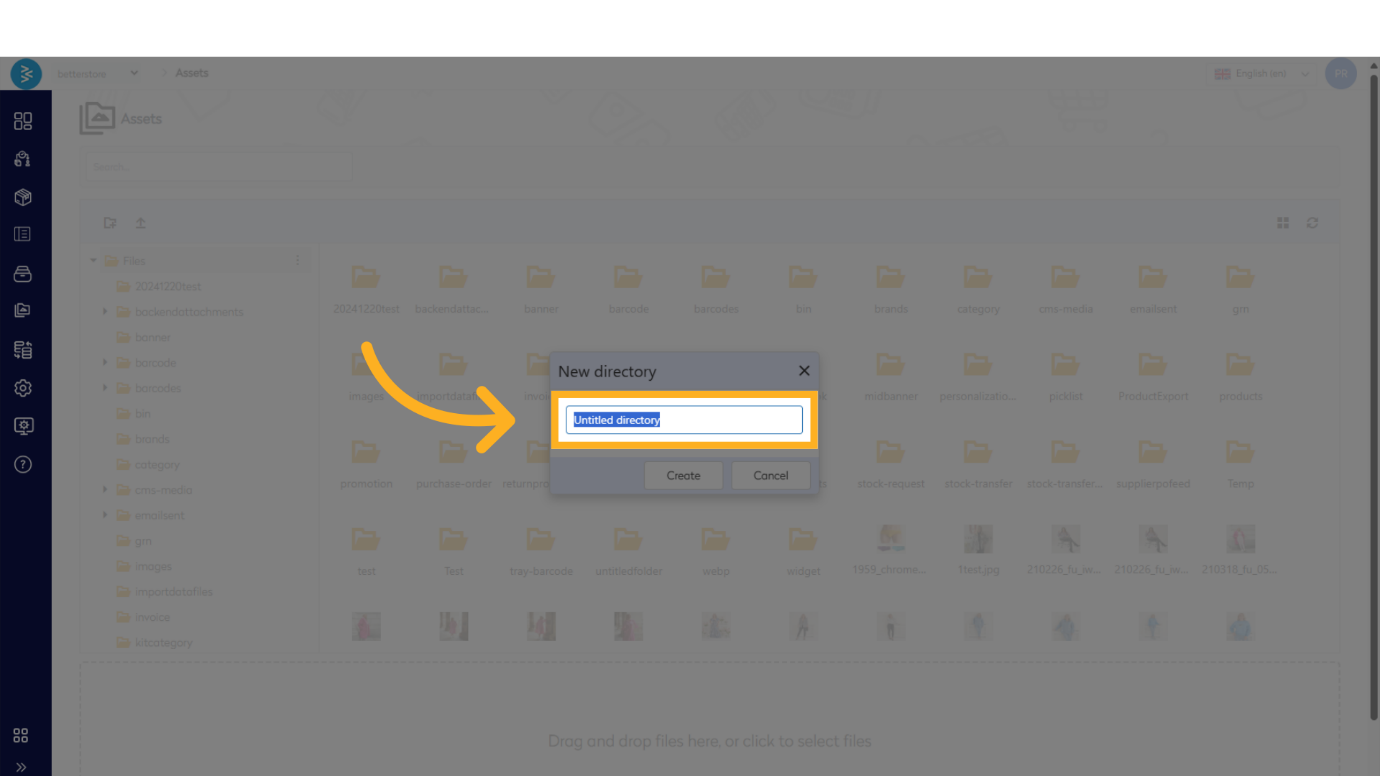
- To create a new folder, click the New Folder option, provide a meaningful name, and confirm.
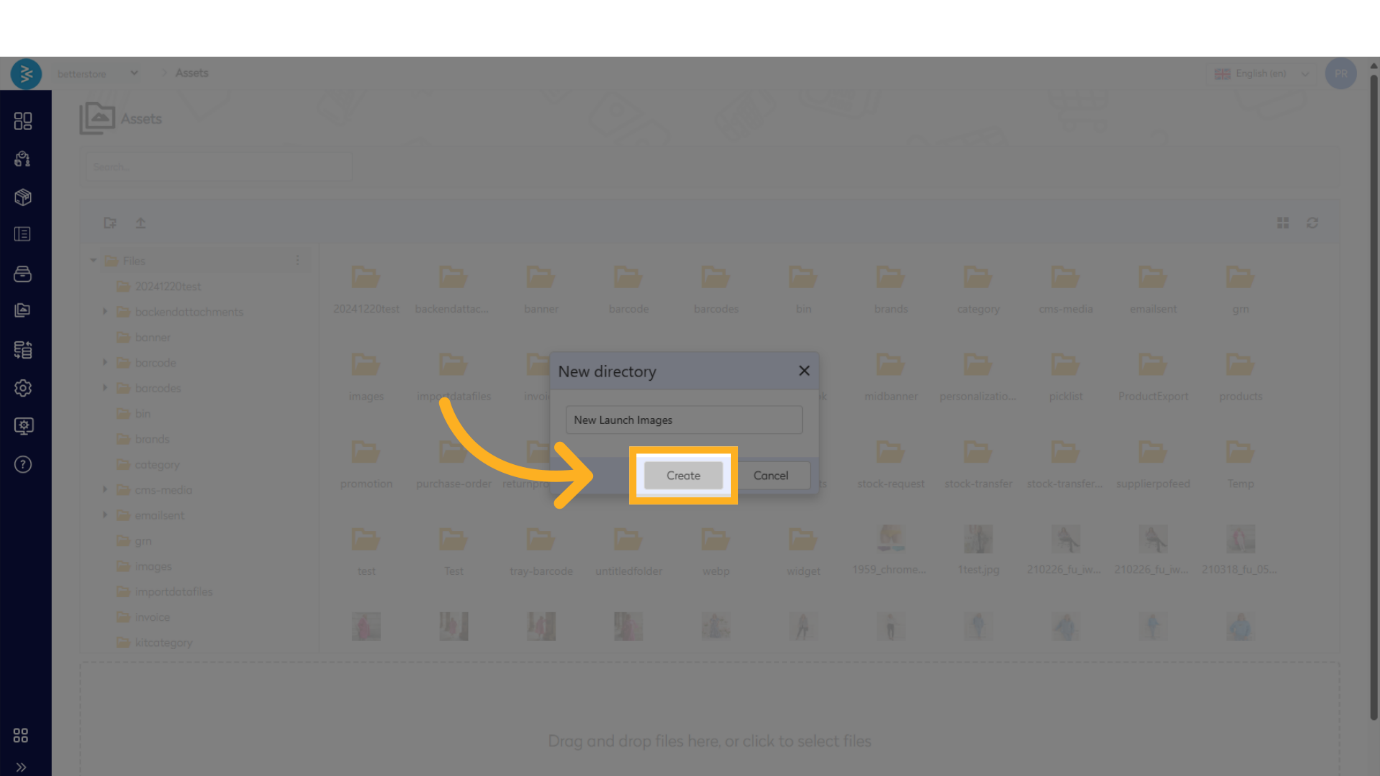
-
Verify Folder Creation
Once created, the new folder will appear within the folder structure, ready for asset uploads.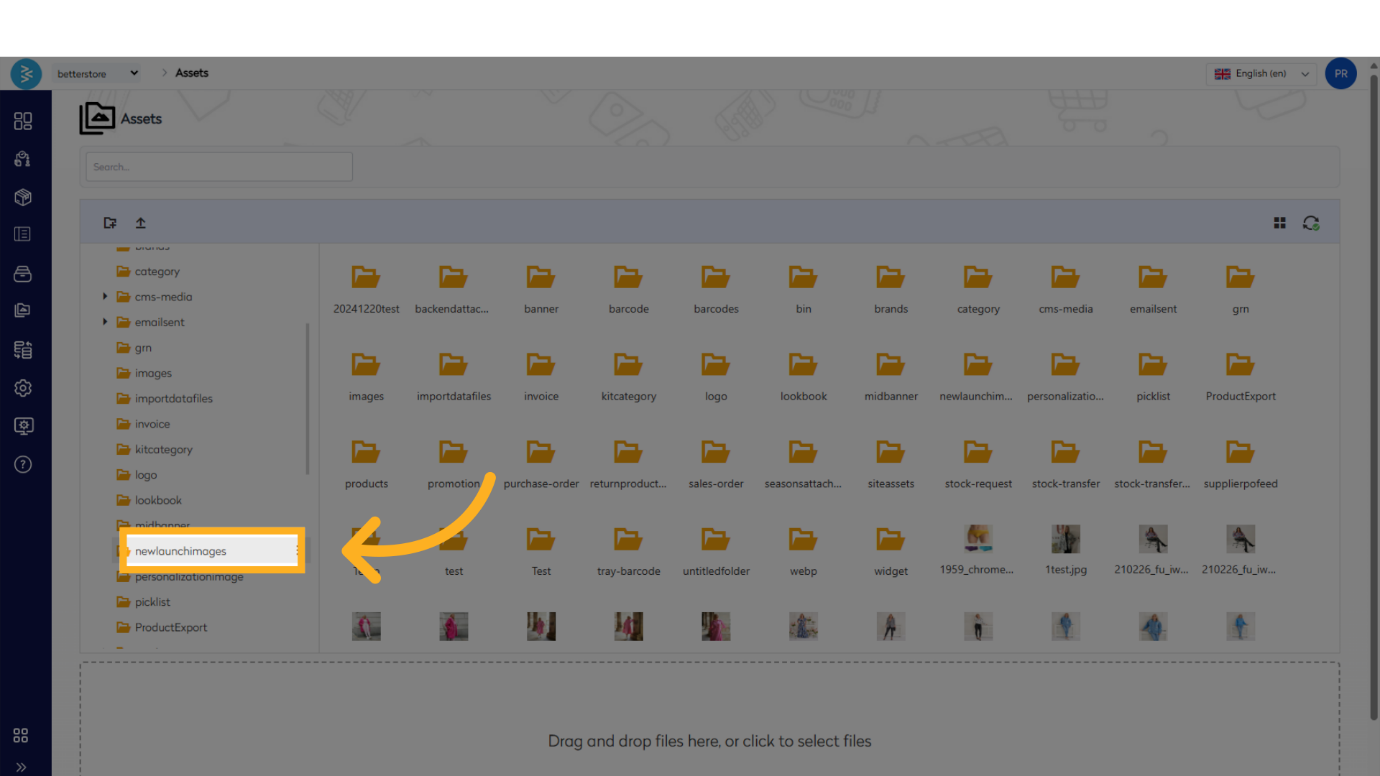
Uploading Assets
- Add Images to a Folder
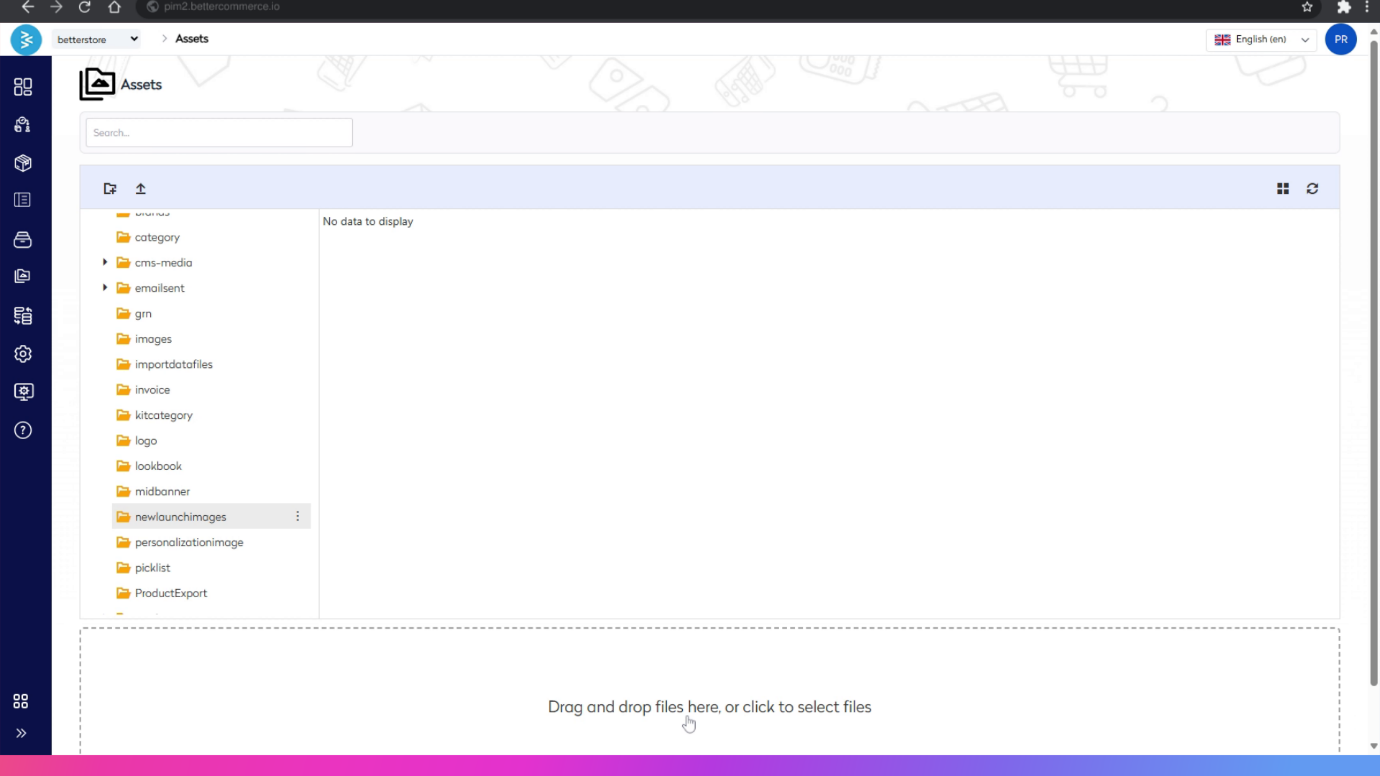
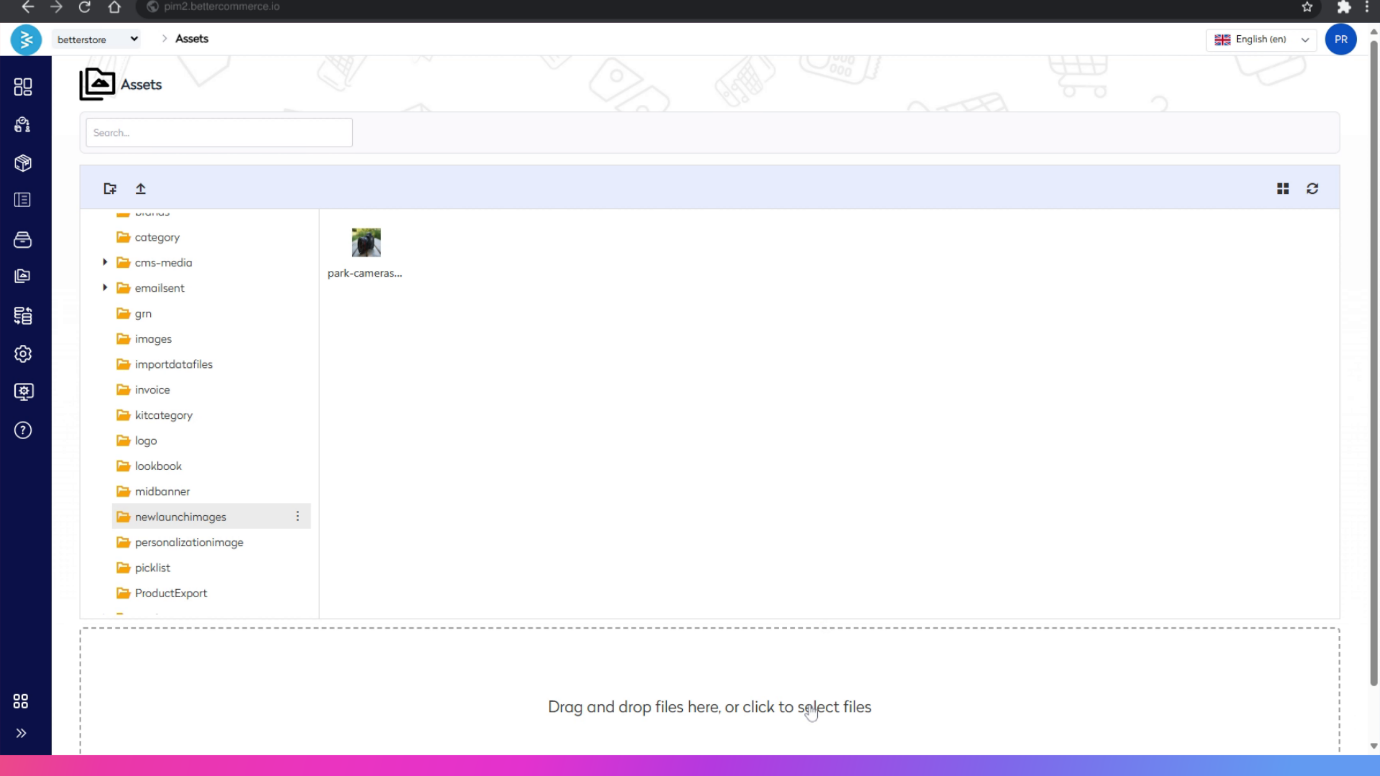
- Navigate to the desired folder.
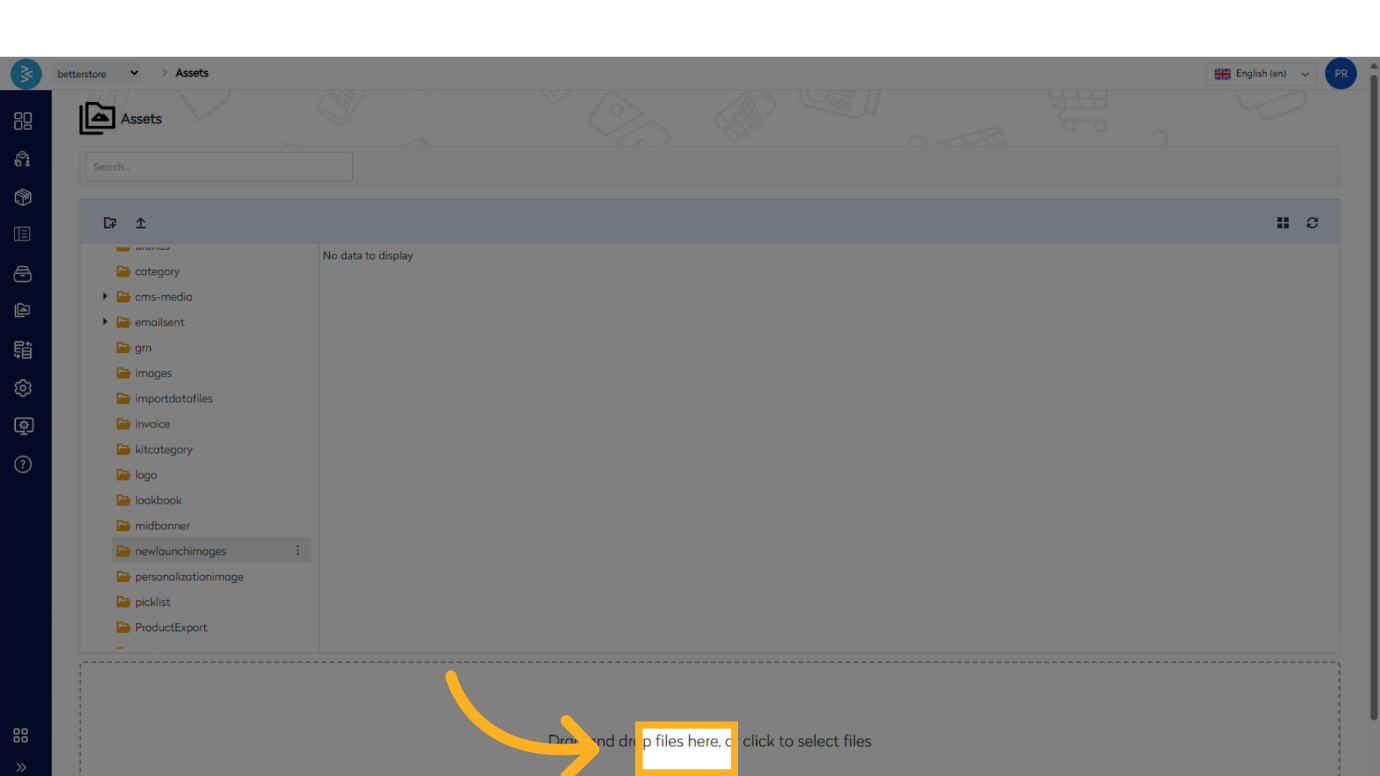
- Upload images by either:
- Selecting Upload and browsing to the local directory where images are stored.
- Dragging and dropping images directly into the folder.
-
Utilizing Uploaded Assets
Once uploaded, images are available for use across the platform, such as product images, collection banners, or CMS pages (e.g., blogs). Now lets undertsand how we can manage the assets.
Managing Assets
Asset Management Options
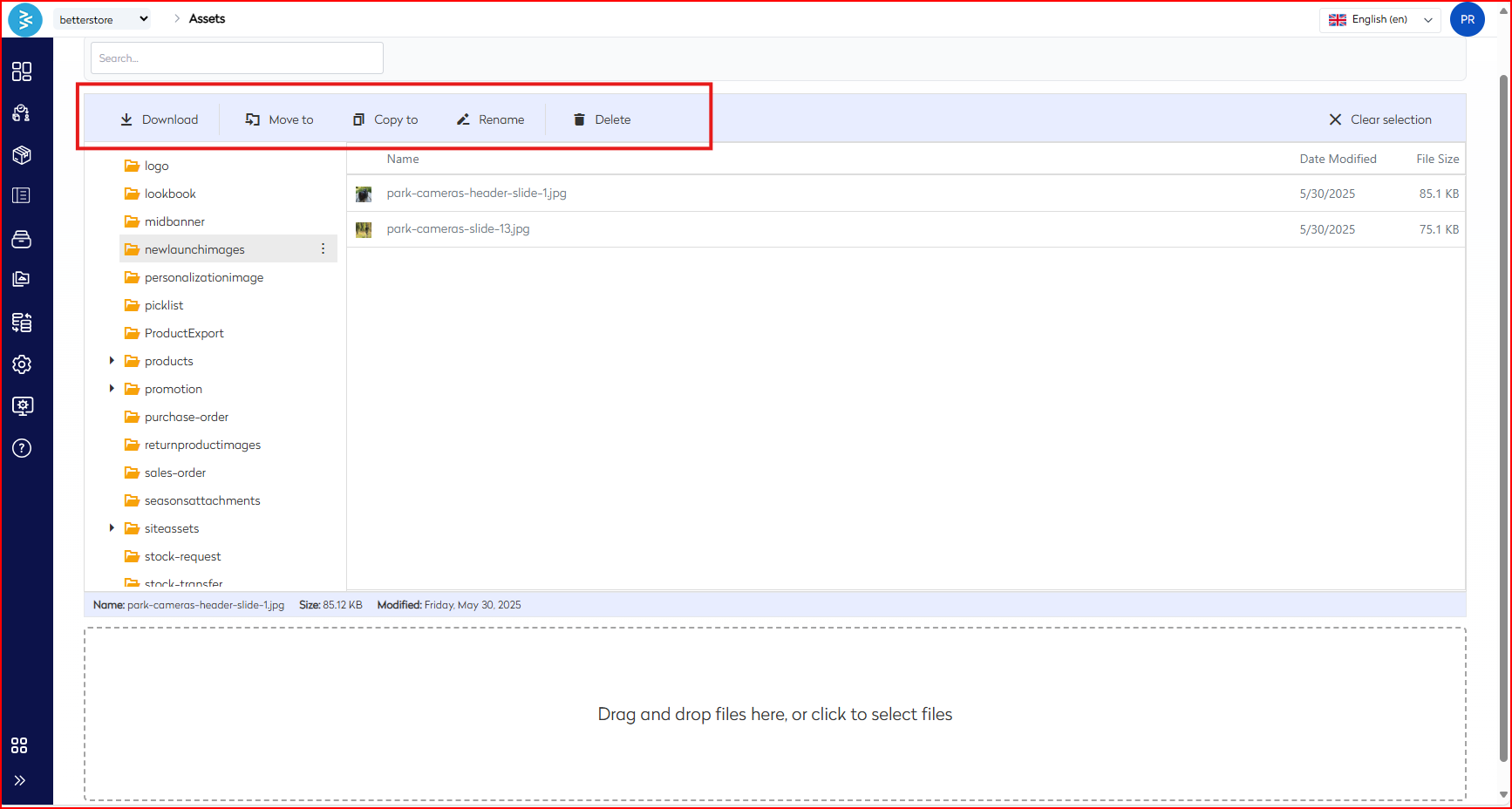
Inside a folder, select an image to access the following options:
-
Download: Save the image to your local device.
-
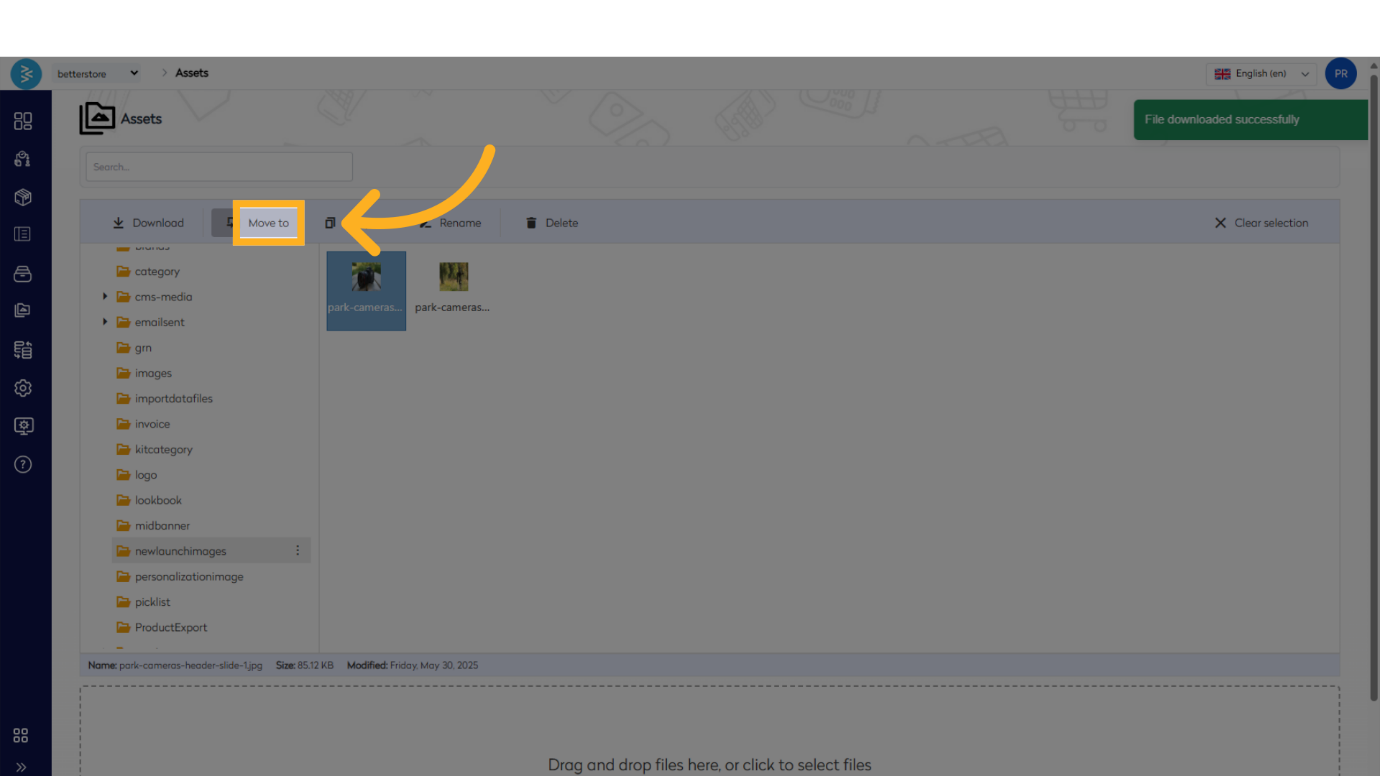
Move To: Relocate the image to another folder.
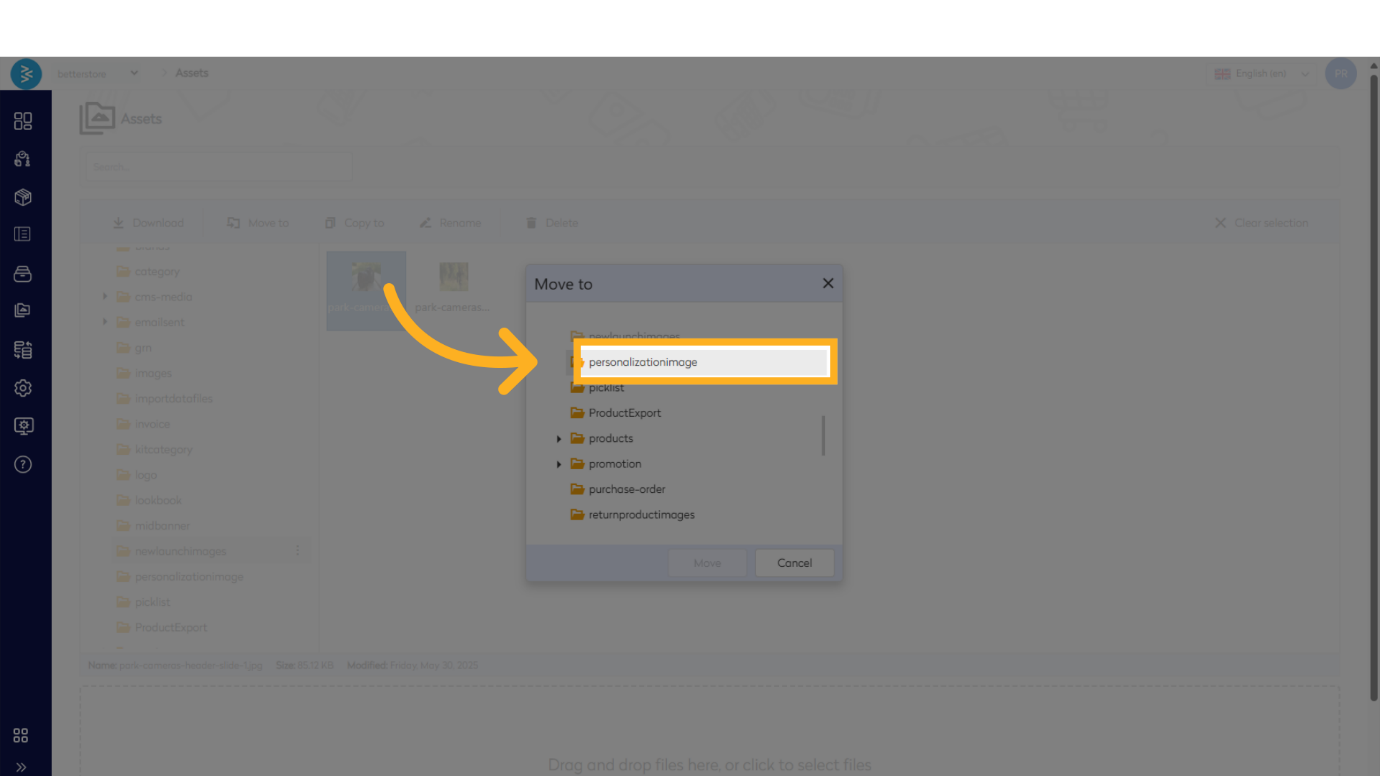
- Select Move To, and a pop-up will display the folder structure. Choose the destination folder and confirm.
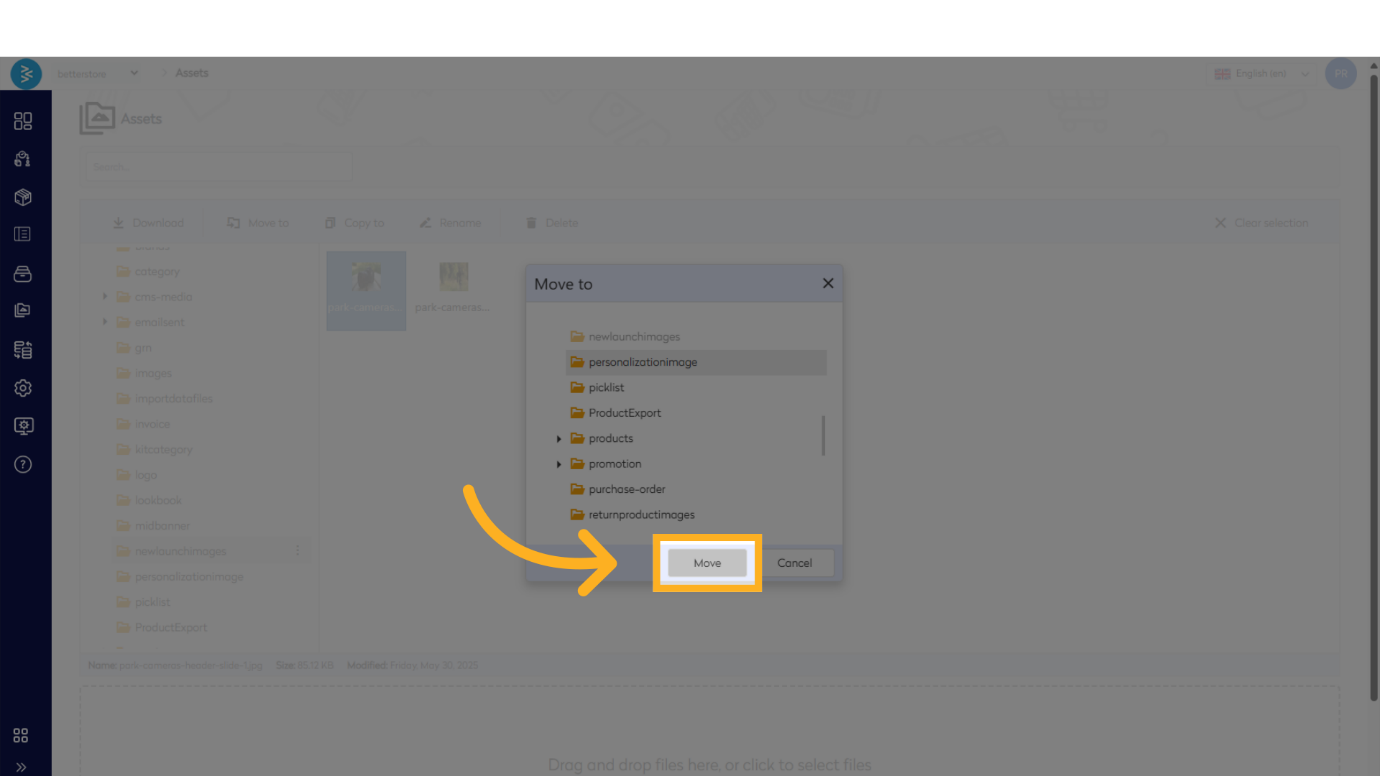
- Select Move To, and a pop-up will display the folder structure. Choose the destination folder and confirm.
-
Copy To: Create a duplicate of the image in another folder.
- Select Copy To, choose the destination folder, and confirm.
-
Rename: Modify the image file name to align with your naming conventions.
-
Delete: Remove the image from the folder if it is no longer needed.
Best Practices for Asset Management
- Organize Thoughtfully: Use descriptive folder names and maintain a logical folder hierarchy to simplify asset retrieval.
- Leverage Bulk Actions: For efficiency, select multiple assets to perform batch operations like moving or copying.
- Regular Maintenance: Periodically review and delete outdated or unused assets to optimize storage and performance.
Summary
This guide outlines the process for adding and managing digital assets in BetterCommerce, covering folder creation, asset uploads, and actions such as downloading, moving, copying, renaming, and deleting. By adhering to these steps and best practices, enterprise users can streamline asset management, ensuring assets are organized and readily accessible for use across product pages, banners, and CMS content.
For additional support, contact the BetterCommerce support team or refer to the platform’s help documentation.