
PIM - Edit Image Collection
Introduction
Follow these engaging steps to efficiently manage images in your Hero banner Collection, add new images, and update Image Titles.
Steps to Edit Image Collection
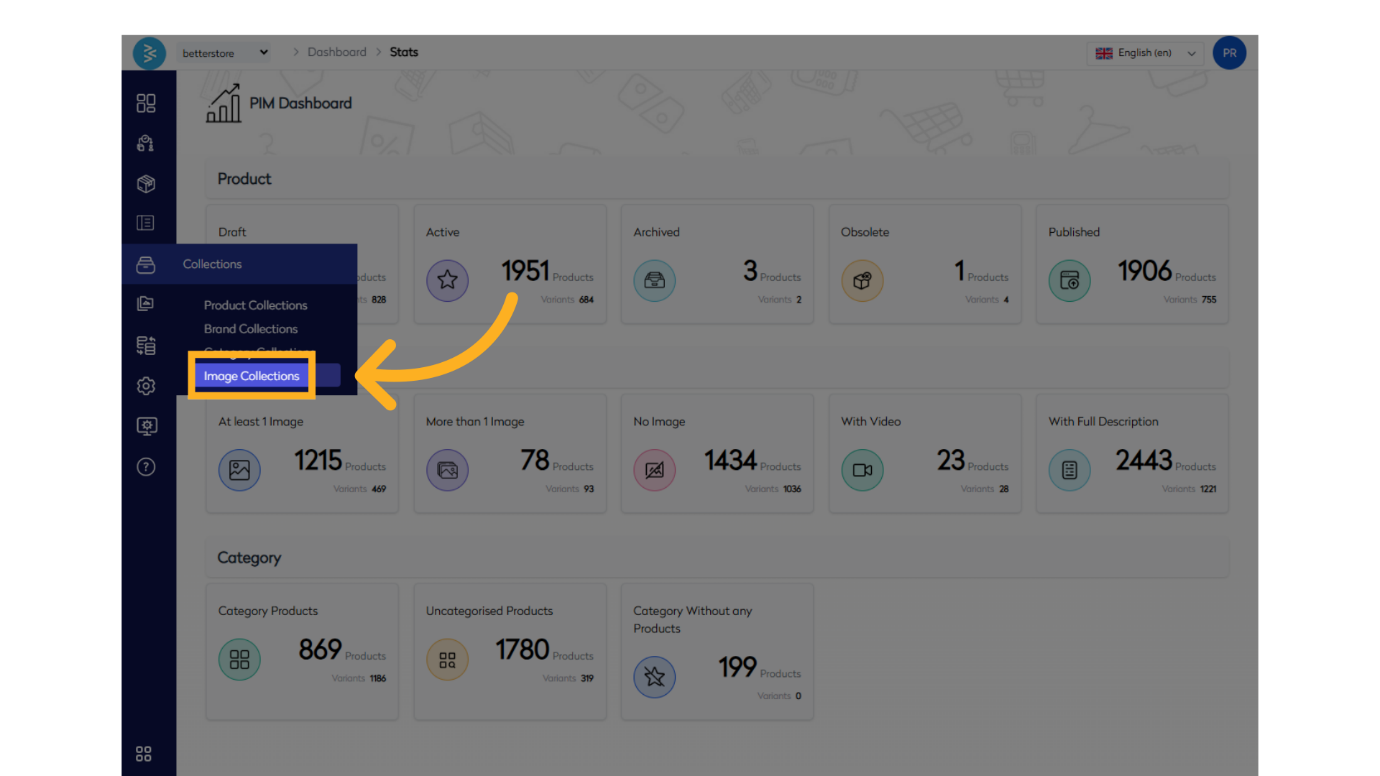
Step 1: Navigate to the collections menu and Click on "Image Collections"
Step 2: Search for the collection that you want to edit on the Image collection listing page.
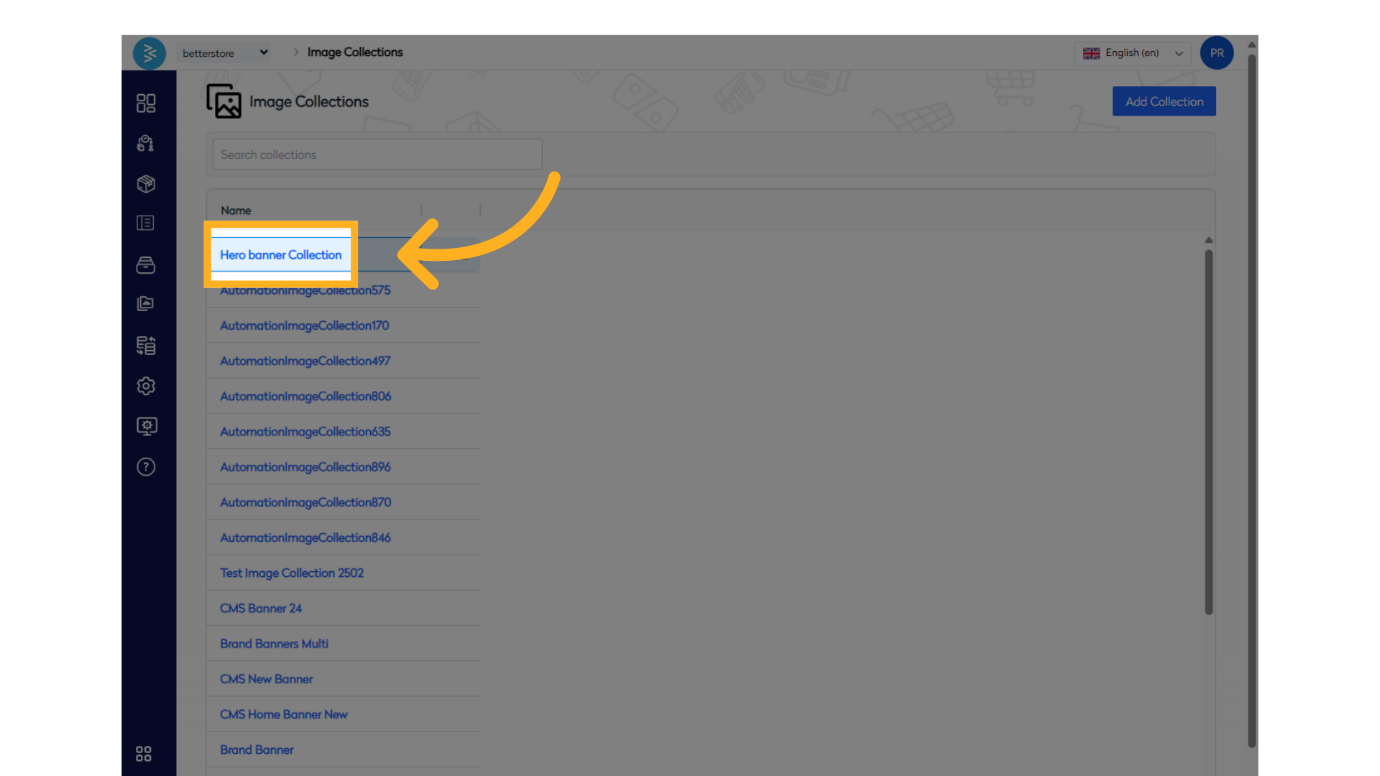
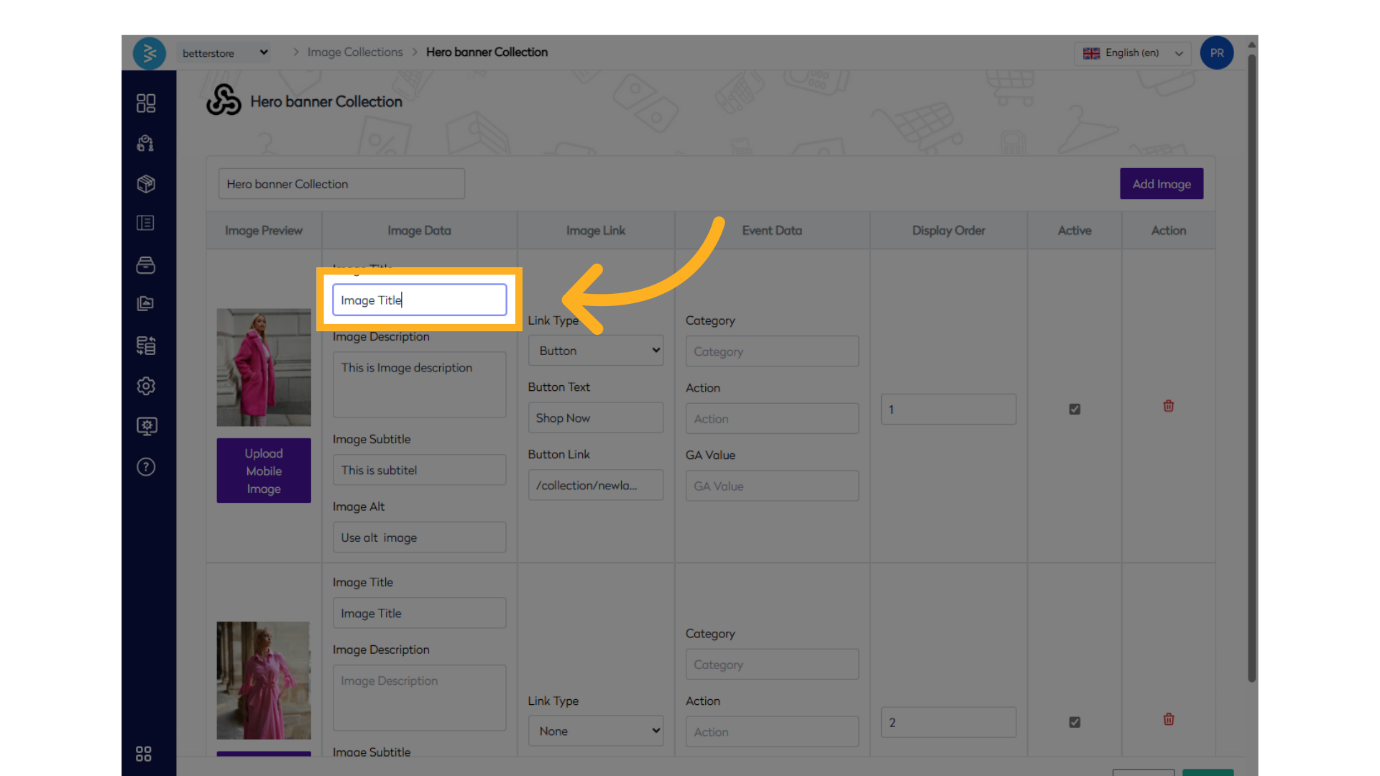
Step 3: Open the Image collection and navigate through different sections to make necessary changes. The sections where you can make changes are:
Image Data
- Image Title: The main title of the image.
- Image Description: A detailed description of the image content.
- Image Subtitle: A secondary title that offers more detail or context about the image.
- Image Alt: Alternative text for the image, used for accessibility and SEO purposes.
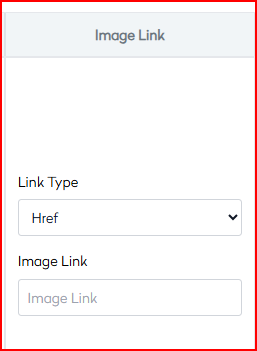
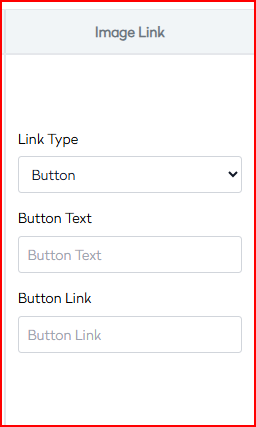
Image Link
- Link Type: Specifies the type of link associated with the image.
- None: No link is associated with the image.
- Href: A standard hyperlink that redirects to another webpage.
- Button: A clickable button that performs an action or redirects to another page.
Event Data
- Category: The category of the event, used for organizing and tracking purposes.
- Action: The specific action taken, such as a click or view.
- GA Value: The value assigned to the event in Google Analytics, used for tracking and analysis.
Display Order
The order in which the image appears in a collection or gallery.
Active
Indicates whether the image is currently active and visible to users.
Action
This is used to delete the image from the collection if not needed anymore.
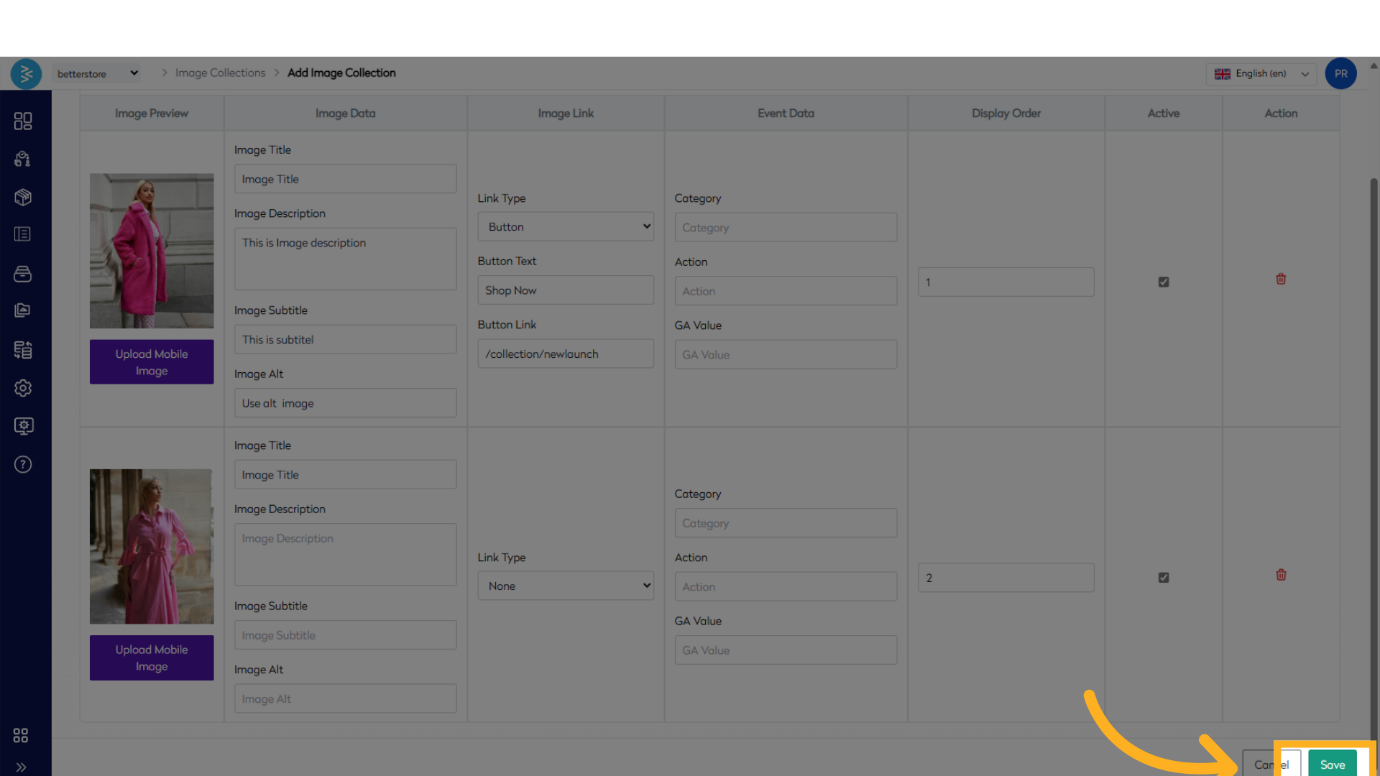
Step 4: Add more images to the collection as needed. Once all images are added and all details are filled, save the collection.
This guide walks you through the process of editing Image Collections in Bettercommerce, from accessing collections to adding images and updating titles. Master the art of managing your images effectively with these steps.