
All Activity Import-Export – Bulk Import
Overview
The Import-Export functionality within the BetterCommerce PIM system enables users to perform bulk data operations across various entities, including Products, Categories, Inventory, and Attributes. This guide provides a comprehensive walkthrough of the Product Import process, covering navigation to import profiles, field mapping, data verification, and submission. Import operations facilitate efficient onboarding, enrichment, and maintenance of extensive product datasets, ensuring seamless catalog management.
Navigation Path
To access the Product Import functionality, follow these steps:
-
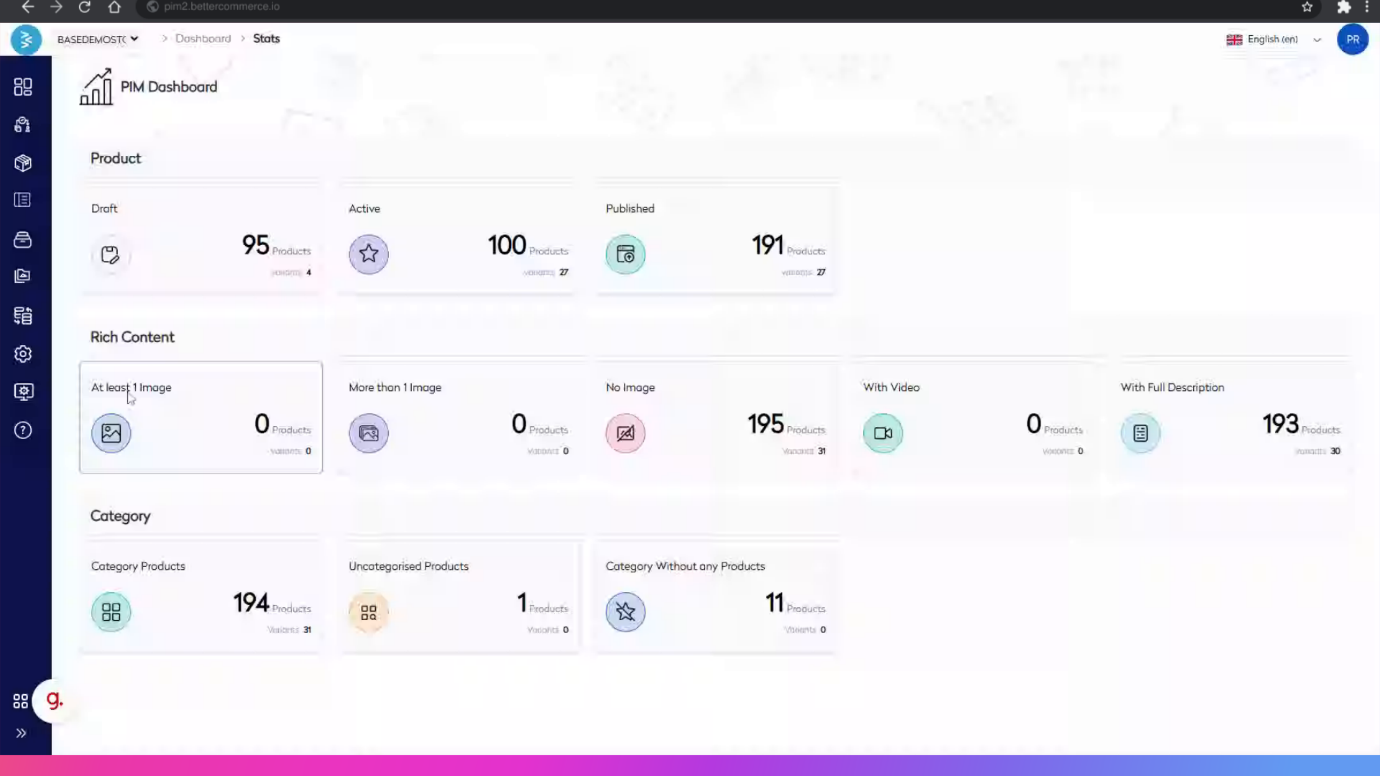
Navigate to the Dashboard.
-
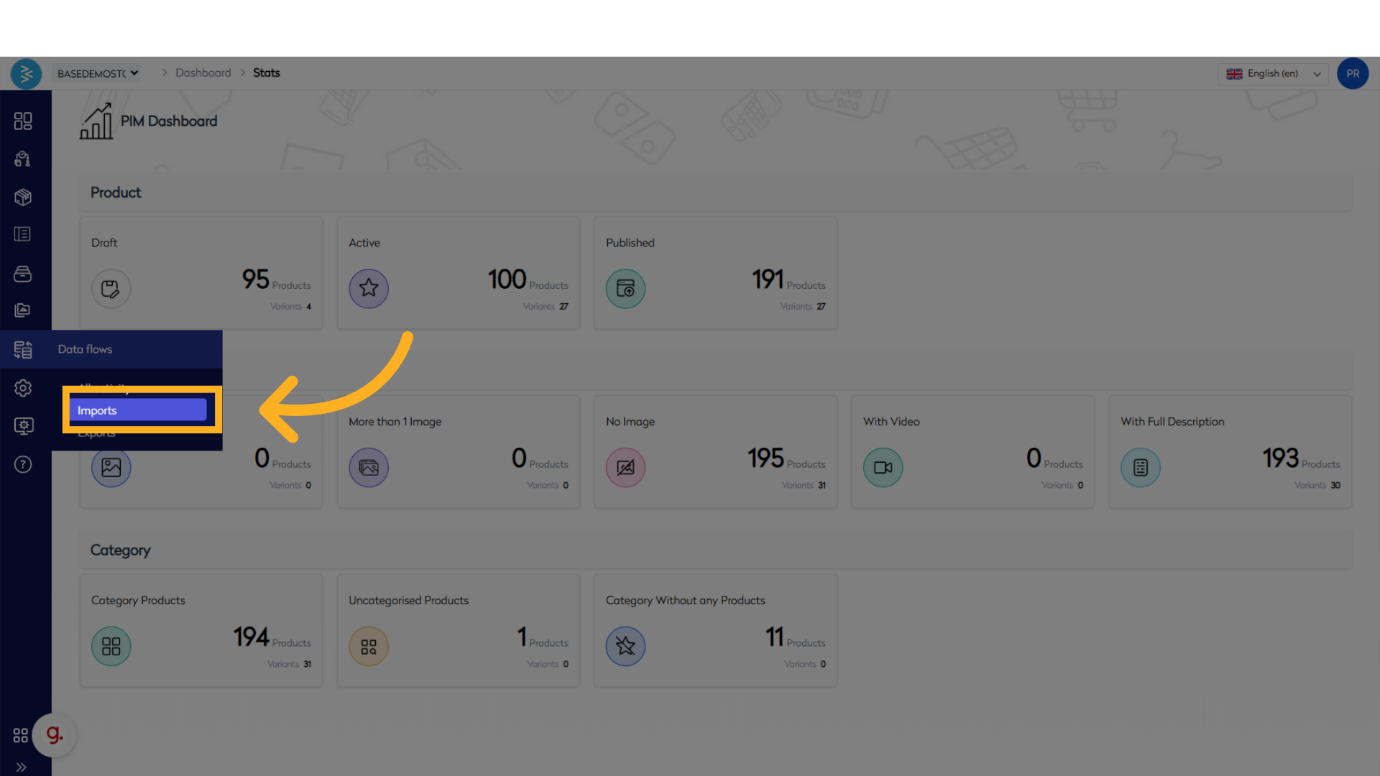
From the left-side navigation panel, expand the Data Flows section.
-
Click on Imports.
Step-by-Step Guide for Product Import
1. Access Import Profiles
- Upon entering the Imports section, a list of existing Import Profiles will be displayed.
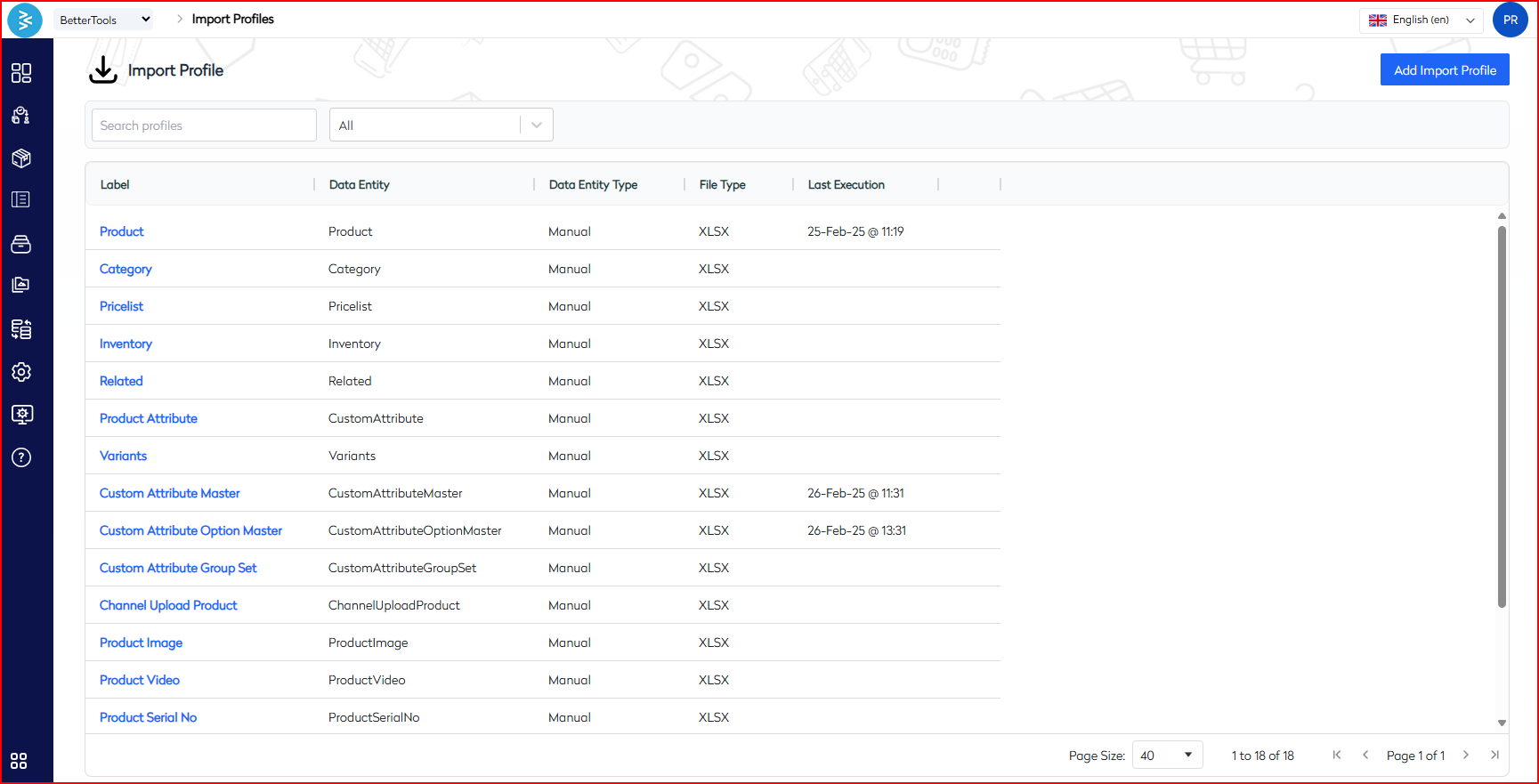
- Each profile is associated with a specific data entity, such as Product, Category, or Inventory.
- Click on the Product profile to initiate the product import process.
2. Launch Product Import
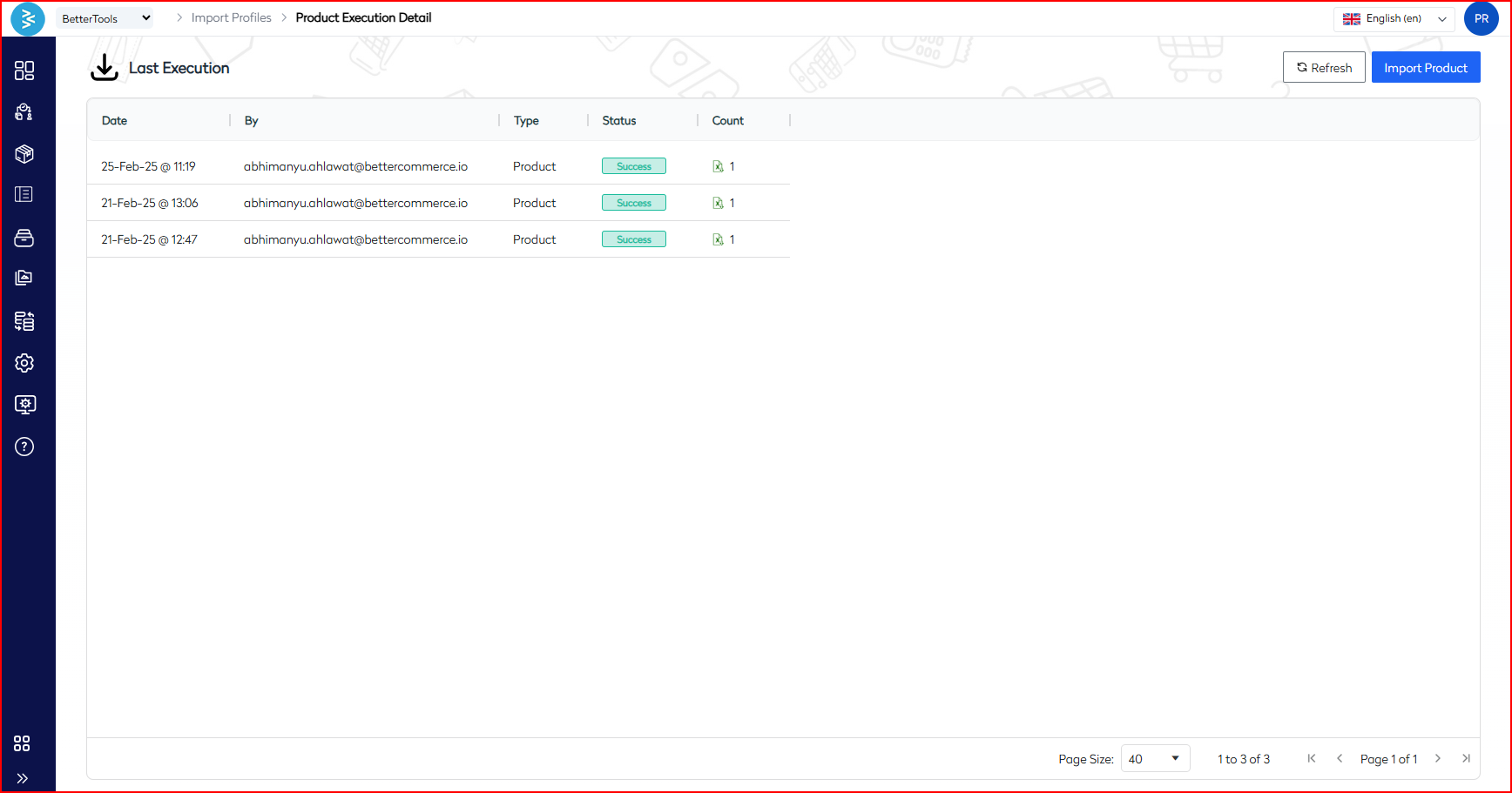
- Within the Product profile, the Last Execution page will display previous import logs, if available.
- Click the Import Product button located in the top-right corner to start a new import.
3. Upload Import File
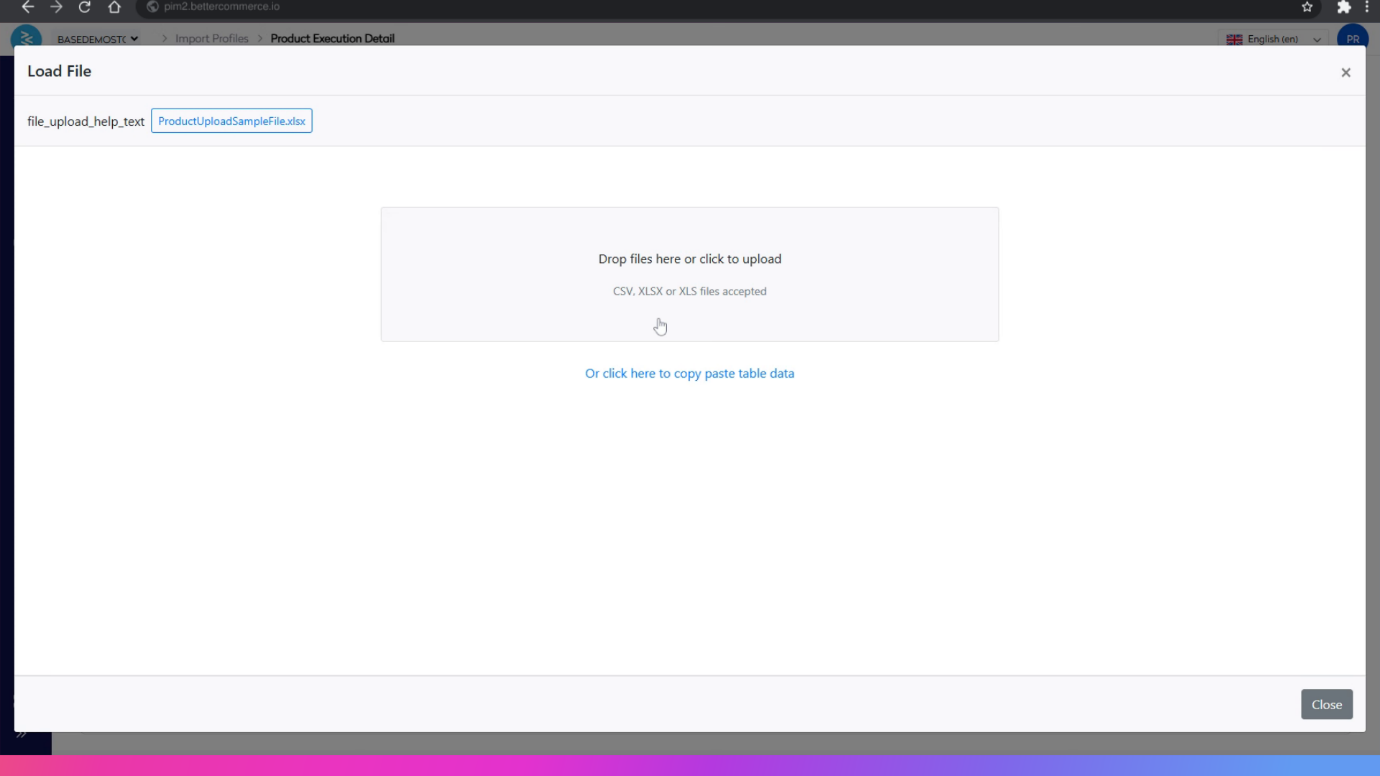
- A prompt will appear to upload a file.
- Supported formats include: .CSV, .XLSX, and .XLS.
- Upload the file by dragging and dropping it into the designated area or by browsing manually.
- Optionally, download the sample template (ProductUploadSampleFile.xlsx) for reference.
- Alternatively, paste table data directly using the provided option.
4. Select Header Row
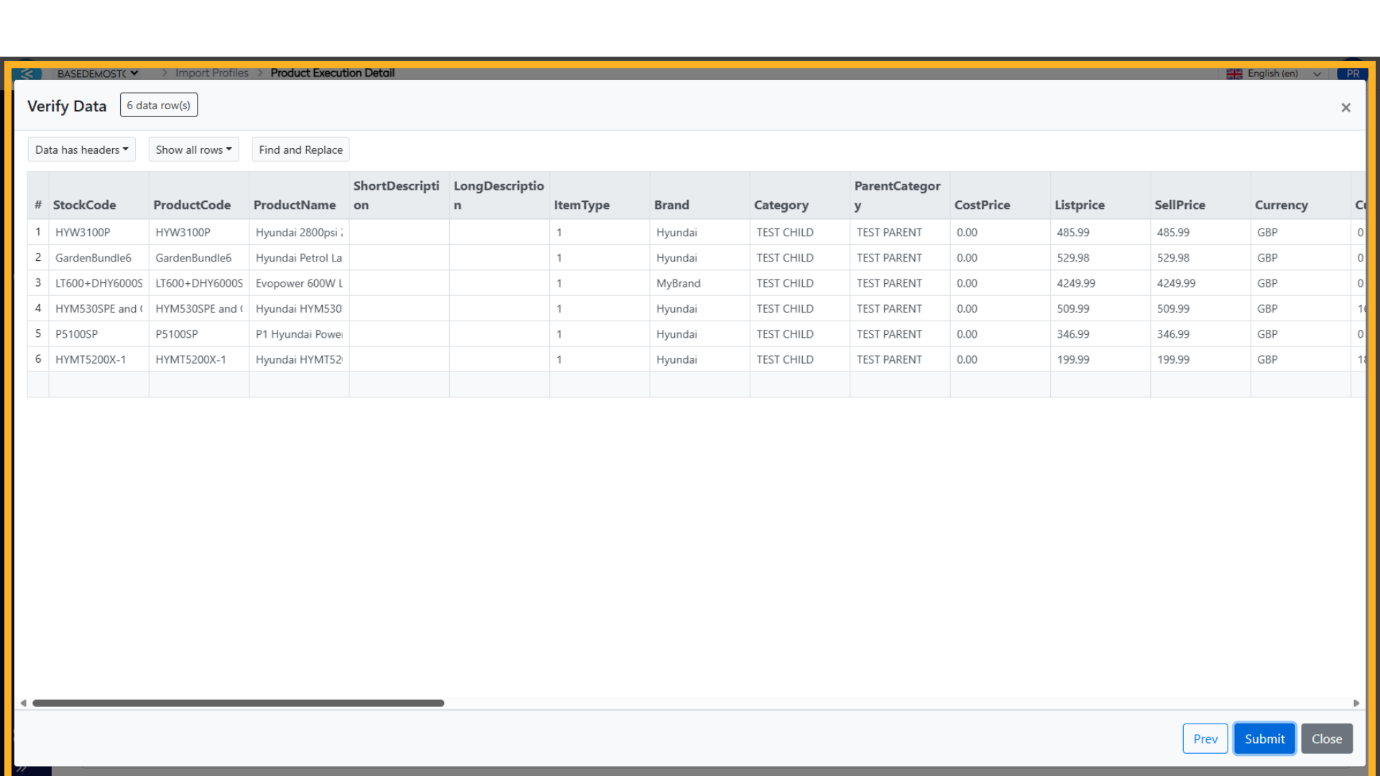
- After uploading the file, the system will display a preview of the data.
- Indicate whether the file includes headers by selecting the appropriate option.
- The system will read and list all columns, such as:
- StockCode
- ProductCode
- ProductName
- ShortDescription
- LongDescription
- ItemType
- Brand, Category, ParentCategory
- CostPrice, ListPrice, SellPrice
- Currency
- And additional fields as applicable.
5. Map Columns
Based on the analysis of the mapping screenshot, each column from the uploaded file is mapped to a corresponding field in the PIM system as follows:
| PIM Field | Mapped Column from File |
|---|---|
| StockCode | StockCode |
| ProductCode | ProductCode |
| ProductName | ProductName |
| ShortDescription | ShortDescription |
| LongDescription | LongDescription |
| ItemType | ItemType |
| Brand | Brand |
| Category | Category |
| ParentCategory | ParentCategory |
| CostPrice | CostPrice |
| ListPrice | ListPrice |
| SellPrice | SellPrice |
| Currency | Currency |
Additional fields may be mapped as required.
6. Verify Data
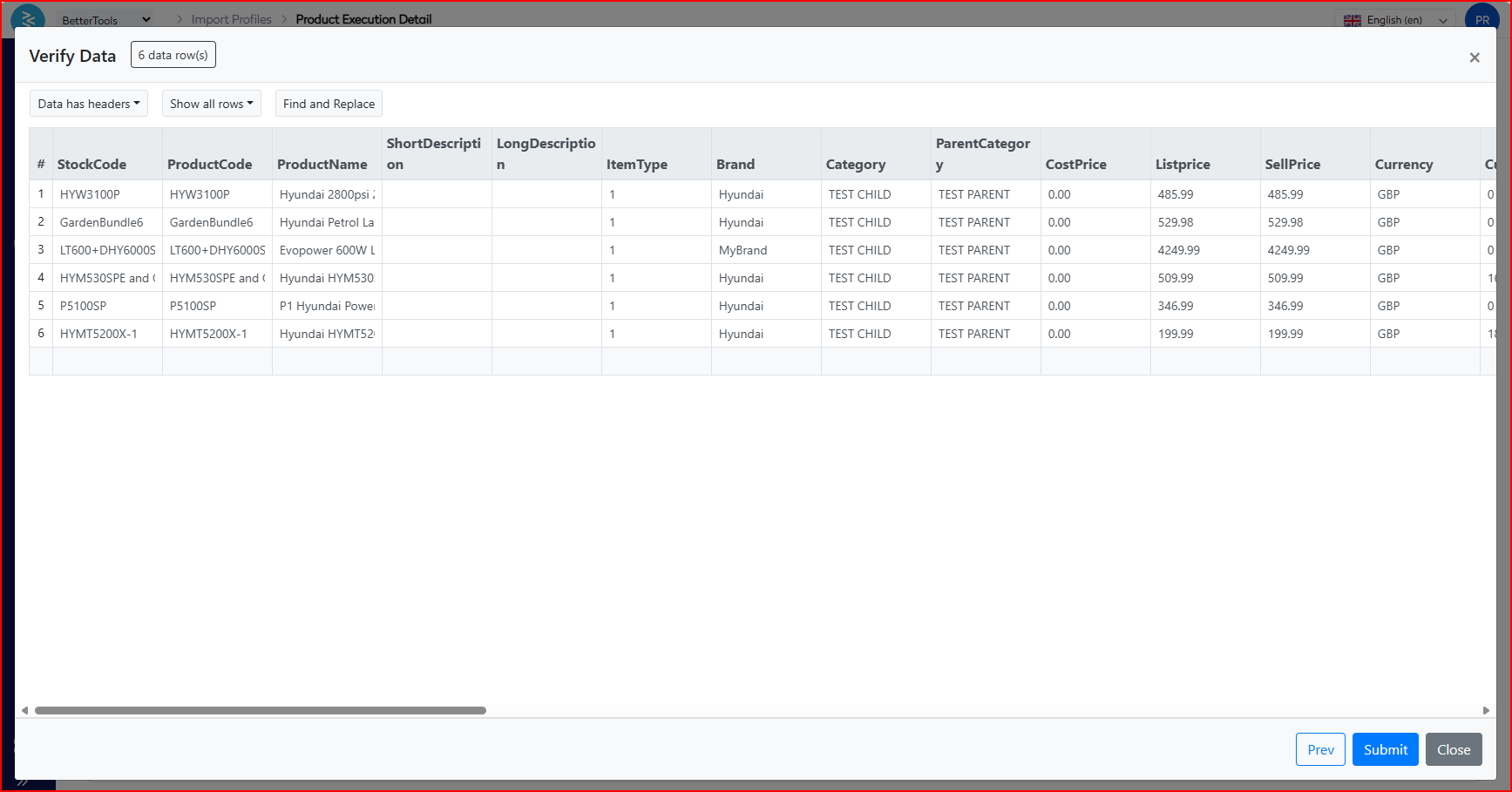
- Prior to submission, the PIM system provides a detailed data verification preview.
- Review all rows for consistency, accuracy, and completeness.
- Commonly displayed fields include:
- ProductCode, ProductName
- Pricing: CostPrice, ListPrice, SellPrice
- Category, Brand, ItemType
- Perform inline edits, execute find-and-replace actions, or re-map columns if necessary before proceeding.
7. Submit Import
- After verifying the data, click Submit to finalize the import process.
- The system will process the file and update or import the data into the PIM system.
- Track the import status in the Last Execution section for auditing and historical reference.
Summary
The All Activity Import-Export module in the BetterCommerce PIM system streamlines bulk product updates through structured import profiles. By uploading a pre-formatted Excel or CSV file, accurately mapping fields, and verifying data prior to submission, businesses can efficiently update catalogs at scale. This functionality is essential for onboarding