
Export Products Guide
This guide provides detailed instructions for exporting products in BetterCommerce, enabling efficient product data management. Follow the steps below to navigate the product catalog, select products, and export them in CSV format.
Step-by-Step Instructions
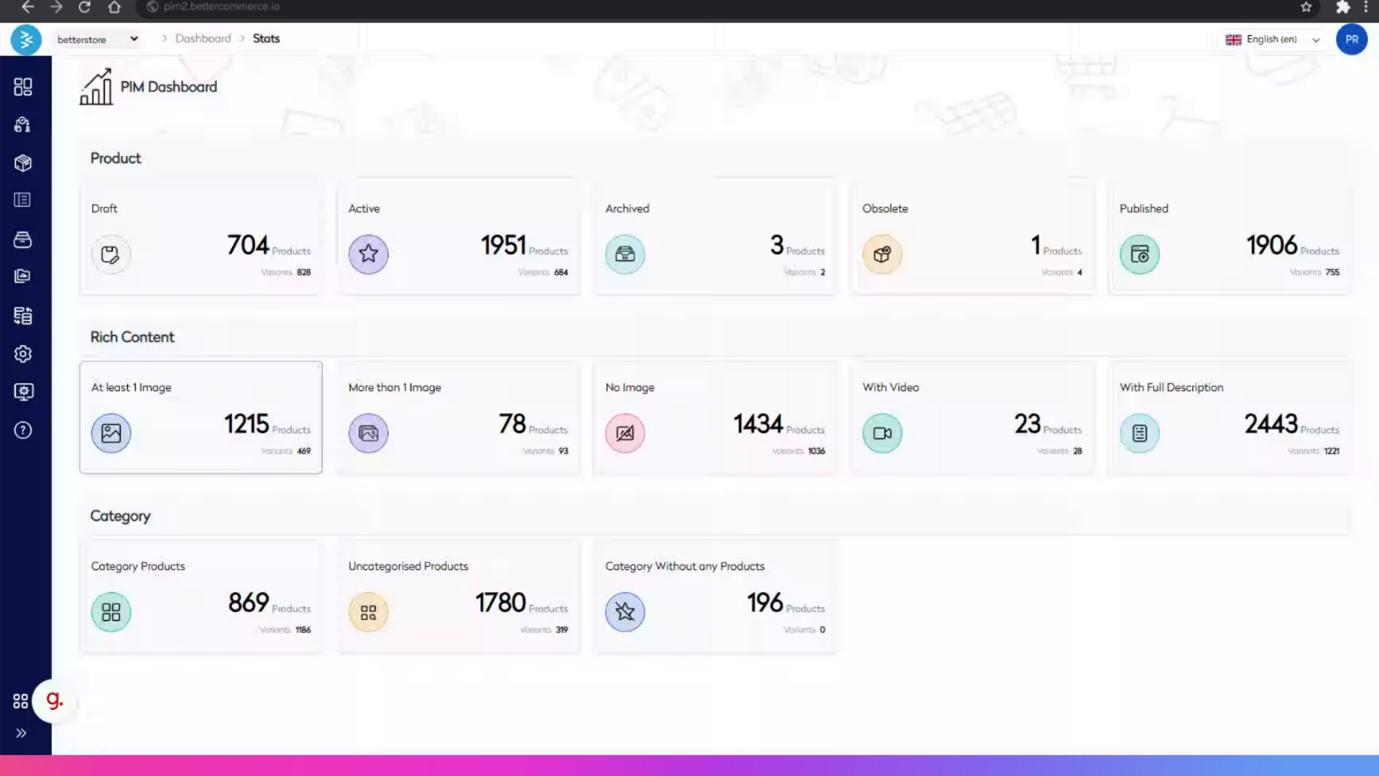
Step 1: Access the PIM and Navigate to the Products Section
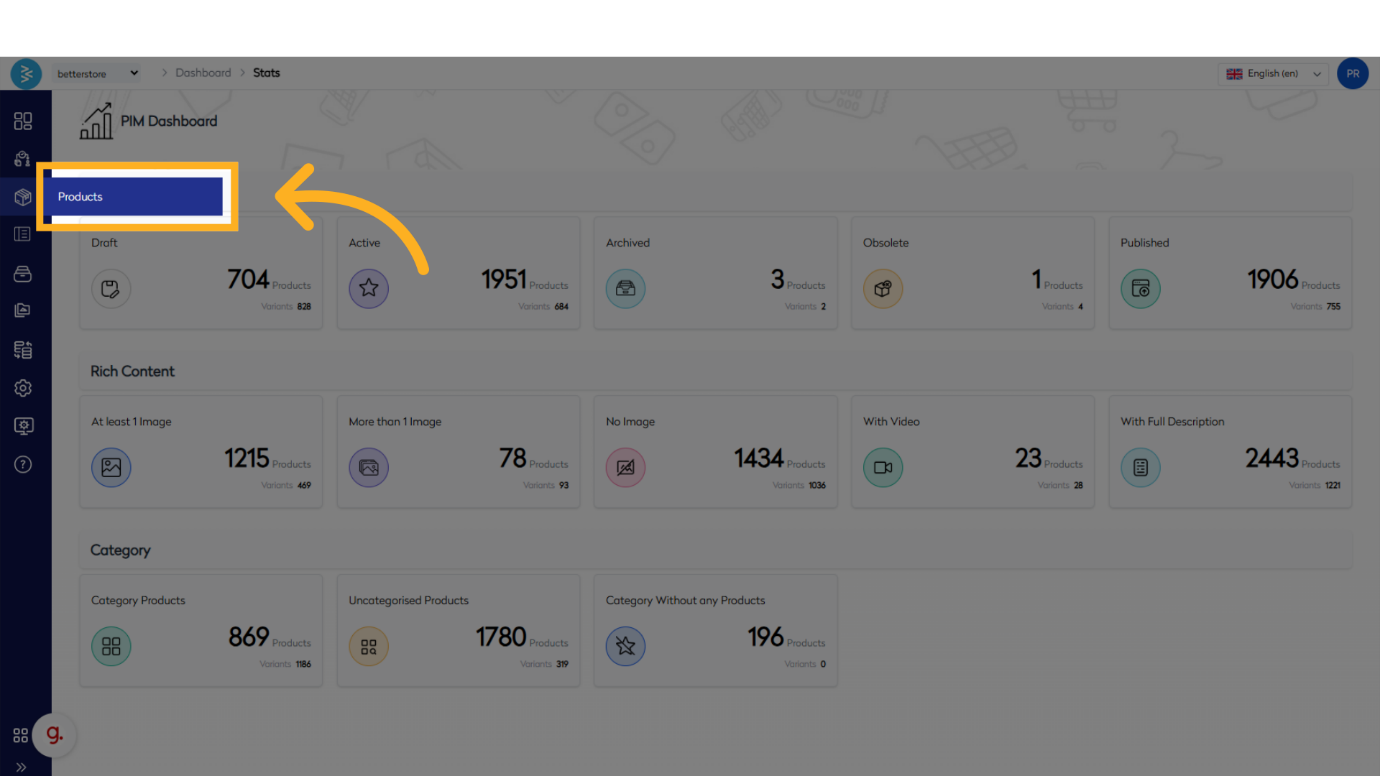
Locate and click the Products menu option to access the product catalog.
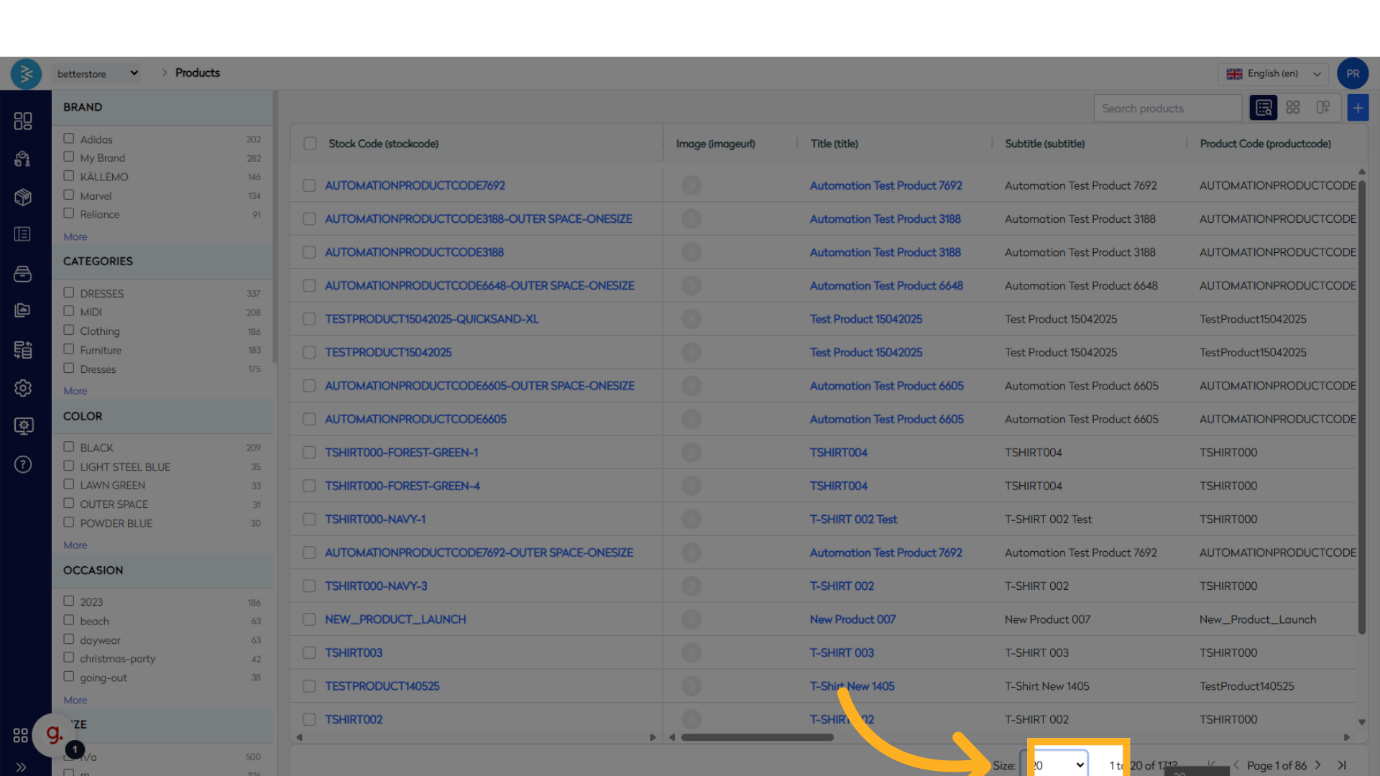
Step 2: Select Page Size
Choose the desired page size for product display. Available options include 20, 40, or 60 products per page.
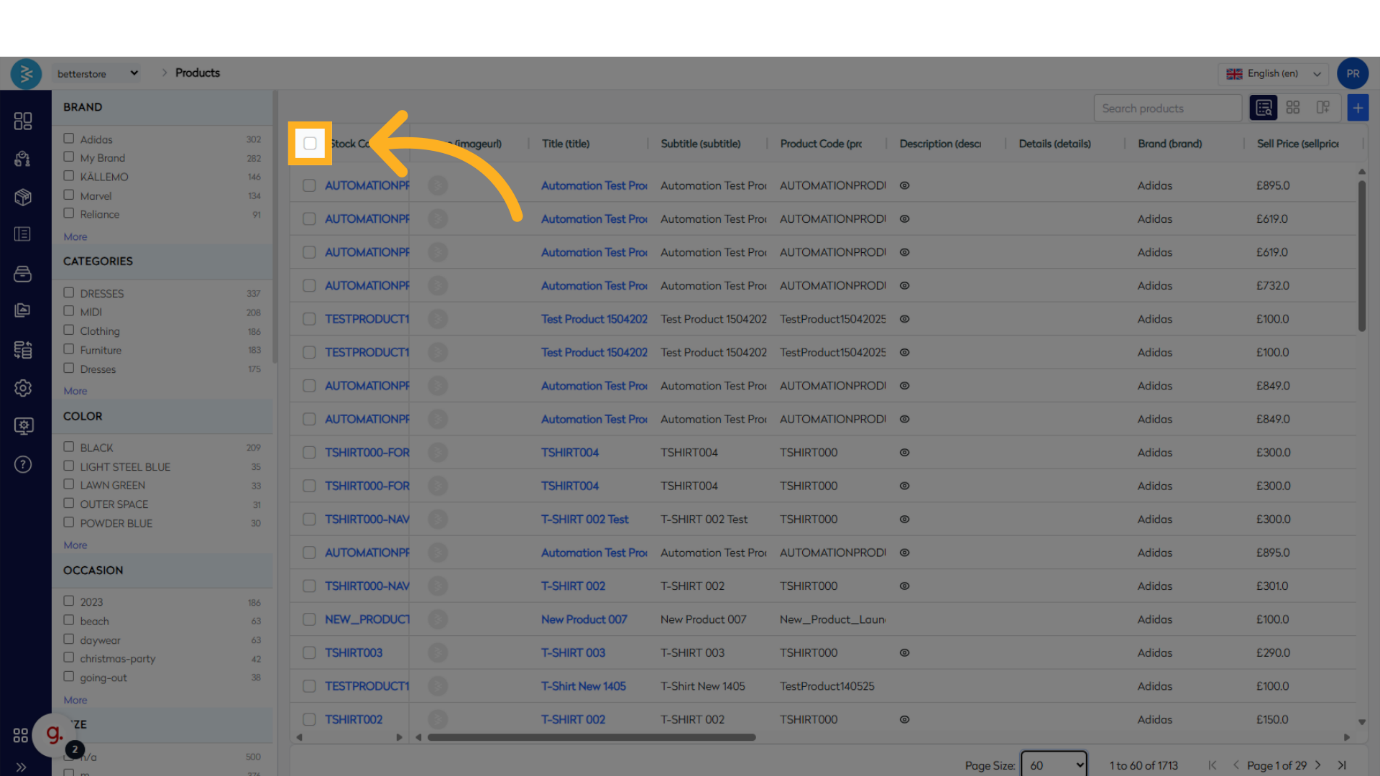
Step 3: Toggle Row Selection
After selecting the page size, check the toggle to select all rows on the current page, marking them as checked.
Step 4: Initiate Export
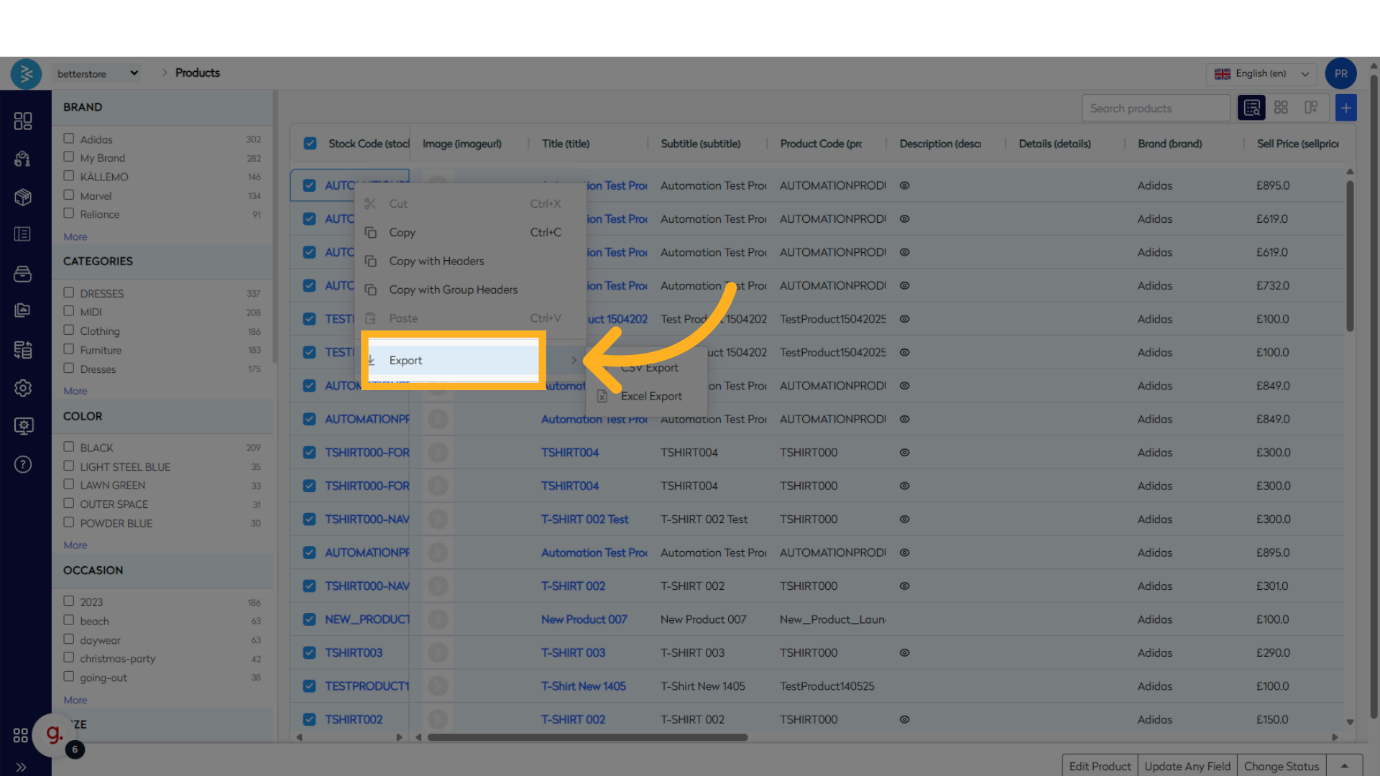
Right-click anywhere on the screen to open the context menu, then select the Export option to begin the export process.
Important Note:
This feature only allows you to export the rows that you have currently selected. To use this feature effectively, make sure to highlight or select the specific rows you want to export. Only these selected rows will be included in the export file
Step 5: Export in CSV Format
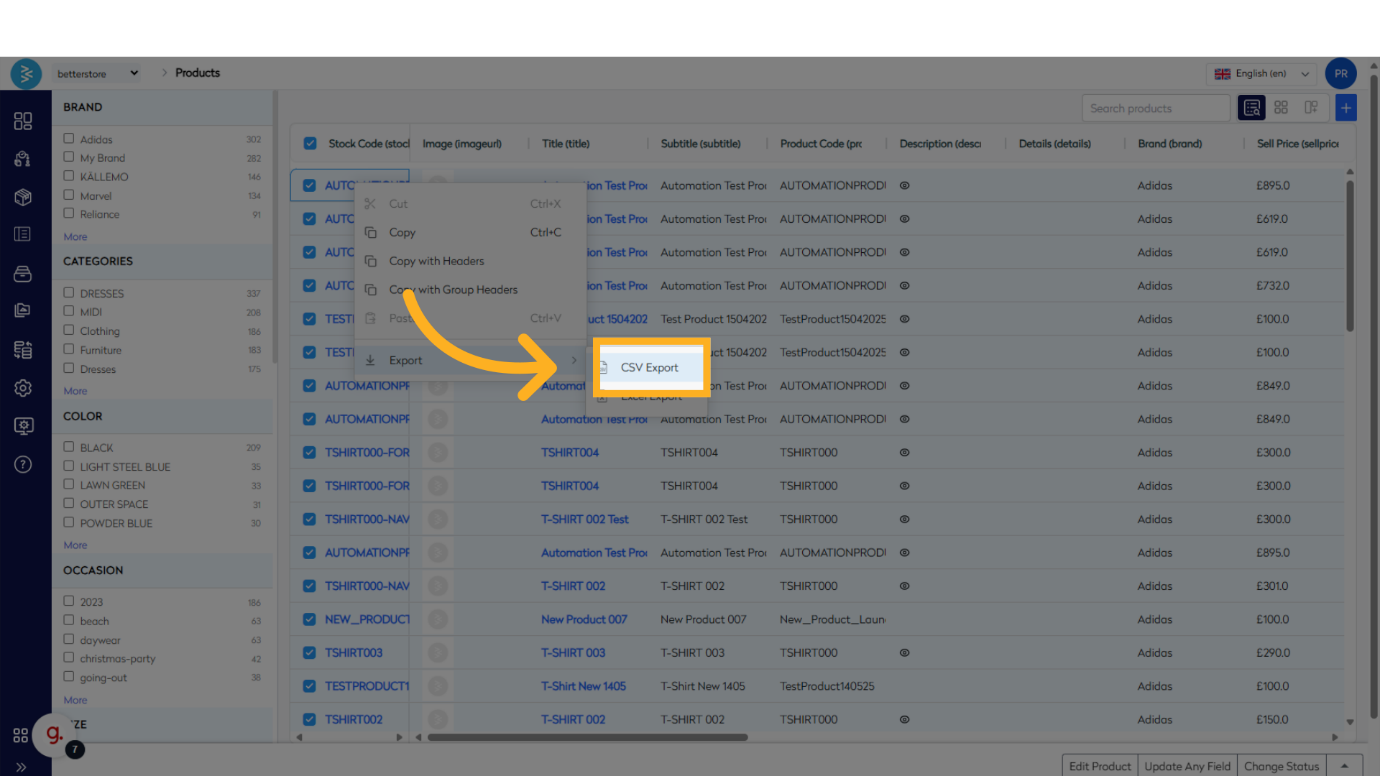
From the export options, select CSV Export to download the selected product data in CSV format.

Summary
This guide explains how to export products in BetterCommerce. It covers navigating to the product catalog, selecting products, toggling row selections, and exporting data in CSV format. By following these steps, you can efficiently streamline your product management tasks. np