
Bettercommerce Product Management Guide
This guide provides a comprehensive overview of managing products in Bettercommerce, covering both adding new products and editing existing stockcodes. Follow these steps to efficiently add and update product information in your inventory.
Add a New Product
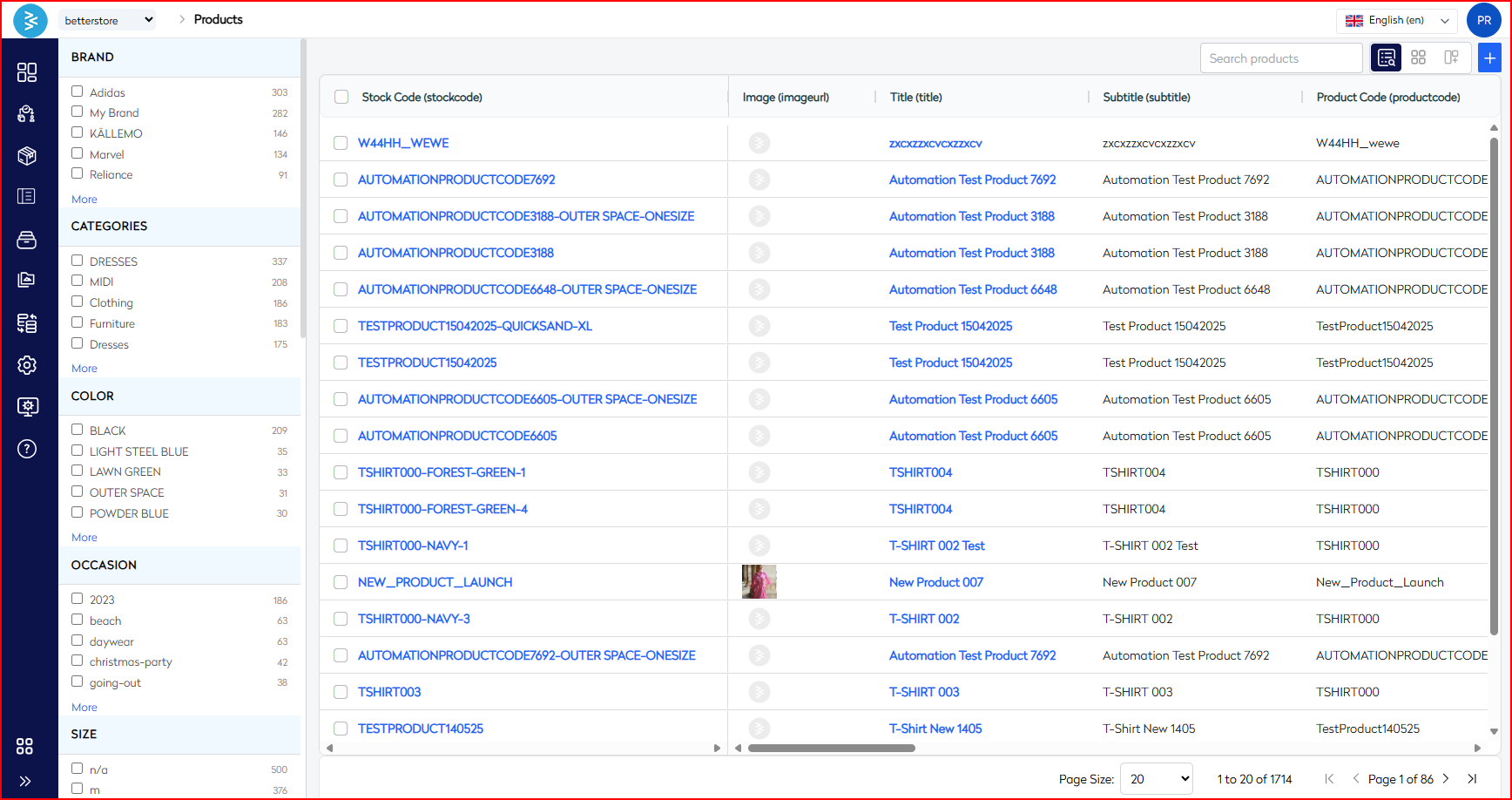
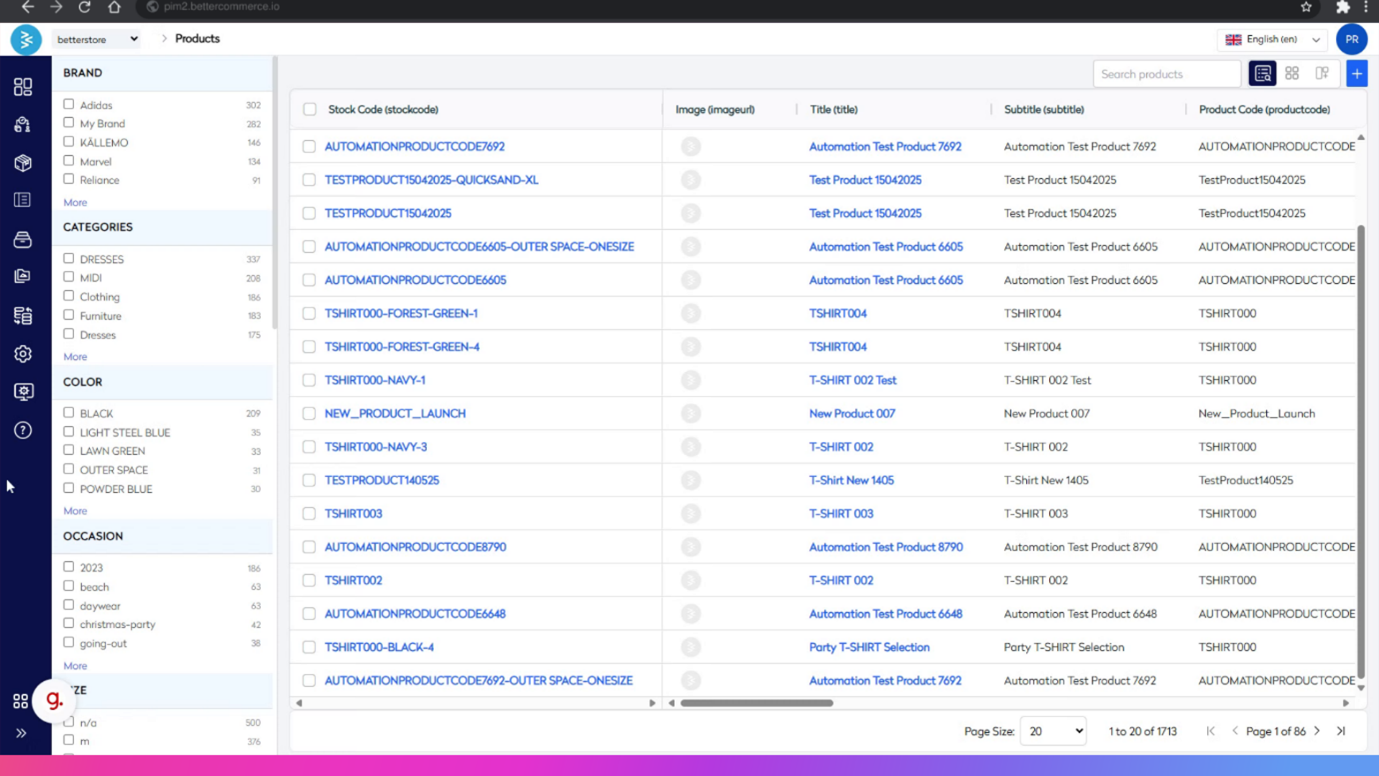
Ready to add your first product? Follow these clear steps to go from product setup to save in minutes. lets us share some insight on the product listing page
1. Navigation System
The left sidebar includes a hierarchical menu featuring:
- Process Tracker: Tracks pending or in-review changes
- Products
- Catalog Management
- Collections
- Assets
- Data Flows
- Settings
- System Administration
2. Product Filtering Panel
Provides advanced filtering capabilities:
- By Brand
- By Categories
- Other Filters:
- Occasion
- Size
- Various other product attributes
3. Main Product Grid
Displays product data in a table format with the following columns:
- Stock Code (
stockcode) - Product Image (
imageurl) - Title (
title) - Subtitle (
subtitle) - Product Code (
productcode)
4. Pagination and Display Controls
Includes tools for navigating product listings:
- Page size selector: 20 / 40 / 60 items per page
- Currently showing: Shows number of product in single view.
- Page navigation controls
Key Features
1. View Options
- Grid view toggle
- Custom view configurations
- Integrated search functionality
2. Language & Localization
- Language selector (default: English)
- Multi-currency support
3. Data Management Capabilities
- Product variant support
- Asset/image management
- Product and SKU tracking
Technical Aspects
- Designed for enterprise-scale operations
- Supports multi-tenant architecture (e.g.,
betterstoreinstance) - Handles complex product hierarchies and variants
- Integrated with an asset management system
- RESTful API architecture inferred from URL structure
Product Navigation and Category Selection
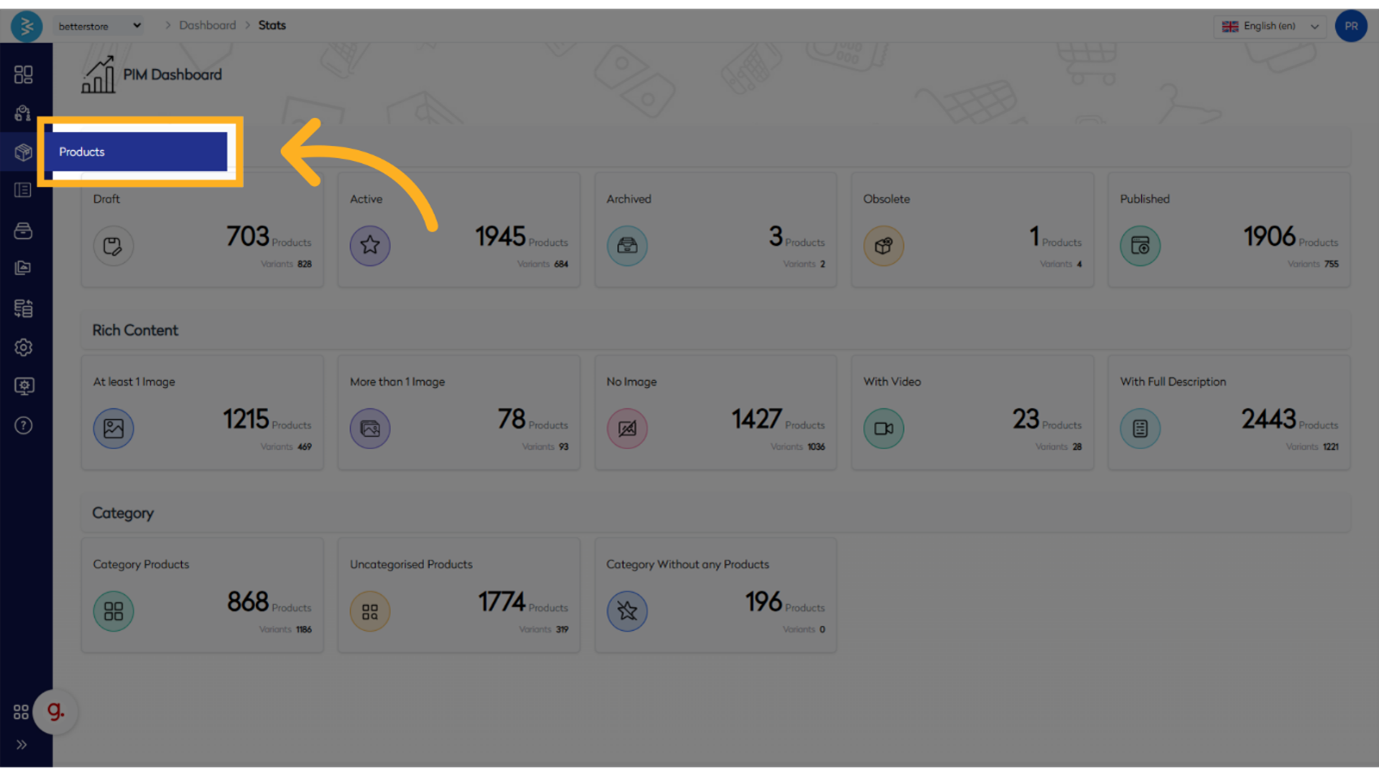
Step 1: Click "Products"
Navigate to the Products section.
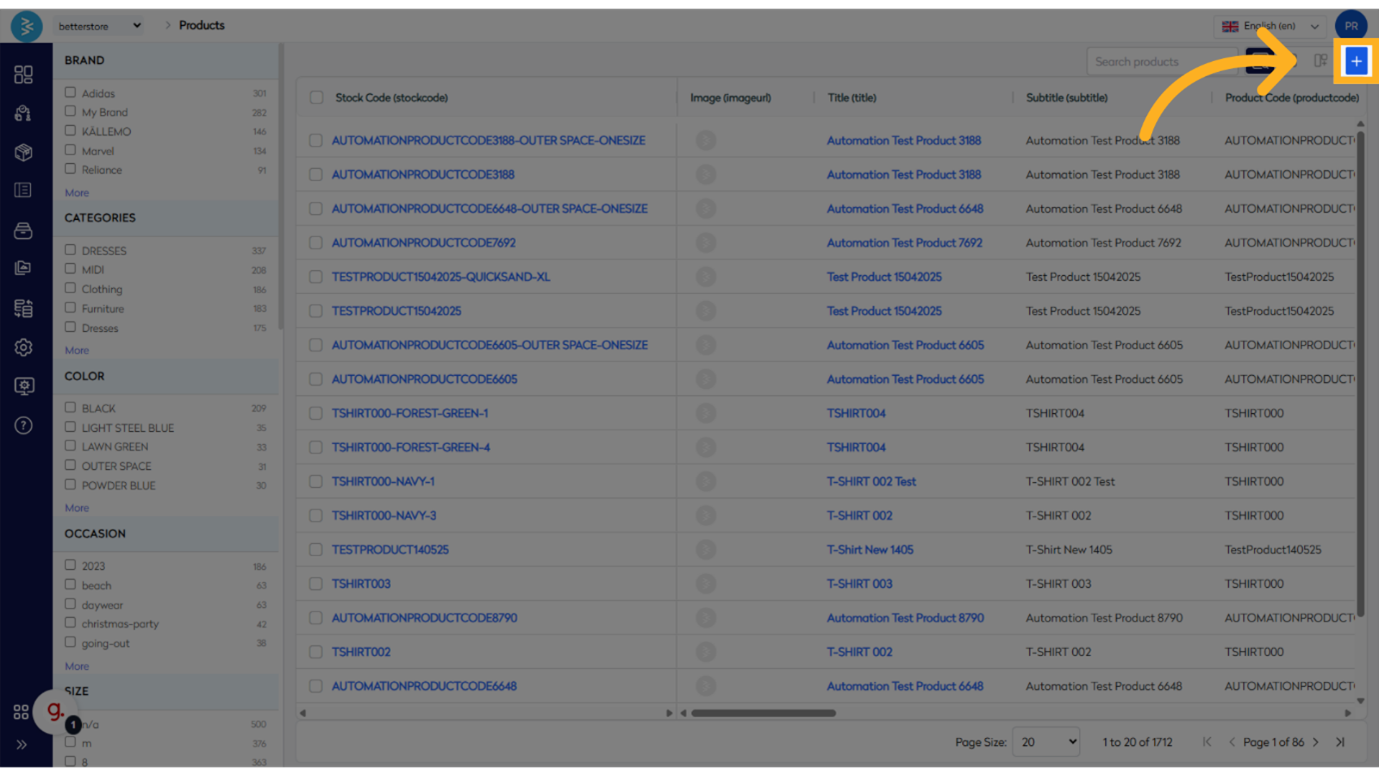
Step 2: Click + Sign to Add New Product
Start the process of adding a new product.
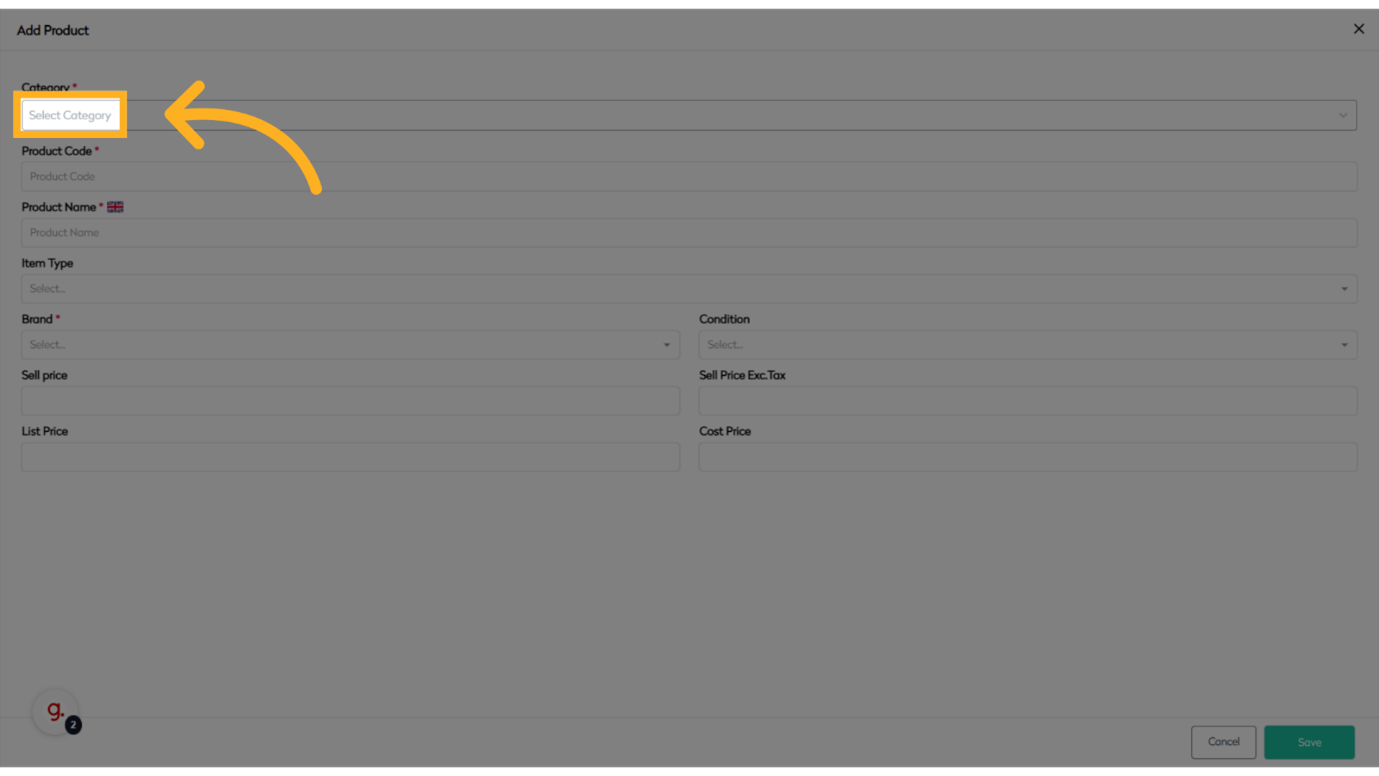
Step 3: Click "Select Category"
Choose a category from the list.
Enter Product Information
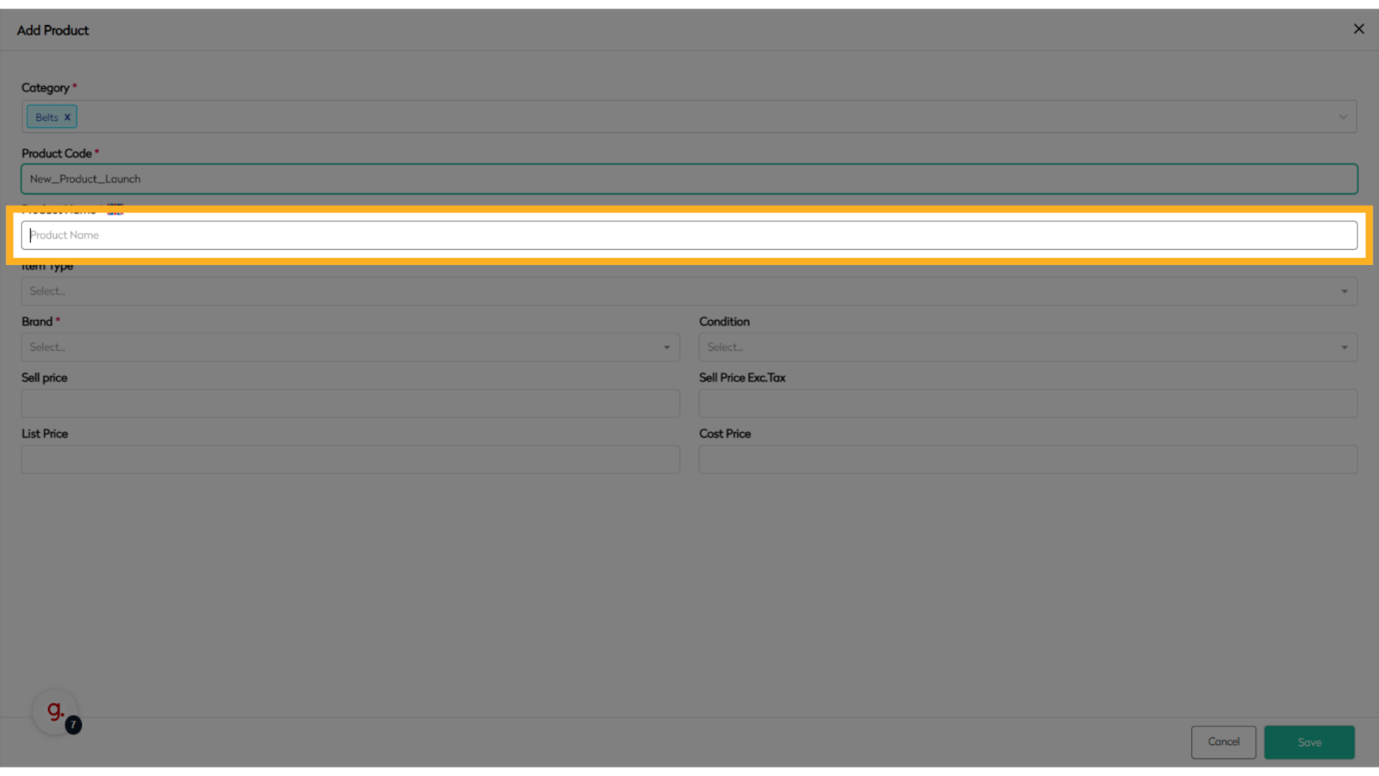
Step 4: Click "Product Name *"
Enter the product name.
Define Product Type and Brand
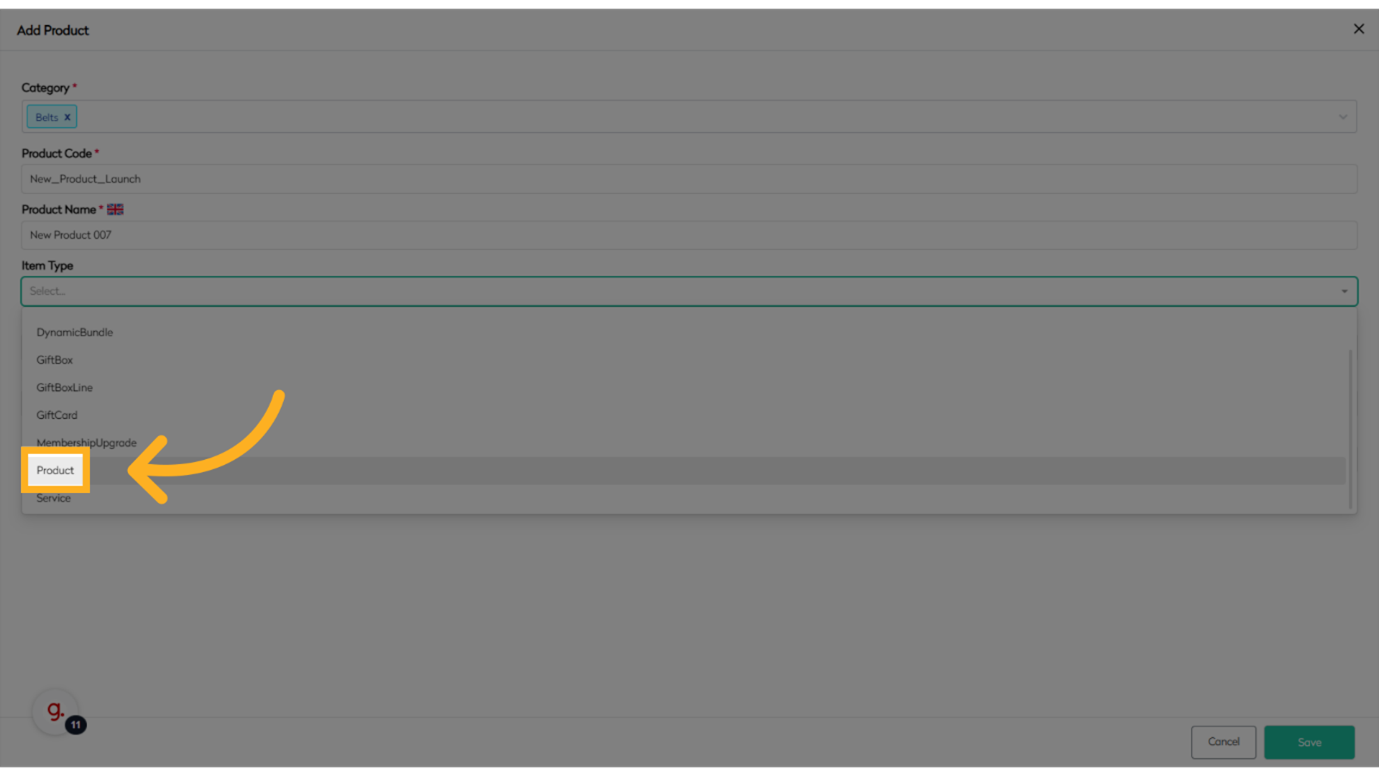
Step 5: Click "Item Type"
Select the product type.
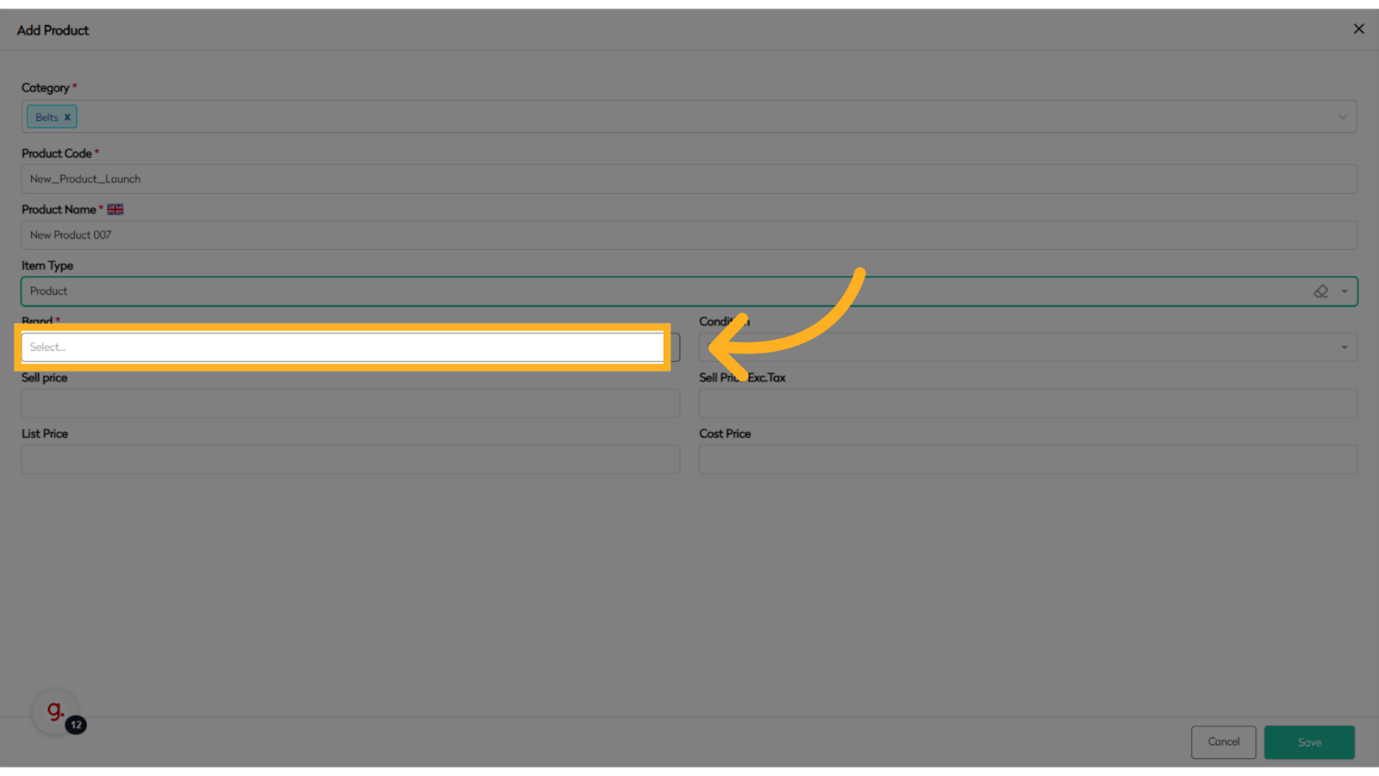
Step 6: Click to Select Brand
Choose the brand for the product.
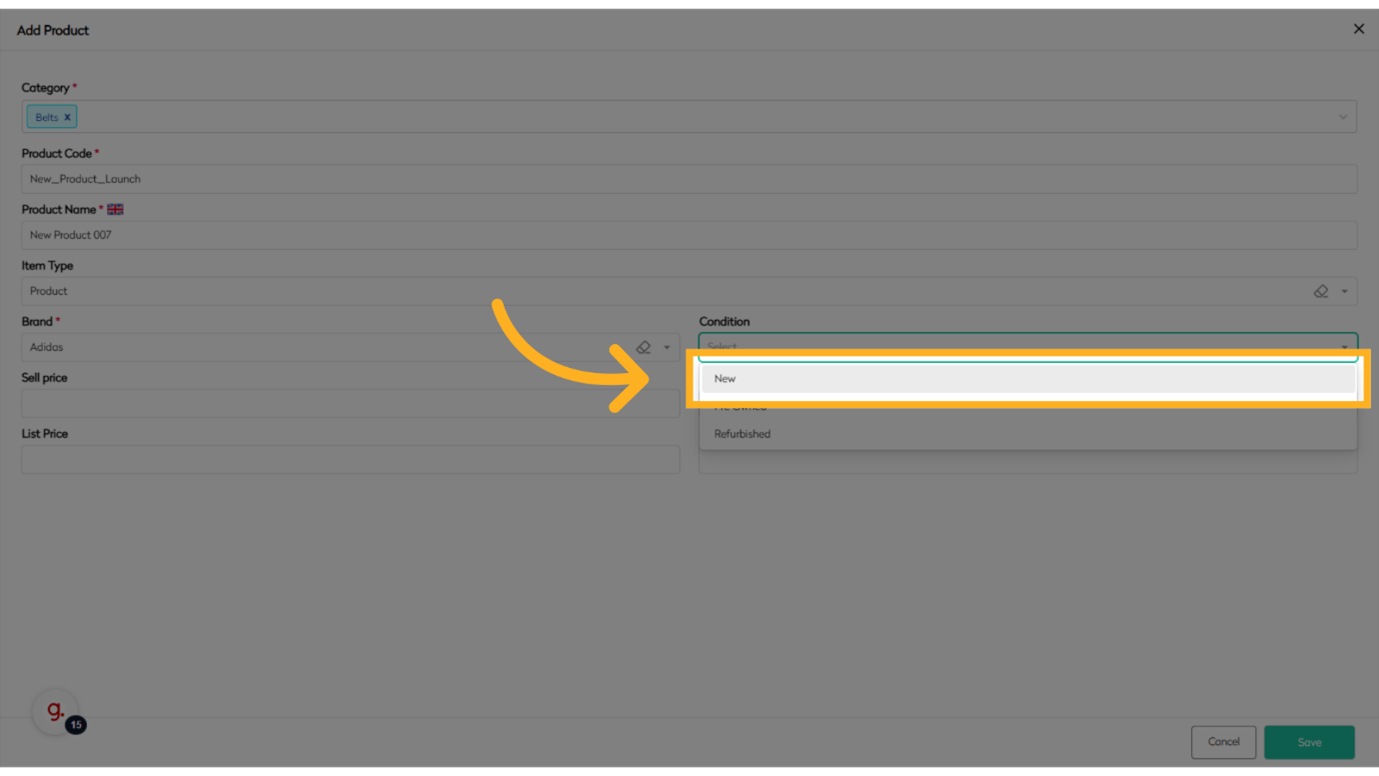
Step 7: Click to Select Condition
Select the product condition.
Finalize and Save Product
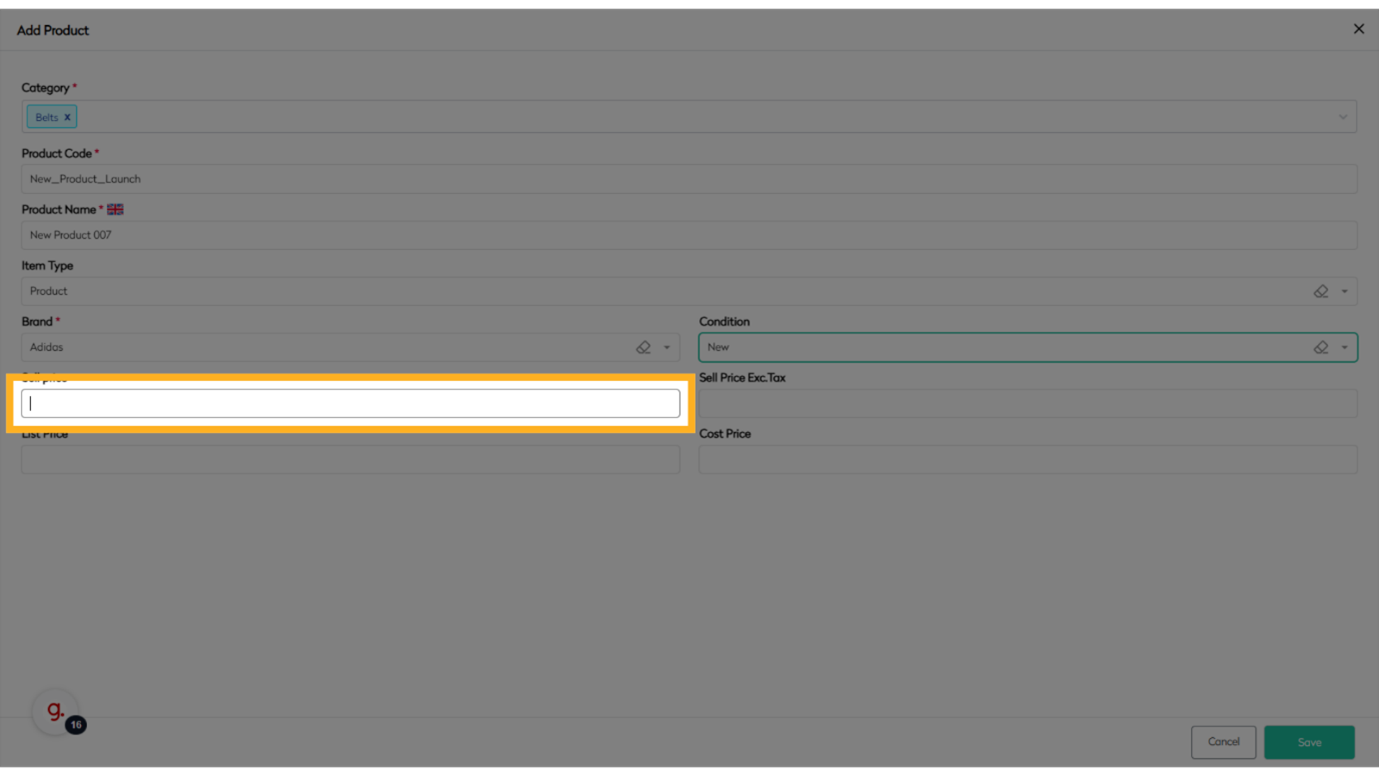
Step 8: Click "Sell Price"
Enter the selling price.
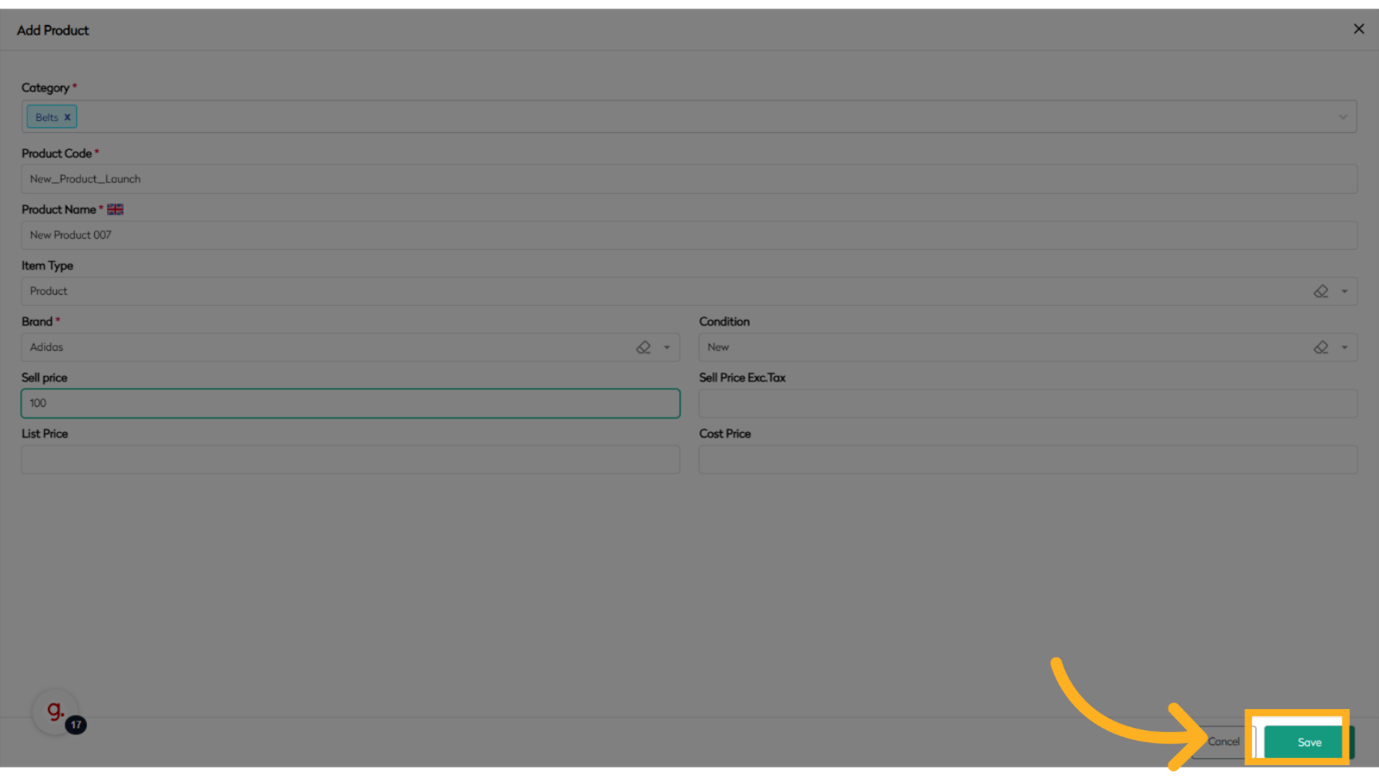
Step 9: Click "Save"
Save the product information.
Edit an Existing Stockcode
Follow these precise instructions to select a stockcode and update its details, ensuring efficient modifications to your inventory.
Select the Stockcode
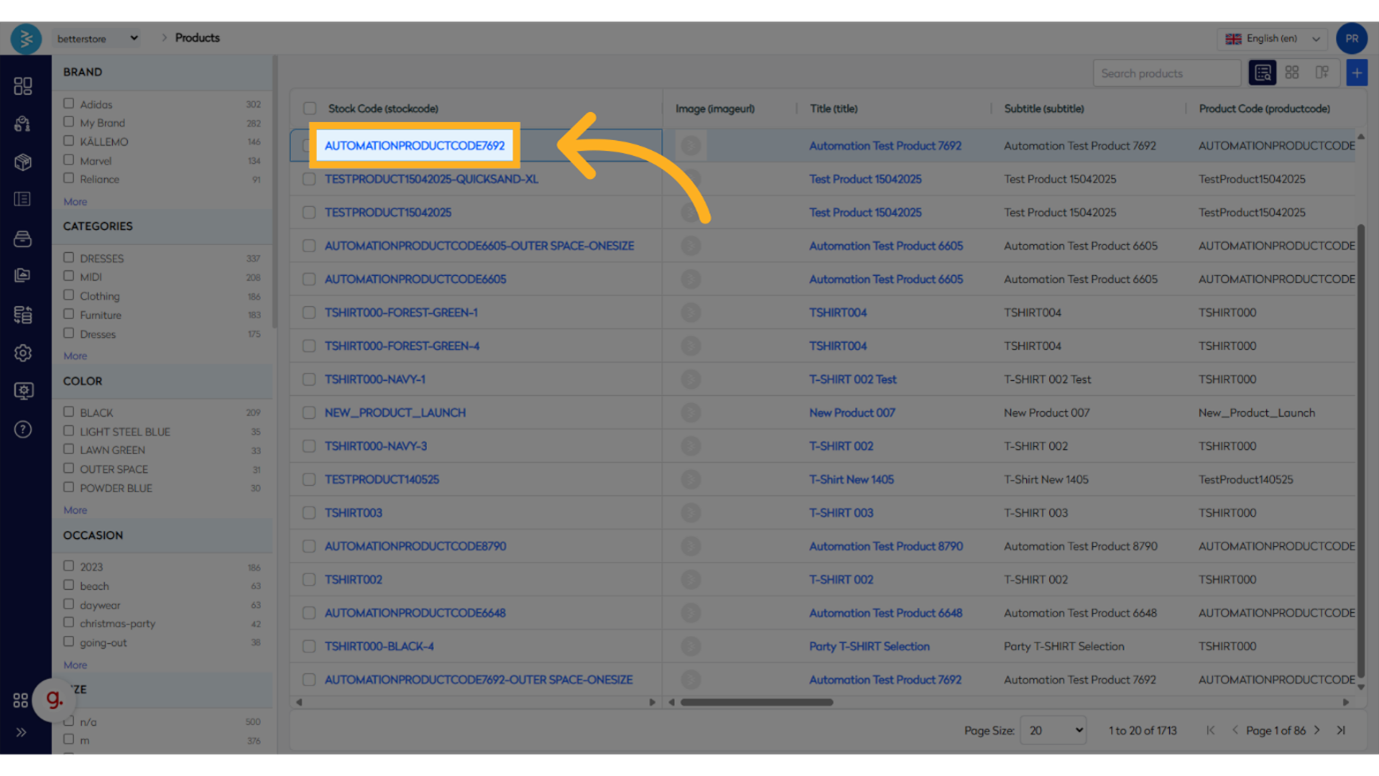
Step 1: Select the Stockcode
Choose the stockcode from the product list view.
Modify Attributes
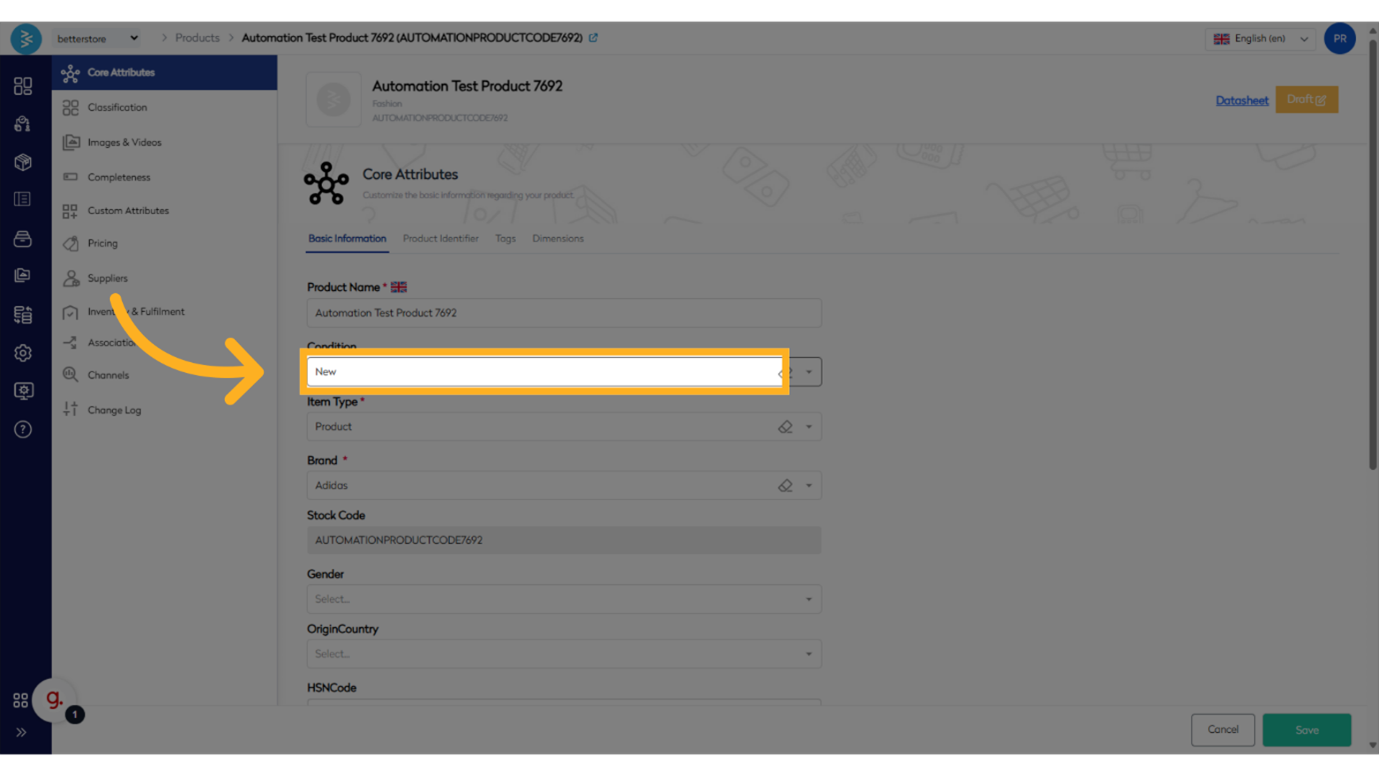
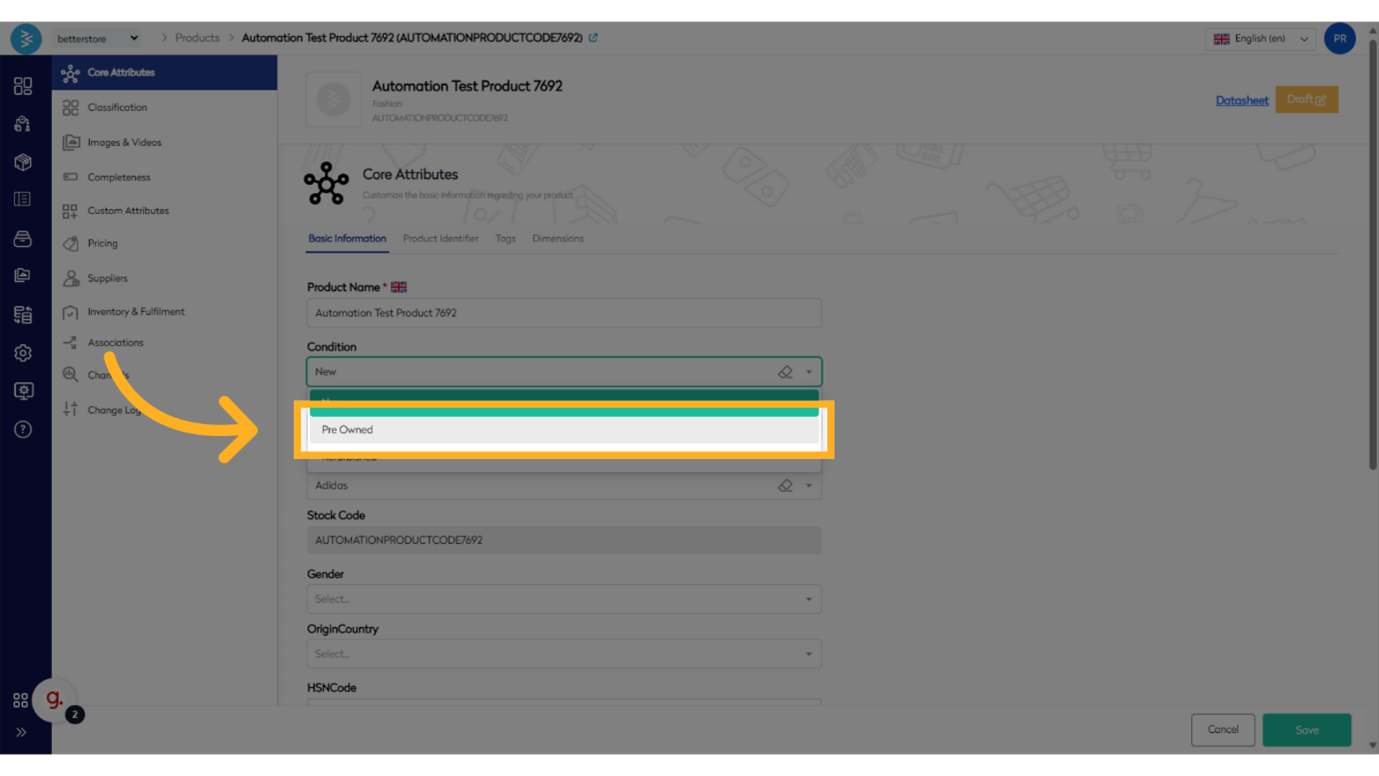
Step 2: Make Changes
Click on the section you want to edit, such as condition. For example, change the condition from “New” to “Pre Owned”.
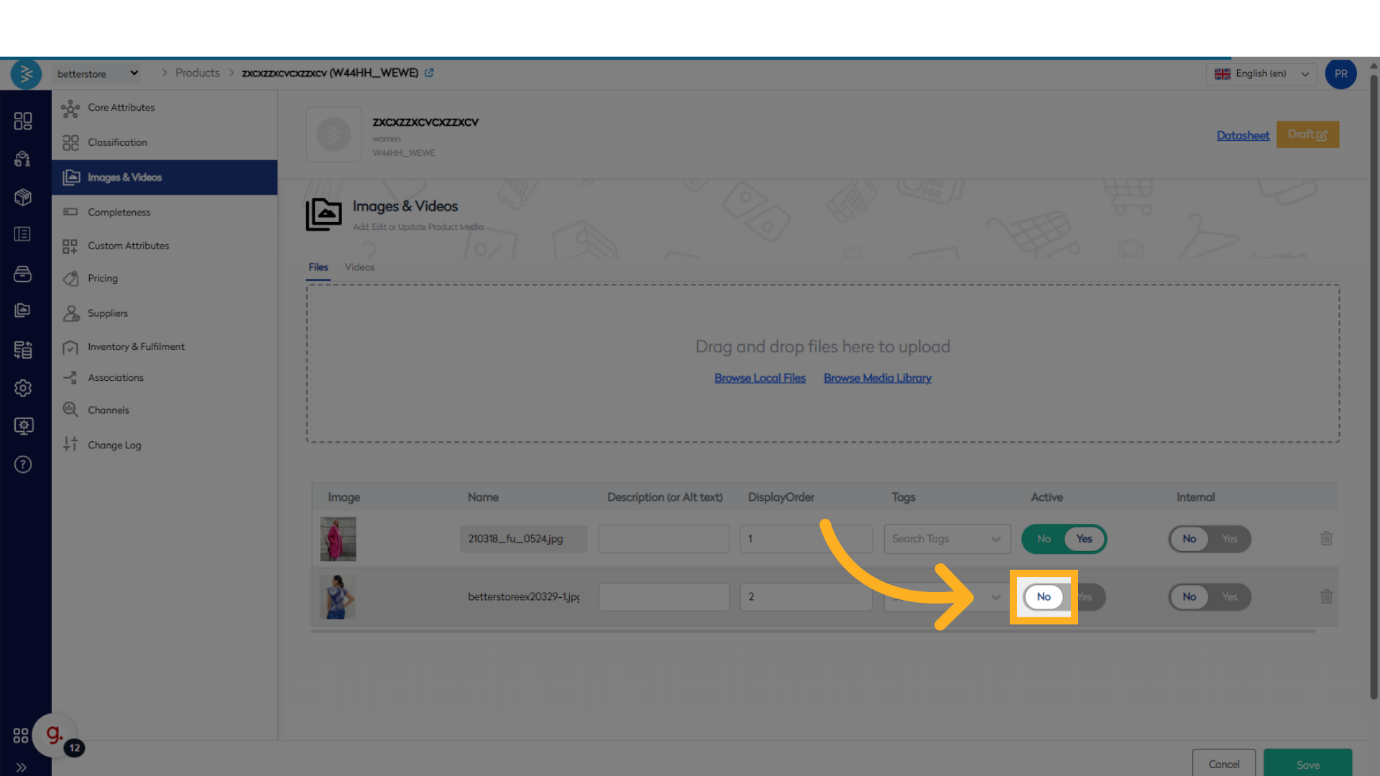
Step 3: Add Images and Videos
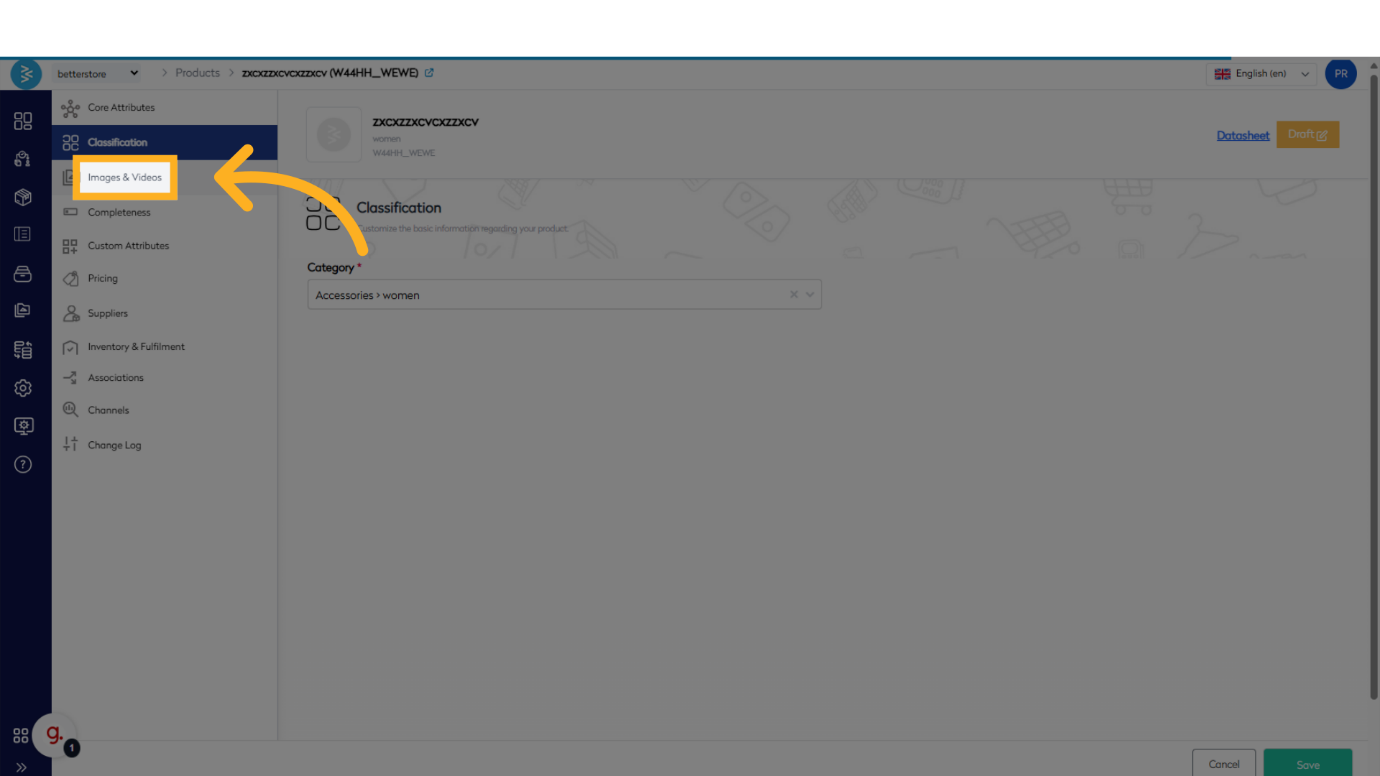
Configure product visuals by uploading images and videos to enhance the customer experience.
- Navigate to the Images & Videos section.
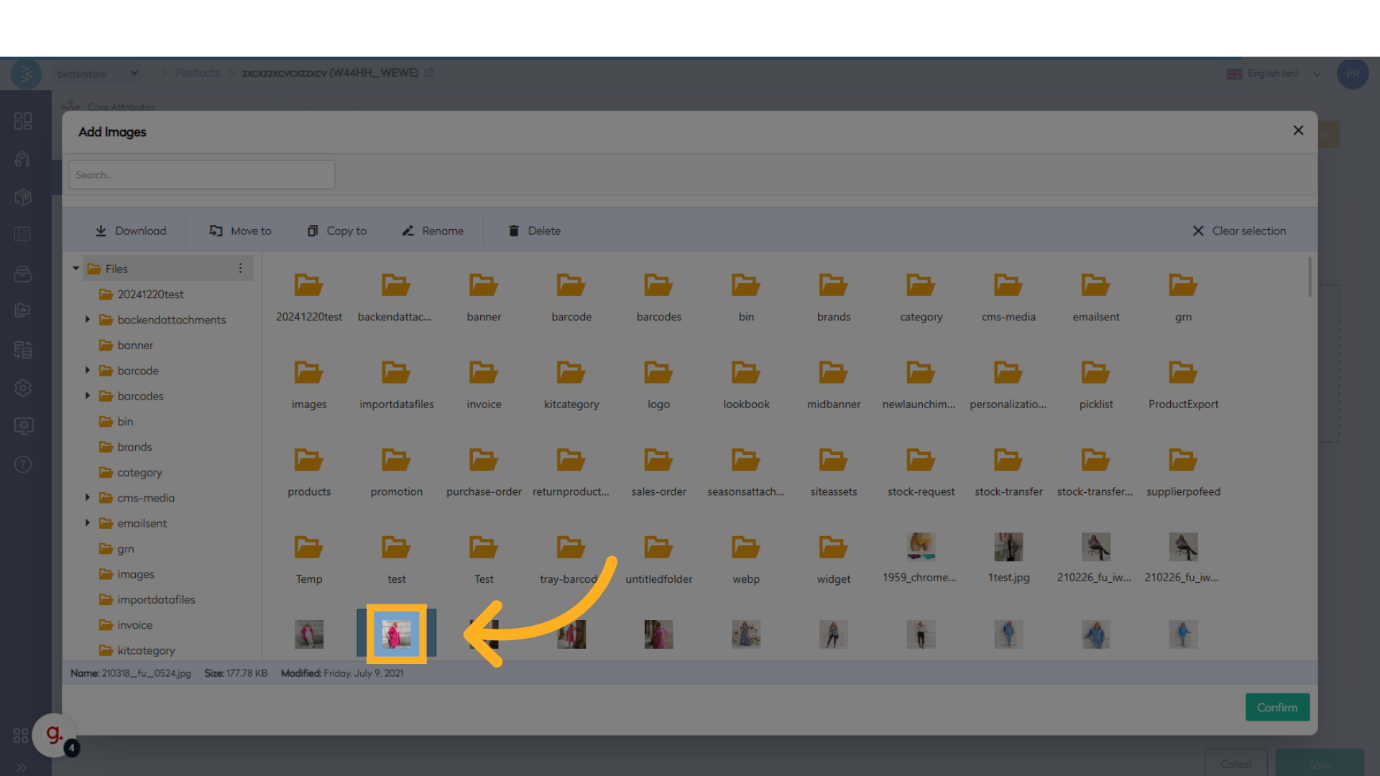
- Click Browse Local Files or access the media library to select images.
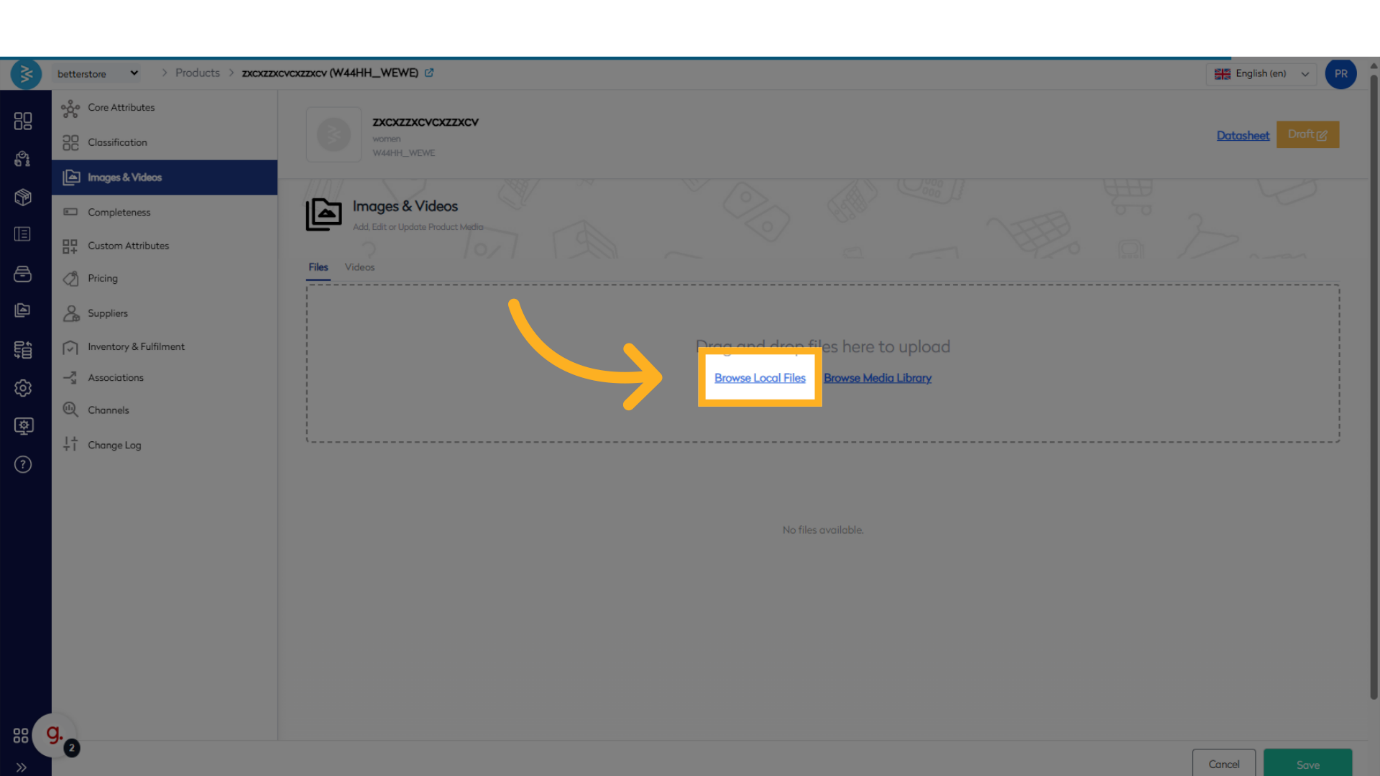
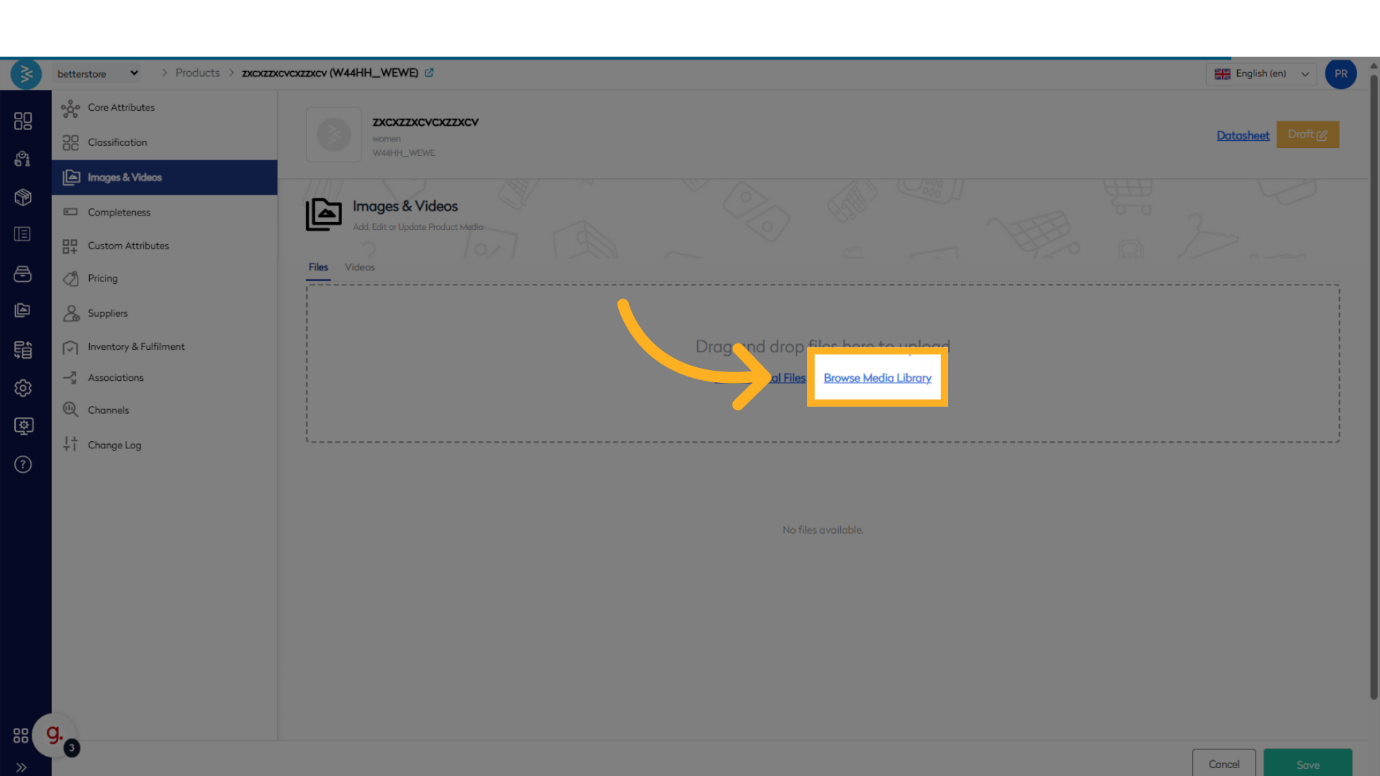
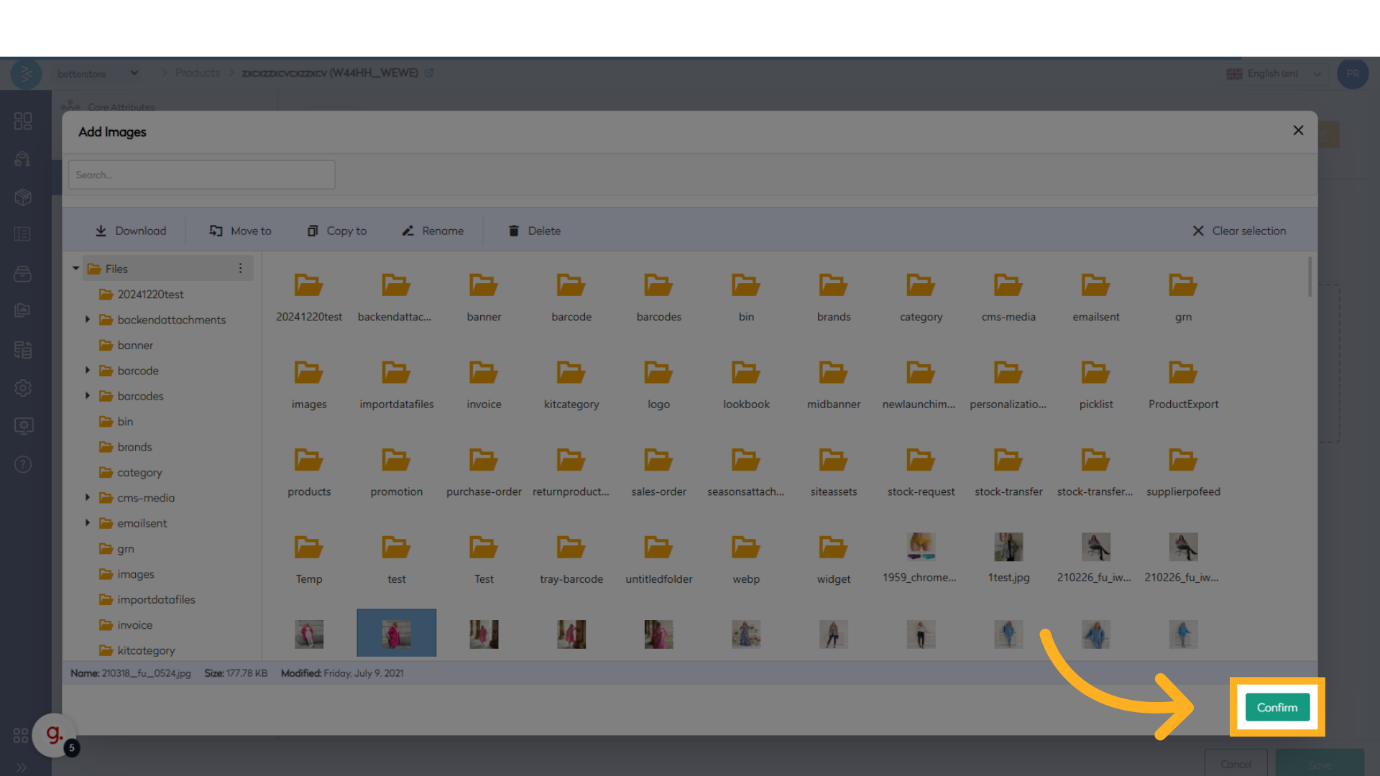
- Choose up to 10 product images. Repeat the selection process as needed.
- Click Confirm to save your selections.
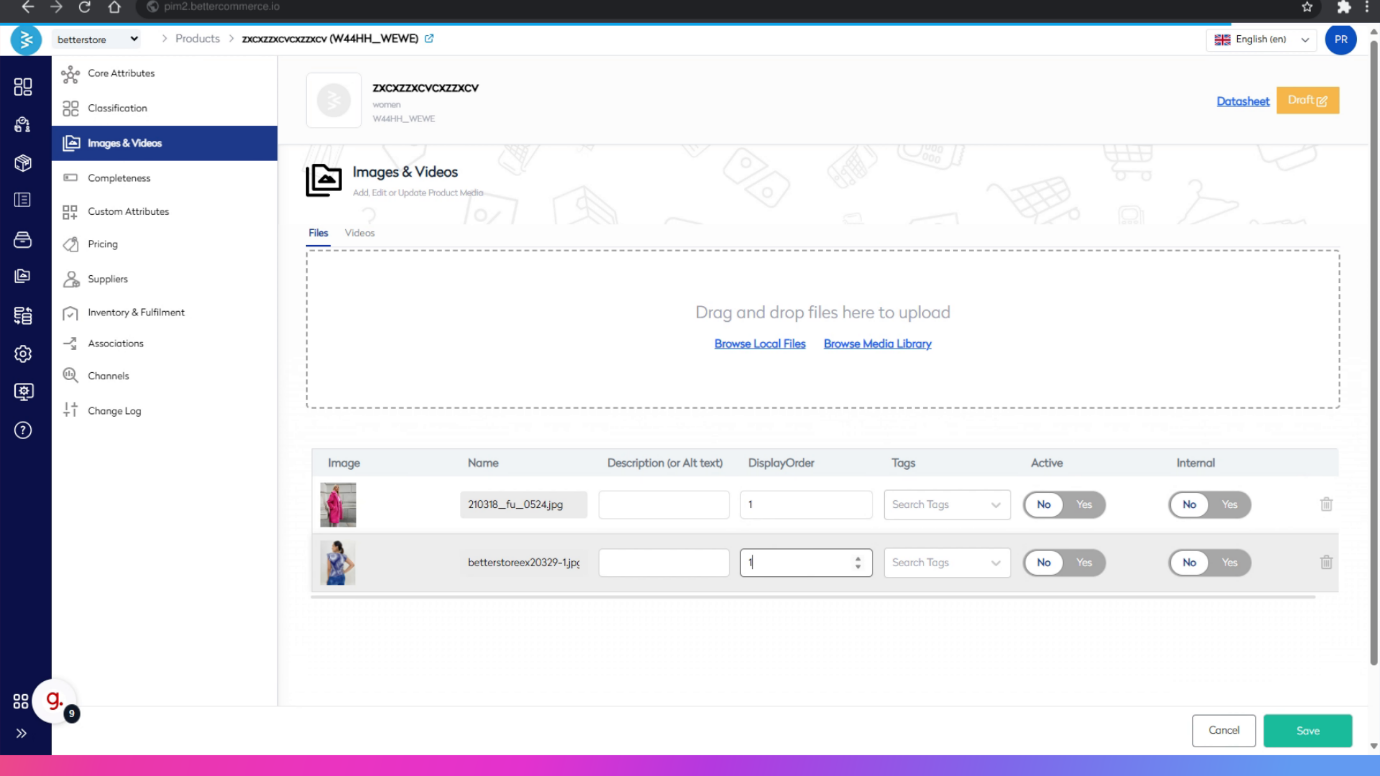
- Once images appear in the Images & Videos section:
- Set the display order for each image.
- Add tags for storefront use (e.g., categorization or filtering).
- Activate images to display on the storefront.
Step 4: Configure Completeness
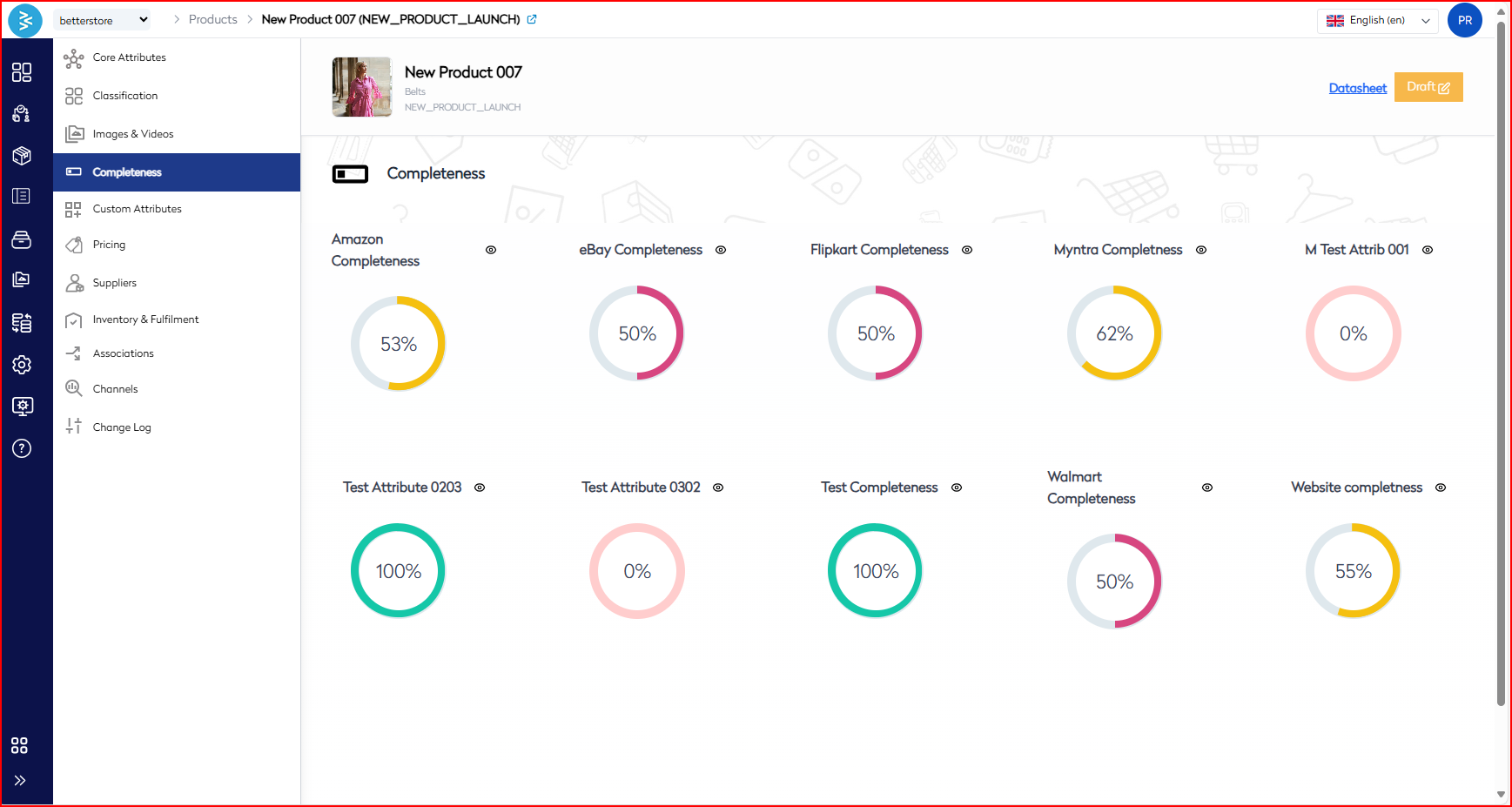
Ensure all necessary product information is accurate and complete to support informed customer decisions.
- Completeness: The completeness attribute refers to the extent to which all necessary information about a product is available, accurate, and up-to-date. This concept is crucial for ensuring that customers have all the details they need to make informed purchasing decisions.
Step 5 Custom Attribute Sets
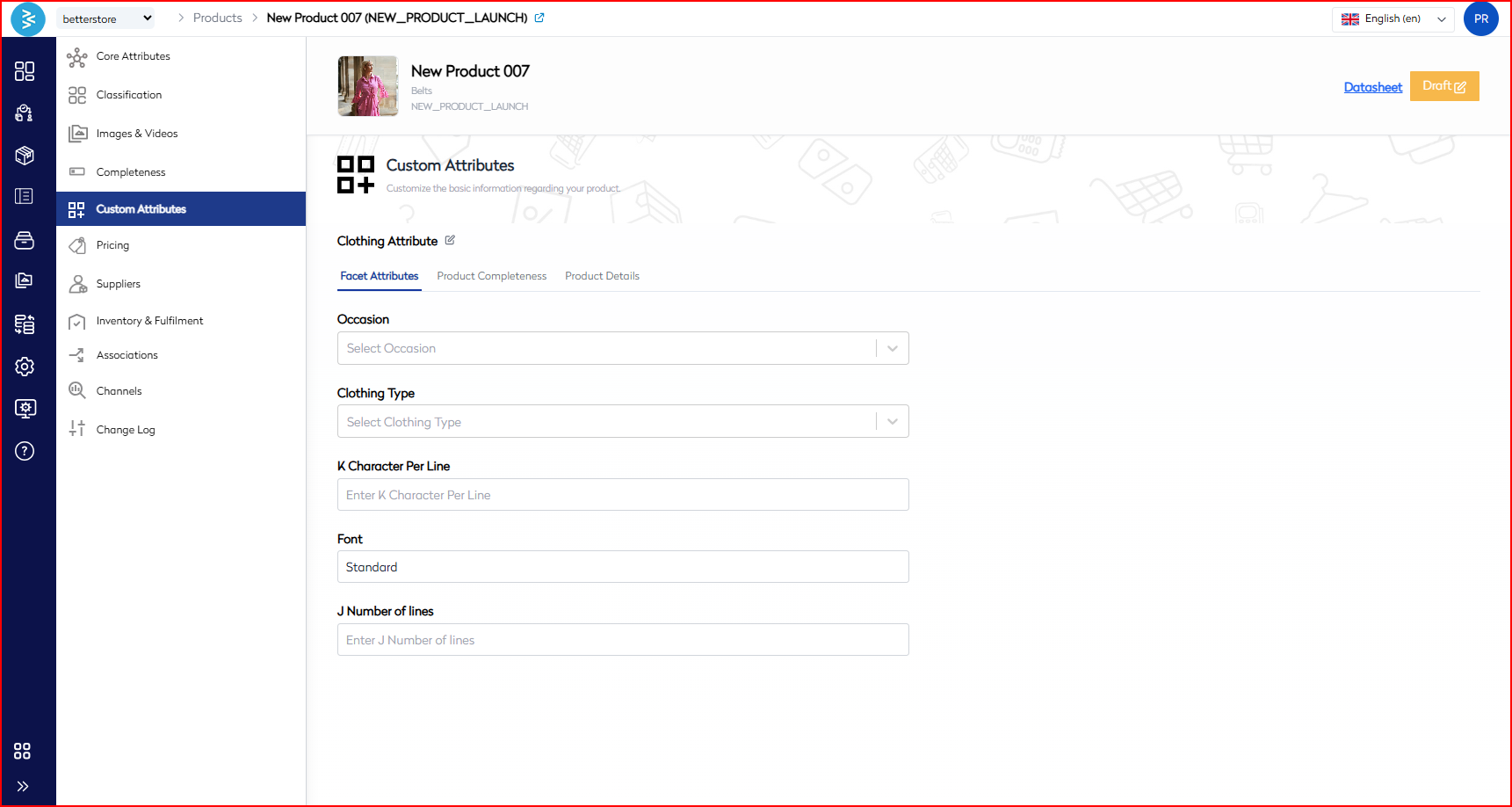
A custom attribute refers to a collection of user-defined attributes that are tailored to describe specific characteristics of products. These attributes can be created and managed to fit the unique needs of a business or product category. You can select any custom attribute set created in PIM as per the product and then accordingly select the respective values in the custom attribute which are part of it.
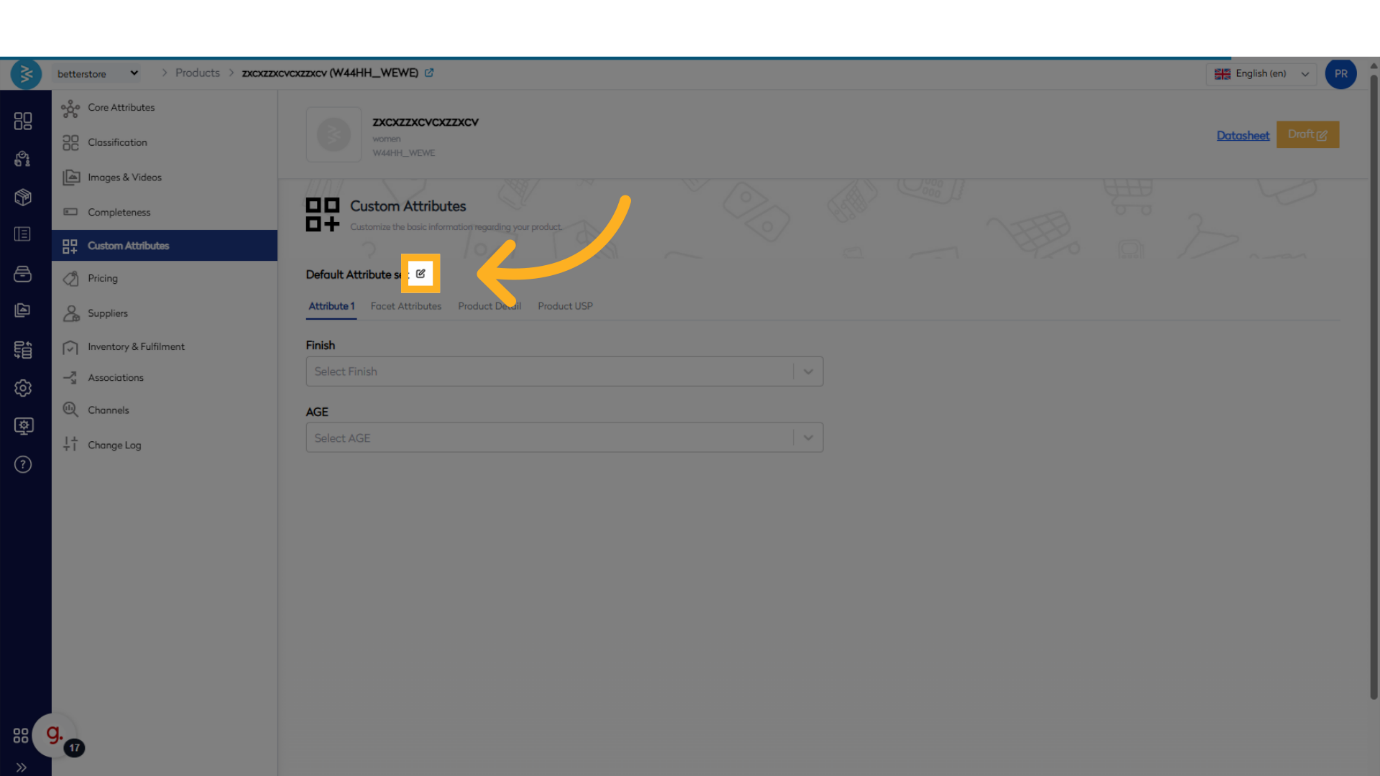
Below are the steps showing how you can chnage a custom attribute set assigned to a product.
Click on the edit button
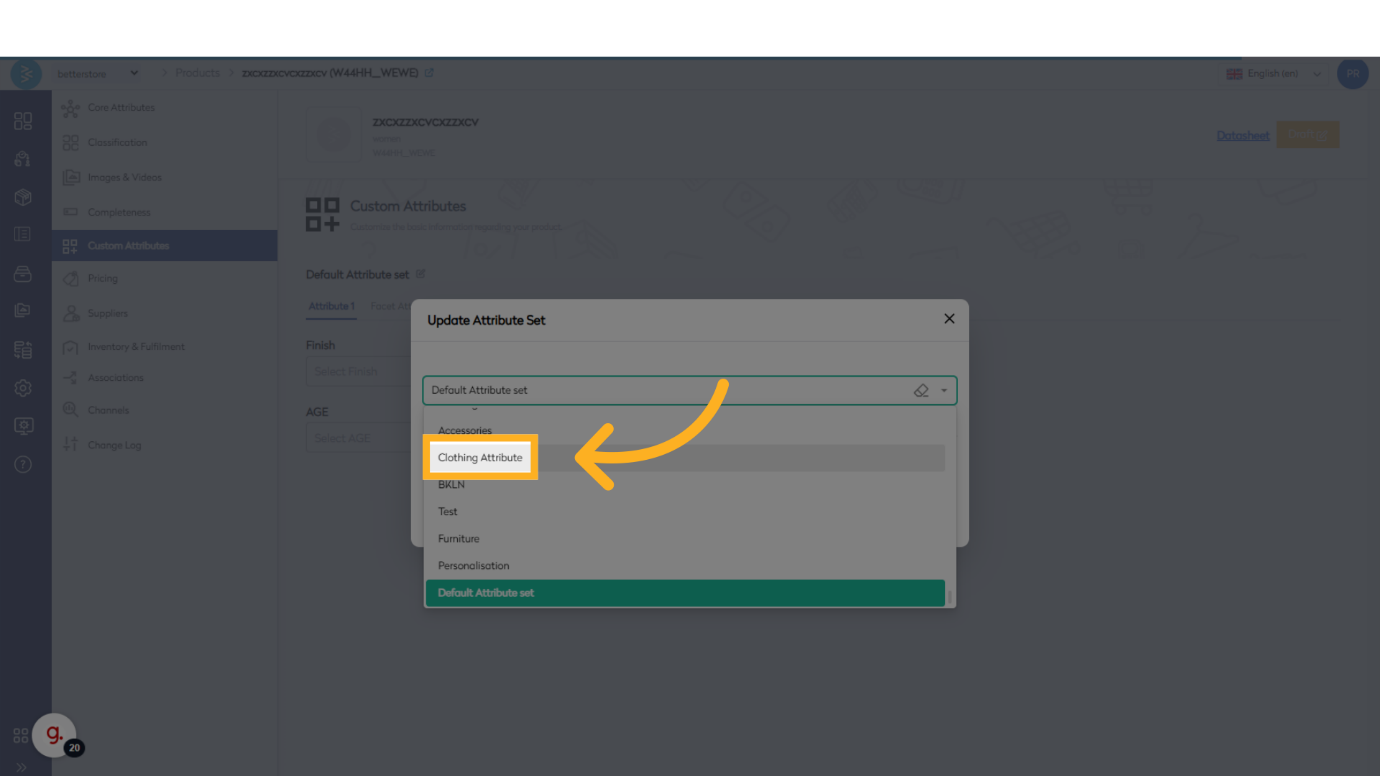
 Select the drop down menu to choose the custom attribute set you want to apply to the product.
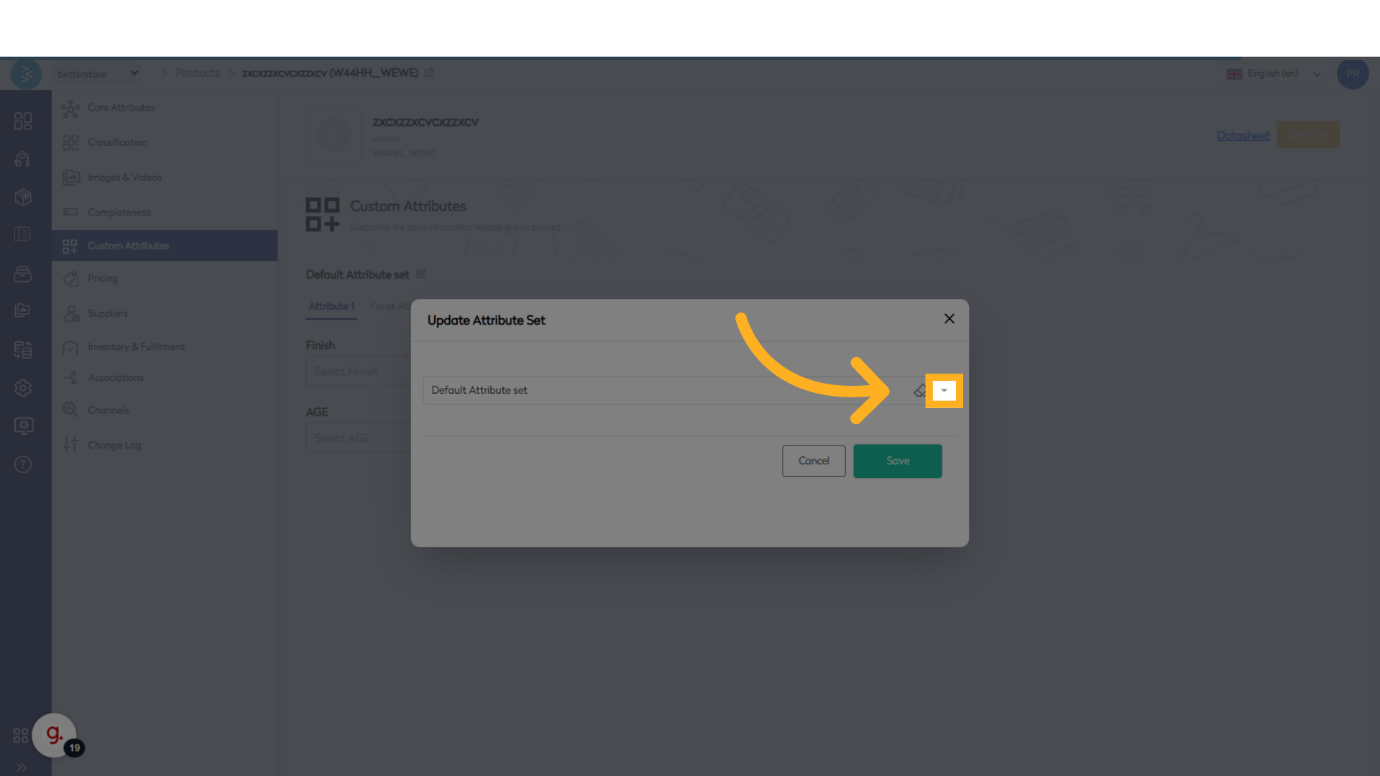
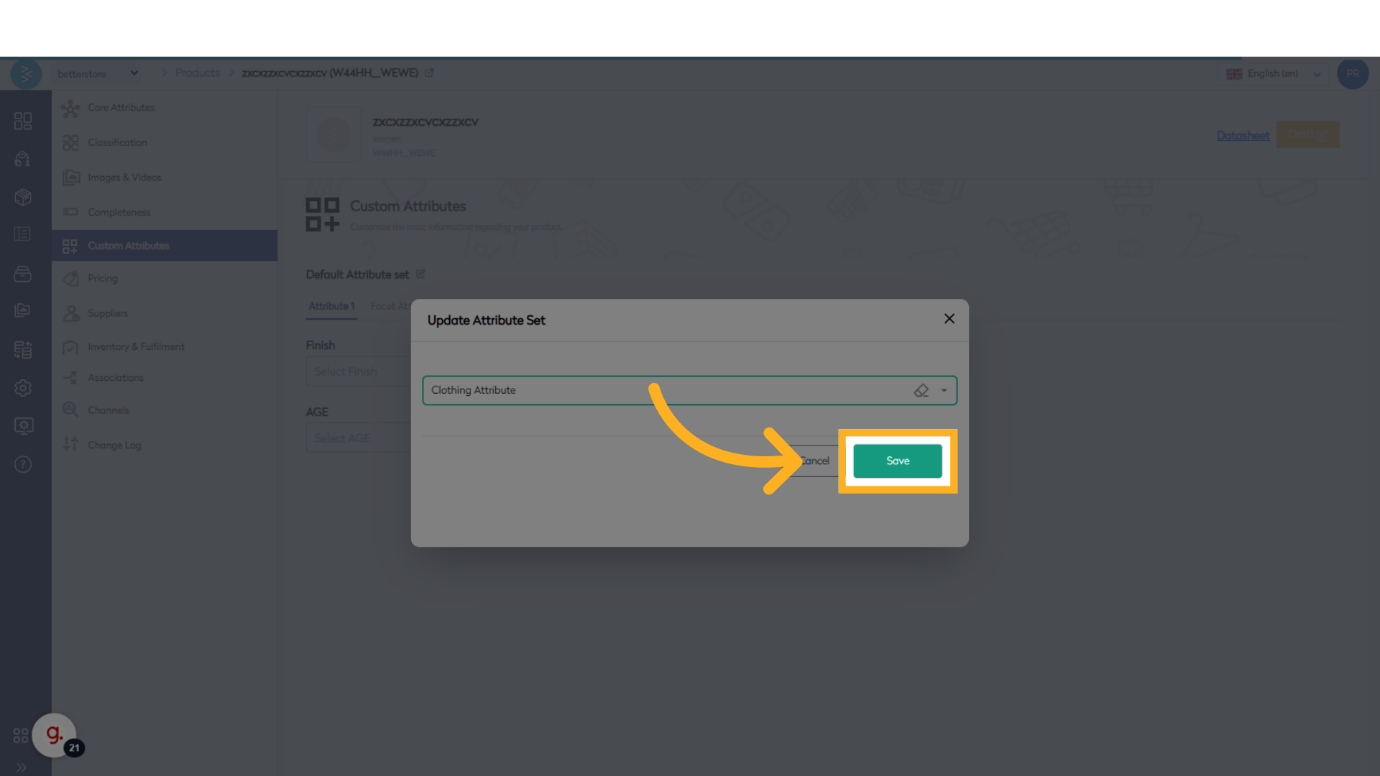
Once selection is complete, click on Save.
Step 6: Set Pricing
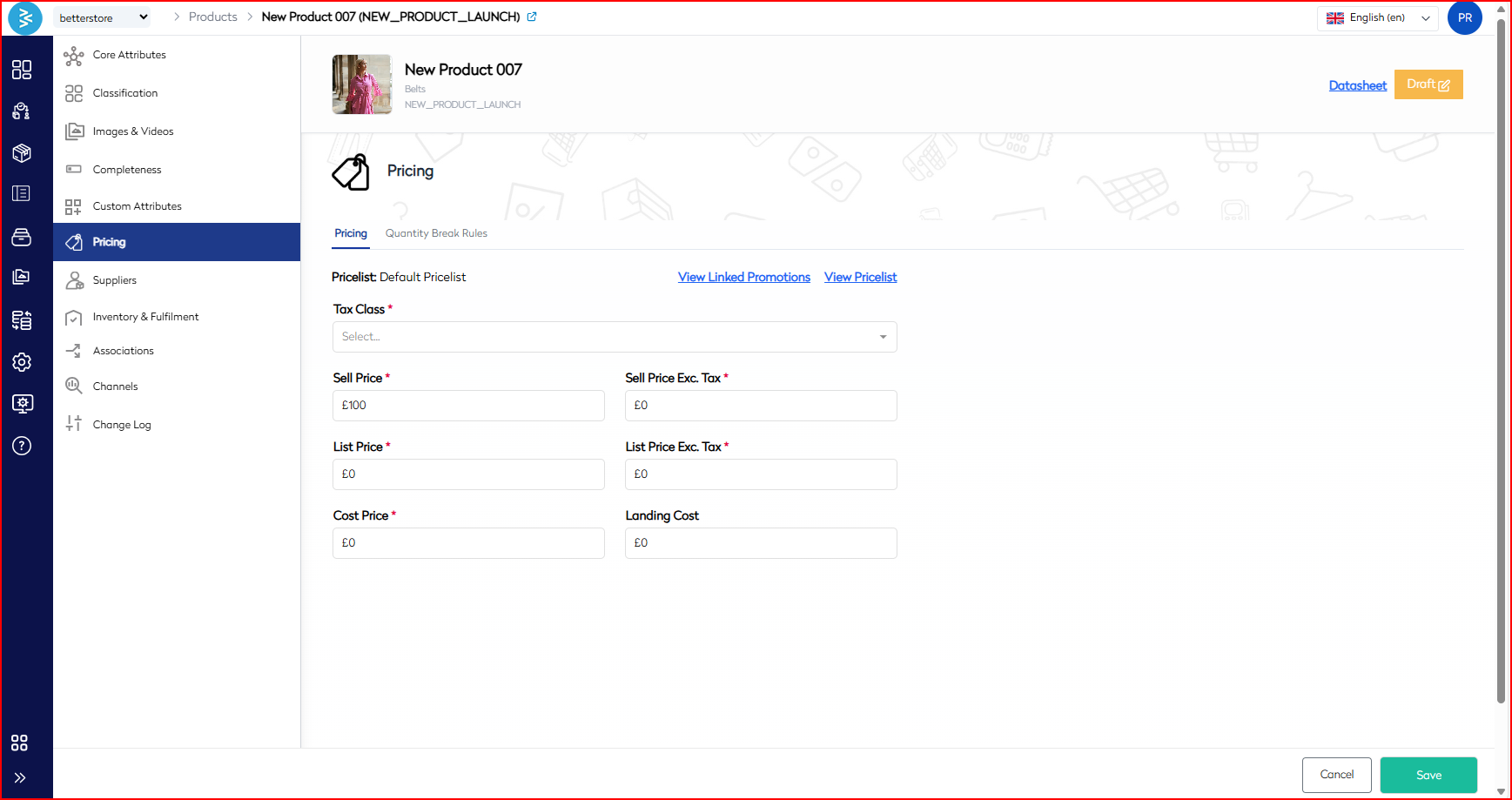
Define pricing details, promotions, and quantity-based rules for the product.
-
Pricelist Configuration:
- Select the appropriate pricelist for the product.
- Adjust the following fields as needed:
- Sell Price: The final price inclusive of taxes.
- Sell Price Excl. Tax: The price excluding taxes.
- List Price: The standard price before discounts.
- List Price Excl. Tax: The list price excluding taxes.
- Cost Price: The cost incurred to procure the product.
- Landing Cost: Additional costs (e.g., shipping, duties) for the product.
-
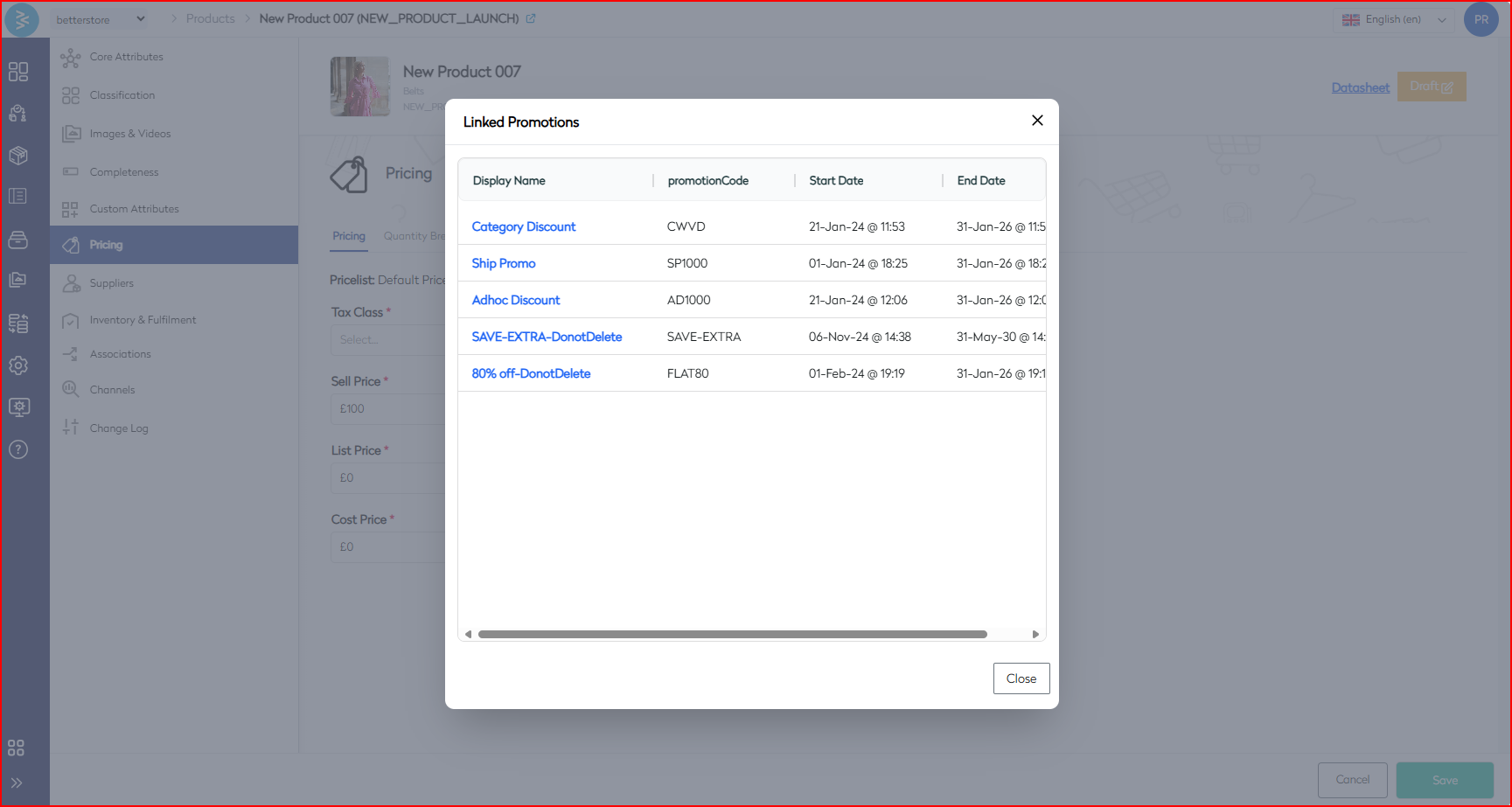
Promotions: Review and apply any existing promotions for the product.
-
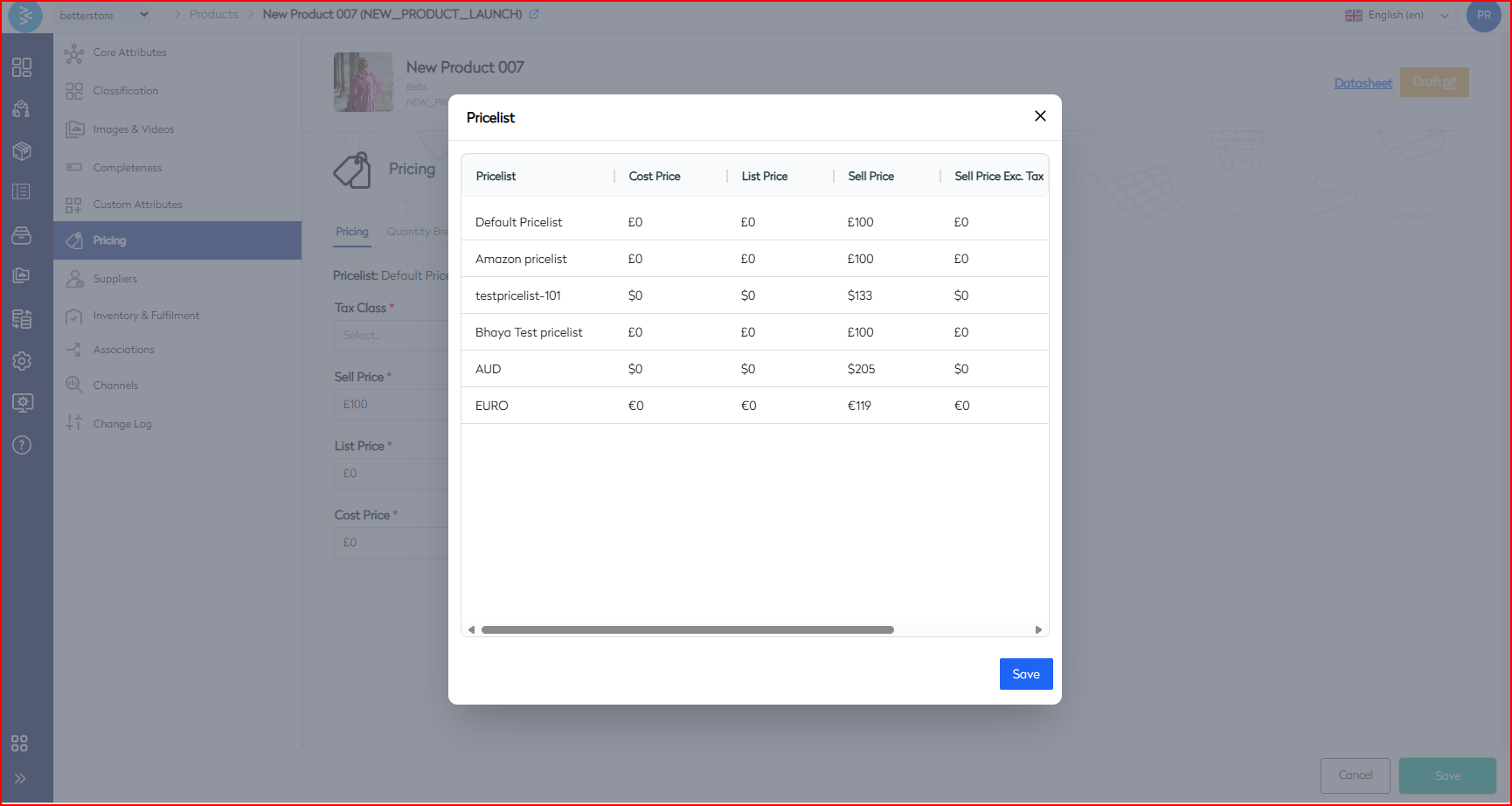
Available Pricelists: View all pricelists in the system and select the appropriate one.
-
Quantity Breaks (for B2B customers): Quantity break – This section for your B2B customer if want to set a different price per unit when buying bulk quantity set the rules.
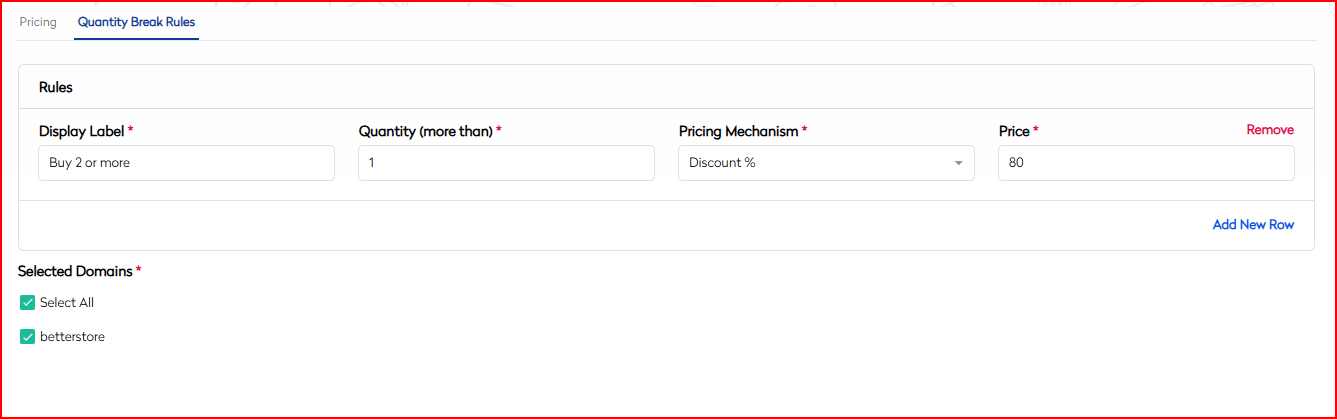 Example configuration:
Field Value Description Display Label Buy 2 or more Label shown to customers for the quantity-based pricing rule. Quantity (more than) 1 Minimum quantity (exclusive) to apply the rule. Pricing Mechanism Discount % Discount method (percentage-based). Price 80 Discount value (e.g., 80% discount). Selected Domains betterstore (All) Domains where the rule applies.
Step 7: Manage Suppliers
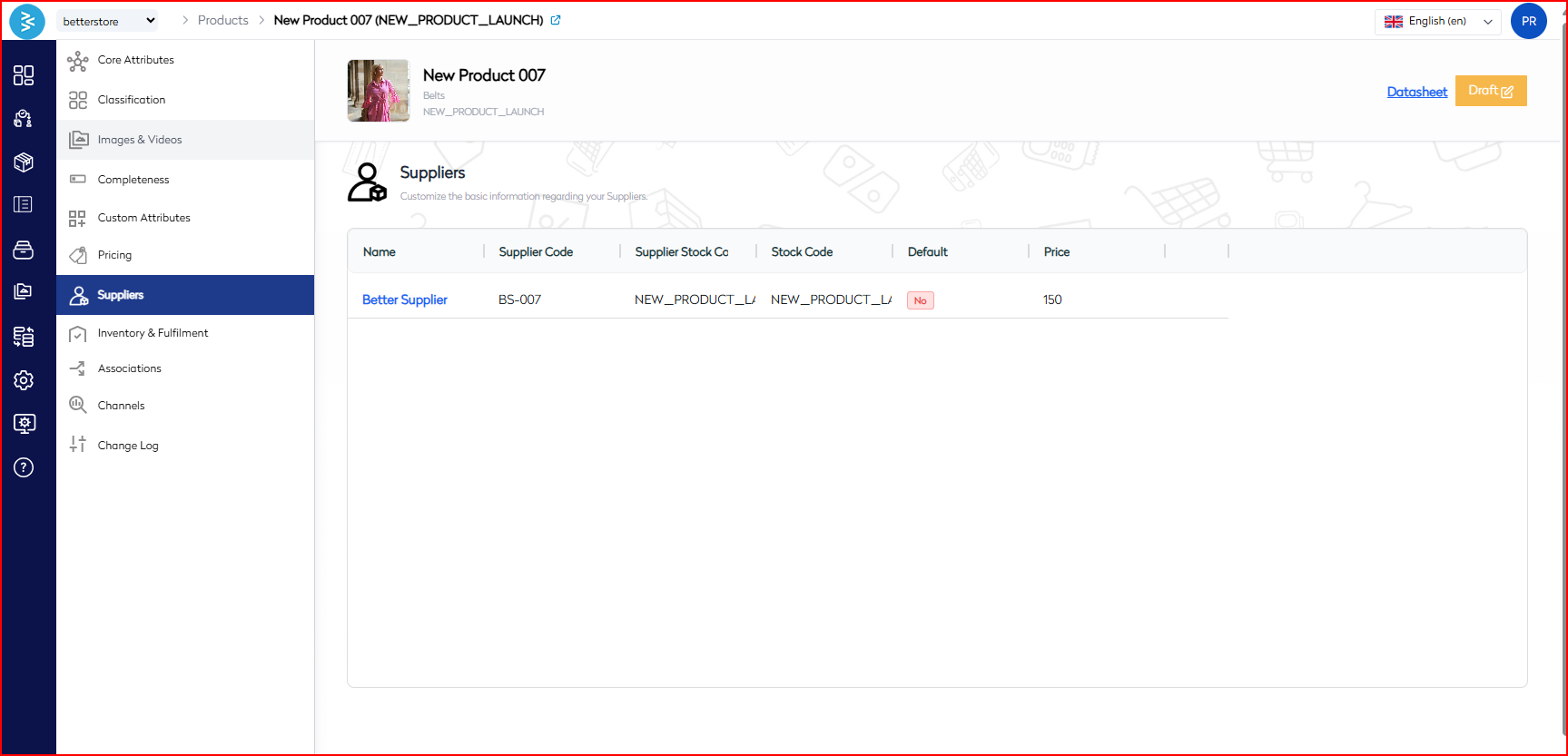
View and manage suppliers associated with the product.
- The Suppliers section lists all suppliers providing the product. For example, if one supplier is associated, their details will be displayed. Multiple suppliers may be listed if applicable.
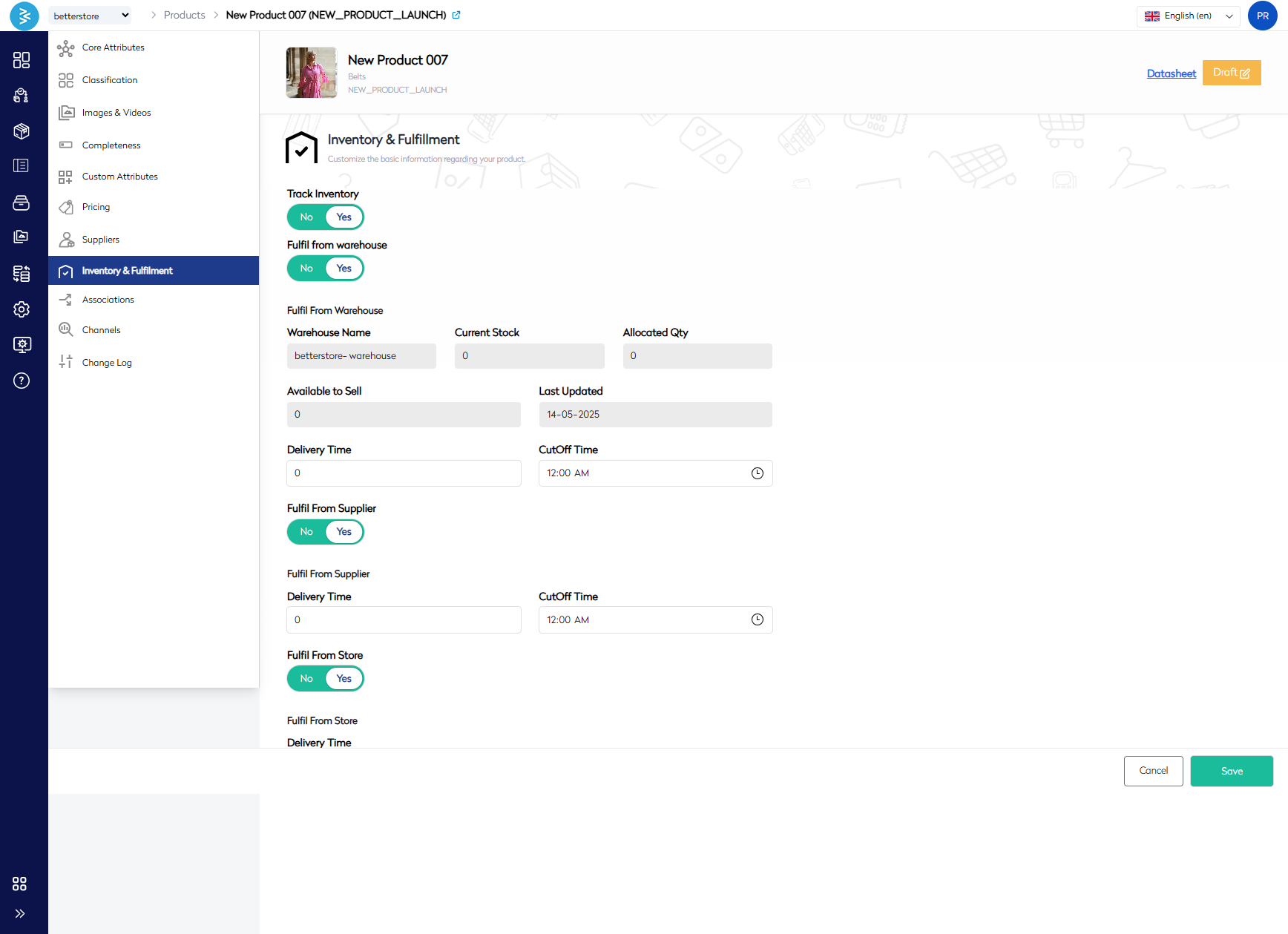
Step 8: Configure Inventory and Fulfillment
Track and manage inventory and fulfillment settings to ensure efficient order processing.
-
Track Inventory
Field Definition Track Inventory Enables inventory tracking for the product. Set to "Yes" to monitor stock. -
Fulfill from Warehouse
Field Definition Fulfill from Warehouse Enables fulfillment from warehouse stock. Warehouse Name Name of the warehouse responsible for stock management. Current Stock Total quantity of stock available in the warehouse. Allocated Qty Quantity reserved for existing orders. Available to Sell Calculated field showing stock available for new sales (non-editable). Last Updated Date of the last stock update. Delivery Time Estimated delivery time (in days) for warehouse fulfillment. Cutoff Time Daily cutoff time for processing warehouse-based orders. -
Fulfill from Supplier
Field Definition Fulfill from Supplier Enables direct fulfillment by the supplier. Delivery Time Estimated delivery time (in days) for supplier-fulfilled orders. Cutoff Time Daily cutoff time for processing supplier-based orders. -
Fulfill from Store
Field Definition Fulfill from Store Enables fulfillment from physical store locations. Delivery Time Estimated delivery time (in days) for store-fulfilled orders. Cutoff Time Daily cutoff time for processing store-based orders.
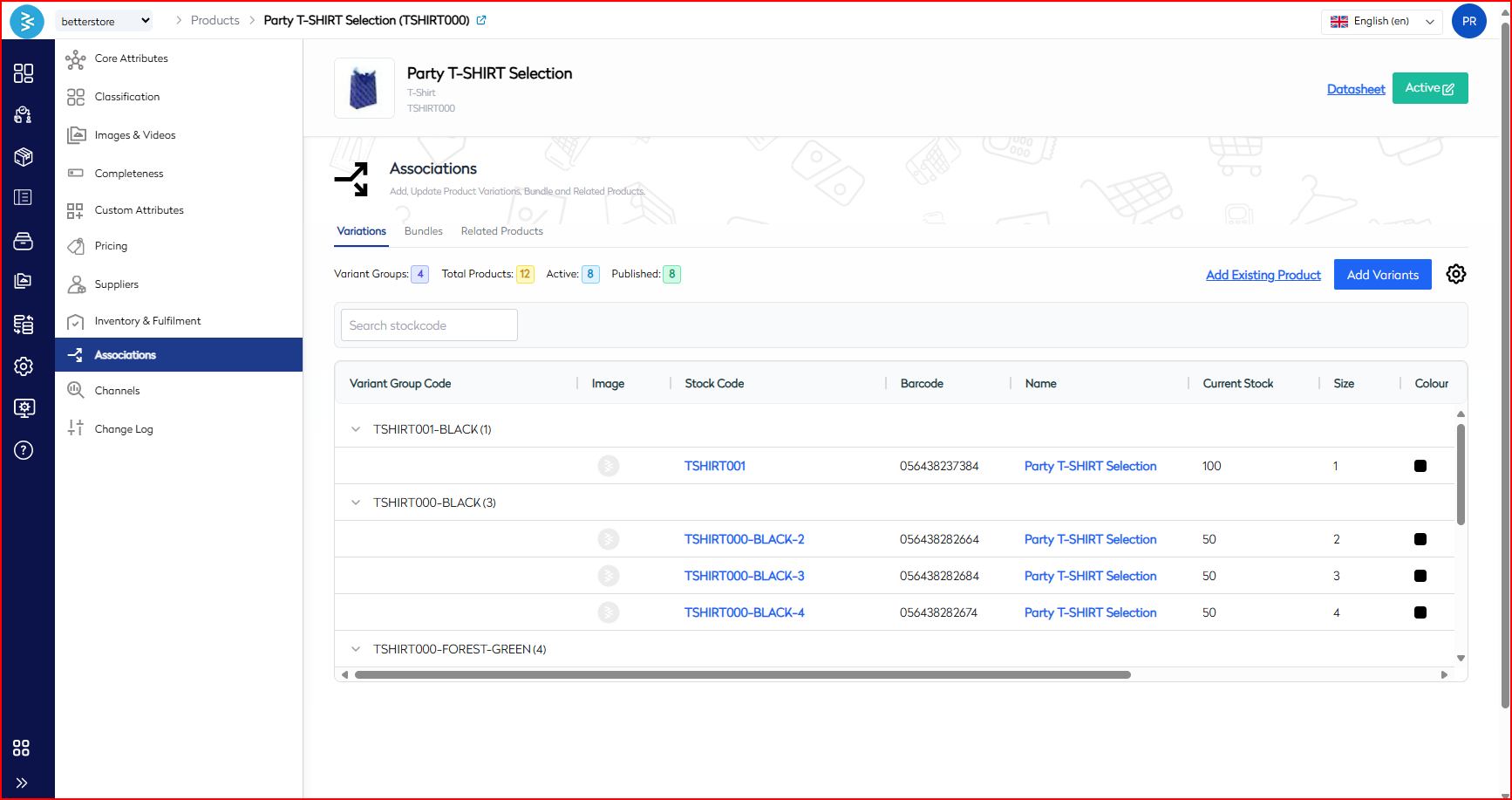
Step 9: Manage Associations
Configure product variants, bundles, and related products to enhance cross-selling and upselling opportunities.
- Variants: Define specific versions of the product based on attributes like size, color, or material.
-
Bundles: Group multiple products into a single unit for sale, often at a discounted price to increase order value. This section lists all bundles including the product.
-
Related Products:
- Up-Sells: Suggest higher-end or more expensive alternatives.
- Cross-Sells: Recommend complementary products used with the current product.
- Frequently Bought Together: Highlight products often purchased together.
Step 10: Configure Channels
Manage the platforms and settings for product marketing and sales.
-
Configuration
Field Definition Published Toggle to make the product live on the selected channel. Notify Me Enable "Notify Me" for out-of-stock products. Back Order Allow orders when stock is unavailable. Shopping Feed Include product in feeds for marketplaces (e.g., Google Shopping, Flipkart). Launch Date Schedule the date/time for the product to go live. -
SEO (Search Engine Optimization)
Field Definition SEO Name Custom name for meta tags and page headings to improve SEO. URL & Handle Custom or auto-generated URL slug for the product page. Meta Title Title tag for search engine results, concise and relevant. Meta Keywords Comma-separated keywords for SEO (less relevant for modern engines). Canonical URL to indicate the master version of the product page. HrefLang Language/region tag (e.g., en-GB, en-IN) for localized indexing. Meta Description Short description for search result snippets to improve click-through rate. -
Pre-Order
Field Definition Enable Pre-Order Allow purchases before stock availability or launch. -
Sellability
Field Definition Sellable Type Defines how the product is sold: None, Each, CartonPacks, Both, or Pallet. Max Purchase Qty Maximum quantity per order (0 = unlimited). MOQ (Minimum Order Quantity) Minimum quantity required per order (e.g., 5 units). Buying Increments Quantity stepping for orders (e.g., 3, 6, 9 units).
Summary
The Bettercommerce Product Management Guide outlines a streamlined process for adding and editing products on the Bettercommerce platform. To add a product, users navigate the Products section, select a category, enter a product code and name, define type, brand, condition, and price, then save. For editing, users select a stockcode, modify attributes like condition, and manage images (up to 10), completeness, custom attributes, pricing (including B2B quantity breaks), suppliers, inventory, associations (variants, bundles, related products), and sales channels (with SEO, pre-order, and sellability settings). This ensures comprehensive product management for enhanced customer experience and efficient inventory control.