
User Management – Add or Edit Users
Overview
The User Management module within the BetterCommerce PIM system empowers administrators to efficiently add, edit, and oversee user access across the organization. This module facilitates the assignment of roles, entity-specific access, and site permissions, ensuring precise control over system visibility and modification rights. Additionally, it provides visibility into user activity through status tracking, last login details, and configurable options for password policies and email verification.
View Users
Users Dashboard
To review the list of existing users, follow these steps:
-
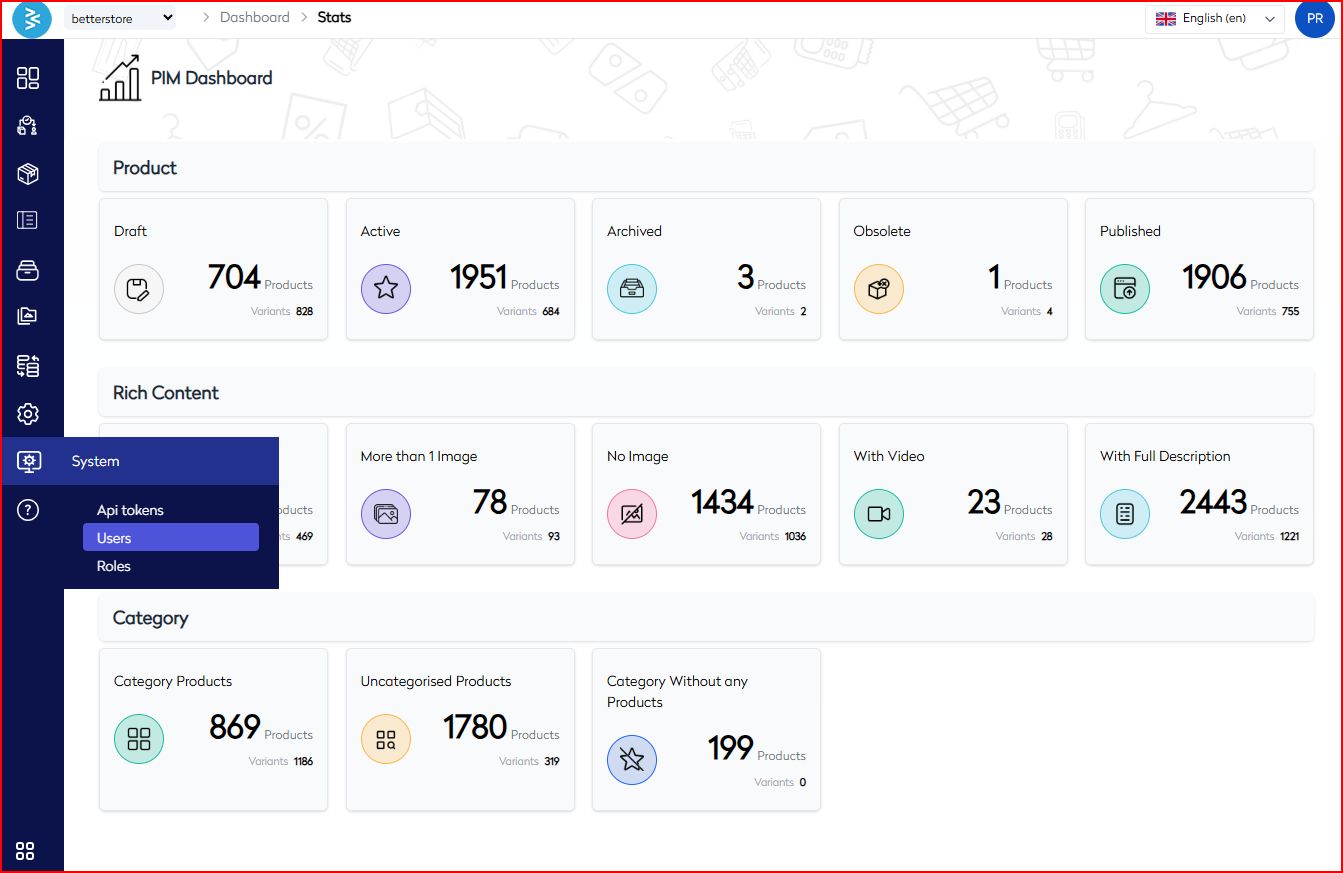
Navigate to System → Users.
-
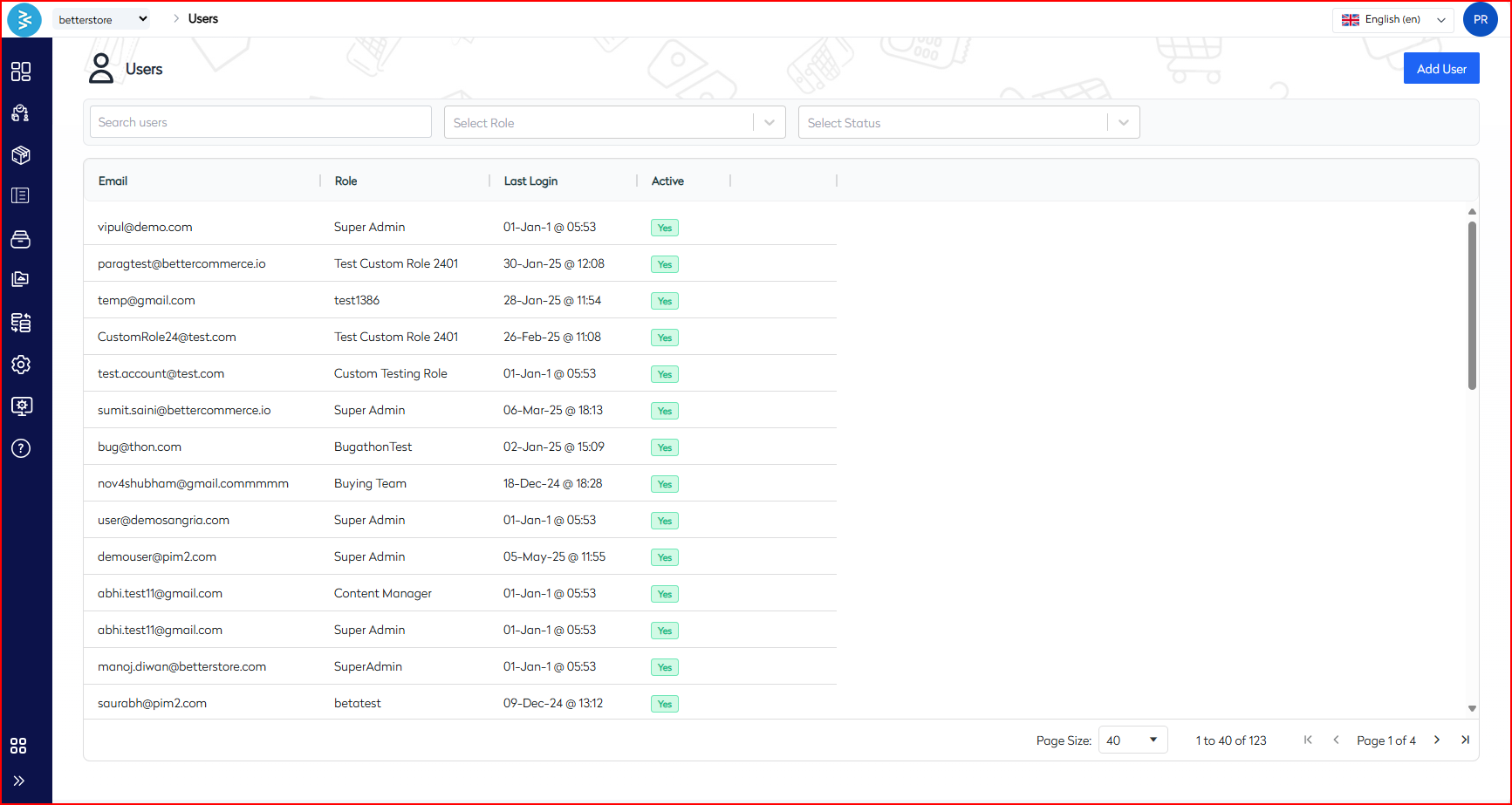
The dashboard presents the following columns for user information:
- Role
- Last Login
- Active Status
Filtering options include:
- Role
- Status (Active/Inactive)
- Search by Email
Pagination controls and page size selection are available at the bottom of the table for efficient navigation.
Add a New User
Steps
To create a new user account, proceed as follows:
-
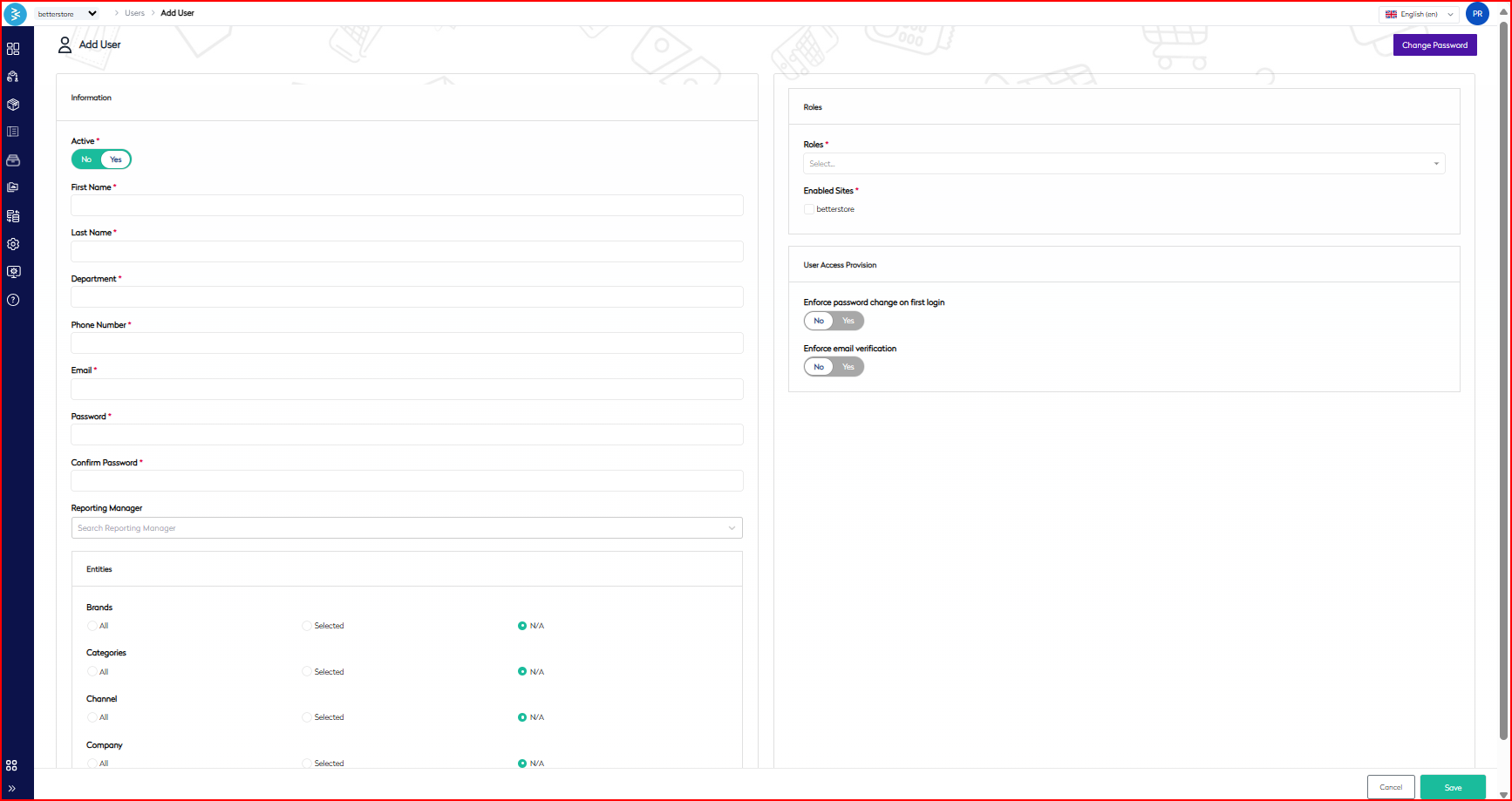
Navigate to System → Users → Add User.
-
The Add User screen is divided into two panels for streamlined configuration:
- User Information (Left Panel)
- Role & Access (Right Panel)
User Information (Left Panel)
| Field | Description | Required |
|---|---|---|
| Active | Toggle to activate or deactivate the user | Yes |
| First Name | User's first name | Yes |
| Last Name | User's last name | Yes |
| Department | Department name | Yes |
| Phone Number | Contact number | Yes |
| Login and contact email | Yes | |
| Password | System login password | Yes |
| Confirm Password | Must match the password field | Yes |
| Reporting Manager | Select from existing users | Optional |
Entity-Level Access
Administrators can configure access to specific entities such as brands, categories, channels, and companies. Available options include:
- All: Grants access to all entities.
- Selected: Allows selection of specific entities from predefined lists.
- N/A: Indicates the field is not applicable for the assigned role.
Role & Access Settings (Right Panel)
| Field | Description |
|---|---|
| Role | Assign a single role (e.g., Super Admin, Content Manager). |
| Enabled Sites | Select one or more sites the user will have access to. |
| Enforce Password Change | If set to "Yes", the user must change their password on first login. |
| Enforce Email Verification | Requires email confirmation before login access is granted. |
Note: Use the “Change Password” option located at the top right of the screen to update passwords during editing.
Edit an Existing User
To modify an existing user’s details, follow these steps:
-
Navigate to System → Users.
-
Click on the row corresponding to the desired user to open their profile.
-
Update the fields as required:
- Toggle the Active status to enable or disable the user.
- Modify the role, reporting manager, or permissions as needed.
- Reset the password or enforce email verification if necessary.
-
Click Save to apply the changes.
Best Practices
- Assign roles based on the principle of least privilege to ensure users have access only to necessary functions.
- Enable password and email enforcement toggles to enhance security protocols.
- Conduct regular audits of active users and deactivate or remove inactive accounts to maintain system integrity.
- Adopt consistent naming conventions for departments and roles to facilitate accurate reporting and clarity.
Summary
The Add/Edit User functionality in the BetterCommerce PIM system provides administrators with robust tools to onboard and manage team members with precise access rights. Through a dual-pane interface, administrators can efficiently separate personal details from role and access configurations, assign roles, define entity-level permissions, and enforce security policies such as password resets and email verification. This ensures secure, scalable user provisioning that aligns with organizational structures and compliance requirements.