Manage Product Relationships in BetterCommerce
Overview
The Product Relationships feature in BetterCommerce enables businesses to create strategic associations between products to enhance the shopping experience and drive sales. Commonly used for cross-selling, upselling, and managing product lifecycle transitions, these relationships are displayed on the Product Detail Page (PDP) and Basket Page. Associations can be configured manually for curated merchandising or automatically using rule-based logic.
Setting Up Relationship Types
Before linking products, administrators must define Relationship Types to categorize the nature of product associations.
Steps to Create a Relationship Type
-
Navigate to the Relation Types Section
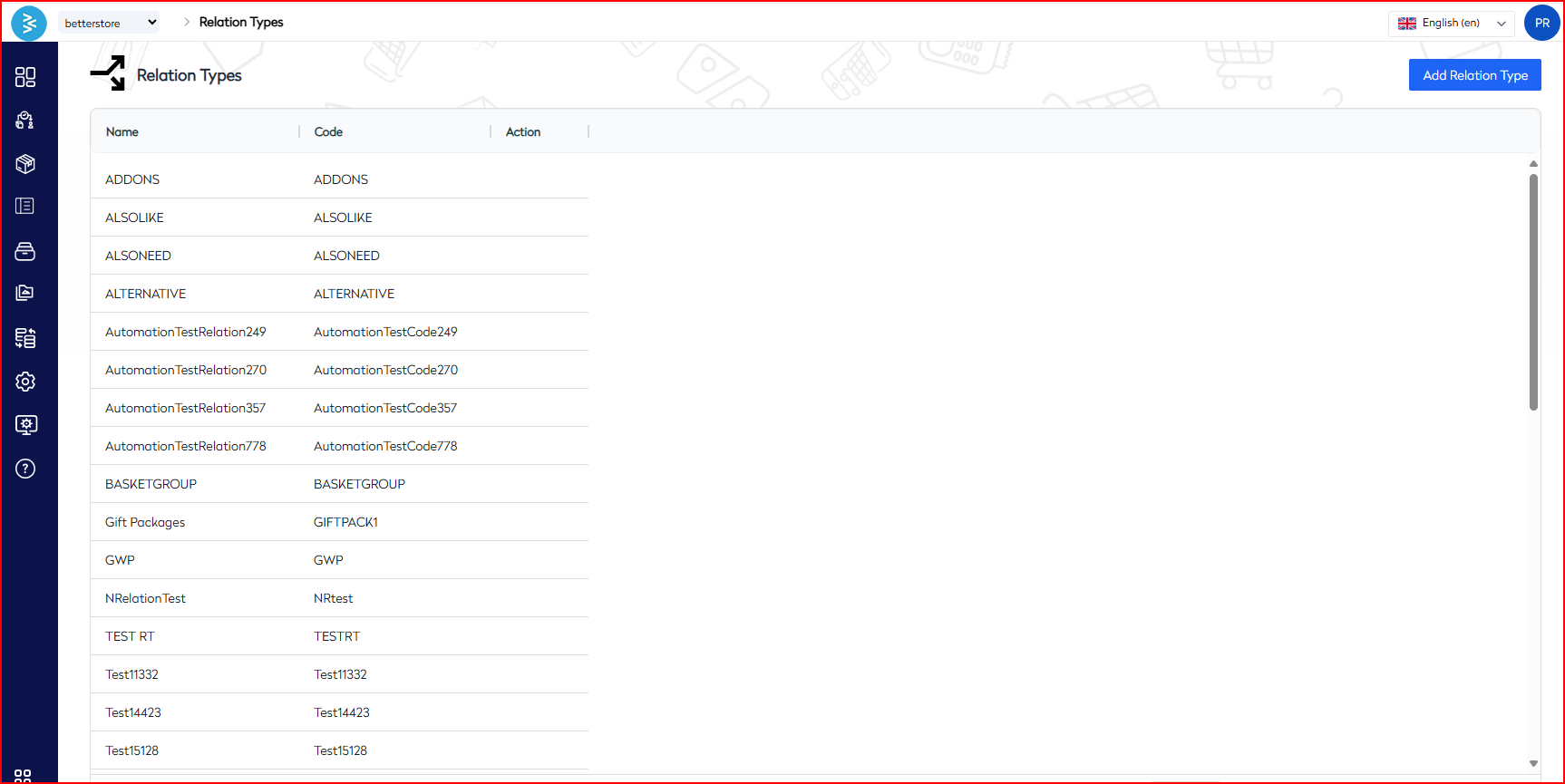
From the main dashboard, go to Settings → Relation Types.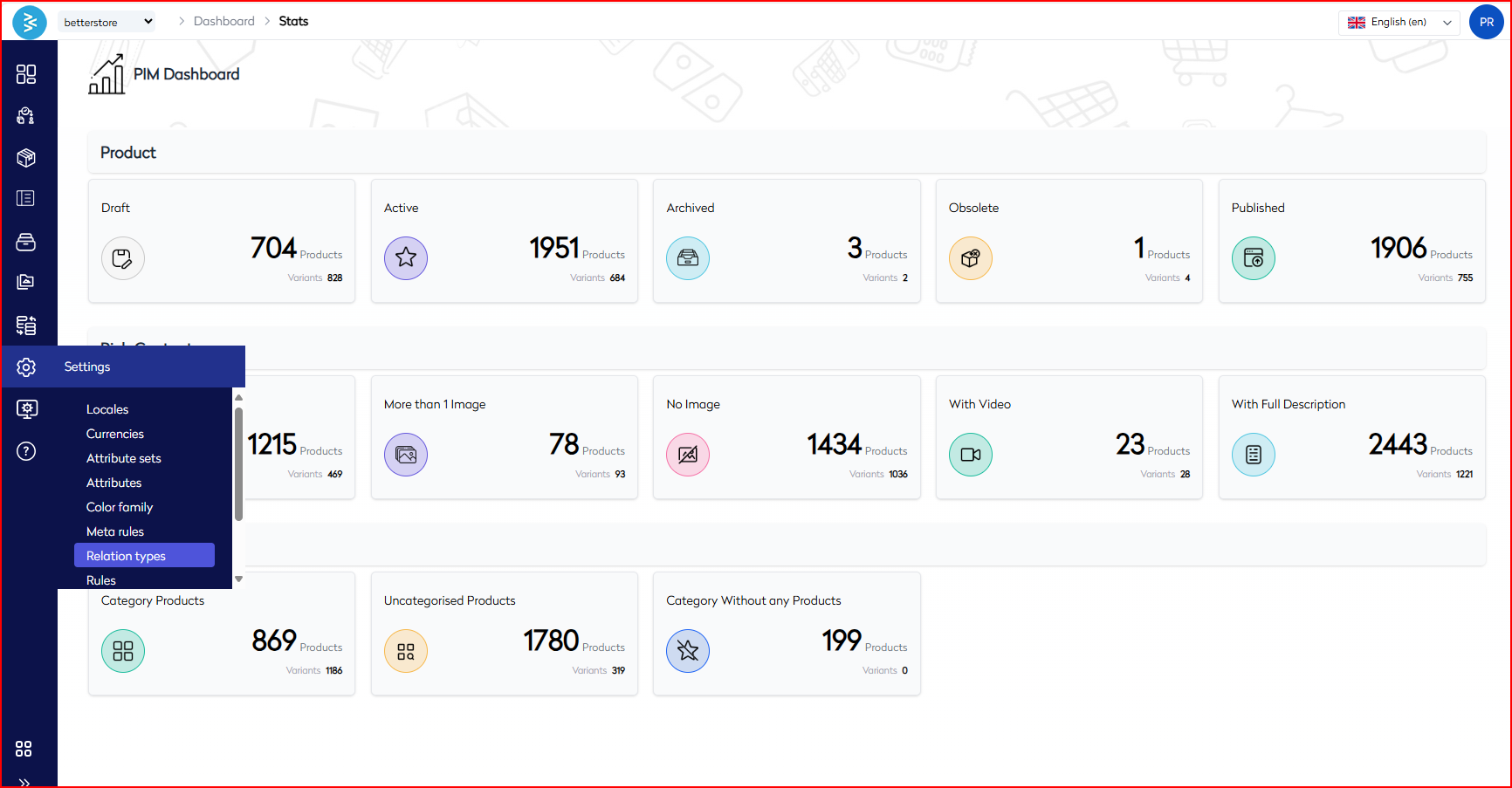
-
Add a New Relation Type
Click Add Relation Type.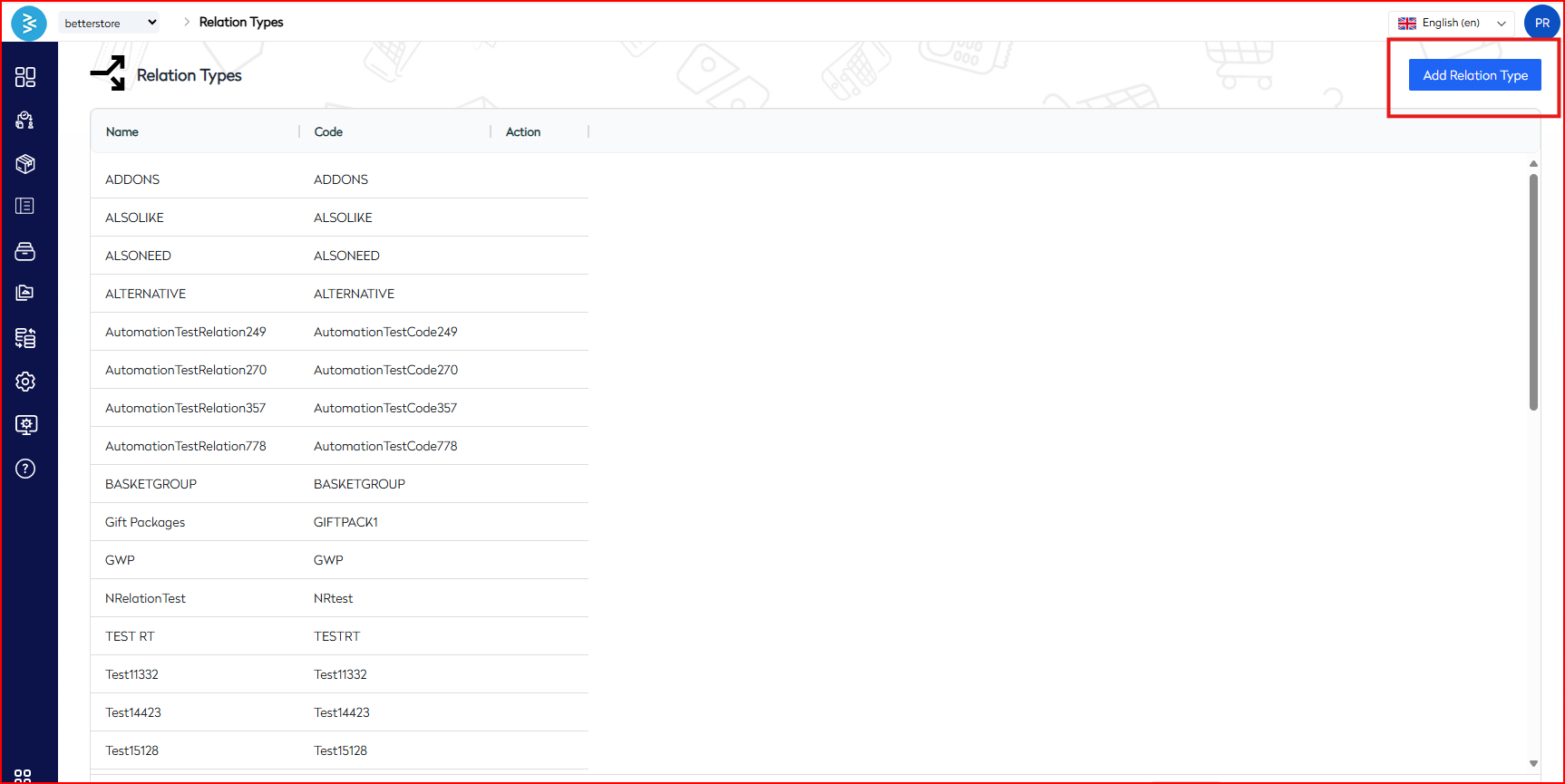
-
Configure the Relation Type
Provide the following details:-
Name: The display label shown on the storefront (e.g., "You May Also Like").
-
Code: A unique backend identifier (e.g.,
you_may_also_like).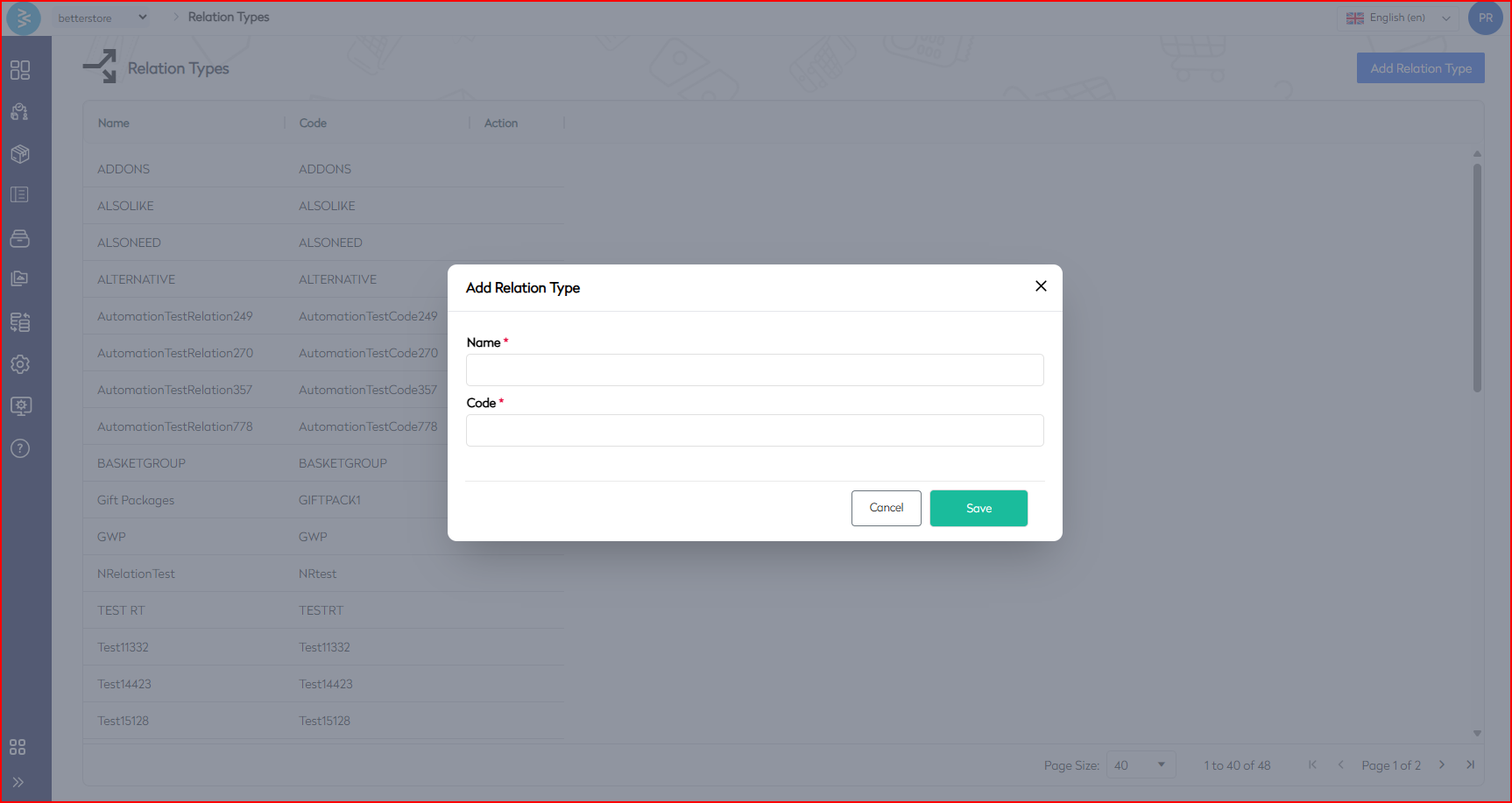 Click Save to create the relationship type.
-
Common Relationship Types
- You May Also Like (Cross-sell)
- Frequently Bought Together
- Upgrade Suggestions (Upsell)
- Replacement Product
Configuring Related Products
Manual Configuration
Manual configuration allows merchandising teams to hand-pick related products based on strategic or campaign-driven goals.
Steps for Manual Configuration
- Access Product Details
Navigate to Products → Select a product to open its details.

- Go to Associations
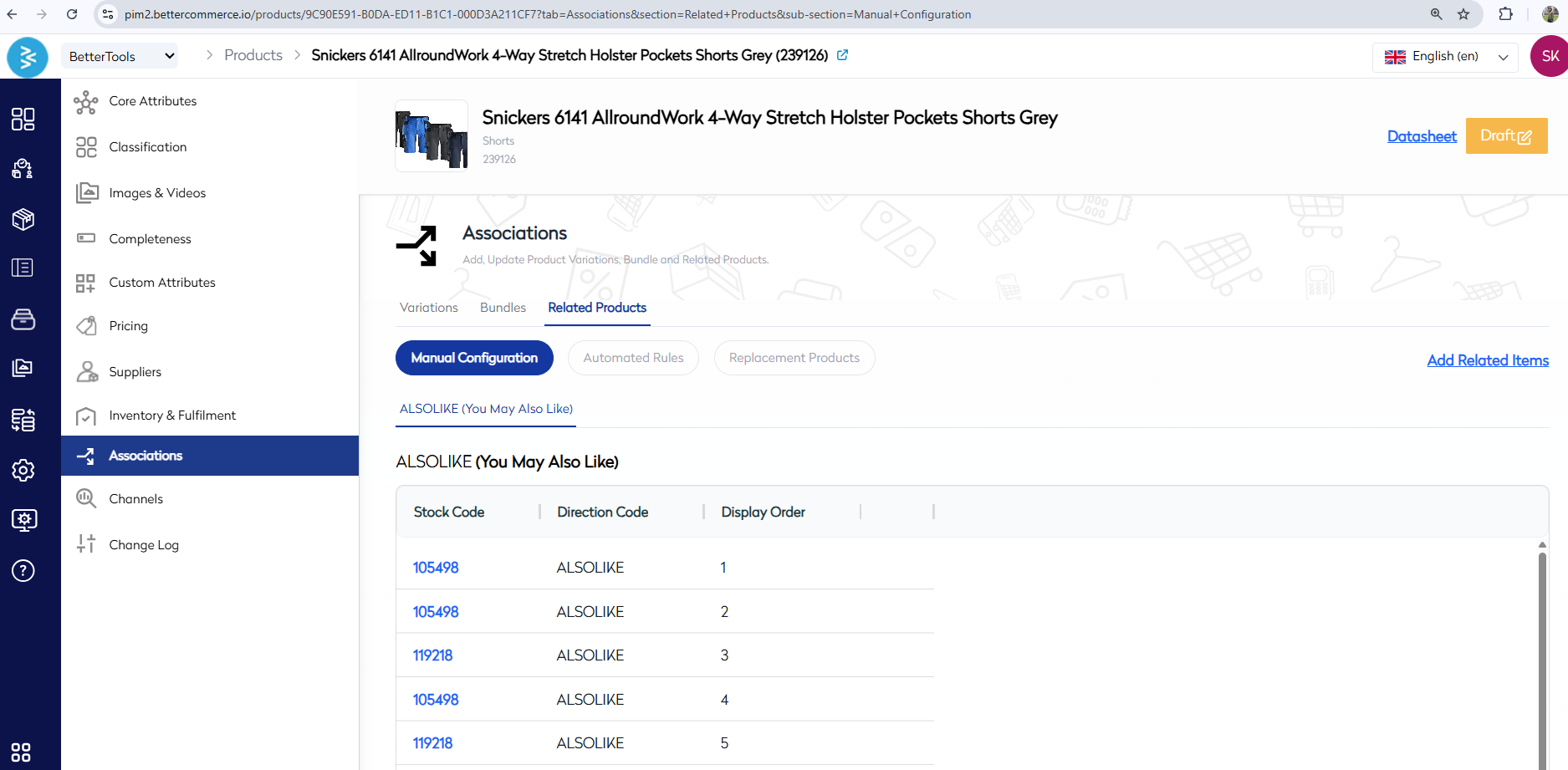
In the product detail view, go to the Associations tab → Related Products.
-
Add Related Items
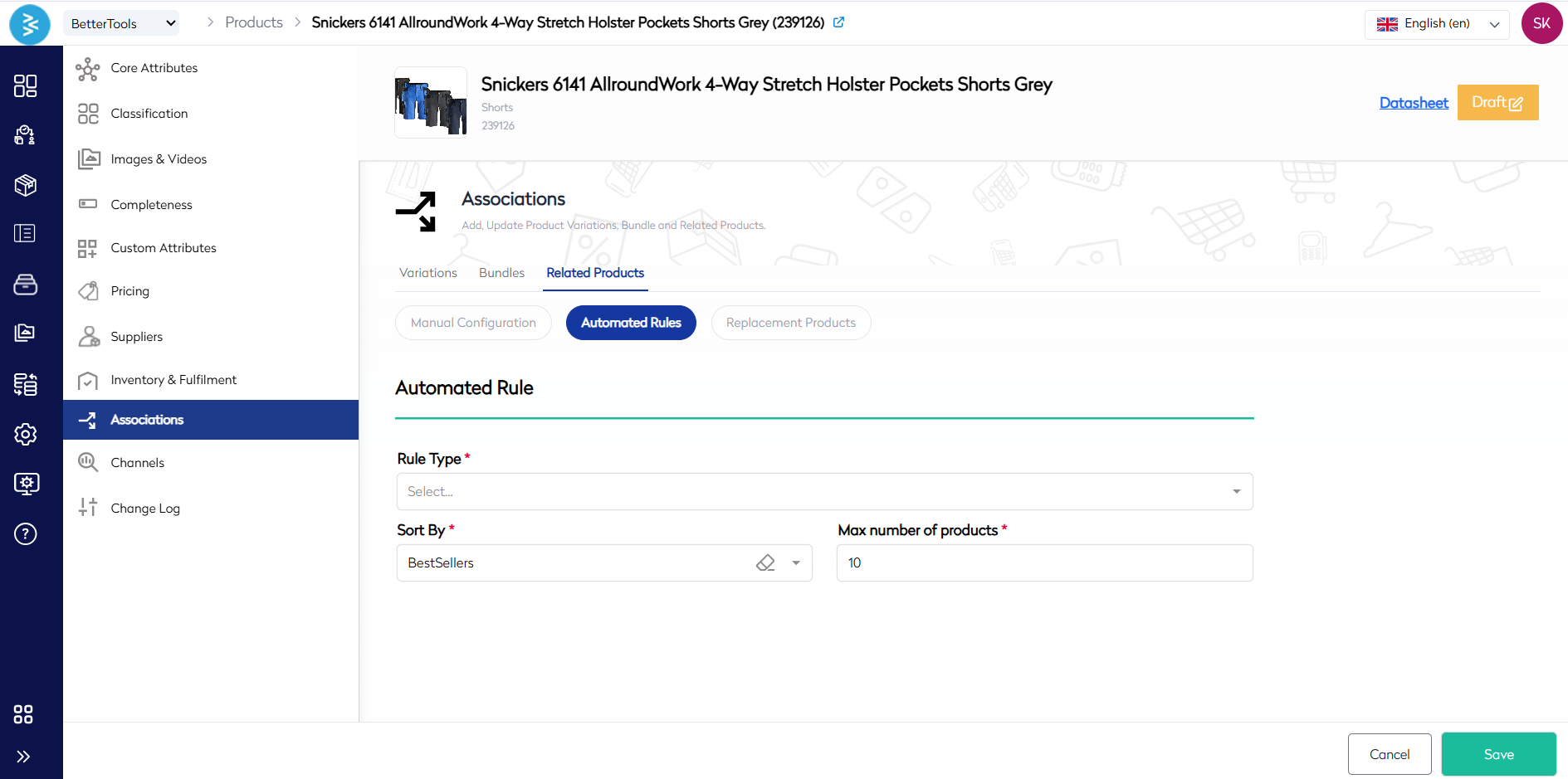
Click Add Related Items and, in the popup:- Select a Relationship Type (e.g., You May Also Like).
- Add a Label for PDP display.
- Use filters (e.g., Category, Stock Code) to search for products.
- Select the desired SKUs and click Save.
Automated Configuration
Automated configuration generates product associations based on predefined rules, streamlining the process for large catalogs.
Steps for Automated Configuration
-
Define a Relationship Type
Ensure a relevant relationship type is created (as described above). -
Access Product Associations
Navigate to Products → Select a product → Go to Associations → Related Products. -
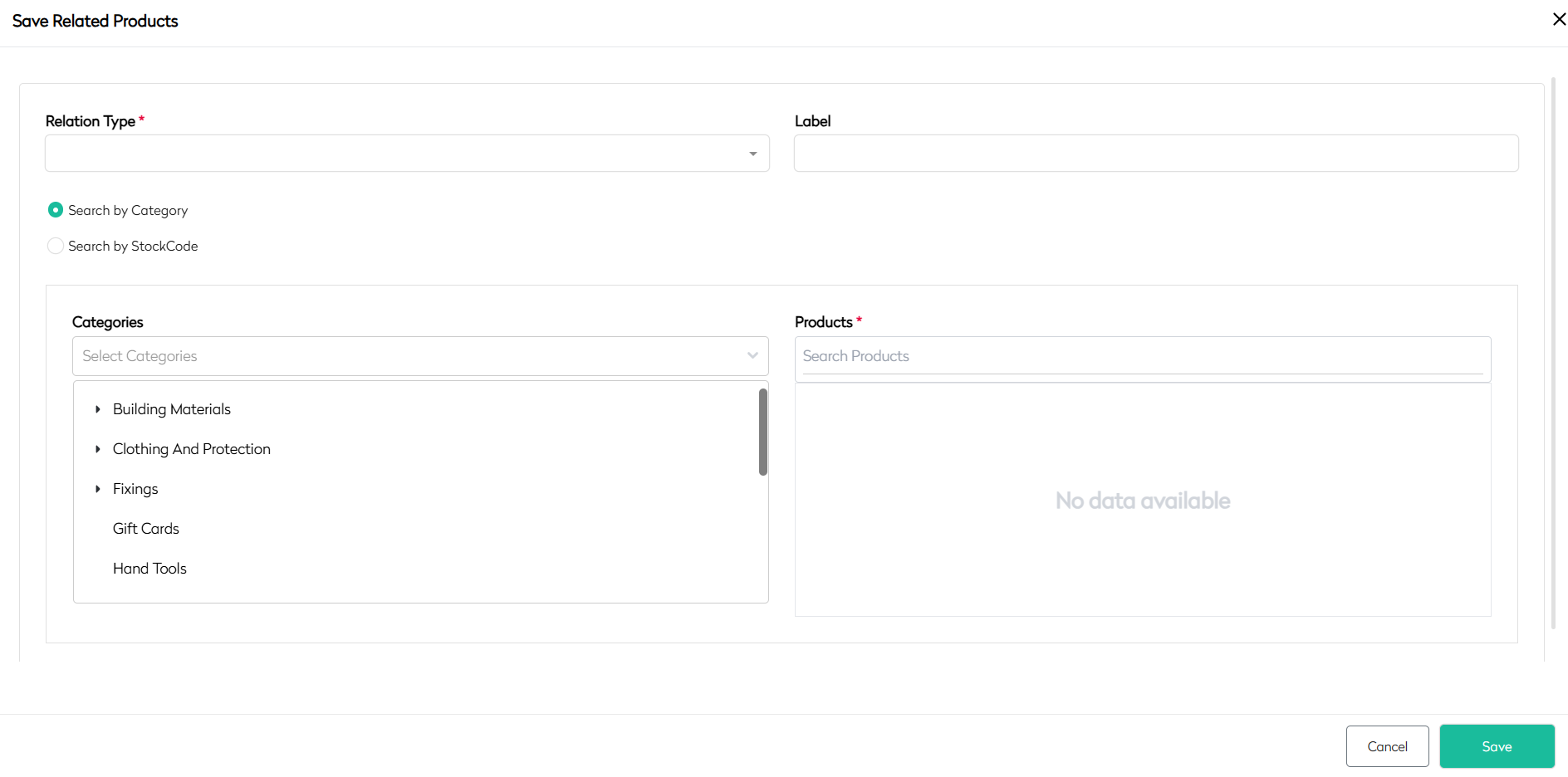
Set Up Automated Rules
Choose Automated Configuration and define:- Rule Type: e.g., Same Brand, Sub-brand, Category.
- Sort By: e.g., Newest First, Bestsellers.
- Max Products: Specify the maximum number of related products to display.
Click Save to apply the rules.
Configuring Product Replacement
The Replacement Product feature ensures continuity when a SKU is discontinued by linking it to a new version.
Steps to Set Up a Replacement Product
-
Create a Replacement Relation Type
Navigate to Settings → Relation Types.
Click Add New and set:- Name: Replacement Product
- Code:
replacement_product(or a suitable identifier).
Click Save.
-
Open the Discontinued Product
Navigate to Products → Select the SKU to be discontinued. -
Add the Replacement Product
Go to Associations → Related Products.
Choose Replacement Product as the relation type, then:- Click Add Replacement Product.
- In the popup:
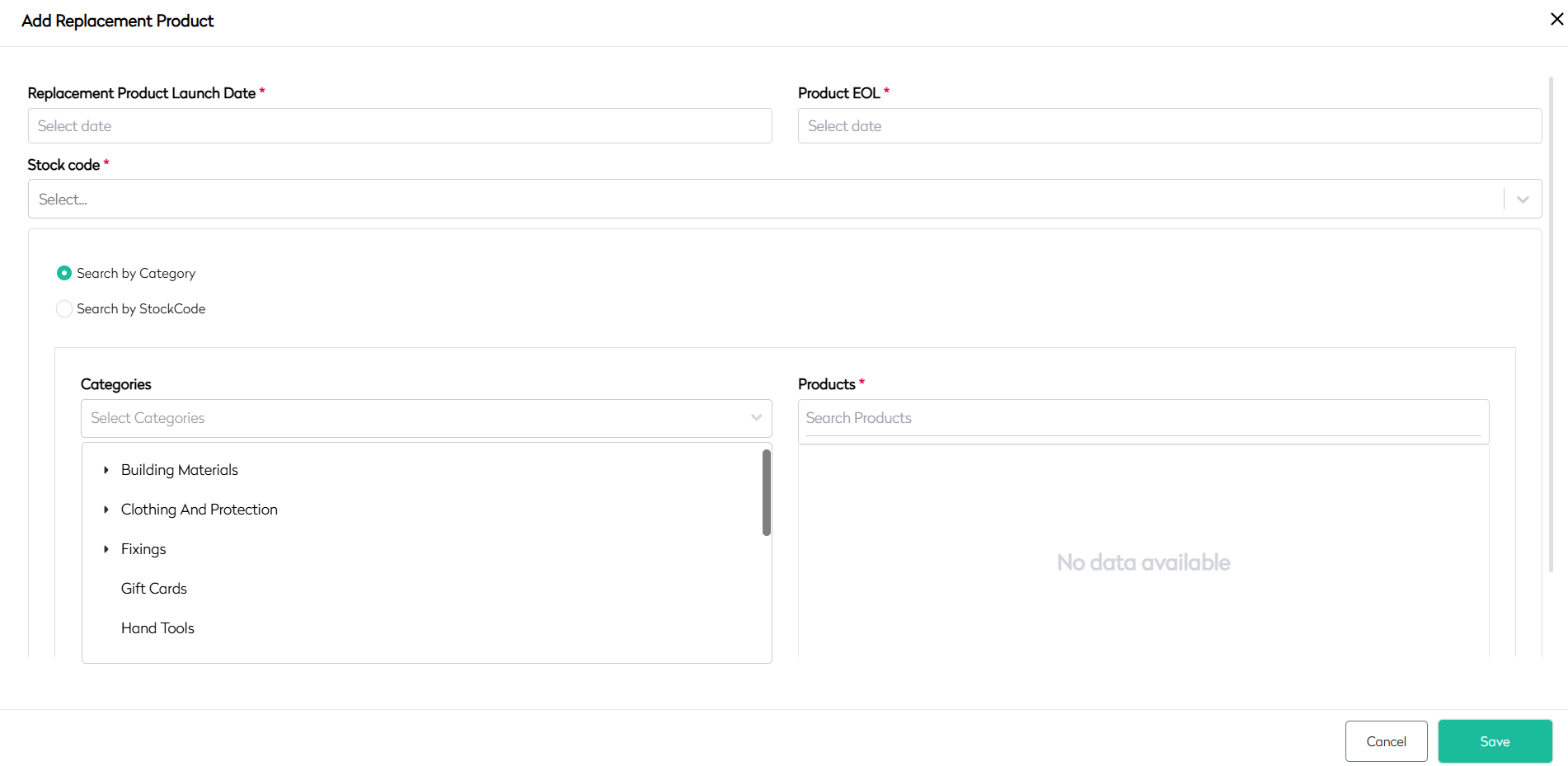
- Set the Replacement Launch Date.
- Set the End-of-Life (EOL) Date for the current product.
- Search for the new SKU by Category or Stock Code.
- Select the replacement SKU and click Save.
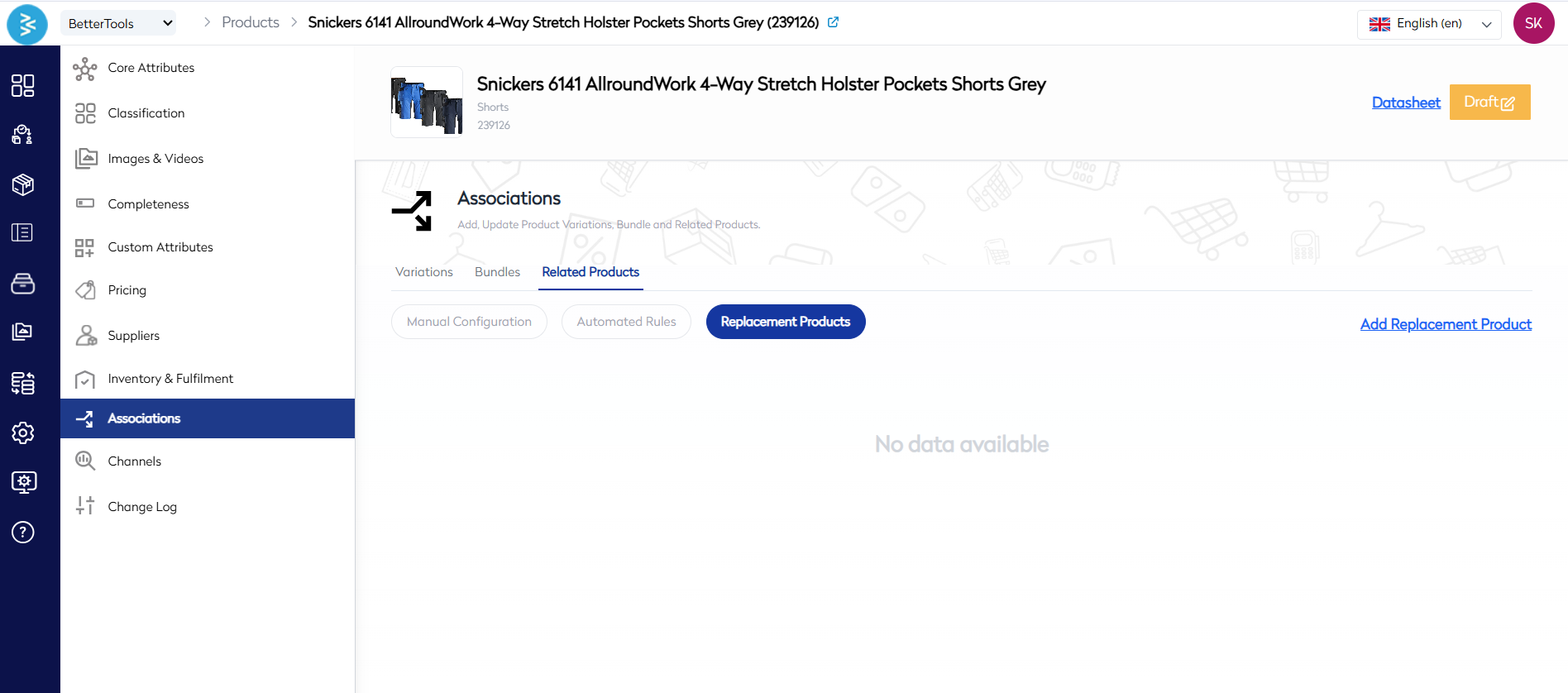
The system will automatically display the replacement product on the PDP starting from the specified launch date.
Use Cases
- Upselling: Promote higher-value alternatives, such as premium editions or larger sizes.
- Cross-selling: Suggest complementary products, like accessories or add-ons.
- Product Lifecycle Continuity: Seamlessly transition customers to replacement products when SKUs are discontinued.
Best Practices
- Strategic Associations: Align product relationships with merchandising goals to maximize conversions.
- Clear Labeling: Use descriptive labels for relationship types to enhance customer clarity on the PDP.
- Limit Automated Results: Set reasonable limits on automated configurations to avoid overwhelming customers with too many suggestions.
- Test Configurations: Validate manual and automated associations to ensure relevance and accuracy on the storefront.
Summary
The Product Relationships feature in BetterCommerce enables businesses to create strategic product associations for upselling, cross-selling, and lifecycle management. By defining relationship types (e.g., You May Also Like, Replacement Product), administrators can manually curate associations or use automated rules based on attributes like brand or category. Replacement products ensure seamless transitions for discontinued SKUs. These configurations enhance customer engagement, improve conversion rates, and streamline merchandising strategies across the Product Detail Page and Basket Page.
For additional support, contact the BetterCommerce support team or refer to the platform’s help documentation.