
Manage Brand Collection
This guide provides detailed instructions for managing brand product collections in BetterCommerce, enabling efficient organization and display of products. Follow the steps below to create collections, define filters, add custom links, and optimize SEO through localization.
1. Navigate to the Collections Menu and Select Brand Collection
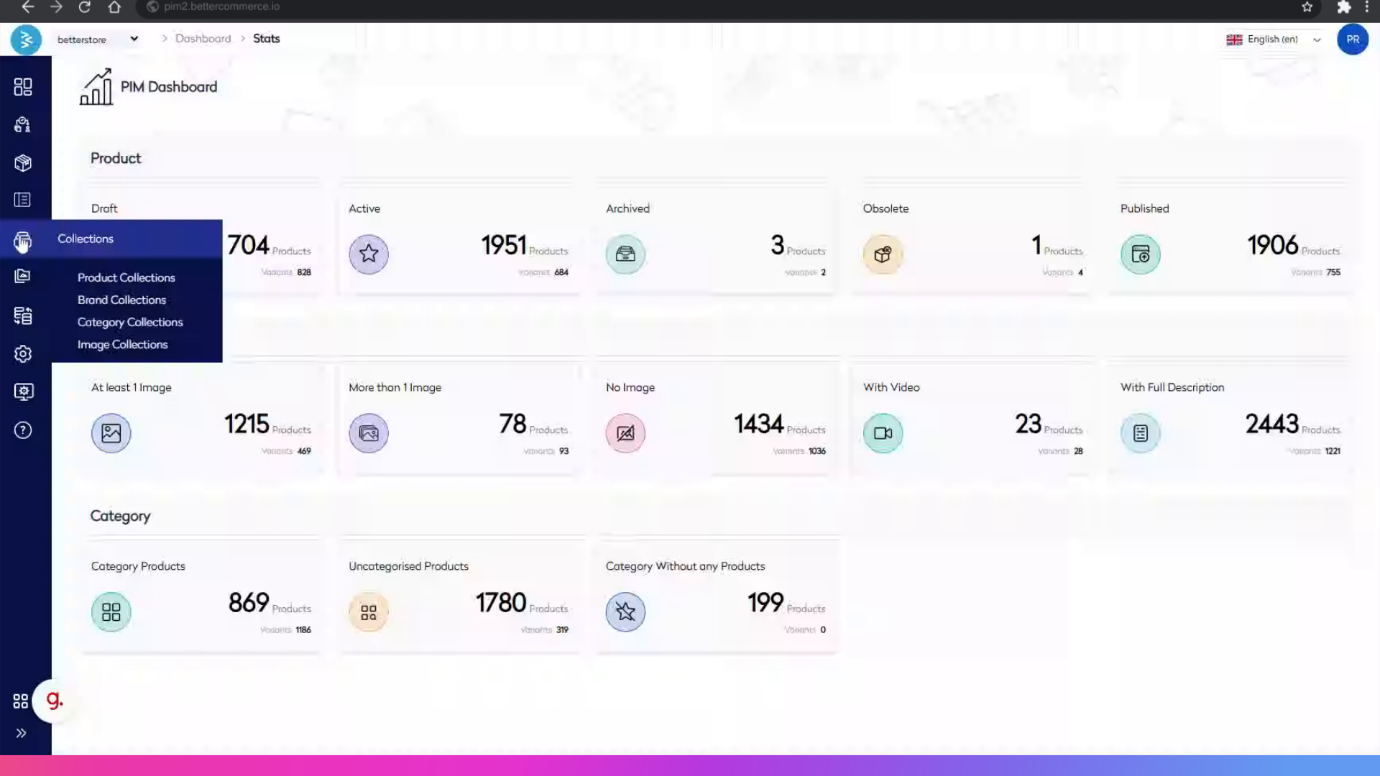
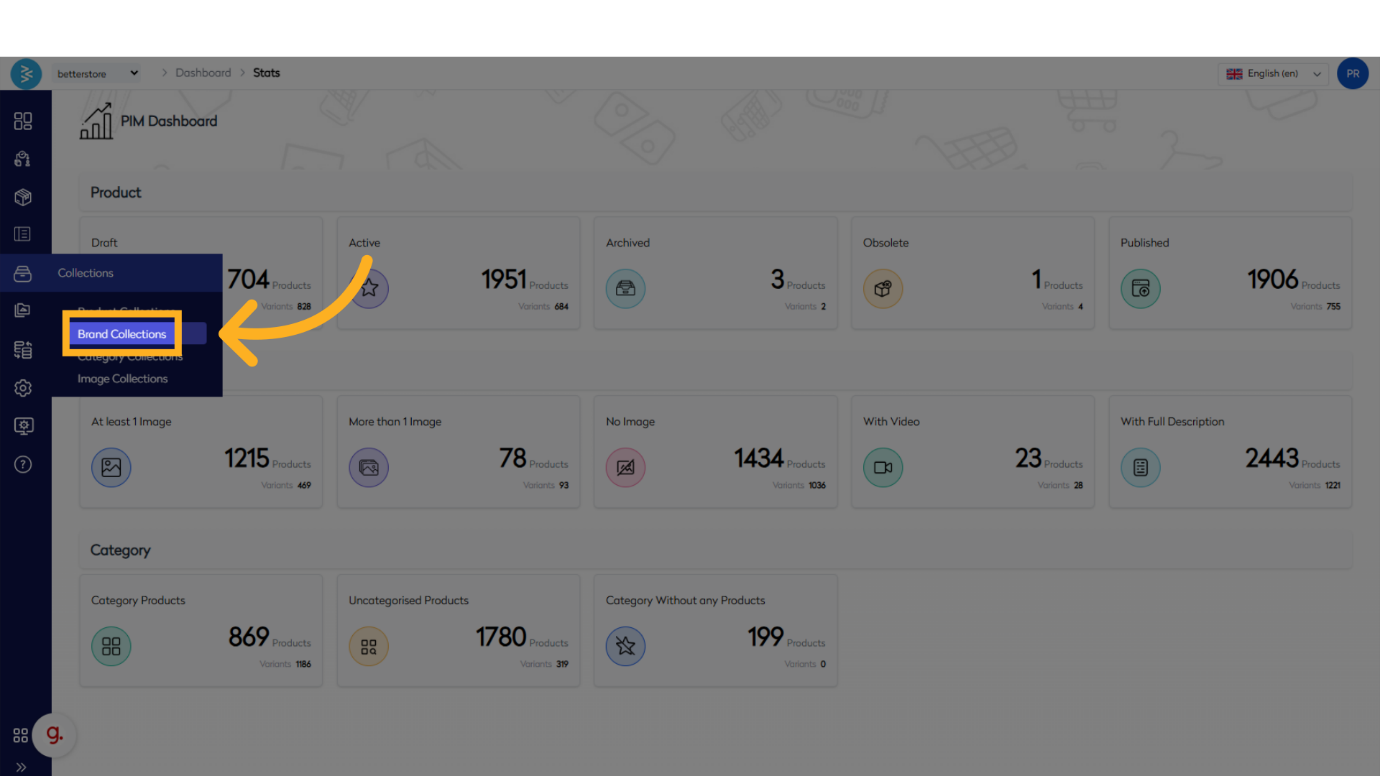
2. Once You Are in Product Collection Listing Page Select “ADD COLLECTION” Button from the Top Right Menu
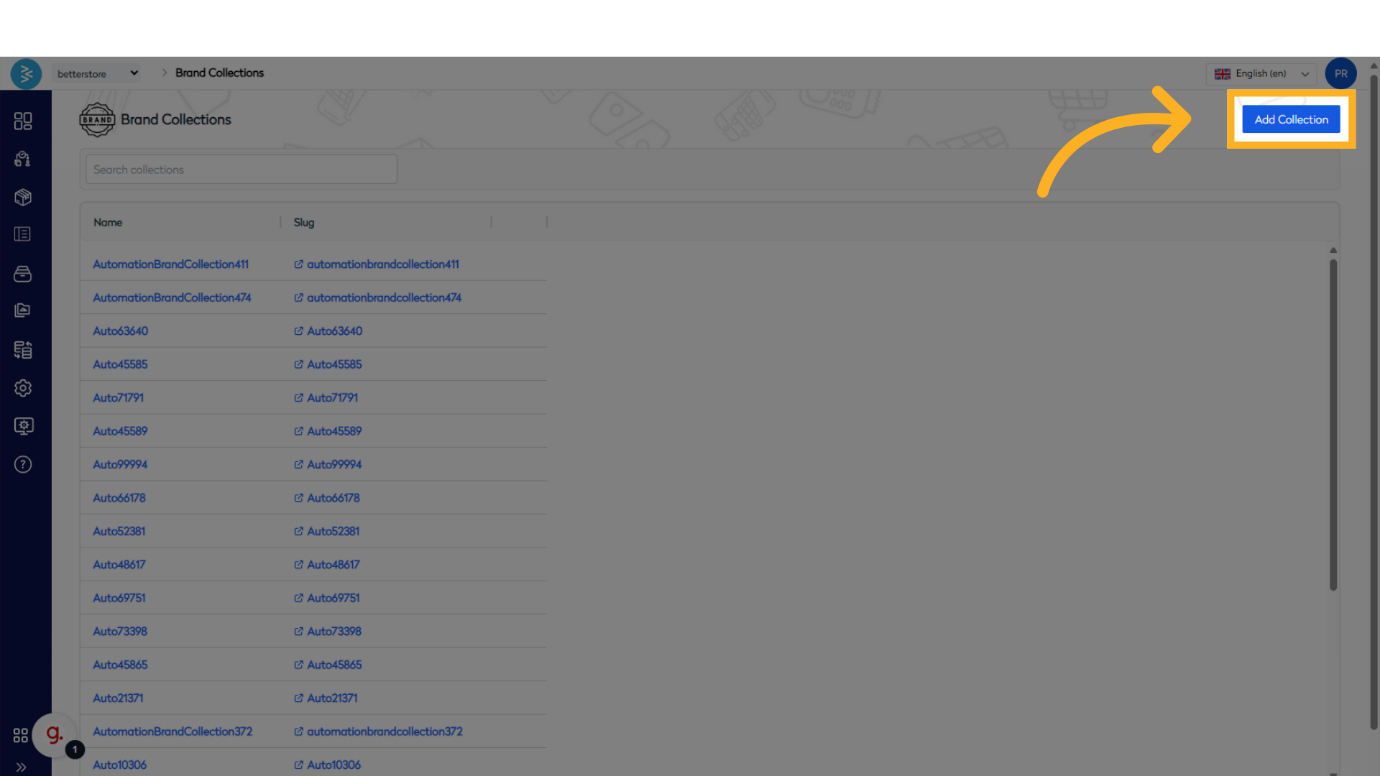
3. This Will Open the Add Brand Collection Screen for You, Where We Have Divided the Page in Multiple Sections Based on the Nature
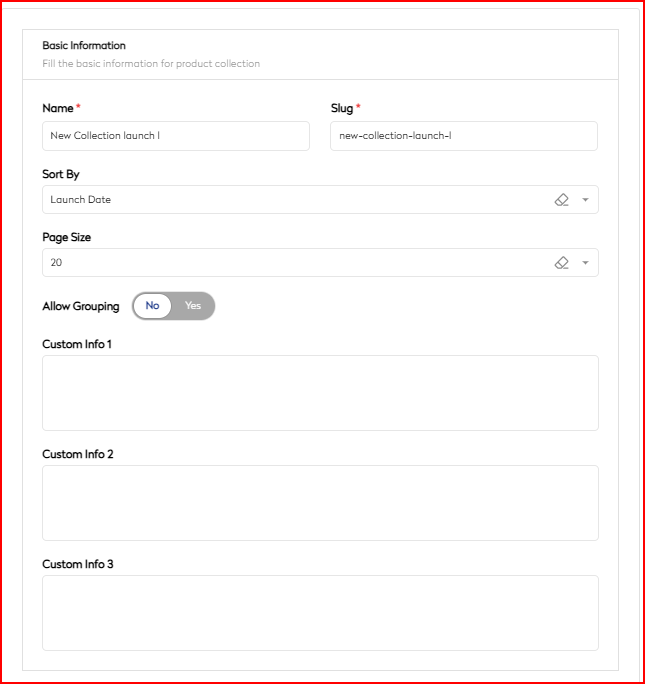
- Basic Information – In this section, you will provide the foundational details of your brand collection, including:
a) Name - The name of the collection.
b) Slug - Auto-generated and editable; spaces are replaced with hyphens (e.g., "brand-collection").
c) Sort By - The default sort order for products in the collection.
d) Page Size - The number of products to display per page in the collection.
e) Custom Info up to 3 - Fields for additional information, such as detailed descriptions or links to blog pages, to enhance the collection's presentation.
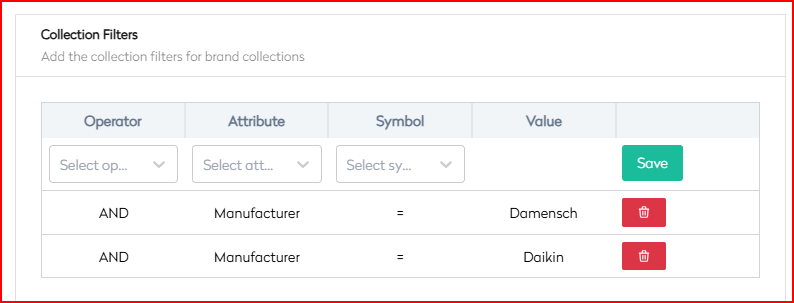
- Collection Filters – This section allows you to specify the brand(s) for the collection.
Filters can be defined based on:
- Manufacturer
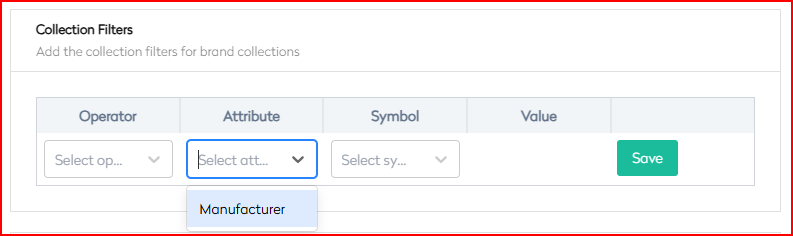
- Multiple brands by adding conditions to include products from various brands in a single collection.
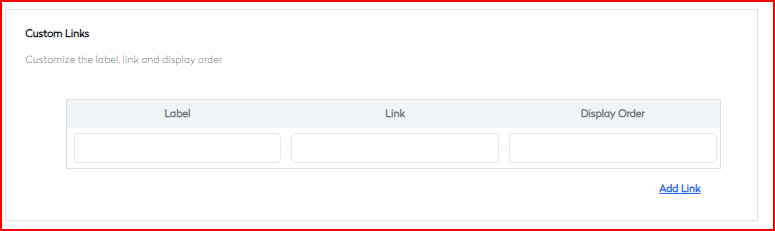
- Custom Links - In this section, you can add multiple custom links, assign labels based on business requirements, and set their display order accordingly.
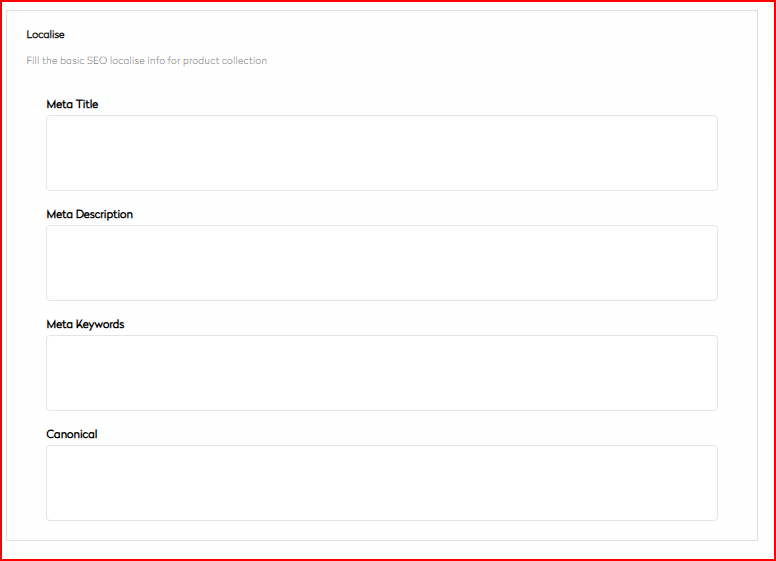
- Localise – This section enables the configuration of SEO localization details for the brand collection by completing the following fields:
a) Meta Title: Enter the title of the collection for search engine results.
b) Meta Description: Provide a brief description of the collection for search engine results.
c) Meta Keywords: Specify keywords relevant to the collection to enhance search engine optimization (SEO).
d) Canonical: Define the canonical URL to prevent duplicate content issues.
This ensures optimal search engine visibility and improves the overall SEO performance of your e-commerce site.
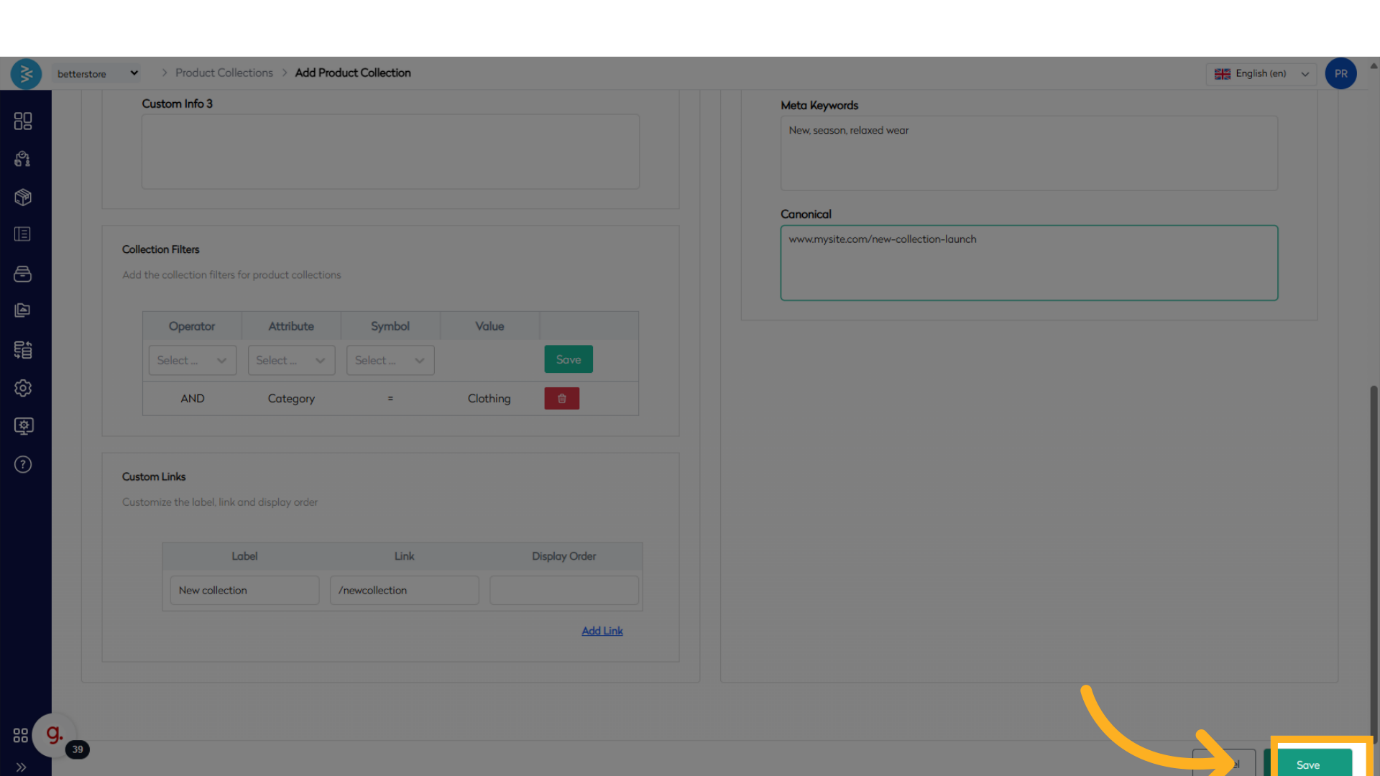
4. Once All the Changes Are Made You May Hit Save to Record the Changes
Summary
This guide detailed the process of managing brand product collections in BetterCommerce, covering navigation to the collections section, creating a new collection, defining filters, adding custom links, optimizing SEO through localization, and saving changes. By following these steps, you can effectively organize and showcase your brand products.