
Rule Engine Guide
This guide provides detailed instructions for creating and managing rules in the BetterCommerce Rule Engine, a powerful feature for automating product data updates. The Rule Engine supports multiple rule types—Set, Clear, Concatenate, and Validation—to ensure efficient data governance, data sanity, and bulk updates.
Overview
The Rule Engine enables automation of product data updates through configurable rules, each consisting of:
- Conditions: Criteria that trigger the rule.
- Actions: Operations performed when conditions are met.
Rules are executed via scheduled background jobs or manually triggered for ad-hoc updates, streamlining product data management.
How Rules Work
- Rules define specific conditions and corresponding actions.
- A background job runs on a configured schedule to apply rules to eligible products.
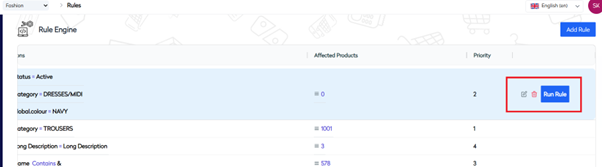
- Rules can also be triggered manually from the Rules Listing screen for immediate updates.
Rule Types and Configuration
Type 1: Set Rule
Purpose: Assigns a specific value to a field when a condition is met.
Steps to Configure a Set Rule
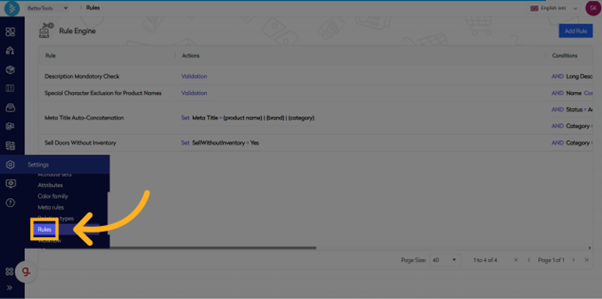
Step 1: Navigate to Rules Section
Access the Settings menu and select Rules to view the Rules Listing screen, where existing rules are displayed.
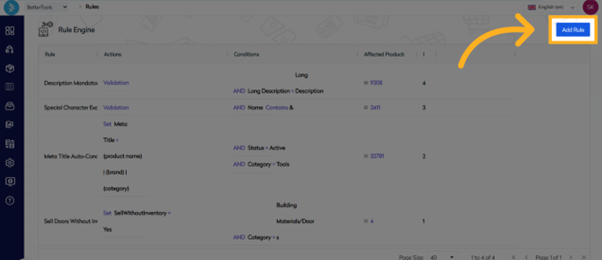
Step 2: Initiate Rule Creation
Click the Add Rule button in the top-right corner to start creating a new rule.
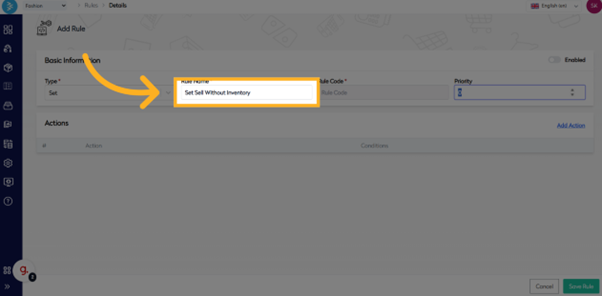
Step 3: Fill Rule Details
- Type: Select Set.
- Rule Name: Enter a name, e.g., "Sell ‘Doors’ Without Inventory".
- Rule Code: Auto-generated.
- Priority: Set the execution order for multiple rules.
Step 4: Add Action
- Click Add Action.
- Use the search field to select the target field (e.g., Sell Without Inventory).
- Specify the Operator (e.g., =) and Value (e.g., TRUE).
- Set Priority if multiple actions are defined.
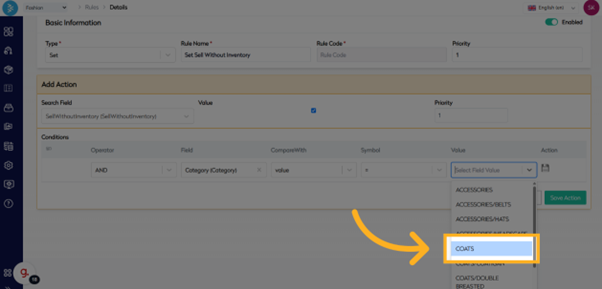
Step 5: Define Condition
- Select Logical Operator: AND or OR.
- Choose Field: e.g., Category.
- Select Condition Operator: =, !=, IN, NOT IN.
- Enter Value: e.g., Door.
- Click the Save icon to save the condition.
Step 6: Save the Rule
Click the green Save Action button to store the rule.
Step 7: Execute and Verify
- The rule will run via the scheduled job or can be triggered manually from the Rules Listing screen.
- Verify that the system updates the intended products as configured.
Type 2: Clear Rule
Purpose: Clears the value of one or more fields when a condition is met.
Steps to Configure a Clear Rule
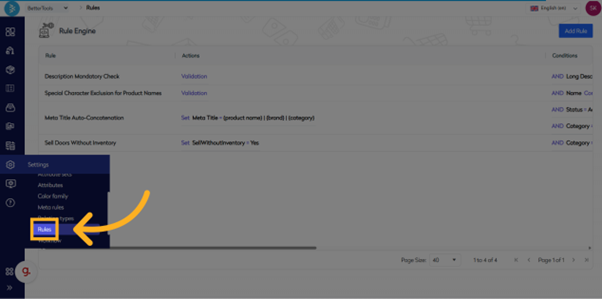
Step 1: Navigate to Rules Section
Access the Settings menu and select Rules to view the Rules Listing screen.
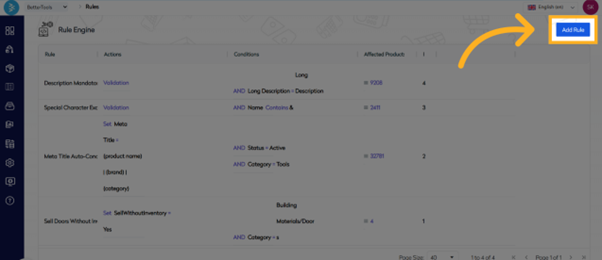
Step 2: Initiate Rule Creation
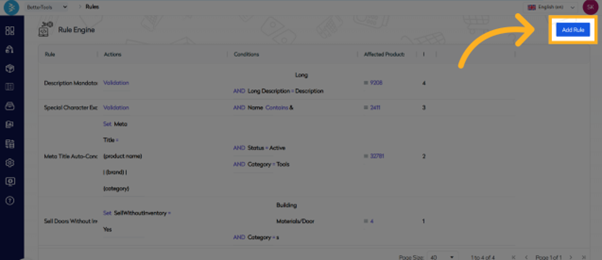
Click the Add Rule button in the top-right corner.
Step 3: Fill Rule Details
- Type: Select Clear.
- Rule Name: Enter a name, e.g., "Clear Short Description".
- Rule Code: Auto-generated.
- Priority: Set the execution order for multiple rules.
Step 4: Add Action
- Click Add Action.
- Use the search field to select the field to clear (e.g., Short Description).
- Note: No value or operator is required, as the field will be cleared.
- Set Priority if multiple actions are added.
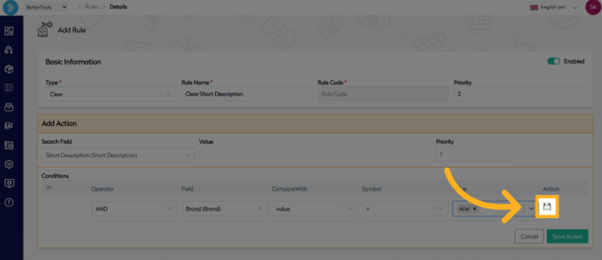
Step 5: Define Condition
- Select Logical Operator: AND or OR.
- Choose Field: e.g., Brand.
- Select Condition Operator: =, !=, IN, NOT IN.
- Enter Value: e.g., ALM.
- Click the Save icon to save the condition.
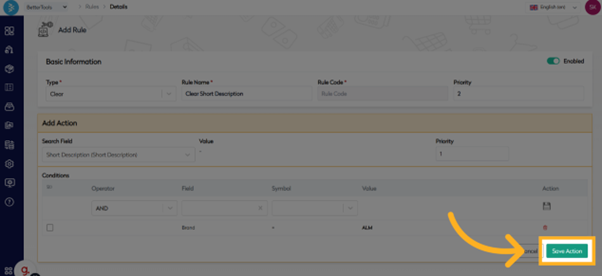
Step 6: Save the Rule
Click the green Save Action button and use the toggle switch in the top-right corner to activate or deactivate the rule.
![Product Family]/img/rule-engine/Picture13.png)
Step 7: Execute and Verify
- The rule will run via the scheduled job or can be triggered manually.
- Verify that the system clears the specified field(s) for qualifying products.
Type 3: Concatenate Rule
Purpose: Combines multiple fields into one, typically for SEO, meta titles, or custom naming.
Steps to Configure a Concatenate Rule
Step 1: Navigate to Rules Section
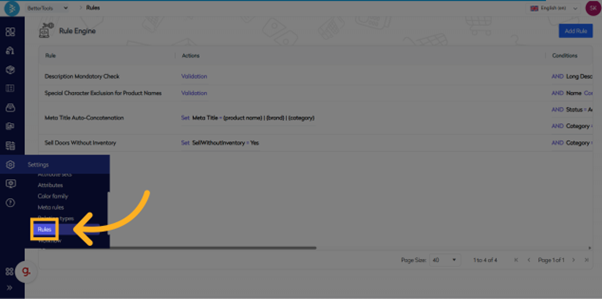
Access the Settings menu and select Rules to view the Rules Listing screen.
Step 2: Initiate Rule Creation
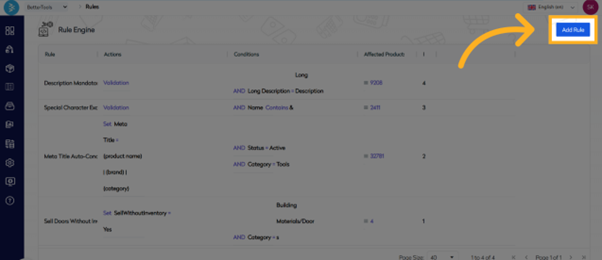
Click the Add Rule button in the top-right corner.
Step 3: Fill Rule Details
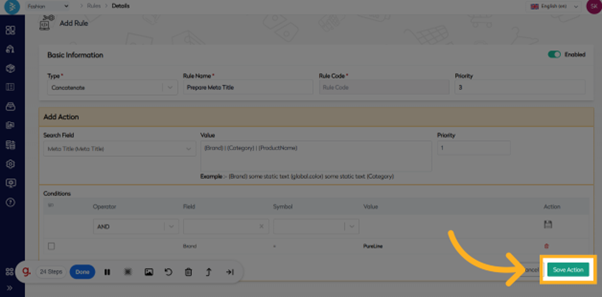
- Type: Select Concatenate.
- Rule Name: Enter a name, e.g., "Prepare Meta Title".
- Rule Code: Auto-generated.
- Priority: Set the execution order for multiple rules.
Step 4: Add Action
- Click Add Action.
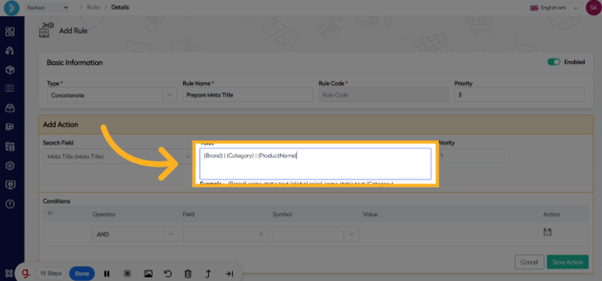
- Use the search field to select the target field (e.g., Meta Title).
- Enter a combination of field variables in the Value field, e.g.,
{Brand} | {Category} | {ProductName}. - Use separators (e.g., |, -, or whitespace) as needed.
- Set Priority if multiple actions are defined.
Step 5: Define Condition
- Select Logical Operator: AND or OR.
- Choose Field: e.g., Brand.
- Select Condition Operator: =, !=, IN, NOT IN.
- Enter Value: e.g., ALM.
- Click the Save icon to save the condition.
Step 6: Save the Rule
Click the green Save Action button.
Step 7: Execute and Verify
- The rule will run via the scheduled job or can be triggered manually.
- Verify that the system applies the concatenated value to the target field for qualifying products.
Type 4: Validation Rule
Purpose: Validates product data quality, flagging products with a warning or error message when a condition is met.
Steps to Configure a Validation Rule
Step 1: Navigate to Rules Section
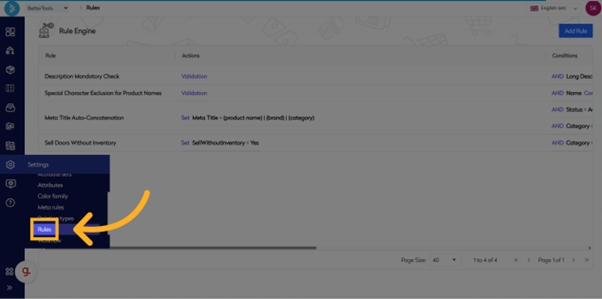
Access the Settings menu and select Rules to view the Rules Listing screen.
Step 2: Initiate Rule Creation
Click the Add Rule button in the top-right corner.
Step 3: Fill Rule Details
- Type: Select Validation.
- Rule Name: Enter a name, e.g., "Special Character Exclusion for Product Names".
- Rule Code: Auto-generated.
- Priority: Set the execution order for multiple rules.
Step 4: Add Action
- Click Add Action.
- Choose Validation Level: Warning or Error.
- Enter a Validation Message, e.g., "The ampersand (&) is not a supported character in product names. Please remove it."
- Set Priority if multiple validations are defined.
Step 5: Define Condition
- Select Logical Operator: AND or OR.
- Choose Field: e.g., Brand.
- Select Condition Operator: =, !=, IN, NOT IN.
- Enter Value: e.g., ALM.
- Click the Save icon to save the condition.
Step 6: Save the Rule
Click the green Save Action button and use the toggle switch in the top-right corner to activate or deactivate the rule.
Step 7: Execute and Verify
- The rule will run via the scheduled job or can be triggered manually.
- Verify that the system flags qualifying products with the defined warning or error message.
Best Practices for Rule Configuration
- Use Priority settings to control the sequence of rule execution.
- Test rules on a small product set before enabling them broadly.
- Regularly review and disable outdated rules to avoid conflicts.
- Monitor job execution logs to verify rule performance and results.
- To delete a rule, navigate to the Rules Listing screen, hover over the rule row, and click the red Delete icon to permanently remove it.
Summary
This guide outlined the process of creating and managing rules in the BetterCommerce Rule Engine, covering Set, Clear, Concatenate, and Validation rule types. By following these steps, you can automate product data updates, ensure data quality, and streamline bulk updates efficiently.